Send Email
The Send Email action takes a single document from the workflow and sends it to one recipient as an email attachment. You supply the recipient address, the subject line, and an optional body message, and the step delivers the file when the workflow reaches it.
Use it to email a stamped contract back to a client after a signing step, to send a generated invoice to your accounts inbox each time a new order comes in, or to hand a converted or merged PDF to a reviewer without storing it first.
Configuration
Configure the Send Email step in the workflow builder:
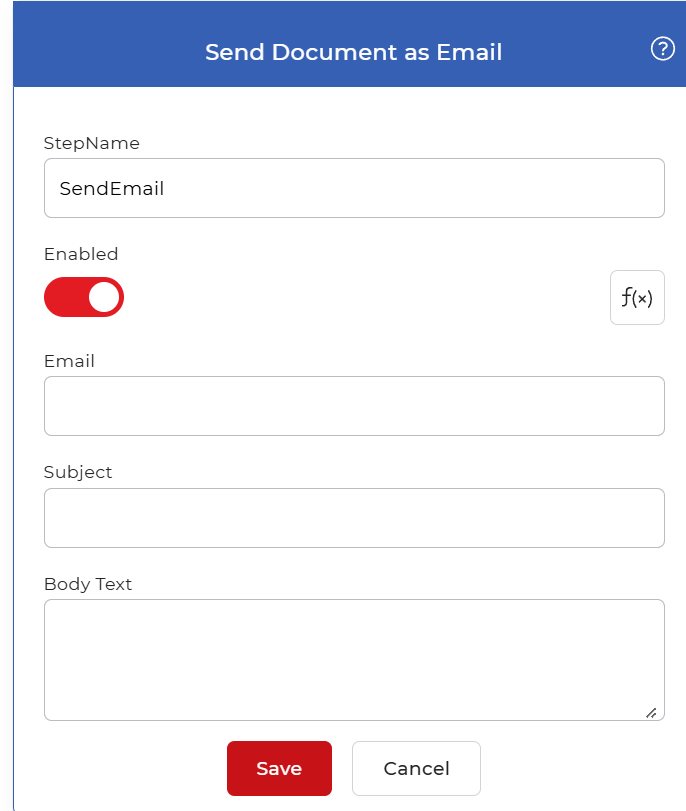
Action overview
| Input | Single document to attach |
| Output | Email sent to the recipient with the document attached |
Properties
Email
- Type: String
- Required: Yes
The recipient address that receives the message. Enter one email address. The document passed in from the previous step is attached to the email sent here.
Subject
- Type: String
- Required: Yes
The subject line shown in the recipient's inbox. Enter plain text, such as the document name or a short description of what the attachment contains.
Body Text
- Type: String
- Required: No
The message shown in the email body, alongside the attachment. This field is optional, so you can send the attachment on its own or add a short note telling the recipient what the file is and what to do with it.
How to use in a workflow
Place Send Email after the step that produces the document you want to deliver. That upstream step is usually a trigger that picks up a file or an action such as a converter, a merge, or a stamp that outputs a single document, and that document becomes the attachment. Because this action sends the file rather than returning a new one, it is normally the last step for that document, though you can add a save step such as Save to Dropbox beforehand when you also want a stored copy.
Try it in PDF4me Workflows
Open the Workflows dashboard, create a workflow, and add the Send Email step to run this on your own documents.