Save to MyDoc
Write the file a workflow produces into your PDF4me My Docs storage. The action takes whatever file reaches it from the previous step and stores a copy in My Docs, where you can open, download, or reuse it later. You can keep the incoming filename or set your own.
Add this step when a workflow needs to keep its result inside PDF4me rather than send it to an outside service. For example, store a converted document so your team can pick it up from the My Docs dashboard, keep a dated copy of a merged report as a running archive, or hold a processed file in My Docs as a checkpoint before a later run sends it elsewhere.
Configuration
Configure the Save to MyDoc step in the workflow builder:
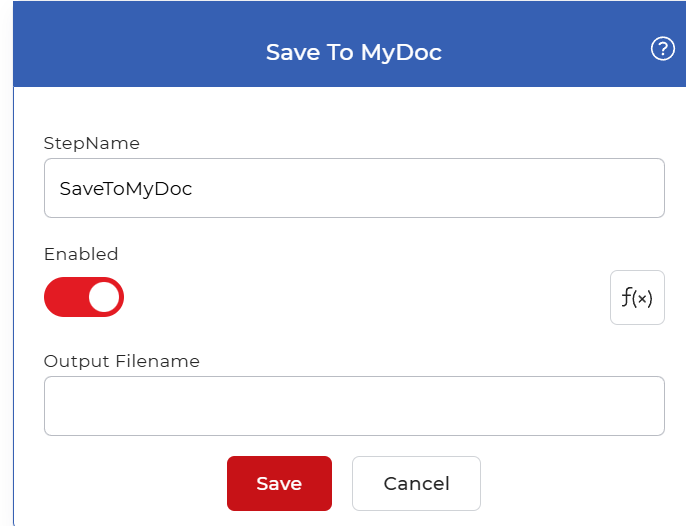
Action overview
| Input | A file passed from the previous workflow step |
| Output | A copy of that file saved in PDF4me My Docs storage |
Properties
Output Filename
- Type: String
- Required: No
The name the file is stored under in My Docs. Leave it blank to keep the filename that arrives from the previous step, type a fixed name to store every run under the same name, or enter an Eval expression to build the name at run time from workflow values such as a date or an input field. Set it when you want predictable names or a naming pattern instead of the default.
How to use in a workflow
Save to MyDoc is an endpoint step, so place it at the end of a branch after the action that produces the file you want to keep, such as a convert, merge, or compress step. The file it receives is the one it stores, so no further step is needed to act on its result. The saved file then lives in your My Docs storage, ready to download from the dashboard or feed into a later workflow. To keep the same result outside PDF4me as well, add a sibling action such as Save to Dropbox or Save to Google Drive on the same branch, or Send Document as Email to deliver it directly.
Try it in PDF4me Workflows
Open the Workflows dashboard, create a workflow, and add the Save to MyDoc step to run this on your own documents.