Save to Google Drive
Save to Google Drive writes a file from your workflow into a folder in your Google Drive account. The input is any file an earlier step produced, such as a converted document or a merged PDF. The output is that same file stored in the Google Drive folder you choose, under the filename you set.
Add this step when the finished file needs to live in Google Drive instead of staying inside the workflow. Typical cases: saving a batch of converted invoices to a shared team folder, dropping a daily report into a folder that colleagues already check, or keeping signed contracts in the drive where your organization stores its records.
Configuration
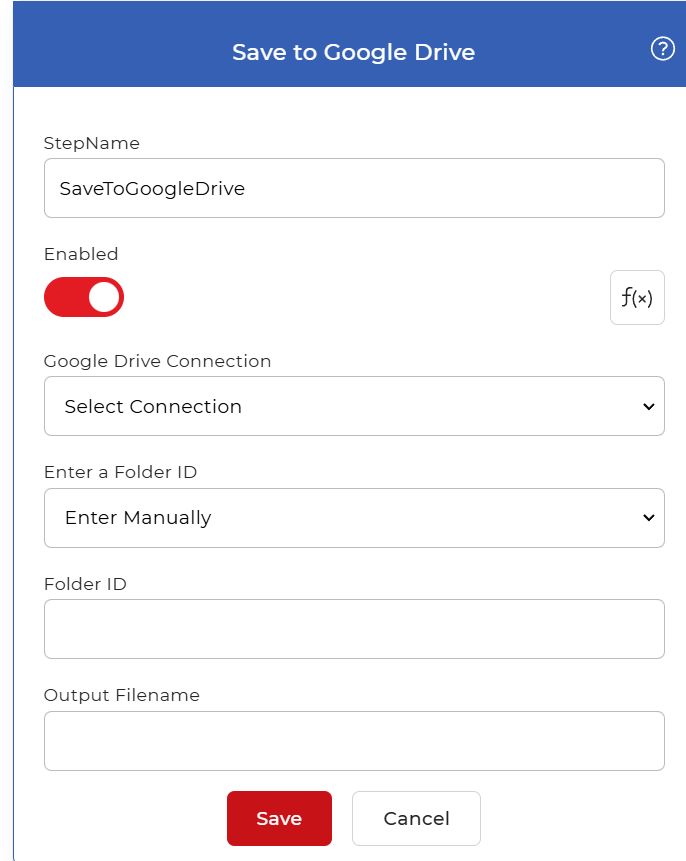
Configure the Save to Google Drive step in the workflow builder:
Action overview
| Input | A file from a trigger or an earlier workflow step |
| Output | The same file saved to the chosen Google Drive folder |
Properties
Google Drive Connection
- Type: Select
- Required: Yes
The Google Drive account the step writes to. Pick a connection you already set up, or create a new one and sign in to Google Drive to authorize PDF4me. Change this when you need to save to a different account.
Enter a Folder ID
- Type: Select
- Default: Enter Manually
How the destination folder is specified. The options are:
- Enter Manually: type the folder's ID into the Folder ID field below.
- Select from Drive: pick the folder from a list of the folders in the connected Google Drive, and its ID is filled in for you.
Leave it on Enter Manually when you already have the folder ID, for example from an earlier step or a fixed destination. Switch to the pick-from-Drive option when you want to browse the account and choose a folder by name.
Folder ID
- Type: String
- Required: No
The ID of the target Google Drive folder, which is the value at the end of that folder's URL in the browser. The file is written into this folder. Fill it in when Enter a Folder ID is set to Enter Manually; leave it blank to save to the account's root.
Output Filename
- Type: String
- Required: No
The name for the saved file. Enter static text for a fixed name, or use an Eval expression to generate a dynamic name from workflow data, for example a date or an invoice number. When you want each run to produce a distinct file, use an expression so the name changes every time.
How to use in a workflow
Save to Google Drive is a terminal step: it stores a result rather than passing one to the next action, so it sits at or near the end of a pipeline. Feed it the file from the step right before it, such as Convert PDF to Image or a merge action, or from a trigger that picked up the file. Set Enter a Folder ID to Enter Manually and paste the destination folder's ID into Folder ID so the file lands in the right place. When an earlier step returns several files, place a For Each Document control ahead of this step so each file is saved on its own.
Try it in PDF4me Workflows
Open the Workflows dashboard, create a workflow, and add the Save to Google Drive step to run this on your own documents.