Save to FTP
The Save to FTP action uploads the files produced earlier in your workflow to a remote FTP or SFTP server. It takes the result files from a previous step as input and writes them to a folder you name on the server. You choose between FTP and SFTP in the storage type field when you set up the connection.
Use it to deliver converted documents to a partner's SFTP drop folder, archive processed PDF files on an internal file server, or hand finished output to another system that watches an FTP folder for new files.
Configuration
Configure the Save to FTP step in the workflow builder:
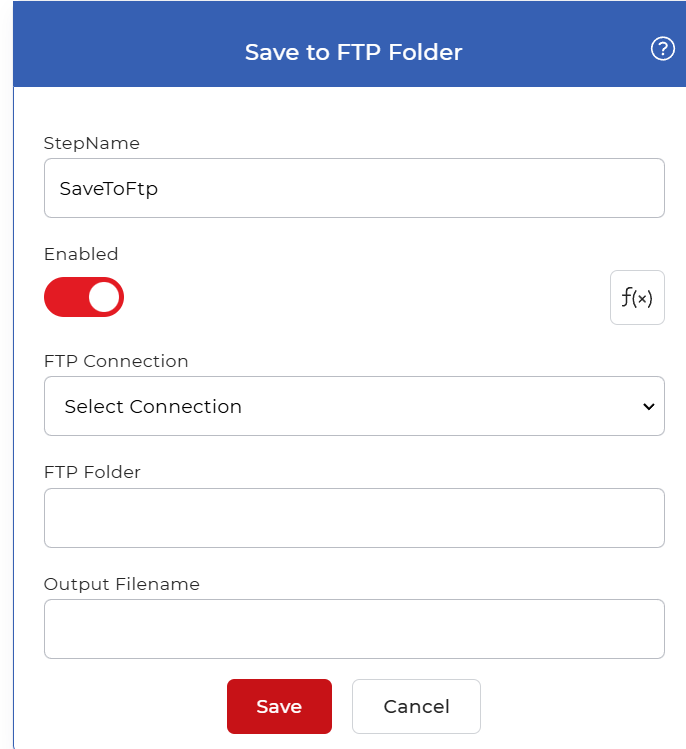
Action overview
| Input | Result files from an earlier workflow step |
| Output | Those files written to a folder on the FTP or SFTP server |
Properties
FTP Connection
- Type: Select
- Required: Yes
Pick a saved FTP or SFTP connection, or create a new one. The connection holds the server address, protocol, and login details, so the step knows where to send files and how to sign in. Create a new connection the first time you target a server, then reuse it in later workflows.
FTP Folder
- Type: String
- Required: Yes
The folder on the server where files are written, for example /invoices/2026. Enter a path that already exists on the connection's server. Each run writes the files into this folder.
Output Filename
- Type: String
- Required: No
The name the uploaded file is written under on the server. Set a fixed filename as static text, or use an Eval expression to build a dynamic name from workflow values such as the date or the source file name. Use the Eval option when each run should produce a distinct name and avoid overwriting earlier files.
How to use in a workflow
Place Save to FTP at the end of a workflow, after the steps that produce the files you want to store. Its input is the output of the previous action, such as a converted or merged document, and a trigger earlier in the workflow starts the run. Because it writes to external storage rather than passing data to another step, it usually sits as the final action. When an earlier step returns several files, put a For Each Document control before it so each file uploads on its own.
Try it in PDF4me Workflows
Open the Workflows dashboard, create a workflow, and add the Save to FTP step to run this on your own documents.