Save to Dropbox
Save a file that your workflow has produced into your Dropbox account. The input is the file the workflow is carrying at this step, and the output is that same file written to the Dropbox folder you choose, under the name you give it.
Use it to send finished invoices to a shared Dropbox folder for the accounts team, to archive a merged PDF in a client folder once scanned pages are combined, or to back up the images from a Convert PDF to Image step so teammates can pick them up without opening PDF4me.
Configuration
Configure the Save to Dropbox step in the workflow builder:
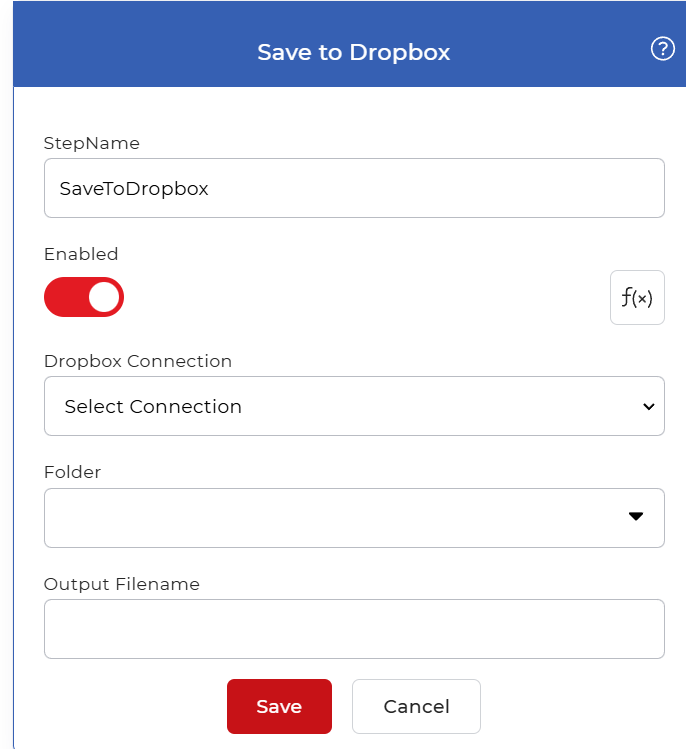
Action overview
| Input | The file the workflow carries into this step |
| Output | That same file saved to the selected Dropbox folder |
Properties
Dropbox Connection
- Type: Select
- Required: Yes
The Dropbox account the step writes to. Pick a connection you have already authorized, or create a new one to sign in to Dropbox and grant PDF4me permission to save files. Change it when you want the output to go to a different Dropbox account.
Folder
- Type: Select
- Required: Yes
The destination folder inside the connected account. The list shows the folders available in that account; choose the one where the file should be saved. Change it to route output to a different folder.
Output Filename
- Type: String
The name given to the saved file. This field is optional. Enter a static value to save every file under the same name, or use an Eval expression to build the name dynamically from workflow data such as a date or an input field.
How to use in a workflow
Place Save to Dropbox after the step that produces the file you want to keep. That file can come from a trigger that picked up a document, or from an earlier action such as a merge, a conversion, or a Convert PDF to Image step. Because the action stores the file rather than passing a new one forward, it usually sits at the end of a pipeline. When a run produces several files, put it inside a For Each Document control so each file is saved in turn.
Try it in PDF4me Workflows
Open the Workflows dashboard, create a workflow, and add the Save to Dropbox step to run this on your own documents.