Rotate Page
Turn a single page of a PDF to a new orientation. You name the page by its number and pick how far to rotate it, and the action returns the same document with that one page re-oriented. The rest of the pages stay exactly as they were, and the page count does not change.
Use it to fix a scanned page that came in sideways, to turn a wide table or chart so it reads upright instead of on its side, or to correct one page in a batch before the workflow merges, stamps, or converts the file.
Configuration
Configure the Rotate Page step in the workflow builder:
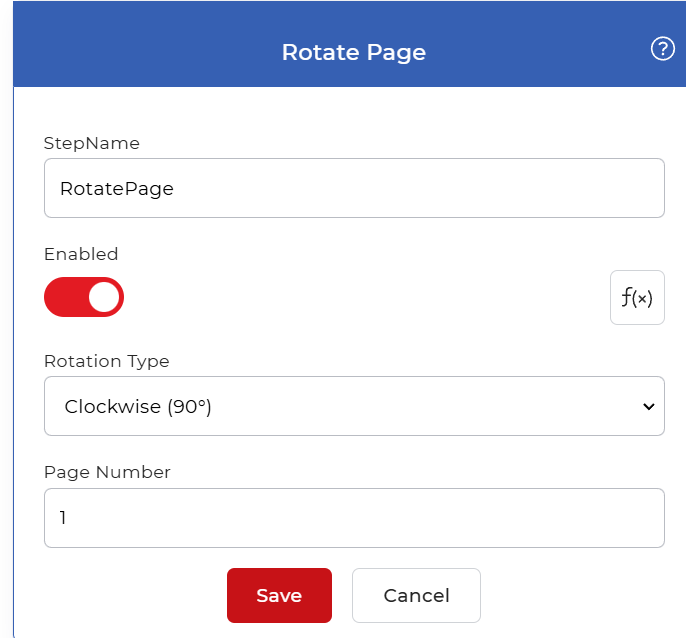
Action overview
| Input | Single PDF document |
| Output | Same PDF document with the chosen page rotated |
Properties
Rotation Type
- Type: Select
- Default: Clockwise (90°)
How far to turn the page, measured clockwise from its current orientation. Choose one of these values:
- No Rotation (0°): leaves the page as it is.
- Clockwise (90°): turns the page a quarter-turn to the right.
- Upside Down (180°): flips the page end over end.
- Counter Clockwise (270°): turns the page a quarter-turn to the left.
Pick Clockwise or Counter Clockwise for a page that is lying on its side, and Upside Down for a page that scanned in reversed.
Page Number
- Type: Integer
- Required: Yes
The page to rotate, counted from the start of the document, where the first page is 1. Enter a single number. The action rotates only that page and leaves every other page untouched.
How to use in a workflow
Place Rotate Page after the step that supplies the PDF, either a trigger that picks up a new file or an earlier action that produced one. Because the output is a single PDF, you can chain another Rotate Page step to fix a second page, or send the result straight into a later action such as Convert PDF to Image, a merge step, or a save step like Save to Dropbox.
Try it in PDF4me Workflows
Open the Workflows dashboard, create a workflow, and add the Rotate Page step to run this on your own documents.