Rotate Document
Turn every page of a PDF by a fixed amount. You pick one rotation direction, and the action applies it to all pages in the document. The input is a single PDF and the output is the same PDF with its pages turned, so page count and content stay the same while the orientation changes.
Use it to fix scans that came in sideways, correct pages that a scanner or fax saved upside down, or set a batch of landscape reports to a consistent orientation before you merge or print them.
Configuration
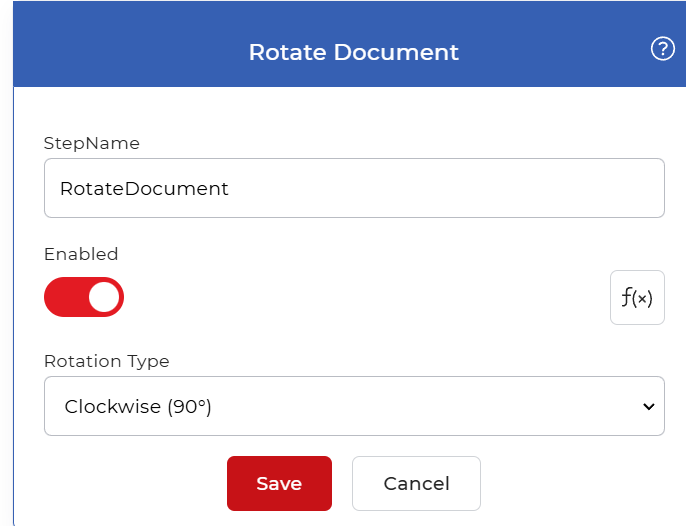
Configure the Rotate Document step in the workflow builder:
Action overview
| Input | Single PDF document |
| Output | Single PDF document with every page rotated |
Properties
Rotation Type
- Type: Select
- Default: Clockwise (90°)
The direction to turn every page, measured clockwise from the current orientation. The same value applies to all pages in the document. The allowed values are:
- No Rotation (0°): leaves pages as they are.
- Clockwise (90°): turns pages a quarter turn to the right, which swaps portrait and landscape.
- Upside Down (180°): flips pages top to bottom, which fixes documents scanned the wrong way up.
- Counter Clockwise (270°): turns pages a quarter turn to the left.
Choose the value that moves the current orientation to the one you want. A page scanned sideways usually needs 90° or 270° depending on which way it was fed, and a page scanned inverted needs 180°.
How to use in a workflow
Place Rotate Document after the step that supplies the PDF, which is either a trigger that picks up a new file or an earlier action that produced one. It returns a single PDF, so a later step can act on it directly: feed the rotated document into a merge step, a convert step such as Convert PDF to Image, or a save step such as Save to Dropbox to store the corrected file.
Try it in PDF4me Workflows
Open the Workflows dashboard, create a workflow, and add the Rotate Document step to run this on your own documents.