Request eSign
Send a PDF to another person for electronic signature by email. You give the action a document, the recipient's email address, and the subject and message for the request. PDF4me emails the recipient a link to review the document, where they can sign it, approve it, or reject it with a reason. The action returns the document in its final state, carrying the recipient's signature when they signed.
Use it to collect a signature on a sales contract before it moves to your records, to route an offer letter or NDA to a new hire for approval, or to get a client to sign off on a quote that an earlier step generated. Because the recipient can also reject with a reason, the action fits review-and-approve flows, not only signatures.
Configuration
Configure the Request eSign step in the workflow builder:
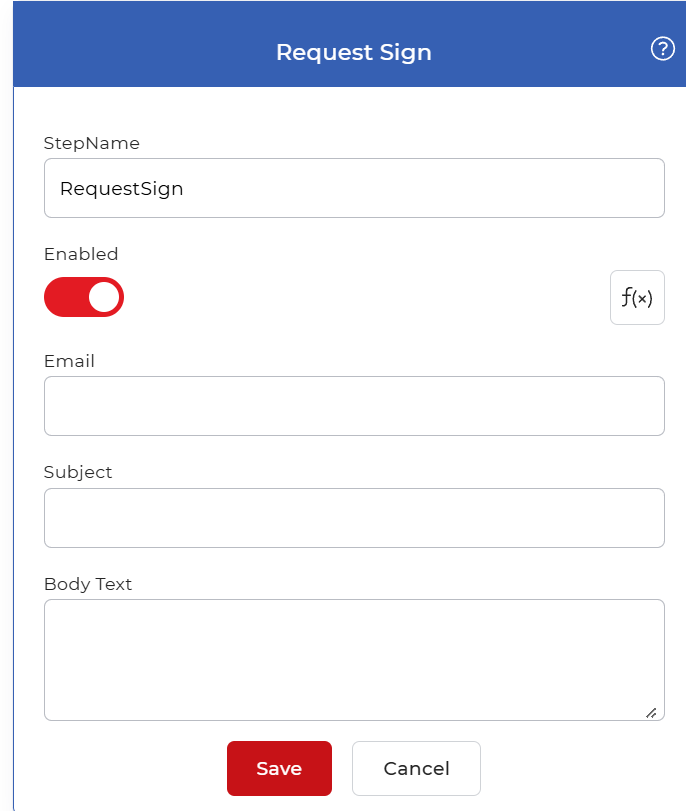
Action overview
| Input | A single PDF document to be signed |
| Output | The same document after the recipient signs, approves, or rejects it, with the signature applied when signed |
Properties
Email
- Type: String
- Required: Yes
The email address of the person who will sign the document. PDF4me sends the signing request to this address, so enter a valid, monitored inbox. Point it at a field from an earlier step when the recipient changes per run, for example the customer address carried by the trigger.
Subject
- Type: String
- Required: Yes
The subject line of the request email. Write something the recipient will recognize, such as the contract name or the reason for signing, so the message is not mistaken for spam.
Body Text
- Type: String
- Required: No
The message shown in the body of the request email. Use it to tell the recipient what the document is and what you need from them. Leave it blank to send the request with the default message.
How to use in a workflow
Place Request eSign after the step that produces the document you need signed, such as a template step that fills a contract or an earlier action that converts a file to PDF. The step pauses the run until the recipient acts, then passes the signed, approved, or rejected document to whatever follows. Send the result to a save step such as Save to Dropbox or on to a notification step so the right person learns the outcome once the signing is done.
Try it in PDF4me Workflows
Open the Workflows dashboard, create a workflow, and add the Request eSign step to run this on your own documents.