Repair PDF
The Repair PDF action takes a damaged or corrupted PDF and rebuilds its internal structure so the file opens and displays again. The input is one PDF that fails to open, reports an error, or renders blank pages. The output is a single recovered PDF. How much comes back depends on the extent of the damage: lightly corrupted files usually return intact, while heavily damaged files may recover only the readable portions. The action has no settings, so it runs on whatever PDF you pass in and returns the repaired file.
Reach for it when a PDF was cut off mid-download or mid-upload and now reports that it is damaged, when files exported from an older system throw errors in a viewer, or when you pull a batch of documents from cloud storage and a few refuse to open. Running the repair step before the rest of a pipeline keeps a single bad file from stopping the whole run.
Configuration
Configure the Repair PDF step in the workflow builder:
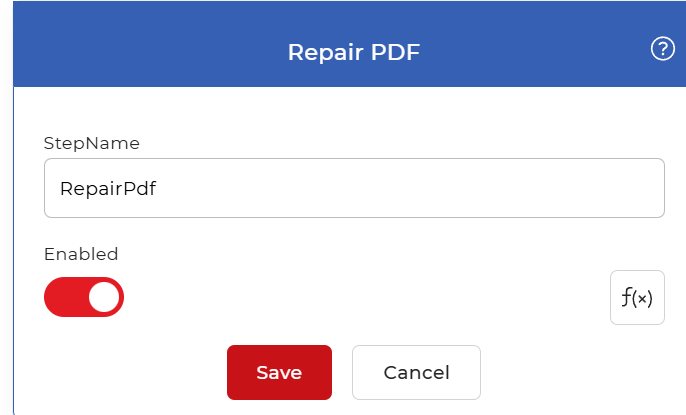
Action overview
| Input | A single damaged or corrupted PDF document |
| Output | A single repaired PDF document |
How to repair PDF using Workflows
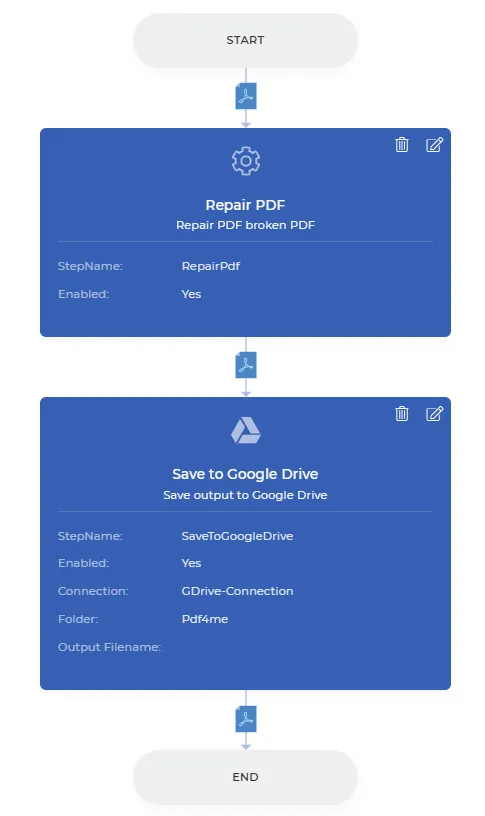
You can automate PDF recovery end to end inside PDF4me Workflows. Here is a sample workflow that downloads broken files from cloud storage, repairs them, and saves them back automatically.
Create a workflow
Open the Workflows Dashboard and select Create Workflow to start building your automation.

Add a trigger
Add a trigger to kick-start the automation. PDF4me Workflows provide two triggers, Dropbox and Google Drive. For this example, add and configure a Google Drive trigger, then choose the folder where the input files are expected.

Add the Repair PDF action
Add the Repair PDF action from the action list. It recovers your broken PDFs partially or fully, depending on the extent of the damage in the original file.

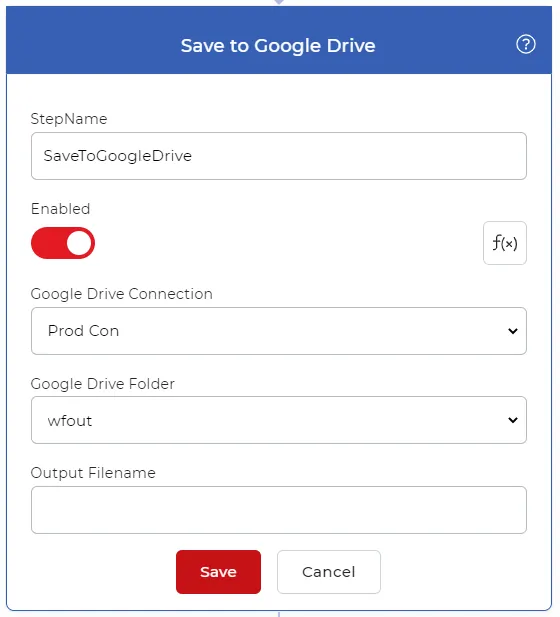
Add a Save to action
Save the recovered files back to your cloud storage. For this use case, add and configure a Save to Google Drive action so the repaired PDFs are automatically saved to your desired location.
Try it in PDF4me Workflows
Open the Workflows dashboard, create a workflow, and add the Repair PDF step to run this on your own documents.