Read Barcode
Read a barcode or QR code from a PDF and make the value it carries available to the rest of the workflow. The action takes a single PDF, scans its pages for a code of the type you choose, and passes the same PDF on to the next step together with a data context that holds the decoded value.
Use it to pull an order or tracking number off a scanned shipping label so a later step can file the document by that number, to read a QR code on an invoice and reuse the invoice ID in the saved file name, or to read a Datamatrix value from a form so a condition step can route the document based on what the code contains.
Configuration
Configure the Read Barcode step in the workflow builder:
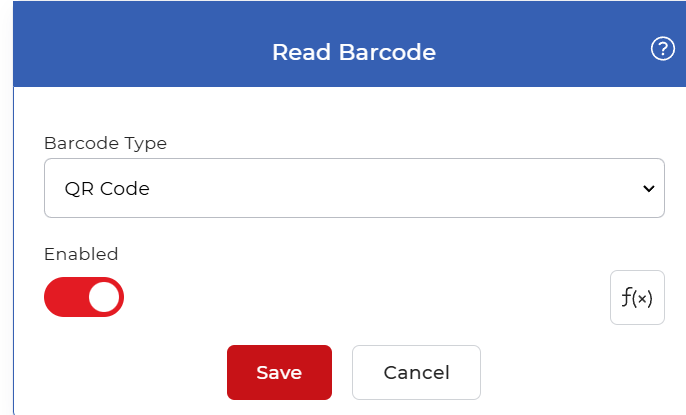
Action overview
| Input | Single PDF document |
| Output | The same PDF from the previous action, plus a data context holding the decoded barcode value |
Properties
Barcode Type
- Type: Select
- Required: Yes
The barcode symbology the reader looks for on each page. Only codes of the type you pick are read, so set it to match the code on your document. The supported formats are:
- QR code: a square 2D code that holds URLs or longer text and scans from most phone cameras.
- Datamatrix: a compact 2D code that packs data into a small footprint, common on small parts and labels.
- Code128: a linear 1D barcode for numbers and letters, common for tracking and inventory numbers.
How to use in a workflow
Place Read Barcode after the step that supplies the PDF, which is either a trigger that picks up a new file or an earlier action that produced one. The action does not change the PDF: it passes the document through and adds the decoded value as a data context. Feed that value into a later step, such as a Set Variable step, a condition that branches on what the code contains, or a save or email step that uses the barcode value in the file name or message.
Try it in PDF4me Workflows
Open the Workflows dashboard, create a workflow, and add the Read Barcode step to run this on your own documents.