Protect PDF
Add an open password to a PDF so it cannot be read without that password. The Protect PDF action takes one PDF file, applies the password string you set, and returns the same document with open protection in place. The pages and their content stay exactly as they were; only the requirement to enter a password before opening is added.
Reach for it when a document carries information that should not be read by anyone who gets the file. Password-protect invoices, payslips, or medical records before they are saved to shared storage or sent on. Lock signed contracts and bank statements that sit in a cloud folder several people can reach. Apply one standard password to every file dropped into a watched folder so nothing leaves the workflow unprotected.
Configuration
Configure the Protect PDF step in the workflow builder:
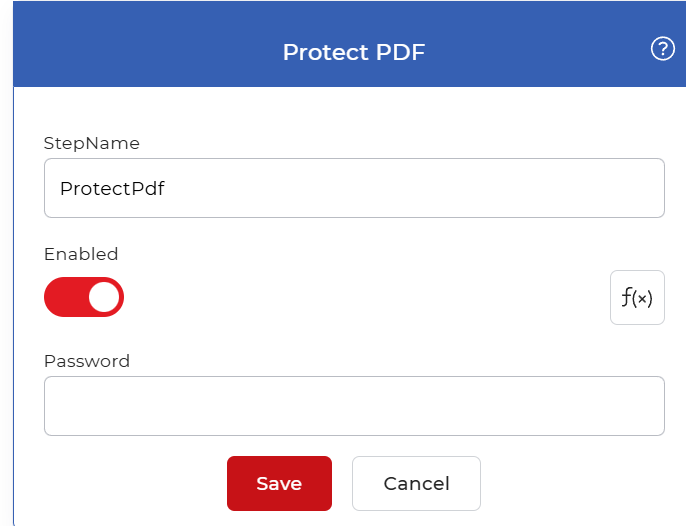
Action overview
| Input | Single unprotected PDF document |
| Output | The same PDF document, protected with the password you set |
Properties
Password
- Type: String
- Required: Yes
The password a reader must enter to open the output file. Enter the exact string you want to use; it is applied to every PDF that passes through this step. Pick a value that is long and hard to guess, and keep a copy somewhere safe, because the protected file cannot be opened without it.
How to protect PDF using Workflows
PDF4me Workflows can password-protect PDF files automatically. Here is a sample workflow that adds a password to every incoming PDF file and saves the protected output to cloud storage.
Create a new workflow
Open the PDF4me Dashboard and create a new workflow. This gives you a blank canvas where you add a trigger and the actions that run on each file.

Add a trigger
Add a trigger to start your automation. PDF4me Workflows currently support Dropbox and Google Drive triggers, so choose whichever suits your workflow. For this example, add a Google Drive trigger, configure the connection, and choose the folder where your input files are expected.

Add the Protect PDF action
Add and configure the Protect PDF action to apply a password to all your PDF files. Set the password string you want to use to secure each file.

Add a Save to Google Drive action
Once the files are protected, save them back to your storage. For this use case, add and configure a Save to Google Drive action.
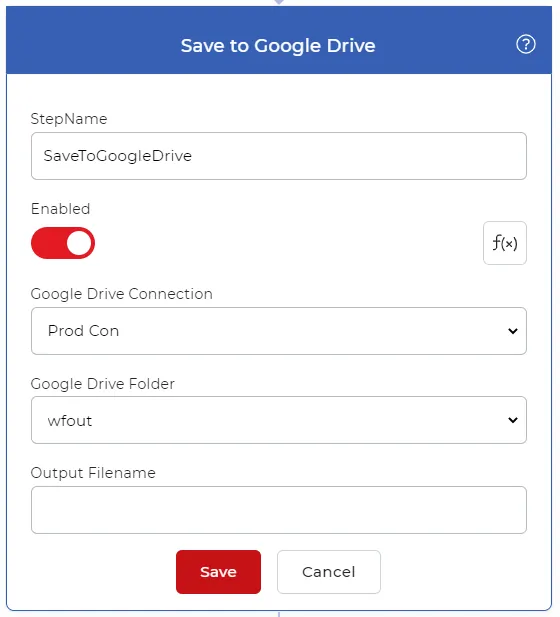
Try it in PDF4me Workflows
Open the Workflows dashboard, create a workflow, and add the Protect PDF step to run this on your own documents.