PDF OCR
Run optical character recognition on a scanned PDF or an image so the text inside it becomes real, selectable text. The action reads the characters in the page images and adds a text layer behind them, which lets you search the document, copy text out of it, and let indexing tools read its contents. Input is a single scanned PDF or image file. Output is a single PDF that looks the same but now carries searchable text.
Reach for it when a folder of scanned contracts or invoices needs to be searchable by keyword, when you want to copy figures out of a photographed receipt or form, or when archived paper records have to be read by a full-text search or document management system.
Configuration
Configure the PDF OCR step in the workflow builder:
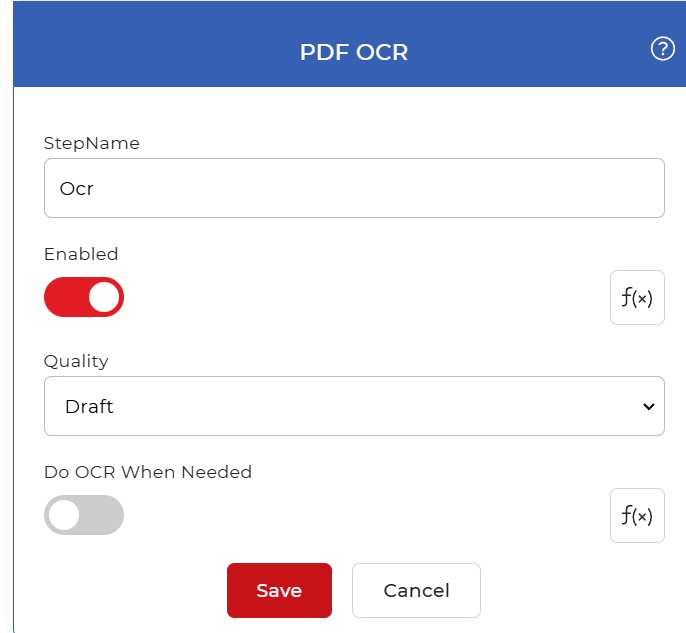
Action overview
| Input | A single scanned PDF document or image file |
| Output | A single searchable PDF with a selectable text layer |
Properties
Quality
- Type: Select
- Default: Draft
Sets the recognition quality for the OCR pass. Draft is the default and the fastest option. The dropdown offers higher-quality settings that improve accuracy on faint, skewed, or low-resolution scans, at the cost of more processing time. Leave it on Draft for clean, high-resolution pages, and raise it when the source scans are hard to read.
Do OCR When Needed
- Type: Boolean
- Default: Off
Controls whether the action checks each document before running recognition. When on, it skips files that already contain a text layer and runs OCR only on documents that need it, which avoids unnecessary processing on files that are already searchable. When off, it runs OCR on every document that passes through the step. Turn it on when the input mixes scanned files with PDFs that are already searchable.
How to run PDF OCR using Workflows
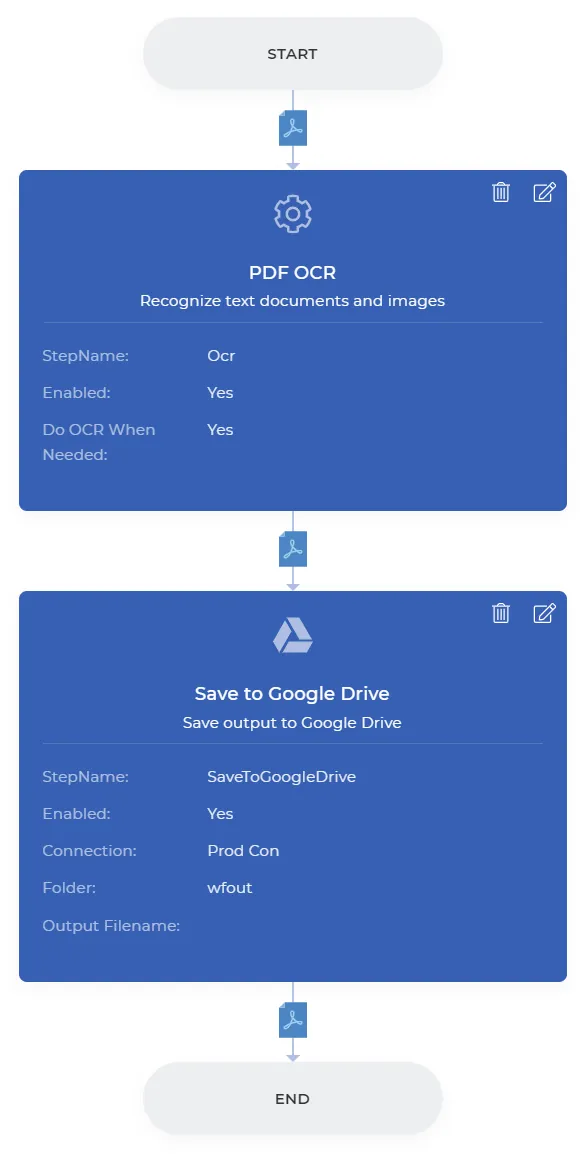
When you have hundreds of scanned documents to process, automation is the only practical approach. PDF4me Workflows can run OCR on each file as it arrives. Here is a sample workflow that recognizes text in scanned PDFs and images and produces a searchable PDF.
Create a workflow
Open the Workflows Dashboard and select Create Workflow to start building your automation.

Add a trigger
Add and configure a trigger to kick off the workflow. As soon as a new file arrives in the configured folder, the automation runs. This example uses a Google Drive trigger. PDF4me Workflows also support Dropbox triggers, so choose whichever suits your workflow.

Add the PDF OCR action
Add and configure the PDF OCR action. Enable Do OCR when needed so that OCR runs only on documents that require it, avoiding unnecessary processing calls.

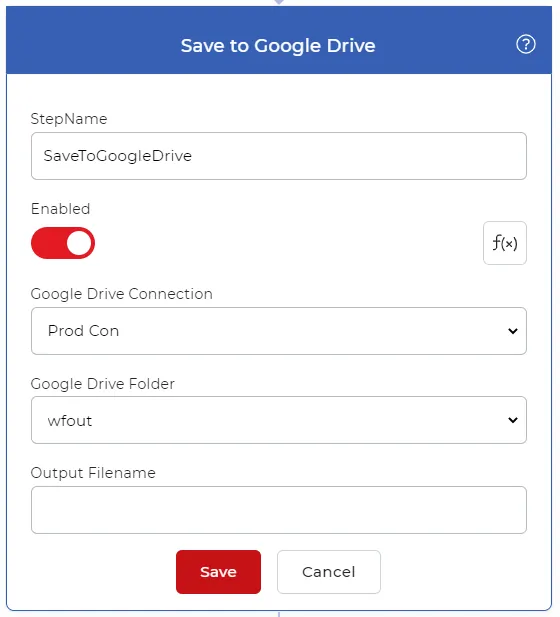
Add a Save to Storage action
Once the files are processed, save them to your storage. For this use case, add and configure a Save to Google Drive action and set the folder where you want the processed files to be saved.
Publish the workflow
When the configuration is complete, select Save to publish the workflow. The finished workflow looks like the example below.
Try it in PDF4me Workflows
Open the Workflows dashboard, create a workflow, and add the PDF OCR step to run this on your own documents.