Extract Pages
Pull a chosen set of pages out of a PDF and build a new PDF from just those pages. You give the action one PDF and a list of page numbers or ranges, and it returns a single PDF that contains only the pages you named, kept in their original order. The source file is left untouched.
Use it to keep only the signed pages of a returned contract, to pull a cover letter and the first two pages off a longer report before sending it on, or to drop a scanned batch down to the pages a later step needs to read.
Configuration
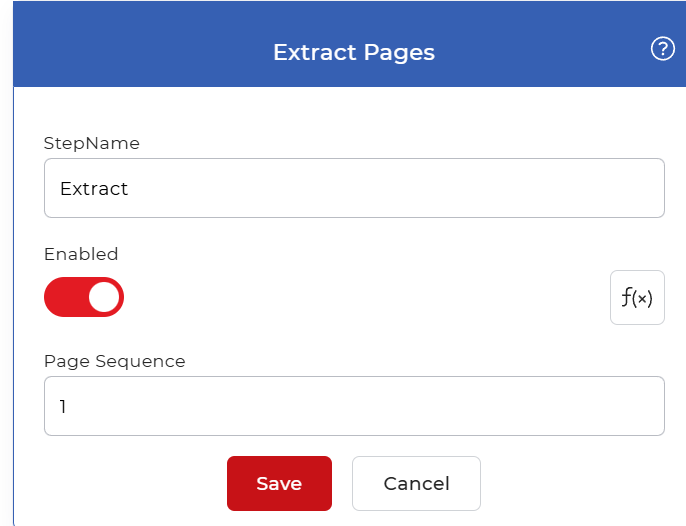
Configure the Extract Pages step in the workflow builder:
Action overview
| Input | Single PDF document |
| Output | Single PDF document containing only the selected pages |
Properties
Page Sequence
- Type: Text
- Required: Yes
The pages to pull from the PDF. Enter a single page number (1), several pages separated by commas (1,3,5), a range joined by a hyphen (4-10), or any combination of the two (1,3,8-12). Pages come out in their original document order regardless of how you list them. Set this to match the pages the rest of your workflow needs, and update it when the source layout changes so you keep extracting the right pages.
How to use in a workflow
Place Extract Pages after the step that supplies the PDF, which is either a trigger that picks up a new file or an earlier action that produced one. The step returns a single trimmed PDF, so you can feed its output straight into a later action such as Convert PDF to Image, a merge step, or a save step like Save to Dropbox to store the extracted pages.
Try it in PDF4me Workflows
Open the Workflows dashboard, create a workflow, and add the Extract Pages step to run this on your own documents.