Create Thumbnail
Render a single page of a PDF as an image. You pick one page, an image format, and a width in pixels, and the step returns one image file of that page. Unlike Convert PDF to Image, which produces a separate image for every page in a range, this action targets one page so you get exactly one preview, not a batch.
Reach for it when a workflow needs a lightweight picture of a document rather than the document itself. Common cases: a cover image of page 1 for a file listing or document library, a preview to attach in a notification email so the recipient sees the page before opening it, and a small image of a signed page to store alongside a record in a CRM or archive.
Configuration
Configure the Create Thumbnail step in the workflow builder:
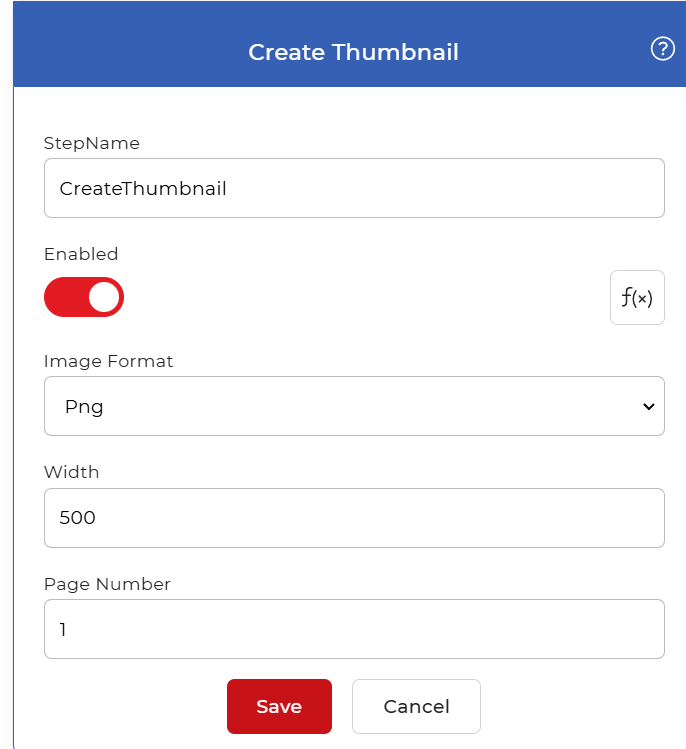
Action overview
| Input | Single PDF document |
| Output | One image file of the selected page |
Properties
Image Format
- Type: Select
- Default: Png
The file type for the output image. Choose one of the following:
- Png: lossless, best for text, line art, and sharp screenshots.
- Jpg: smaller files, best for photos and scanned pages.
- Bmp: uncompressed bitmap.
- Gif: limited color range, suits simple graphics.
- Tiff: high quality, common for archiving and print.
Width
- Type: Integer
- Default: 500
Output width in pixels for the generated image. The height adjusts to keep the page's proportions, so a larger width gives a larger, higher-resolution thumbnail. Use a small value for list icons and a larger one for full-page previews.
Page Number
- Type: Integer
- Default: 1
The page to render as an image. Enter a page number such as 1, 2, or 3. The step produces one image, so it reads only this single page. Leave it at 1 for a cover or first-page preview, and change it when you want a specific later page instead.
How to use in a workflow
Place Create Thumbnail after the step that supplies the PDF, which is either a trigger that picks up a new file or an earlier action that produced one. The step returns a single image, so you can send it straight into a save step such as Save to Dropbox, attach it to a notification, or pass it to a later action that works with the image. Keep this action when you need one preview per document; switch to Convert PDF to Image when you need an image for every page.
Try it in PDF4me Workflows
Open the Workflows dashboard, create a workflow, and add the Create Thumbnail step to run this on your own documents.