Create PDF/A
Convert a standard PDF into a PDF/A compliant file. PDF/A is an ISO-standardized version of PDF made for long-term archiving: the action embeds the fonts, color information, and other resources a viewer needs so the document renders the same way years from now. It takes one PDF and returns one PDF that meets the conformance level you select.
Use it when documents have to stay readable and unchanged over time. Convert signed contracts and invoices to PDF/A before they enter a records system, prepare legal or tax files that must meet retention rules, or run scanned paperwork through OCR first and then archive the result as searchable PDF/A.
Configuration
Configure the Create PDF/A step in the workflow builder:
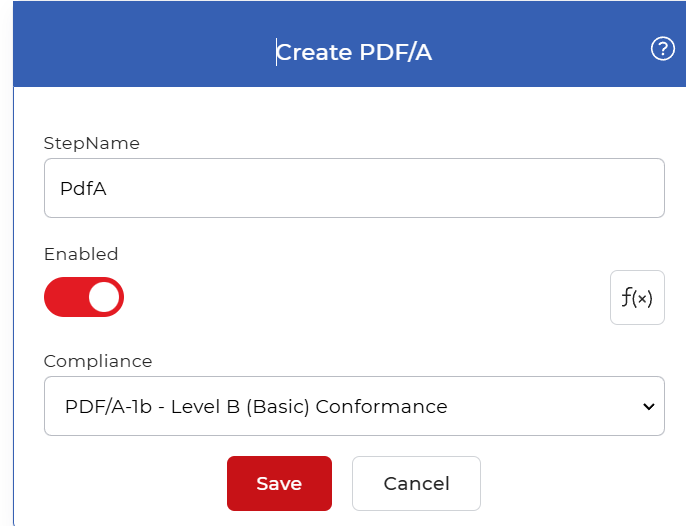
Action overview
| Input | Single PDF document |
| Output | Single PDF/A compliant PDF document |
Properties
Compliance
- Type: Select
- Default: PDF/A-1b
The PDF/A conformance level applied to the output file. The level sets which PDF/A part the document follows and how strict the result is, so match it to the rule or archive system you are converting for. Allowed options are:
- PDF/A-1b: Level B (Basic) Conformance. The basic conformance that follows the standard for reliable reproduction of a document's visual appearance.
- PDF/A-1a: Level A (Accessible) Conformance. Includes PDF/A-1b conformance and adds accessibility through document structure, tagged text spans and images, unicode mapping, and language specification, aimed at better reading in screen readers.
- PDF/A-2b: Basic Conformance. The Part 2 standard adds features supported in PDF versions 1.5, 1.6 and 1.7, including image compression, transparency, font embedding, digital signatures, and embedding of PDF/A files to archive sets of documents within a single file. Level B matches the conformance level defined in PDF/A-1b.
- PDF/A-2u: Basic Conformance with Unicode Mapping. Follows the PDF/A-2b level with all text unicode mapped.
- PDF/A-2a: Accessible Conformance. Follows the PDF/A-2b level kept at an accessible level, same as PDF/A-1a.
- PDF/A-3b: Basic Conformance. The Part 3 standard allows embedding of files such as xml, csv, cad, and Word files along with Part 2 of the standard.
- PDF/A-3u: Basic Conformance with Unicode Mapping. Follows the PDF/A-3b level with all text unicode mapped.
- PDF/A-3a: Accessible Conformance. Follows the PDF/A-3b level kept at an accessible level, same as PDF/A-1a.
How to create PDF/A files using Workflows
Automate PDF/A archiving with PDF4me Workflows, with no coding or third-party integration required. This example gathers scanned documents, applies OCR when needed, and converts them into PDF/A files for long-term preservation.
Add a trigger
Begin by adding and configuring a Dropbox trigger to start the workflow. PDF4me Workflows also support Google Drive triggers, so choose whichever suits your workflow. Map the folder where your scanned documents are stored for further processing.

Add the PDF OCR action
Scanned documents often contain text that needs to be recognized before archiving. Add and configure the PDF OCR action to detect the text in your documents. You can also set it to run only when the document contains unrecognized text.

Add the Create PDF/A action
Add and configure the Create PDF/A action. Select the conformance level that fits your requirement and map the remaining fields to the trigger output. PDF/A conformance ensures your documents can be rendered and retrieved exactly like the original using any PDF software or viewer.

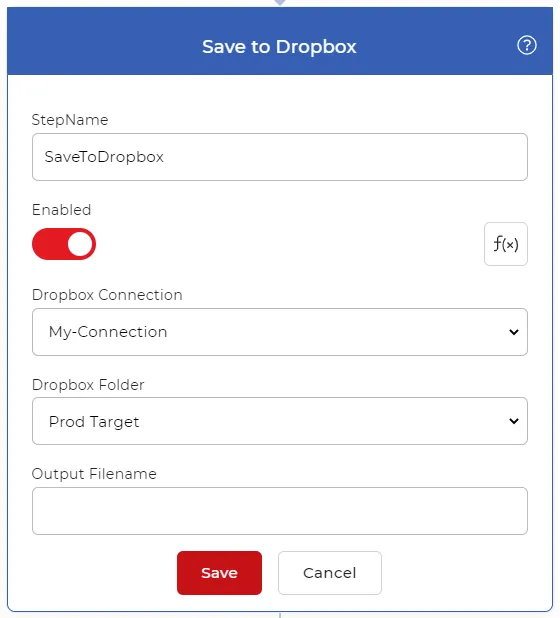
Add a Save to Dropbox action
Once your documents are converted to PDF/A, save them to your storage. For this use case, add and configure a Save to Dropbox action. PDF4me supports various save options, so choose the destination that fits your workflow.
Try it in PDF4me Workflows
Open the Workflows dashboard, create a workflow, and add the Create PDF/A step to run this on your own documents.