Convert to PDF
The Convert to PDF action takes one non-PDF file and returns a single PDF version of it. It reads common document formats, Word, Excel, PowerPoint, and plain text, along with popular image formats, and renders each one into a PDF that keeps the original content and layout. The action has no settings to fill in: it converts whatever file reaches it and passes the PDF to the next step.
Use it to standardize mixed file types before they move further along a pipeline, for example turning every Word or Excel file that lands in a watched folder into a PDF for archiving. It also fits any case where a later step needs a PDF as its input, such as merging several documents into one, stamping a watermark, or running OCR, since those steps expect a PDF rather than an office or image file.
Configuration
Configure the Convert to PDF step in the workflow builder:
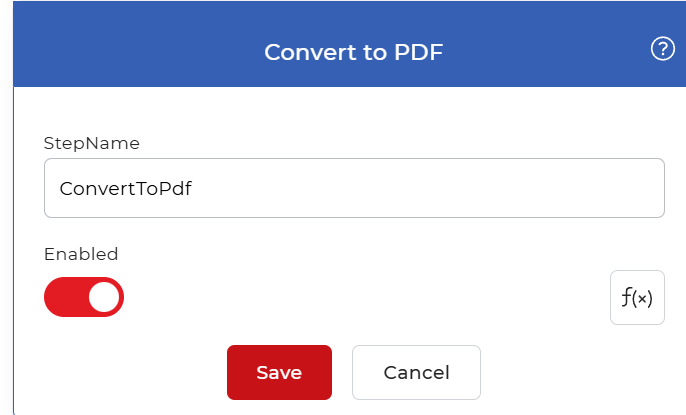
Action overview
| Input | One non-PDF file: Word, Excel, PowerPoint, text, or an image |
| Output | One PDF document |
How to convert to PDF using Workflows
PDF4me Workflows can convert documents to PDF automatically as they arrive. Here is a sample workflow that converts Word, Excel, PowerPoint, text, and image files into PDF every time a new file arrives.
Create a workflow
Open the PDF4me Workflows dashboard and select Create Workflow to start building your automation.

Add a trigger
Add and configure a Dropbox trigger, pointing it at the folder where your source documents arrive. Each time a document lands in that folder, the workflow runs automatically. PDF4me Workflows also support Google Drive triggers, so choose whichever suits your workflow.

Add the Convert to PDF action
Add and configure the Convert to PDF action. It accepts common formats such as Word, Excel, PowerPoint, text, and popular image types, and produces a single high-quality PDF.

Add a Save to Dropbox action
Once the files are converted, save them to your storage. For this use case, add and configure a Save to Dropbox action that writes the output PDF to the folder you choose.

Try it in PDF4me Workflows
Open the Workflows dashboard, create a workflow, and add the Convert to PDF step to run this on your own documents.