Convert PDF to Image
Turn the pages of a PDF into standalone image files. Each page in the range you choose becomes its own image, so a five-page PDF produces five files. You set the output format and the width, and the height scales automatically to keep each page's proportions.
Use it to generate page thumbnails, publish previews on a website, or hand page images to an image step later in the workflow.
Configuration
Configure the Convert PDF to Image step in the workflow builder:
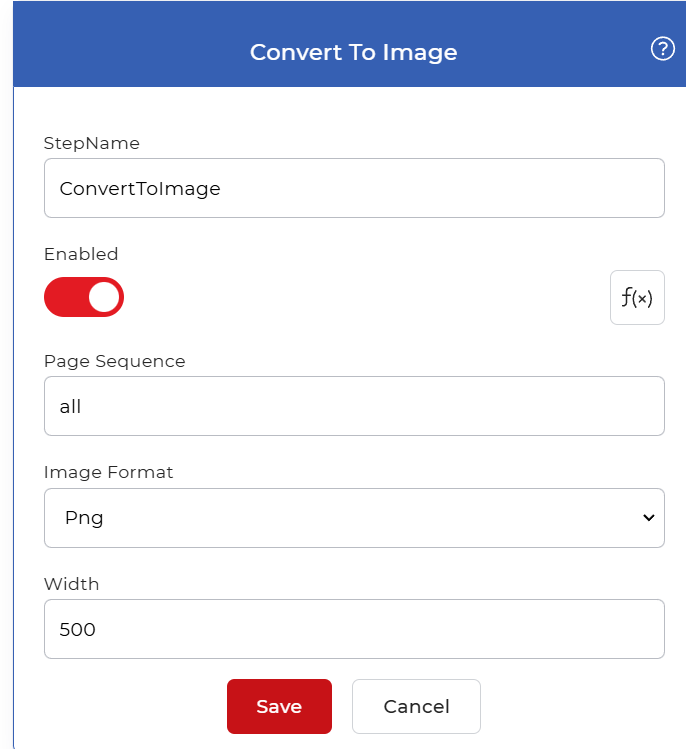
Action overview
| Input | Single PDF document |
| Output | One image file per converted page |
Properties
Page Sequence
- Type: Text
- Required: Yes
The pages to convert. Enter a single page (3), a comma-separated list (1,3,5), a range (2-6), or a keyword (first, last, all). Only the pages you name are converted.
Image Format
- Type: Select
- Required: Yes
The file type for every output image:
- PNG: lossless, best for text, screenshots, and sharp lines.
- JPG: smaller files, best for photos and scans.
- BMP: uncompressed bitmap.
- GIF: limited color range, suits simple graphics.
- TIFF: high quality, common for archiving and print.
Width
- Type: Integer
- Required: Yes
Output width in pixels. The height follows automatically to preserve each page's aspect ratio, so a larger width produces a larger, higher-resolution image.
How to use in a workflow
Place Convert PDF to Image after the step that supplies the PDF, which is either a trigger that picks up a new file or an earlier action that produced one. Because the step returns several images, follow it with a For Each Document control when the next steps act on each image on its own, then a save step such as Save to Dropbox to store the results.
Try it in PDF4me Workflows
Open the Workflows dashboard, create a workflow, and add the Convert PDF to Image step to run this on your own documents.