Convert PDF to Word
The Convert PDF to Word action takes one PDF file and returns one editable Word document (.docx). It rebuilds the text, paragraphs, tables, and layout from the source PDF so you can open the result in Word and edit it like any other document. For scans or image-only pages, the High quality profile runs OCR to read the characters before writing them into the Word file.
Reach for this action when a contract or form arrives as a PDF and someone needs to change a few clauses before sending it back, when a monthly report lands in a folder and you want an editable copy saved automatically for the next revision, or when scanned invoices and letters come in as image-only PDF files and you need their text pulled into a document you can search and edit.
Configuration
Configure the Convert PDF to Word step in the workflow builder:
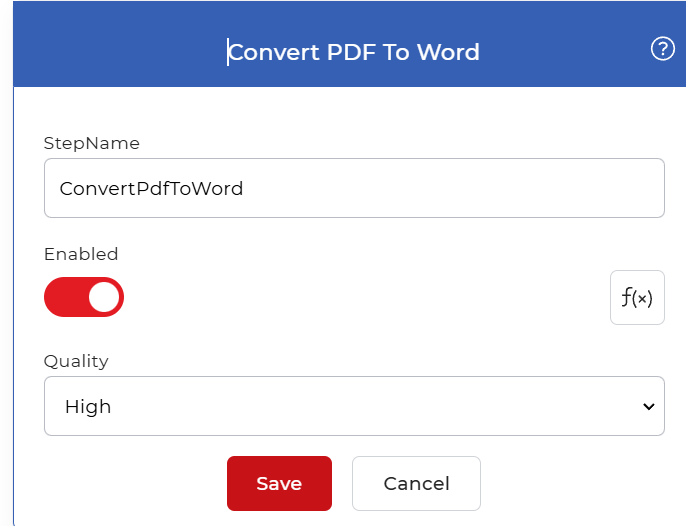
Action overview
| Input | One PDF file |
| Output | One editable Word document (.docx) |
Properties
Quality
- Type: Select
- Required: Yes
Sets how the action reads the source PDF and builds the Word file. There are two options:
- Draft: converts a PDF that already contains real, selectable text. This is the faster option and suits documents that were created digitally.
- High: runs OCR to detect text inside scanned pages and images, then writes it into the Word file. Choose High when the PDF is a scan or holds image-only text, since Draft cannot recover text that is not already selectable.
How to convert PDF to Word using Workflows
PDF4me Workflows can convert PDF files to Word automatically. Here is a sample workflow that turns PDF files into editable Word documents.
Add a trigger
Begin by adding and configuring a Dropbox trigger. PDF4me Workflows also support Google Drive triggers, so choose whichever you want to start the workflow with.

Add the Convert PDF to Word action
Add and configure the Convert PDF to Word action. Choose between the two quality profiles, Draft and High. The High profile uses advanced OCR algorithms to detect text in scanned images and documents, generating the most accurate Word files.

Add a Save to Dropbox action
Once the files are converted to Word, save them to your output folder. PDF4me supports various save options. For this use case, add and configure a Save to Dropbox action.
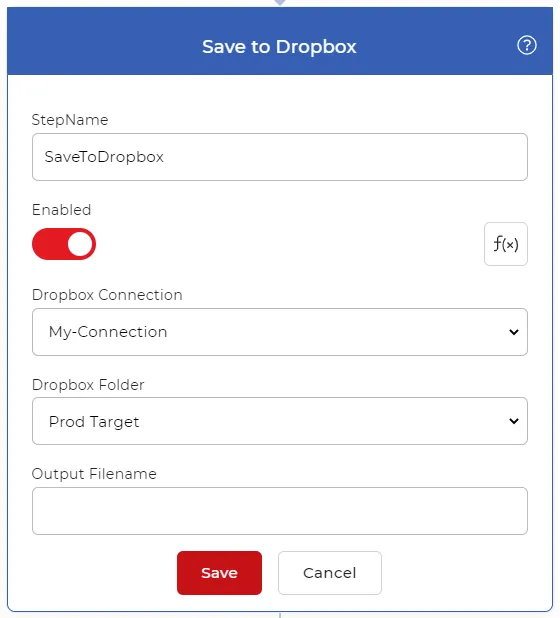
Try it in PDF4me Workflows
Open the Workflows dashboard, create a workflow, and add the Convert PDF to Word step to run this on your own documents.