Convert PDF to PowerPoint
The Convert PDF to PowerPoint action takes one PDF document and returns an editable PowerPoint presentation. The pages of the PDF map to slides, and the text, images, and layout come back as objects you can edit in PowerPoint rather than a flat picture of each page. You choose a quality profile that sets how the conversion reads the source, including whether it runs OCR on scanned pages.
Reach for this action when a report, proposal, or one-pager arrives as a PDF and someone needs to present or reuse it as slides. It also fits when the PDF is scanned and its text sits inside an image: the High profile runs OCR so that text becomes selectable in the deck. A common setup is a trigger that picks up a PDF from a cloud folder, this action to build the presentation, then a step that saves or shares the result.
Configuration
Configure the Convert PDF to PowerPoint step in the workflow builder:
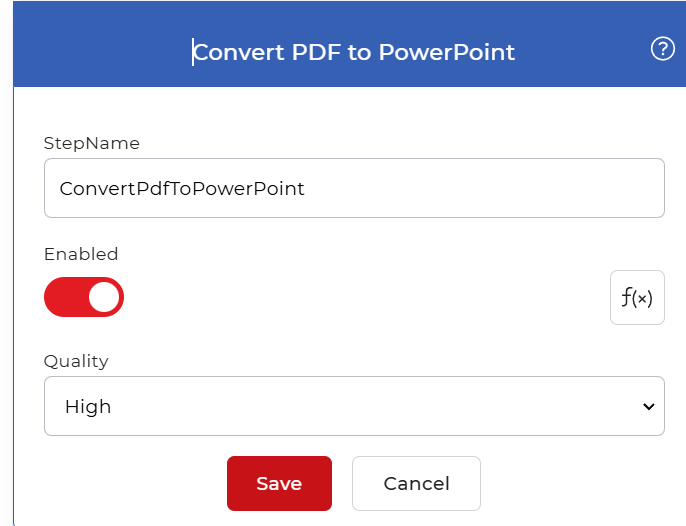
Action overview
| Input | Single PDF document |
| Output | Single editable PowerPoint presentation |
Properties
Quality
- Type: Select
- Required: Yes
Sets how the conversion reads the PDF. There are two options:
- Draft: the standard conversion for a PDF whose text is already selectable, such as one exported from Word or another PDF tool.
- High: runs OCR while converting, so text stored as an image is recognized and placed into the slides.
Choose High when the PDF is scanned or its pages are images and you need the text in the deck. Use Draft for PDF files that already carry real, selectable text.
How to use in a workflow
Place Convert PDF to PowerPoint after the step that supplies the PDF, which is either a trigger that picks up a new file or an earlier action that produced one. The single PowerPoint file it returns feeds the next step directly: send it to a save step such as Save to Dropbox to store the deck, or to a send step that shares it with your team for review.
Try it in PDF4me Workflows
Open the Workflows dashboard, create a workflow, and add the Convert PDF to PowerPoint step to run this on your own documents.