Convert PDF to Excel
The Convert PDF to Excel action reads the tables in a PDF and writes them into an Excel spreadsheet. It takes one PDF document as input and returns one Excel file, with rows and columns that follow the source layout, so data that was locked inside the PDF becomes cells you can sort, filter, and total.
Reach for it when a supplier sends invoices as PDFs and you need the line items in a sheet for reconciliation, when monthly bank or card statements arrive as PDFs and you want the transactions in columns, or when a scanned report holds a table you need to add up. For scanned or image-only pages, set the Quality property to High so OCR reads the text before the spreadsheet is built.
Configuration
Configure the Convert PDF to Excel step in the workflow builder:
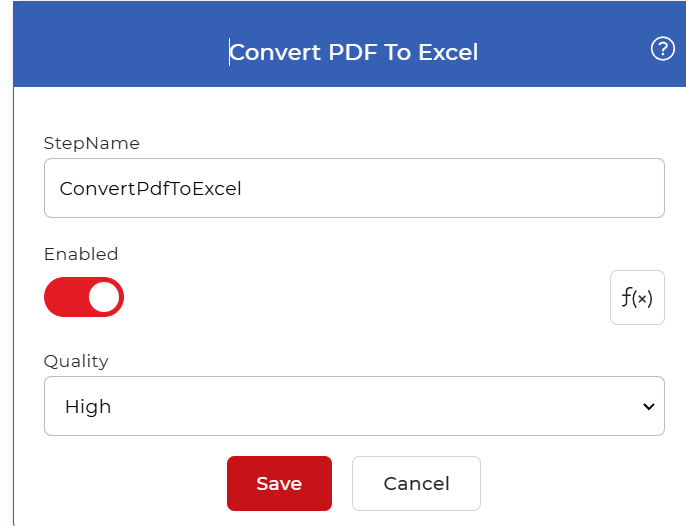
Action overview
| Input | Single PDF document with tabular content |
| Output | Single Excel spreadsheet |
Properties
Quality
- Type: Select
- Required: Yes
Sets how the action reads the document before it builds the spreadsheet. Pick one of two profiles:
- Draft: converts PDFs whose text is already selectable, such as files exported from another program. This is the faster choice for born-digital documents.
- High: turns on OCR so the action can read text from scanned pages and images, then builds the spreadsheet from what it detects.
Choose High when the PDF is a scan or a photo of a document, or when Draft returns empty or garbled cells. Choose Draft when the source is a clean digital PDF and you want the quicker run.
How to convert PDF to Excel using Workflows
PDF4me Workflows can convert PDF files to Excel automatically. Here is a sample workflow that turns incoming PDF files into Excel spreadsheets.
Add a trigger
Begin by adding and configuring a Dropbox trigger. PDF4me Workflows also support Google Drive triggers, so choose whichever suits your workflow.

Add the Convert PDF to Excel action
Add and configure the Convert PDF to Excel action. Choose between the two quality profiles, Draft and High. The High profile uses advanced OCR to detect text in scanned images and documents for the most accurate output.

Add a Save to Dropbox action
Once the files are converted, save them to your storage. For this use case, add and configure a Save to Dropbox action.
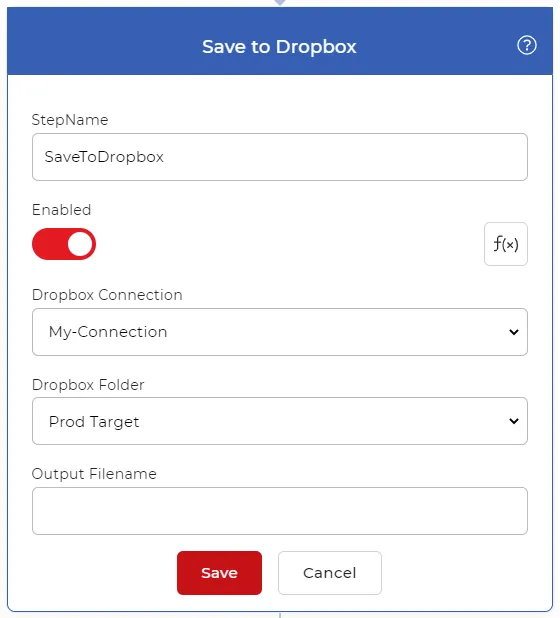
Try it in PDF4me Workflows
Open the Workflows dashboard, create a workflow, and add the Convert PDF to Excel step to run this on your own documents.