Convert PDF to ePub
The Convert PDF to ePub action takes a single PDF document and returns a single ePub eBook. ePub is a reflowable format, so the text adjusts to fit the screen and font size a reader chooses, which reads better on phones, tablets, and e-readers than a fixed PDF page. You also set the author and title that the eBook carries in its metadata.
Use it to publish a PDF manual, report, or guide as an eBook that opens in Apple Books, Google Play Books, and most e-reader apps. It fits a pipeline that picks up new PDF files from a folder and turns each one into an ePub edition, or a step that produces a PDF and then creates a matching eBook version for readers who want one.
Configuration
Configure the Convert PDF to ePub step in the workflow builder:
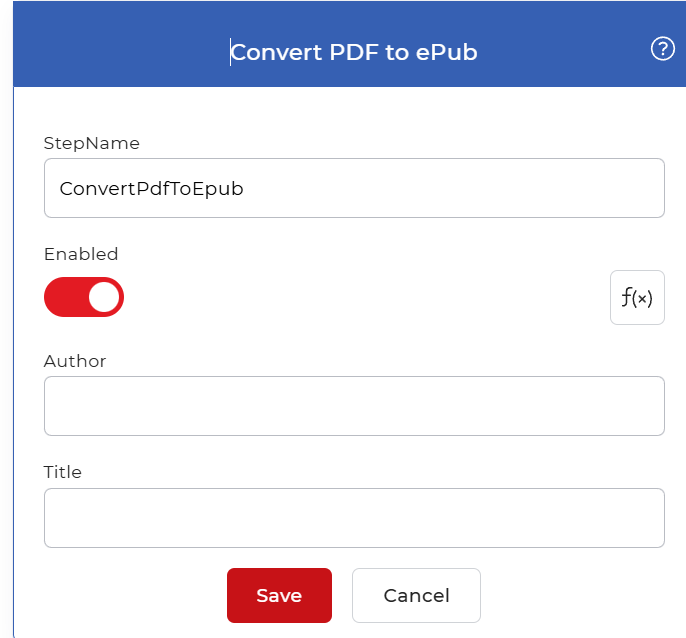
Action overview
| Input | Single PDF document |
| Output | Single ePub eBook file |
Properties
Author
- Type: String
- Required: Yes
The author name stored in the ePub metadata. E-readers and library apps show this value as the book's author in listings and on the book's detail page. Enter the name you want credited; it sets the metadata only and does not change the document body.
Title
- Type: String
- Required: Yes
The title stored in the ePub metadata. Reading apps display it as the book title in the library and on the cover entry. This is separate from any title printed inside the PDF, so set it to the name you want readers to see.
How to use in a workflow
Place Convert PDF to ePub after the step that supplies the PDF, which is either a trigger that picks up a new file or an earlier action that produced one. The step returns a single ePub file, so send that output to a save step such as Save to Dropbox, or to an email step that delivers the eBook to a reader.
Try it in PDF4me Workflows
Open the Workflows dashboard, create a workflow, and add the Convert PDF to ePub step to run this on your own documents.