AI Document Parser using Parse
What this guide covers
AI Document Parser. Parse is the dashboard setup that turns a JSON Document Schema into AI-powered structured PDF extraction. You create an Analyzer, pick the Parse type, and describe the fields you want as fieldName, fieldType, and fieldDescription. The AI reads the document semantically, so no drawn capture areas or regex are required. Once saved, the same Analyzer Id runs from the REST API, Make, Zapier, Power Automate, and n8n.
Authenticating Your Setup
AI Document Parser analyzers are created in the PDF4me developer dashboard. Sign in with your account, then create or copy an API key for the AI Parser API calls that reference the analyzer you build here.
- Analyzer list (Steps 1–2):
https://developer.pdf4me.com/dashboard/#/ai-document-parser/ - Analyzer detail (Steps 3–5):
https://developer.pdf4me.com/ai-document-parser/?id=<analyzer-guid>
Important Facts You Should Not Miss
fieldDescription string to find each value in the document. Be specific and include alternate names ("Sales Order Number, sometimes shown as SO No."). Vague descriptions reduce extraction quality.purchase_order_parser) is what every API call and automation module uses. Pick a clear naming convention up front; changing it later means rewiring every workflow that points to it.Step 1: Open AI Document Parser in the dashboard
- Sign in at dev.pdf4me.com.
- From the dashboard sidebar, click AI Document Parser.
- The list page shows every existing Analyzer with three columns: Analyzer Id, Analyzer Type (Parse or Classify), and Actions.
- Click the blue + Add button to start a new Analyzer.
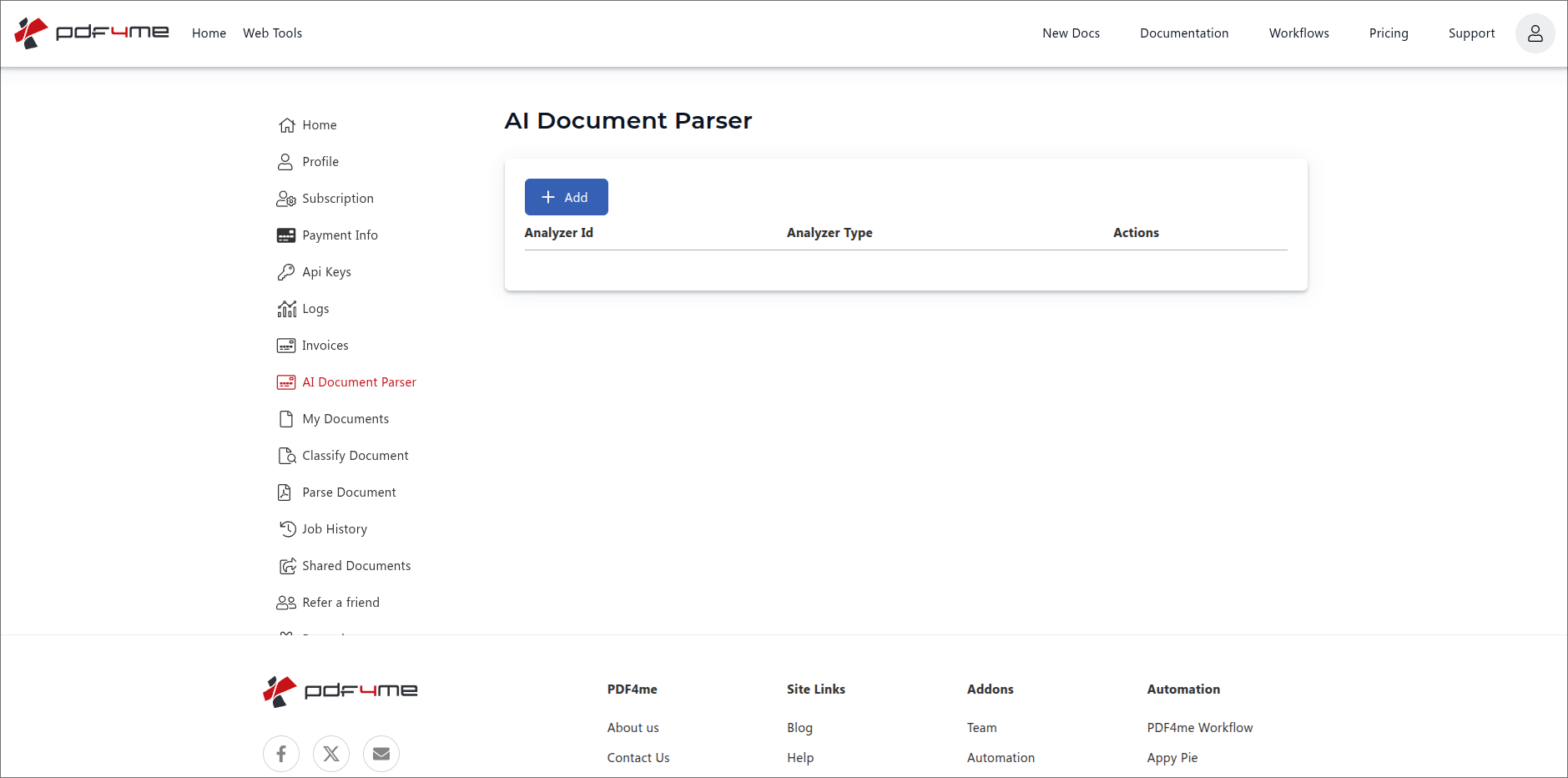
AI Document Parser list view. Click + Add to create a new Analyzer.
Step 2: Pick analyzer type Parse and name it
A new row appears with three controls:
- Analyzer Id input. type any clear identifier you will remember, for example
purchase order parser,Invoice Parser v1, orvendor_statement_parser. There is no naming format restriction. snake_case, camelCase, kebab-case, plain words with spaces, all work the same. - Analyzer Type dropdown. pick Parse (this guide) or Classify (see the Classify guide).
- Save / Cancel buttons. Save creates the Analyzer; Cancel discards the row.
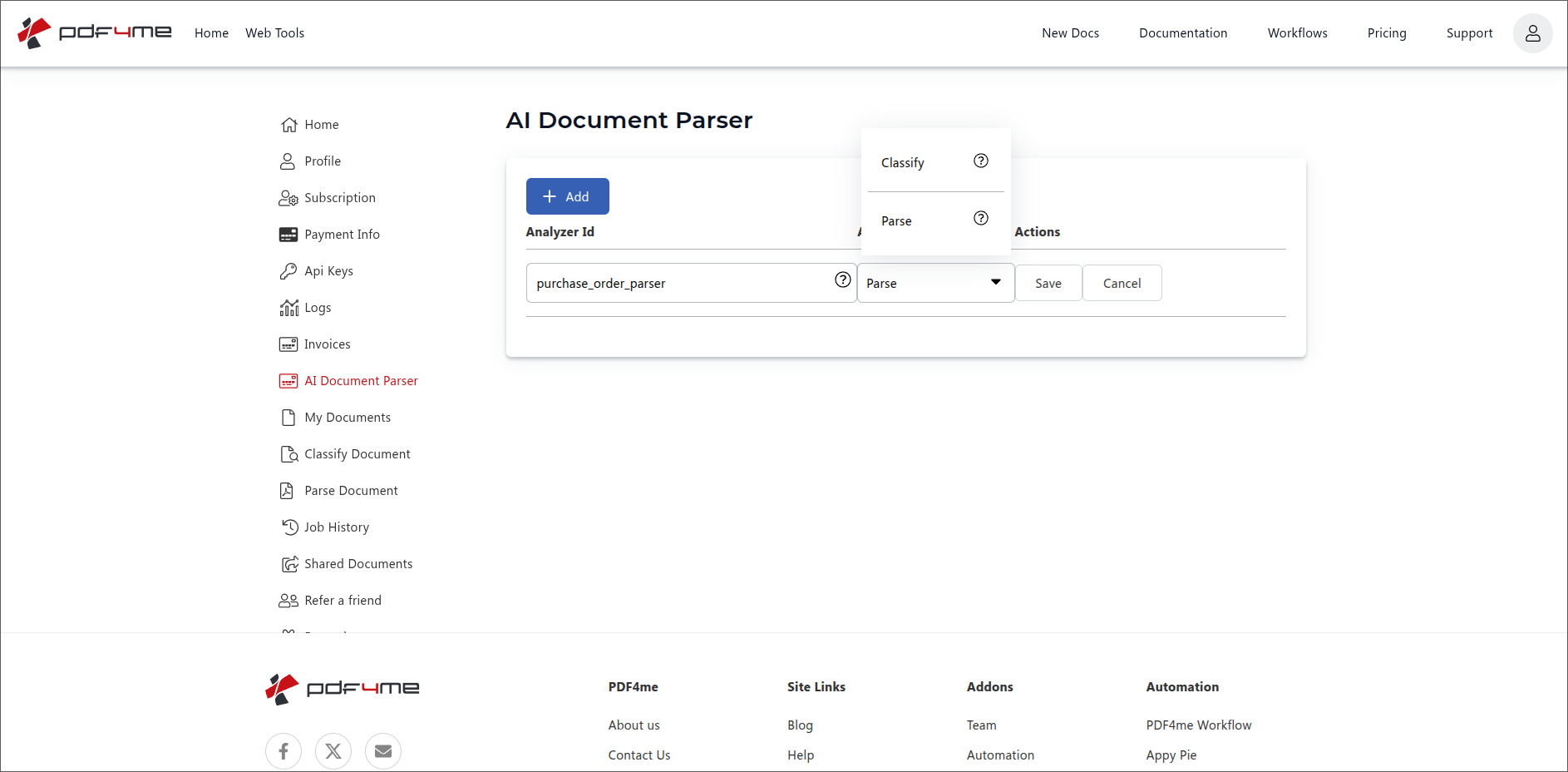
Add row: type an Analyzer Id, pick Parse, then Save.
Naming tip: include the document family in the name (invoice parser, purchase_order_parser, Shipping Note Parser). The Analyzer Id is what downstream automations call; a clear name pays off every time you wire it into a new platform. Any casing or separator style works.
Step 3: Open the Analyzer and add a Schema
Click the new row to open the detail page. The URL pattern is:
https://developer.pdf4me.com/ai-document-parser/?id=<your-analyzer-guid>
The dashboard issues a GUID per Analyzer the first time you open it. Bookmark this URL to jump straight back to the same Analyzer next time.
The detail page shows:
- Parse Info (left). shows the Analyzer Id you typed in Step 2. This panel is read-only.
- Schemas (right). empty by default. Click the + button in the top-right to add a Schema.
- Save Changes (top-left). persists any edits you make on this page.
- Back. returns to the Analyzer list.
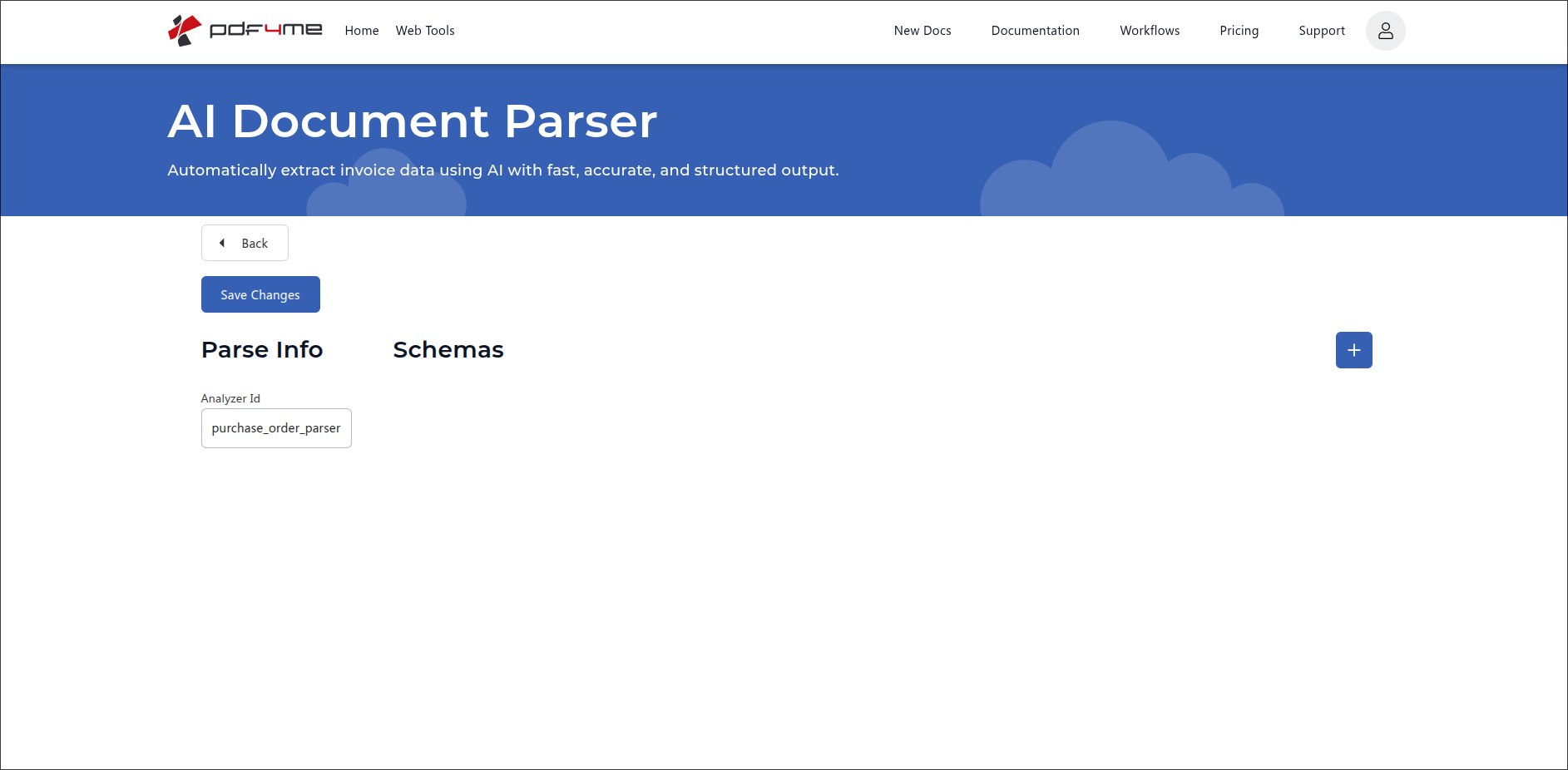
Analyzer detail. Click the blue + button to add a Document Schema.
Step 4: Define the Document Schema JSON
After clicking +, an empty Schema card opens. Paste a JSON object with two top-level keys:
description. one-sentence summary of what the schema extracts. The AI uses this as overall context.fields. array of field definitions. Each field has:fieldName. machine-readable name (no spaces), used as the JSON key in the response.fieldType.string,number, ordate. Drives parsing and validation.fieldDescription. natural-language hint the AI uses to find this field. Be specific.
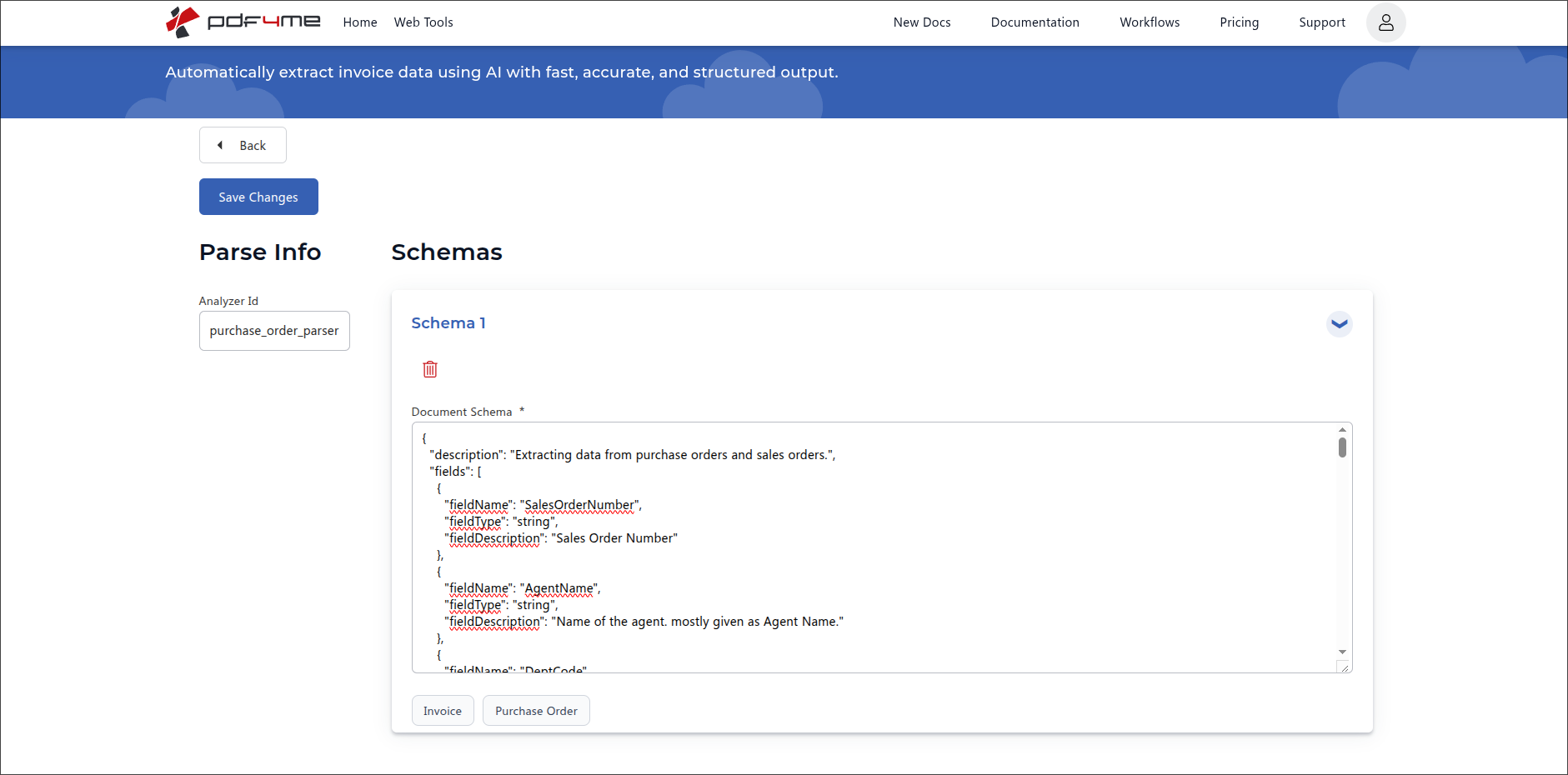
Document Schema editor with quick-fill buttons for Invoice and Purchase Order templates.
Example: Purchase Order schema
{
  "description": "Extracting data from purchase orders and sales orders.",
  "fields": [
    {
      "fieldName": "SalesOrderNumber",
      "fieldType": "string",
      "fieldDescription": "Sales Order Number"
    },
    {
      "fieldName": "AgentName",
      "fieldType": "string",
      "fieldDescription": "Name of the agent, mostly given as Agent Name."
    },
    {
      "fieldName": "DeptCode",
      "fieldType": "string",
      "fieldDescription": "Department or cost-centre code printed on the order."
    },
    {
      "fieldName": "OrderDate",
      "fieldType": "date",
      "fieldDescription": "Date the order was placed. Accept formats like DD/MM/YYYY, MM-DD-YYYY, or written out as 5 June 2026."
    },
    {
      "fieldName": "TotalAmount",
      "fieldType": "number",
      "fieldDescription": "Grand total of the order in the document's currency, after taxes."
    }
  ]
}
Example: Invoice schema (use the Invoice quick-fill button)
{
  "description": "Extracting data from supplier invoices.",
  "fields": [
    {
      "fieldName": "InvoiceNumber",
      "fieldType": "string",
      "fieldDescription": "Unique invoice identifier, sometimes shown as Invoice No. or INV."
    },
    {
      "fieldName": "InvoiceDate",
      "fieldType": "date",
      "fieldDescription": "Date the invoice was issued."
    },
    {
      "fieldName": "DueDate",
      "fieldType": "date",
      "fieldDescription": "Date payment is due, sometimes shown as Payment Due or Net Due."
    },
    {
      "fieldName": "VendorName",
      "fieldType": "string",
      "fieldDescription": "Company name of the supplier or vendor sending the invoice."
    },
    {
      "fieldName": "TotalAmount",
      "fieldType": "number",
      "fieldDescription": "Grand total in the invoice currency, including taxes."
    }
  ]
}
Quick-fill buttons (Invoice, Purchase Order): at the bottom of the Schema card. Use them as a starting point only, click one to load a typical schema for that document family, then rename, trim, or extend the fields to match your real documents. The presets are scaffolding, not final schemas.
Schema with a table field (nested rows)
Use fieldType: "table" when you need to extract repeated rows such as invoice line items or purchase-order line items. Each table field carries its own nested fields array describing the columns.
{
  "description": "Invoice data extractor",
  "fields": [
    {
      "fieldName": "invoiceNumber",
      "fieldType": "string",
      "fieldDescription": "Invoice number / bill number / receipt number"
    },
    {
      "fieldName": "invoiceDate",
      "fieldType": "date",
      "fieldDescription": "Look for labels: 'Invoice Date', 'Bill Date', 'Date', 'Dated', 'Issue Date', 'Doc Date'. If 4 digit year not found then consider 2 digit year at the end of extracted date.",
      "fieldMethod": "generate"
    },
    {
      "fieldName": "lineItems",
      "fieldType": "table",
      "fieldDescription": "All product / service rows from the invoice table. Be careful, sometimes a row can be part of the next item like when description goes over one line, but it's of a single item.",
      "fields": [
        {
          "fieldName": "itemNumber",
          "fieldType": "string",
          "fieldDescription": "Product number, product id number or product code"
        },
        {
          "fieldName": "hsnCode",
          "fieldType": "string",
          "fieldDescription": "HSN / SAC code (4 to 8 digit)"
        }
      ]
    }
  ]
}
Field attributes
| Attribute | Required? | What it does |
|---|---|---|
fieldName | Required | The name of the field and how it will appear in the response JSON. |
fieldType | Required | The type of data to extract. One of string, number, date, or table. |
fieldDescription | Required | Natural-language description of what needs to be extracted and where to find it. Include alternate labels and example formats so the AI matches correctly. |
fieldMethod | Optional (default extract) | How the AI fills the value. extract takes the value verbatim from the document. generate tells the AI to derive or normalise it (useful for dates, computed totals, or cleaned-up IDs). Omit for default extract behaviour. |
fields | Required when fieldType is table | Nested array describing the columns of the table. Each entry takes the same attributes as a top-level field (fieldName, fieldType, fieldDescription, fieldMethod). Cannot itself be table. |
fieldType reference
fieldType | Best for | Sample fieldDescription |
|---|---|---|
string | Names, identifiers, codes, free text | Customer name as printed on the invoice header. |
number | Amounts, quantities, tax rates, counts | Grand total of the order in the document currency, including taxes. |
date | Dates, due dates, issue dates, timestamps | Date the invoice was issued, accept DD/MM/YYYY and 5 June 2026 formats. |
table | Repeated rows (line items, addresses, transactions) | All product / service rows from the invoice table. Carries a nested fields array describing the columns. |
Step 5: Save Changes and use the Analyzer
Click Save Changes at the top-left to persist the schema. The Analyzer is now active and can be referenced from any platform by its Analyzer Id.
Use the Analyzer in API or automation calls
Once saved, the same Analyzer runs anywhere by reference. You do not need to recreate the schema on each platform.
| Field | Source | Purpose |
|---|---|---|
AnalyzerId | The string you typed in Step 2 | Stable identifier the AI Parser uses to locate your schema. |
docName | Source PDF filename | Used for tracking and error messages. |
docContent | Source PDF encoded as Base64 | The document to extract from. |
async | false for synchronous, true for polling | Controls response delivery. |
Example REST request body:
{
  "docName": "purchase_order.pdf",
  "docContent": "BASE64_ENCODED_PDF_CONTENT",
  "AnalyzerId": "purchase_order_parser",
  "async": false
}
The response contains one field per item you defined in fields. Route that JSON into any downstream system: Google Sheets, Airtable, a database, Excel, or a webhook.
Common workflows
Typical AI Parser patternsHow a saved Analyzer moves from dashboard to production.
- A new purchase order PDF arrives in a monitored mailbox or upload folder.
- Make, Zapier, Power Automate, or n8n calls the AI Parser with
AnalyzerId: purchase_order_parser. - The returned JSON (
SalesOrderNumber,AgentName,OrderDate,TotalAmount) is mapped into your ERP order-creation API. - A confirmation email goes back to the customer using the parsed order number.
- An invoice PDF arrives via webhook, watched folder, or shared inbox.
- The AI Parser is called with
AnalyzerId: invoice_parser(Invoice quick-fill schema). - The structured response (
InvoiceNumber,TotalAmount,DueDate) is appended as a row in Google Sheets or Excel for the accounting team.
- A single watched folder receives mixed documents (invoices, purchase orders, shipping notes).
- A Classify Analyzer routes each file to the right category label.
- Based on the label, the workflow calls the matching Parse Analyzer (
invoice_parser,purchase_order_parser,shipping_note_parser) and writes the structured output to the right destination.
Schema best practices
- Use descriptive
fieldDescriptionstrings. Mention alternate names you see in real documents ("Sales Order Number, also shown as SO No., Order Ref, or PO Ref"). - Pick
fieldTypecarefully.dateandnumbergive the engine parsing hints;stringis the fallback when shape is unpredictable. - Keep
fieldNamemachine-readable (camelCase or PascalCase, no spaces). It appears as a JSON key in the response. - Start from the Invoice or Purchase Order quick-fill, then trim or add fields. The presets are good baselines.
- Test against three real samples before pointing production traffic at the Analyzer, including edge cases like missing optional fields, second-page documents, and OCR-derived text.
- Version Analyzer Ids when making breaking schema changes (
invoice_parser_v1,invoice_parser_v2) so live automations can migrate at their own pace.