Install PDF4me for Microsoft Copilot
What this plugin does
PDF4me for Copilot adds PDF4me as a Cowork capability in Microsoft Copilot. Attach a file to a task and describe what you want, for example compress a PDF or extract its metadata. Copilot shows you exactly what it is about to send, you click Approve, PDF4me processes the file in the cloud, and the finished document comes back as a download link in the task.
Before you start
You need:
- A Microsoft Copilot account with access to the Cowork tab and the Customize page.
- A PDF4me account. Create a free account or use an existing login.
- The file you want to process, ready to attach to the task.
What you can do today
The PDF4me connection in Copilot describes its scope as PDF and image conversion, compression, editing, organization, forms, extraction, security, and barcode operations.
| Area | What it covers |
|---|---|
| Compress | Reduce PDF file size. The action card exposes an Optimize profile, which defaults to Default. |
| Convert | Convert between PDF and other document and image formats. |
| Extract | Pull metadata, text, and structured content out of a document. |
| Organize and edit | Reorder, split, merge, and edit pages. |
| Forms, security, barcode | Fill forms, apply protection, and read or write barcodes. |
The exact action list grows as capabilities are released. Open the PDF4me page under Customize in Copilot to see the current description and version.
Install and connect PDF4me
Follow these steps in order. Each step matches a screen you will see in Copilot. Installing and connecting are two separate actions: the plugin is added first, then you link your PDF4me account.
Step 1: Open Customize in Cowork
- Sign in to Microsoft Copilot.
- At the top of the left sidebar, switch from Chat to Cowork.
- Click Customize in the sidebar.
- In the search field, type
PDF4me.
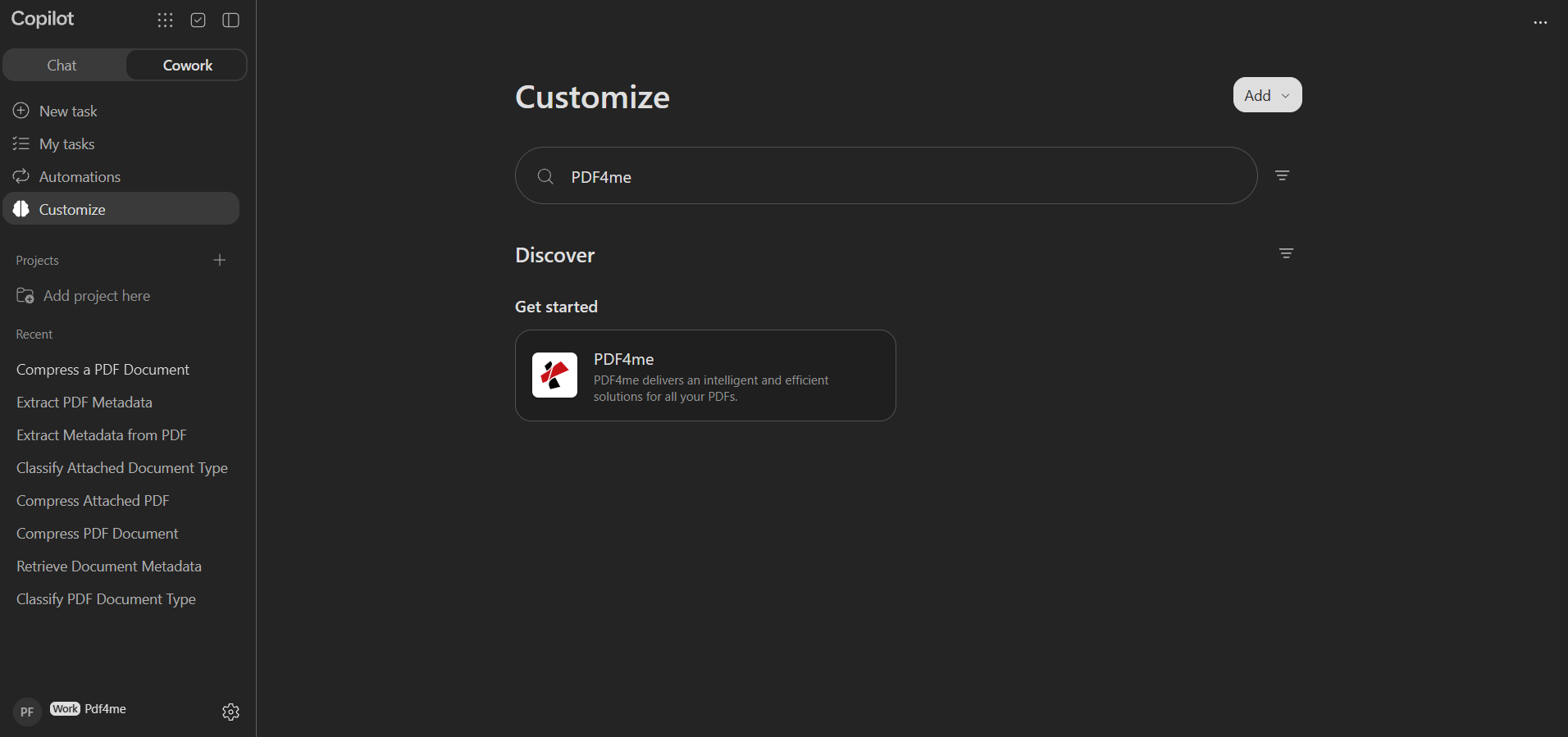
Search Customize for PDF4me. The result appears under Discover.
Look for: The Cowork tab is selected and Customize is highlighted in the sidebar. The PDF4me card reads PDF4me delivers an intelligent and efficient solutions for all your PDFs.
Step 2: Open the PDF4me capability
- Click the PDF4me card in the results.
- The capability page opens, showing Created by Ynoox GmbH, the full description, and the Connections and Details sections.
- Click Install in the top right.
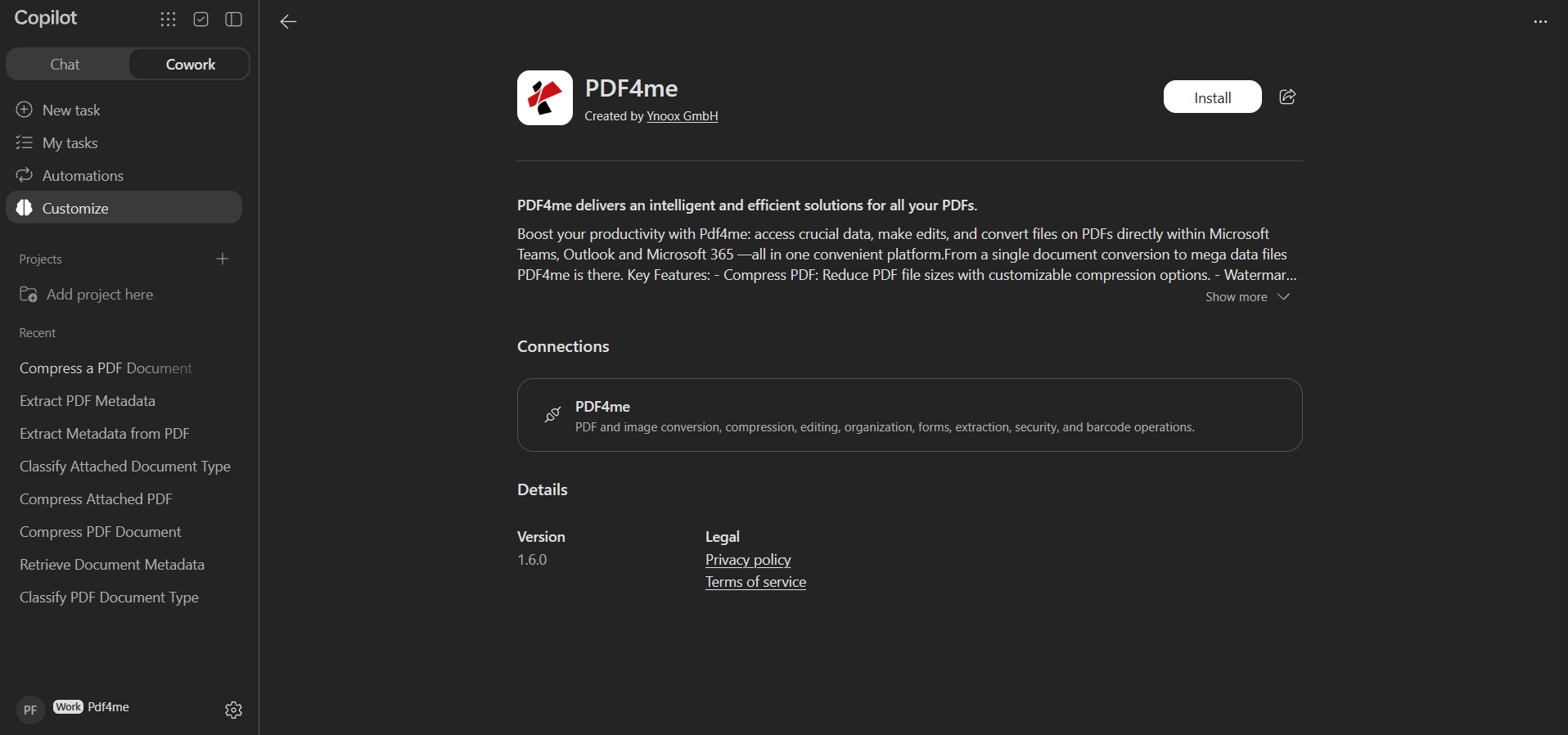
The PDF4me page before installing. Install sits in the top right.
Look for: The publisher line Created by Ynoox GmbH. Under Details you can check the Version and open the Privacy policy and Terms of service.
Step 3: Connect your PDF4me account
- After installing, a green banner confirms Plugin installed. Connect your account below to get started.
- In Connections, the PDF4me row shows a red Not connected. badge.
- Click Connect.
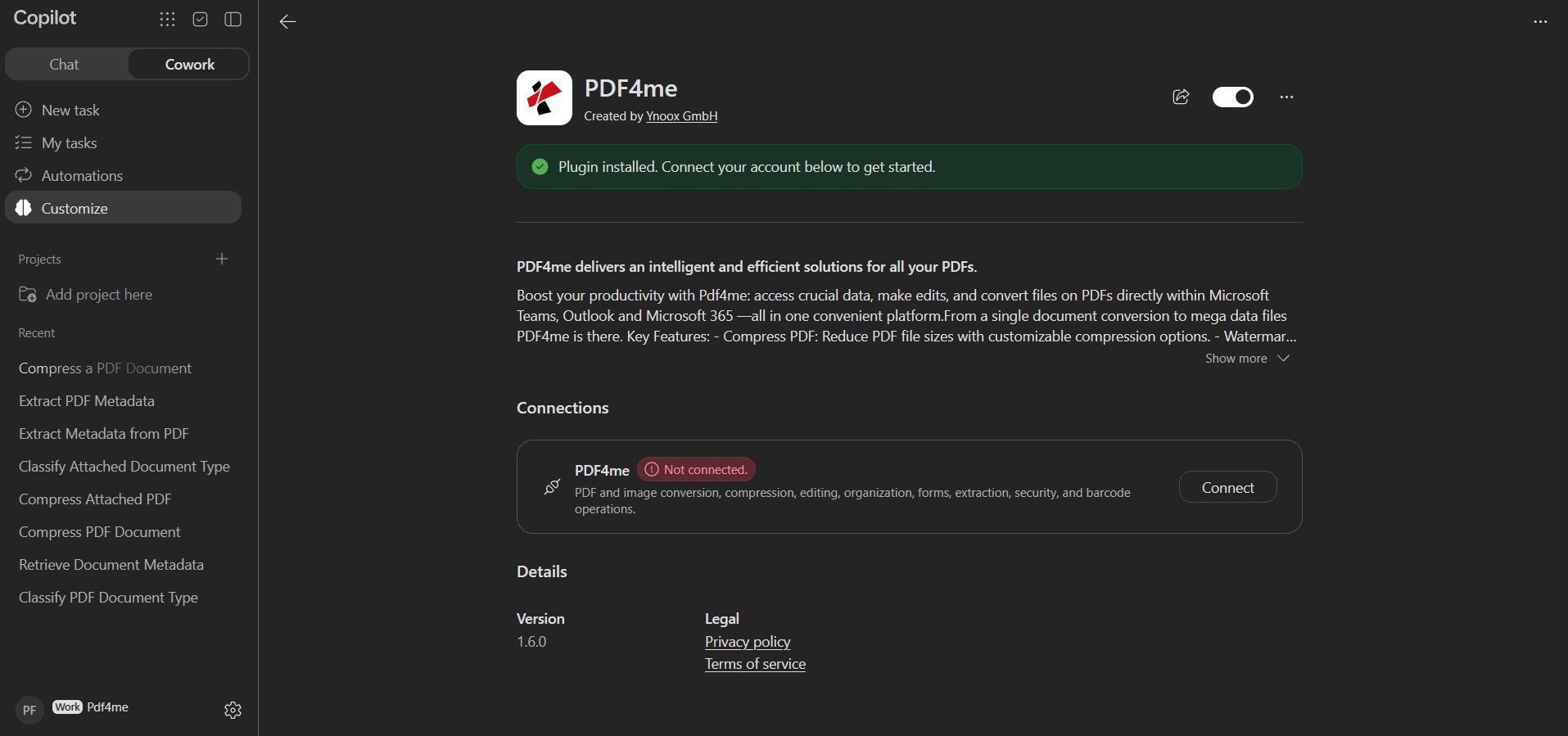
Installing is not enough. The connection still reads Not connected. until you click Connect.
Step 4: Allow access to the PDF4me MCP server
- A browser window titled Application Access Request opens on
mcp.pdf4me.com. - It states that the application PDF4me Copilot Cowork wants to access the MCP server pdf4me-mcp-server, and shows the callback address that credentials will be sent to.
- Check the callback address, then click Allow Access.
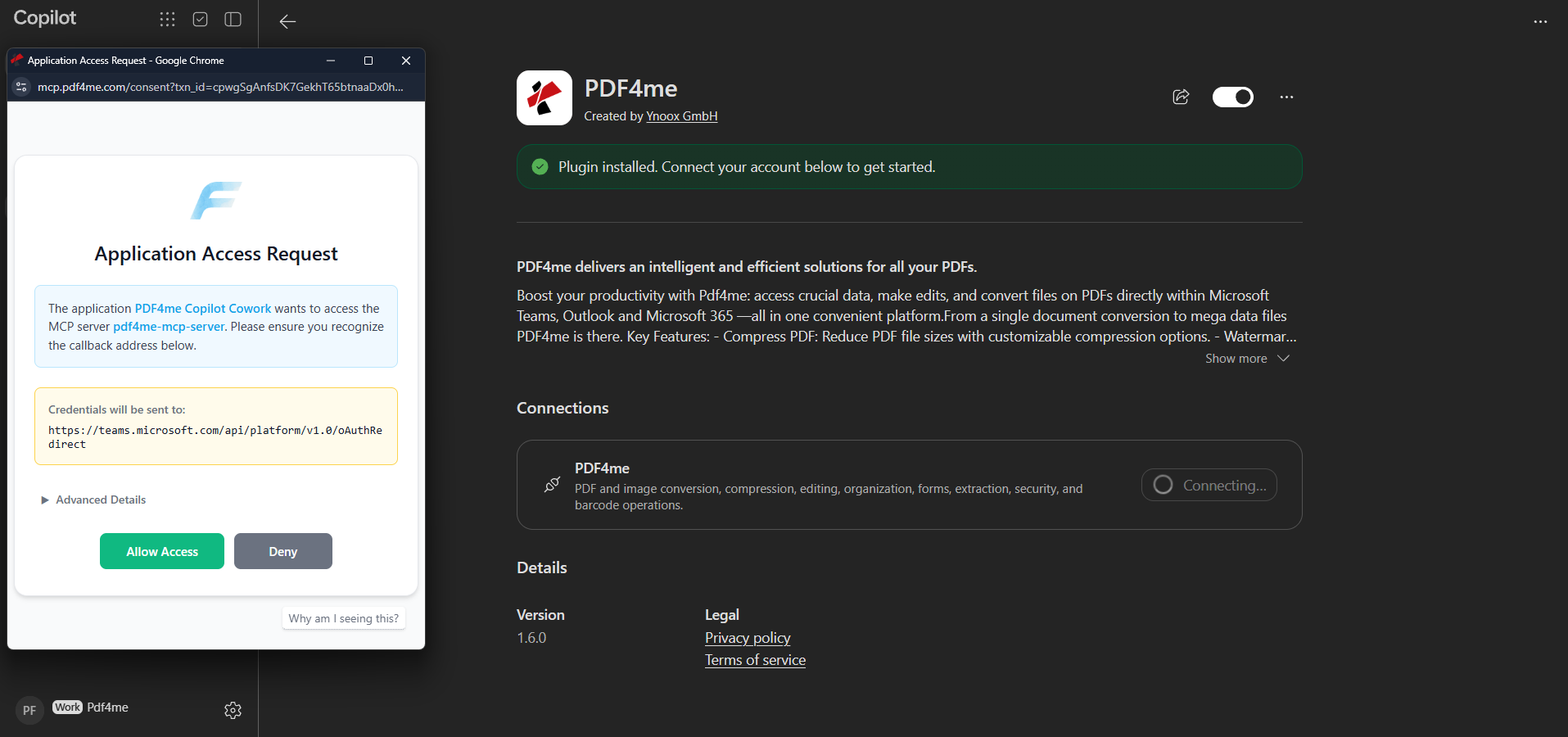
Confirm the request, then click Allow Access. The connection row shows Connecting... while this runs.
Look for: The address bar starts with mcp.pdf4me.com/consent, and Credentials will be sent to points at the Microsoft OAuth redirect. Use Advanced Details if you want the full request before approving.
Step 5: Sign in with your PDF4me account
- The PDF4me login page opens on
auth.pdf4me.com. - Enter your PDF4me email and password, or sign in with Microsoft, Google, Facebook, or GitHub.
- Click Login. If you do not have an account yet, use Sign up.
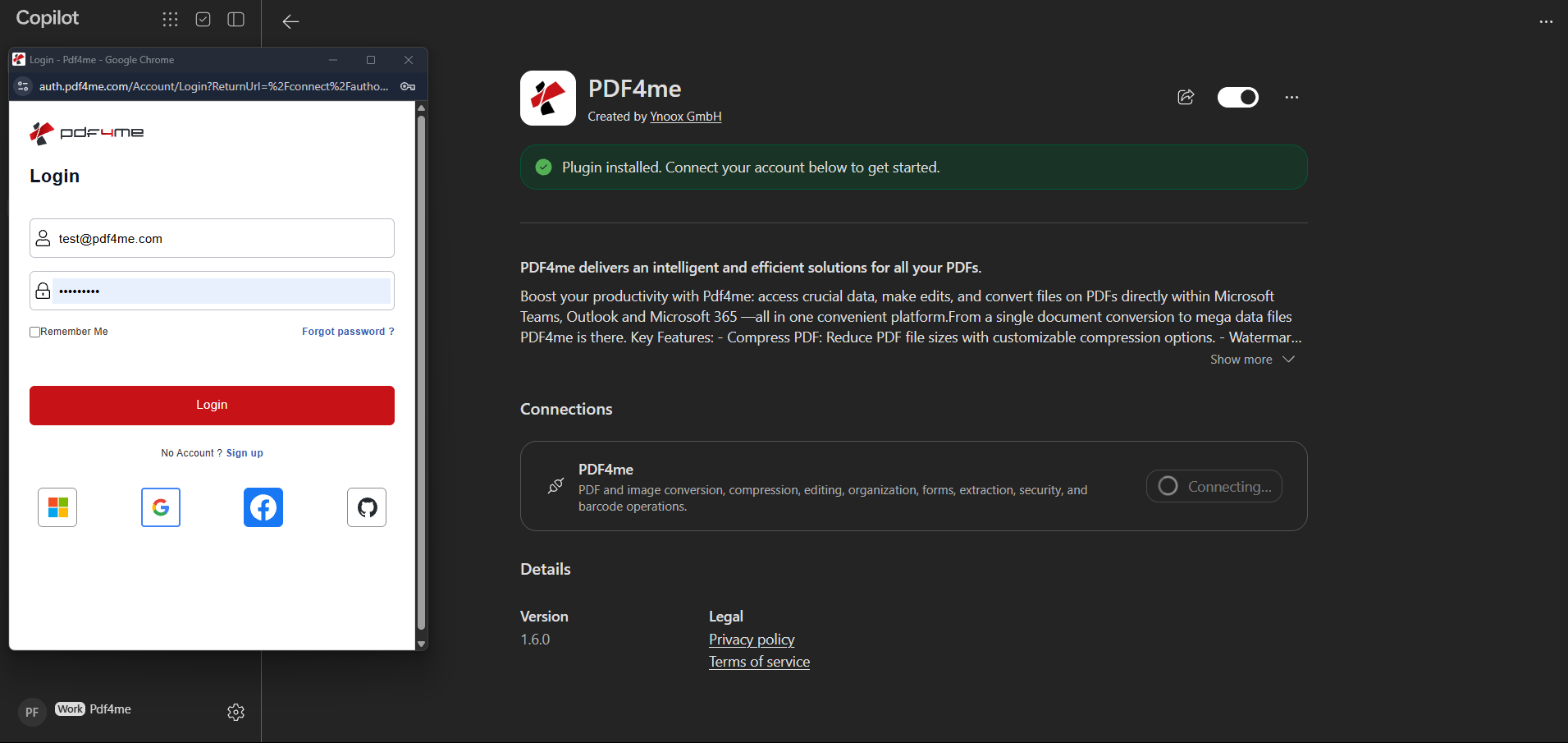
Sign in with the PDF4me account whose plan should process the files.
When login finishes, the connection row turns green and reads Connected., and the button changes to Disconnect.
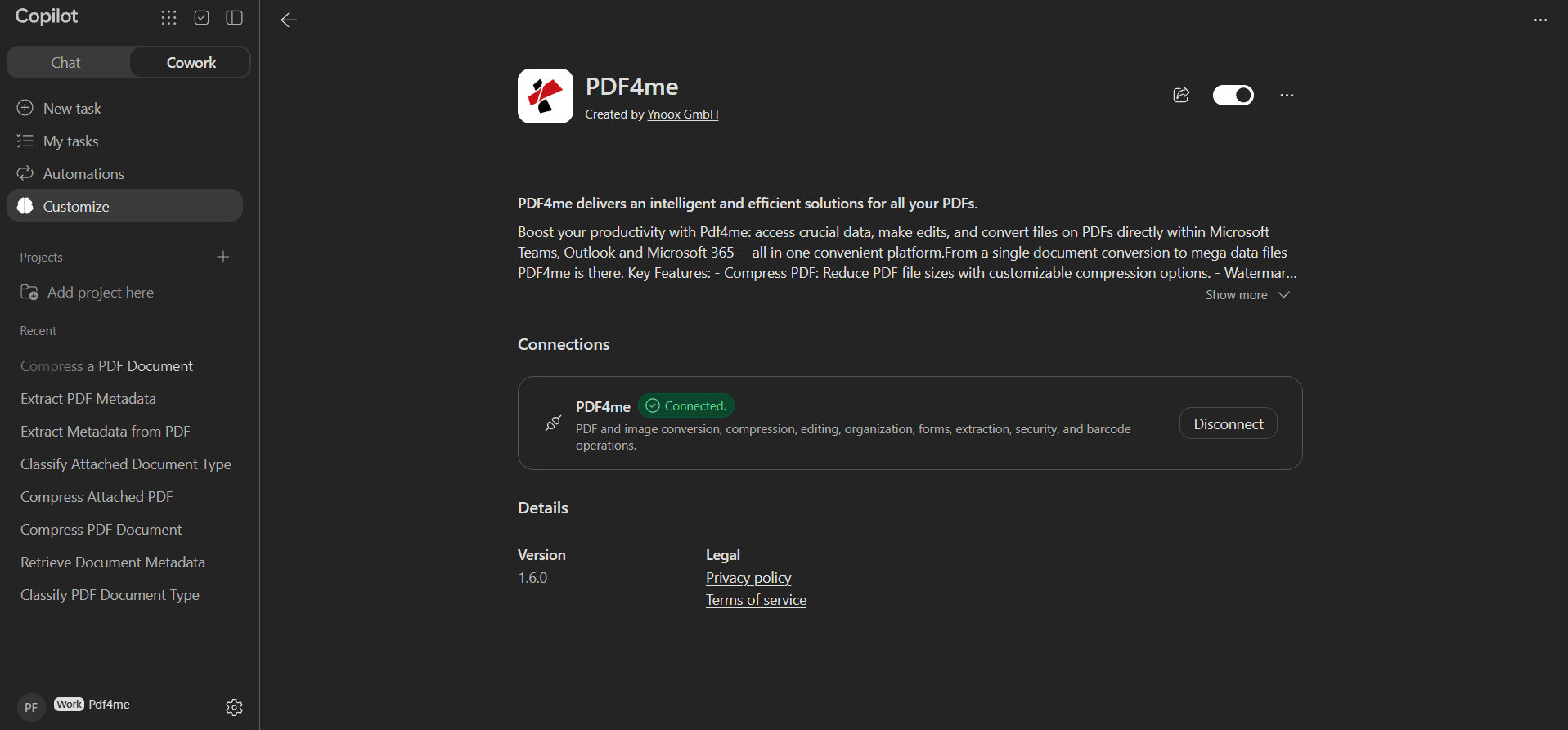
A finished connection: green Connected. badge and a Disconnect button.
PDF4me now appears under Added on the Customize page, alongside your other capabilities.
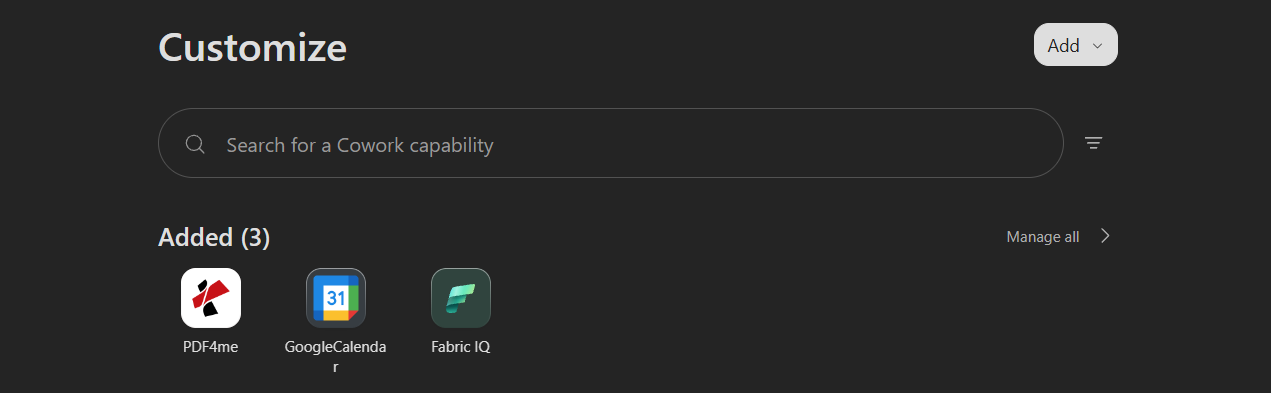
PDF4me listed under Added on the Customize page.
Use PDF4me in a task
Cowork runs your request as a background task. The worked example below compresses a PDF invoice.
Step 6: Start a task and attach your file
- Click New task in the sidebar.
- Attach the document with the + button, or drag and drop it onto the composer.
- Type what you want, naming PDF4me so Copilot picks the right capability, for example
Compress the PDF using PDF4me. - Send the message.
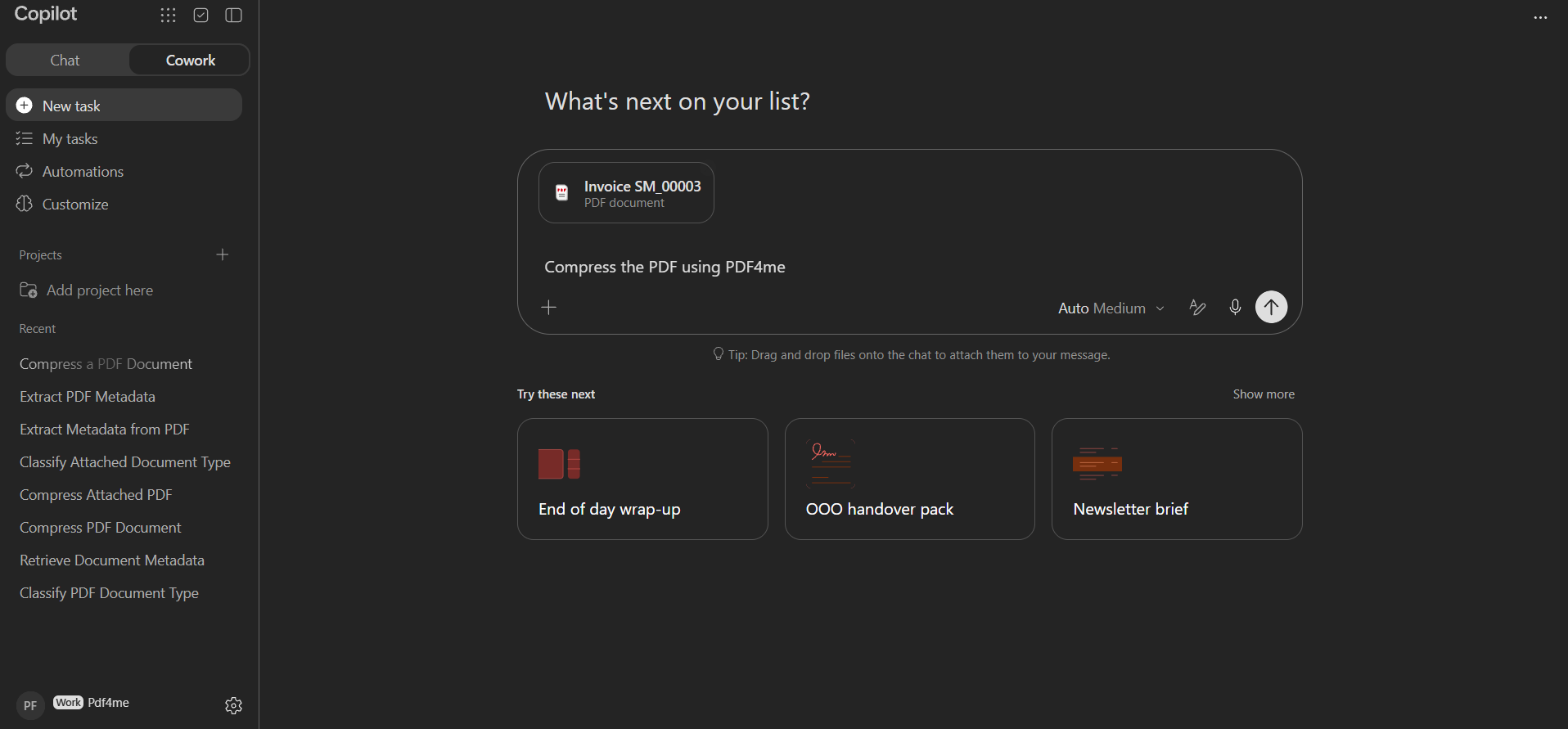
Attach the file, then describe the action and name PDF4me in the prompt.
Look for: The attached file appears as a card above the prompt. Copilot also hints Drag and drop files onto the chat to attach them to your message.
Step 7: Review and approve the action
- Copilot starts a background task and prepares the call.
- An action card appears with the action name, the PDF4me icon, the File, the resolved Direct attachment file paths, and any options such as Optimize profile.
- Expand View details if you want the full request.
- Click Approve to let the call run, or Cancel to stop it.
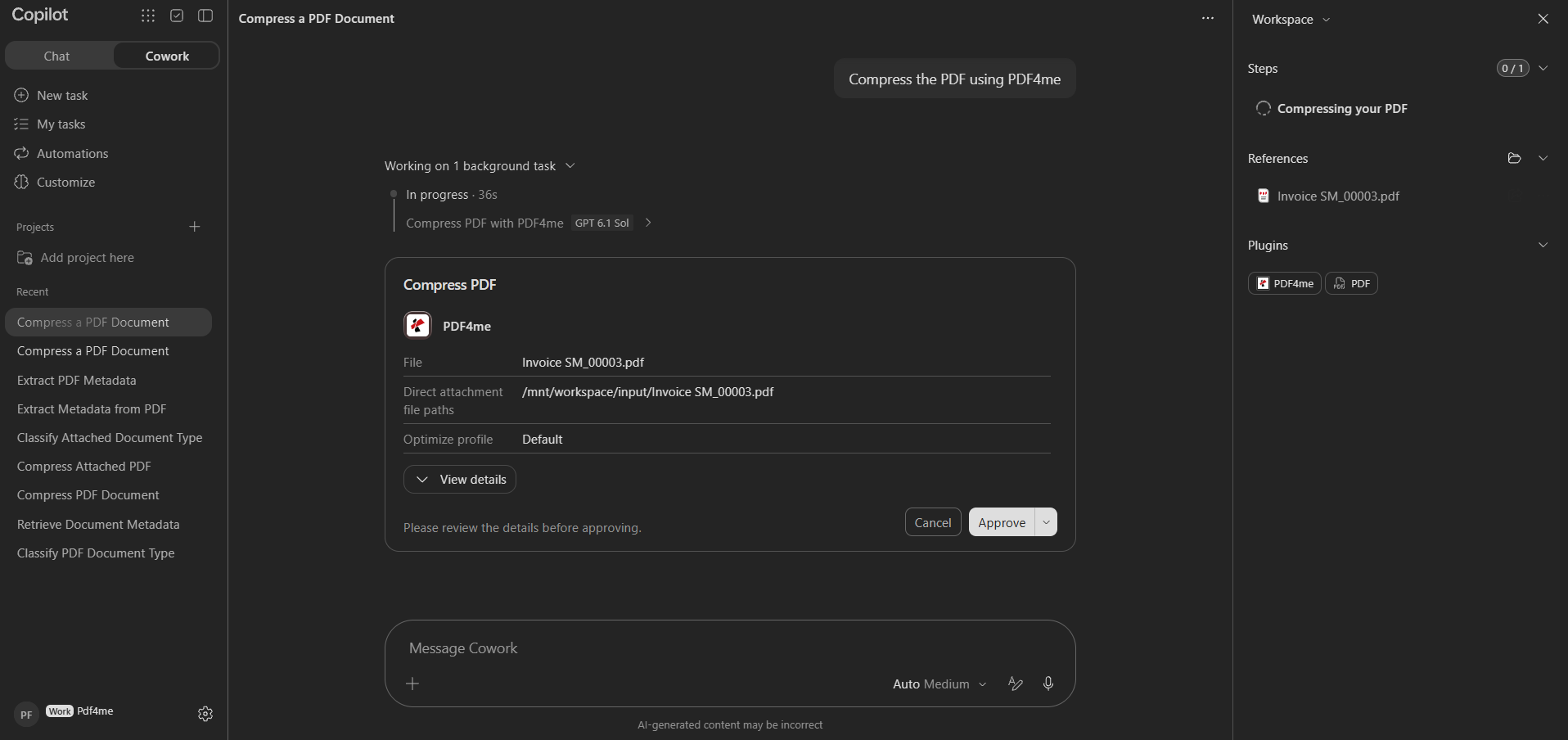
Nothing is sent to PDF4me until you click Approve. Copilot prompts Please review the details before approving.
Step 8: Download the result
- When the task finishes, the activity collapses to 1 background task complete and Approved 1 action.
- Copilot reports the outcome and shows a download link, for example Download the compressed PDF.
- Click the link. A dialog asks you to confirm the destination before the browser opens it.
- Confirm with Open link, or use Copy link to save the address.
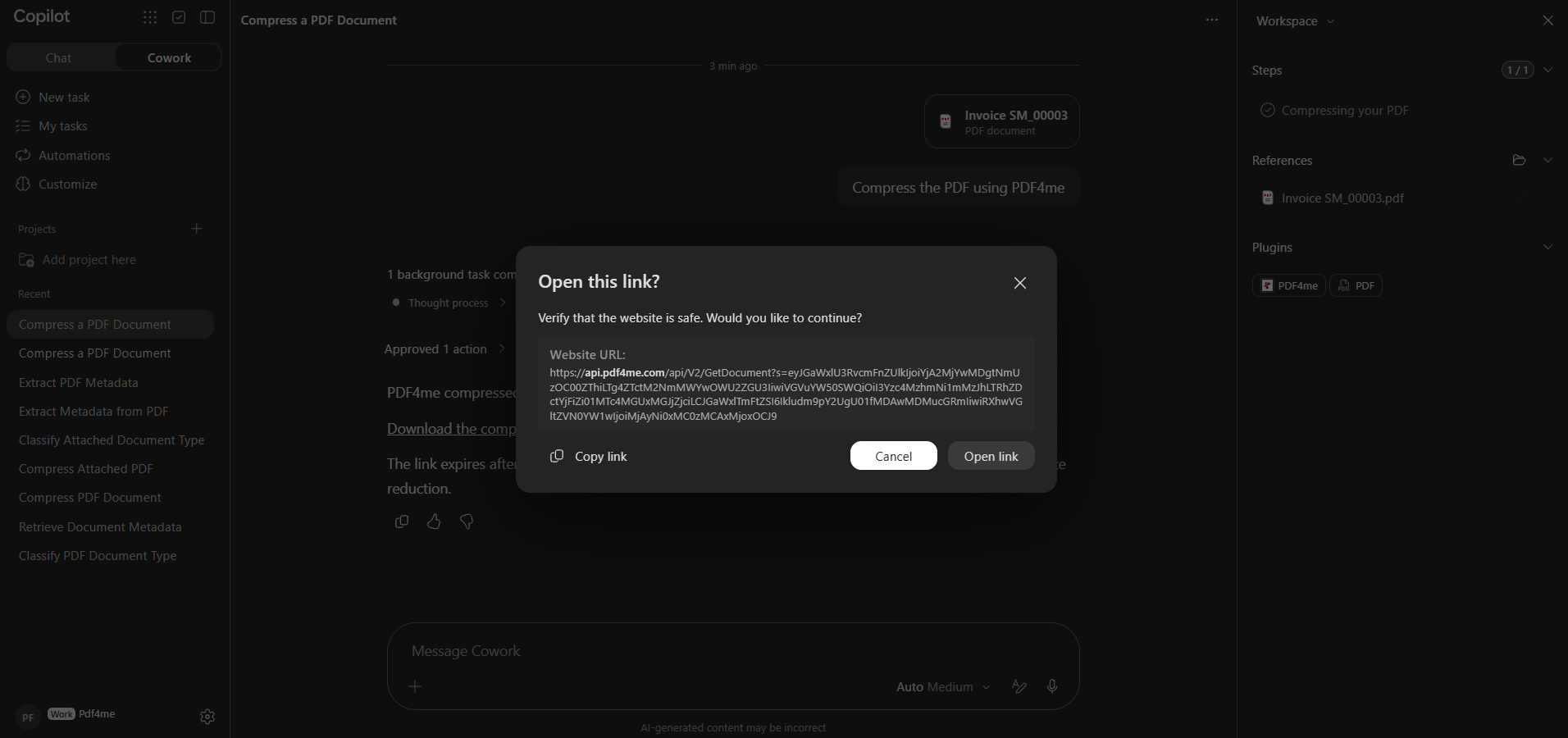
The link points at api.pdf4me.com. Confirm with Open link to download.
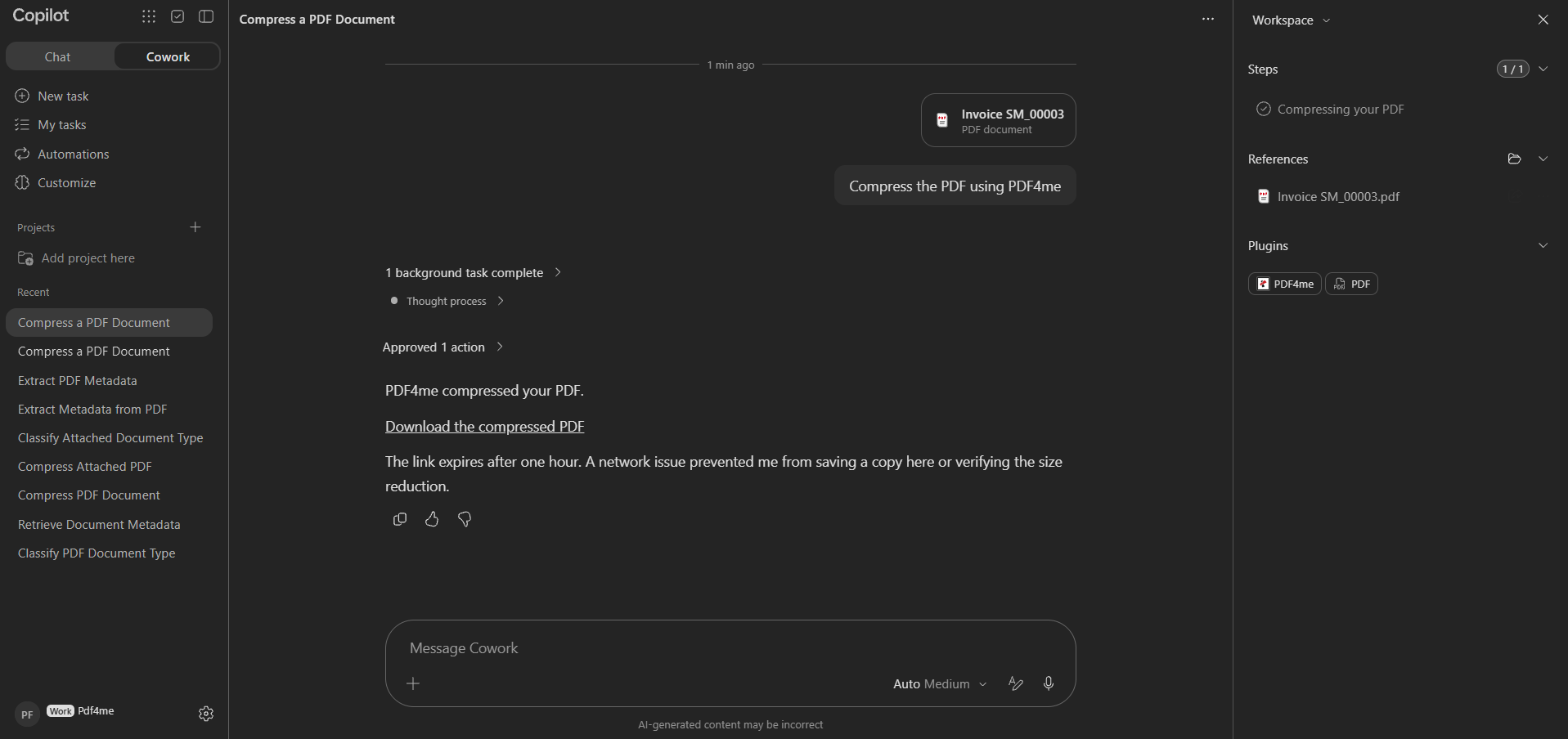
The finished task, with the result message and the download link.
Example prompts
| Goal | Example prompt |
|---|---|
| Compress a PDF | Compress the PDF using PDF4me. |
| Compress an attachment | Compress the attached PDF with PDF4me. |
| Read document metadata | Extract the PDF metadata using PDF4me. |
| Identify a document | Classify the attached document type using PDF4me. |
| Convert to PDF | Convert this file to PDF using PDF4me. |
Name PDF4me in the prompt. Copilot can reach several capabilities, and saying which one you want keeps it from choosing a different tool for the same request.
Troubleshooting
Make sure you are on the Cowork tab, not Chat. The Customize page and its capabilities belong to Cowork.
In the search field, type PDF4me as one word with no space. The result appears under Discover.
Connecting opens two pop-up windows in sequence. If either is blocked, the row stays on Connecting.... Allow pop-ups and redirects for Copilot, mcp.pdf4me.com and auth.pdf4me.com, then click Connect again.
You must finish both screens: Allow Access on the Application Access Request, then Login on the PDF4me page.
Open Customize, open PDF4me, and check the connection says Connected. rather than Not connected. Installing alone does not connect the account.
Check the toggle at the top of the PDF4me page is on, and confirm PDF4me is listed under Plugins in the Workspace panel of the task. Naming PDF4me in the prompt also helps Copilot pick the right capability.
Copilot asks you to verify the destination before opening it. The address is on api.pdf4me.com. Choose Open link, or Copy link and paste it into a new tab.
Links expire after one hour. Once expired, run the task again rather than reusing the old address.
A transient network error between Copilot and PDF4me can stop Copilot from attaching its own copy of the output or reporting the size change, even though the action succeeded.
Use the download link in the message to fetch the file. If the link is missing too, run the task again.
Check your plan and remaining automation calls in the PDF4me dashboard.
Very large files can time out. Try a smaller file, or split the work across two tasks.
Frequently asked questions
Yes. Installing the plugin is only the first half. You must click Connect and sign in, because processing runs on PDF4me cloud services and counts against your plan limits, the same as the web app and other PDF4me integrations.
Cowork runs the request as a background task and confirms before calling an external plugin. The approval card lists the file, the resolved attachment path, and the options, so you can check exactly what leaves Copilot before it is sent.
PDF4me exposes its document actions to Copilot through an MCP server named pdf4me-mcp-server. The Application Access Request screen you approve during Connect is what links your Copilot session to that server. The same PDF4me MCP service backs other AI clients, documented under PDF4me MCP.
One hour. Download the processed file during the session. After that, run the task again to produce a fresh link.
Open Customize, open the PDF4me page, and click Disconnect to unlink the account while keeping the plugin. Use the toggle to switch the capability off, or the overflow menu to remove it entirely.