Install PDF4me for ChatGPT
What this app does
PDF4me for ChatGPT connects your PDF4me account to ChatGPT so you can work on documents inside a normal chat. Ask to compress a PDF or convert Word, Excel, or PowerPoint files to PDF. ChatGPT opens an in-chat upload window, PDF4me processes the file in the cloud, and you download the result without leaving the conversation.
Before you start
You need:
- A ChatGPT account with access to Apps (available on supported ChatGPT plans and regions).
- A PDF4me account. Create a free account or use an existing login.
- The file you want to process (for conversion: DOC, DOCX, XLS, XLSX, PPT, PPTX, or TXT).
What you can do today
The PDF4me ChatGPT app highlights these tools as available now:
| Tool | What it does |
|---|---|
| Compress PDF | Reduce PDF file size. Choose a compression profile in your message (for example Screen or None). |
| Convert to PDF | Turn Word, Excel, or PowerPoint files into PDF. Upload through the in-chat widget. |
Additional capabilities (merge, split, watermark, sign PDF, and more) appear in the app description and will be added as they are released. Check the connect screen in ChatGPT for the latest list.
Install and connect PDF4me
Follow these steps in order. Each step matches a screen you will see in ChatGPT.
Step 1: Open Apps in ChatGPT
- Sign in to ChatGPT.
- In the left sidebar, click Apps.
- You see the Apps catalog and a Search apps field at the top.

Open Apps in the ChatGPT sidebar to browse and install apps.
Look for: Sidebar item Apps is highlighted. Main area title is Apps with subtitle Chat with your favorite apps in ChatGPT.
Step 2: Search for PDF4me
- In Search apps, type
pdf4me. - Select PDF4me from the results (tagline: PDF done simple and online!).
- Click the row to open the app details page.
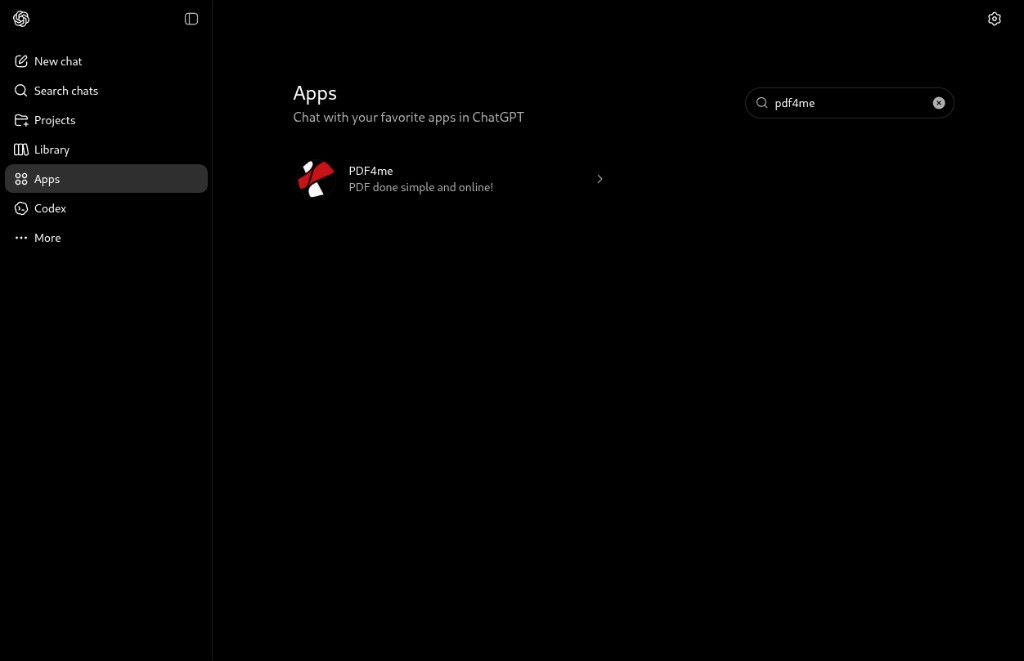
Search for pdf4me and select the PDF4me app from the results.
Look for: Only one result named PDF4me with the red and white PDF4me logo.
Step 3: Connect the app
- On the PDF4me app page, read the short description and preview cards.
- Click the white Connect button (top right).
- A modal titled Add PDF4me to ChatGPT opens with feature details and a Sign in with PDF4me button.
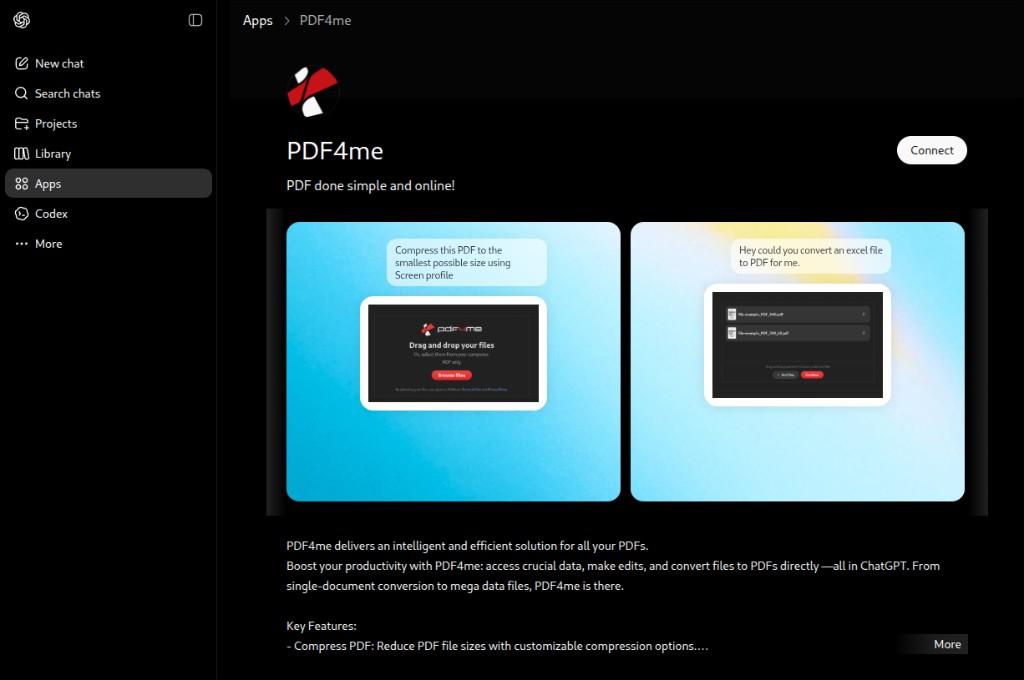
On the PDF4me app page, click Connect to start linking your account.
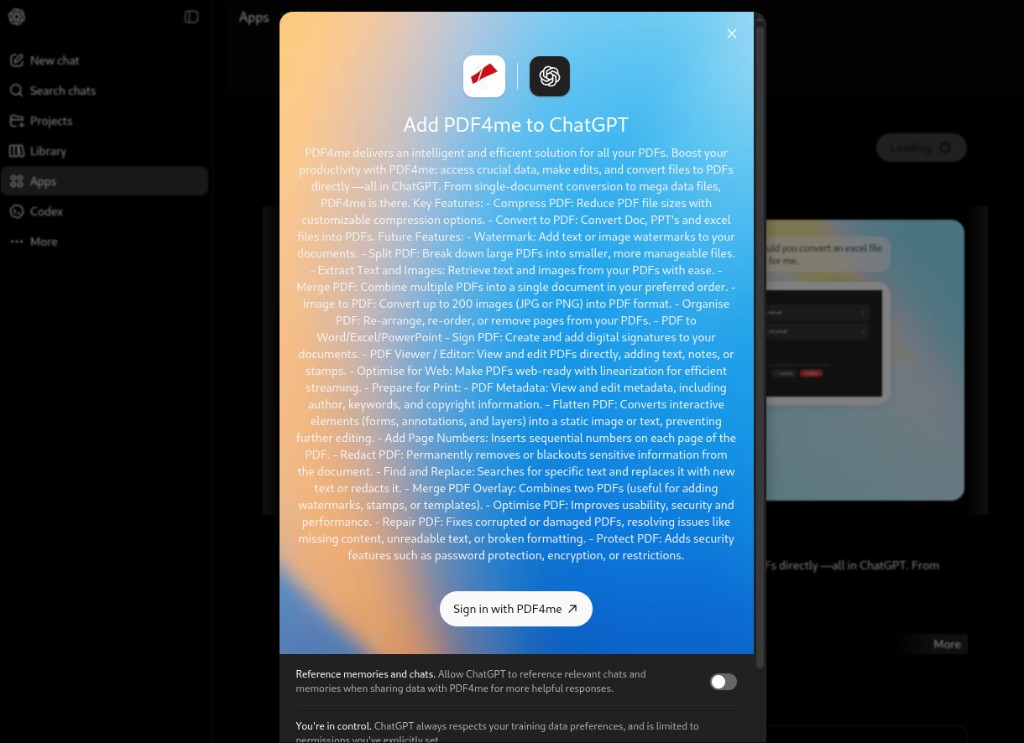
Review permissions, then click Sign in with PDF4me.
Optional: Toggle Reference memories and chats if you want ChatGPT to use relevant past messages when PDF4me needs context. You can leave it off for a stricter privacy posture.
Step 4: Sign in with your PDF4me account
- Click Sign in with PDF4me (opens pdf4me.com in a new tab).
- Enter your email and password, or use Continue with Microsoft, Google, Facebook, or GitHub.
- After a successful login, return to ChatGPT. The app is connected.
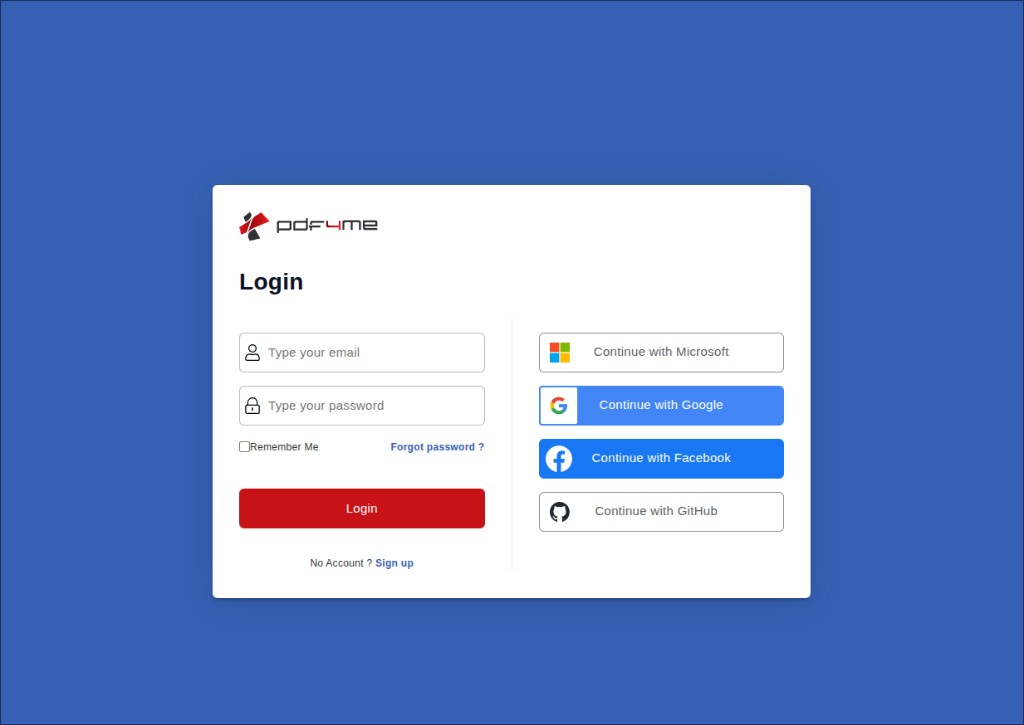
Sign in with the same PDF4me account you use on pdf4me.com or dev.pdf4me.com.
Done when: You can start a new chat and PDF4me responds when you ask for PDF help. No need to click Connect again unless you disconnect the app.
Use PDF4me in a chat
After connection, use natural language in any chat. PDF4me opens an upload panel when it needs a file.
Step 5: Ask for an action
Type a clear request. Examples:
Compress this PDF using the Screen profile.Please convert a Doc to PDF for me using None profile.Convert my PowerPoint file to PDF.
Step 6: Upload your file in the widget
When PDF4me is ready, an embedded panel appears in the chat:
- Drag and drop your file into the dashed area, or click Browse files.
- For Convert to PDF, allowed types are: XLSX, XLS, DOCX, DOC, PPTX, PPT, TXT.
- After the file appears in the list, click the red Continue button.
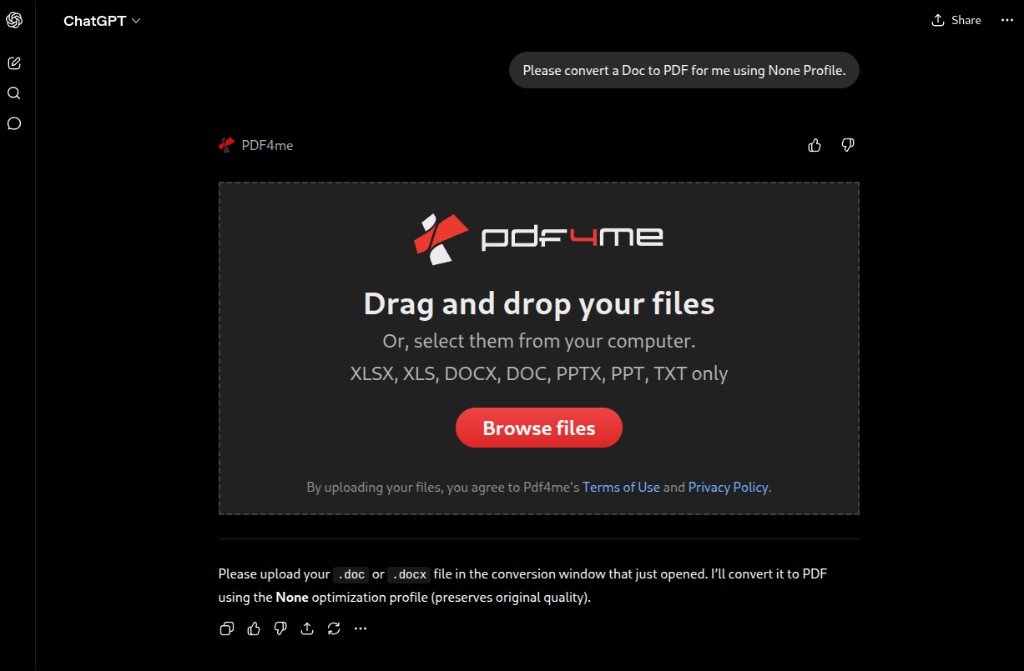
Empty upload widget before you add a file.
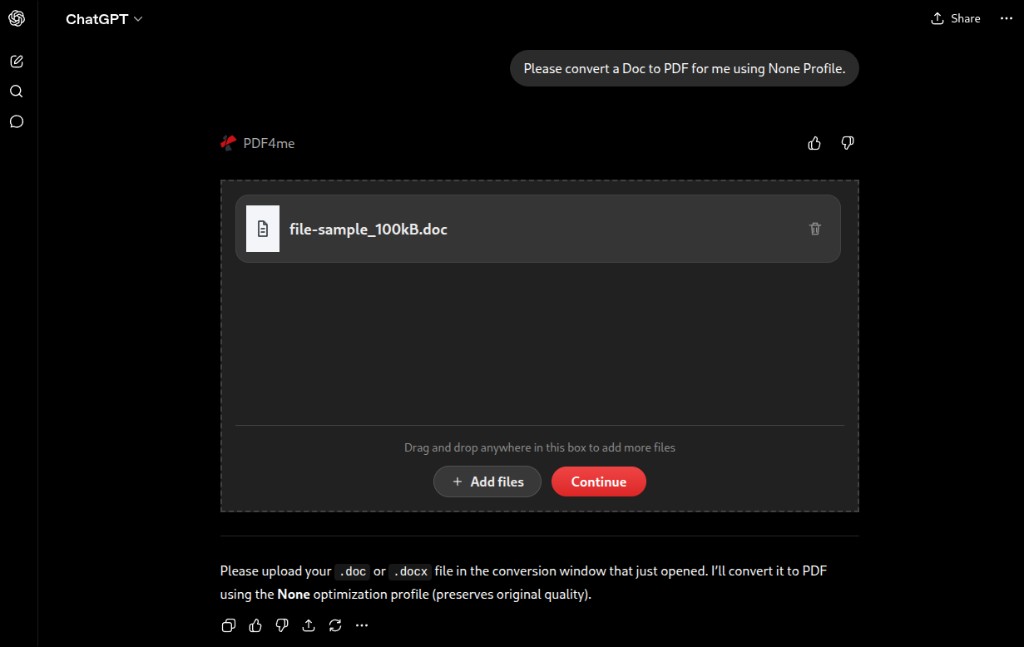
After the file is listed, click Continue to start processing.
Look for: PDF4me logo at the top of the widget, your filename in the list, and a red Continue button (not only Browse files).
Step 7: Download the result
When processing finishes, the widget shows Download Files:
- Check the output filename (for example
file-sample_100kB.pdf). - Status should show READY TO DOWNLOAD.
- Click the red Download button and save the file to your computer.
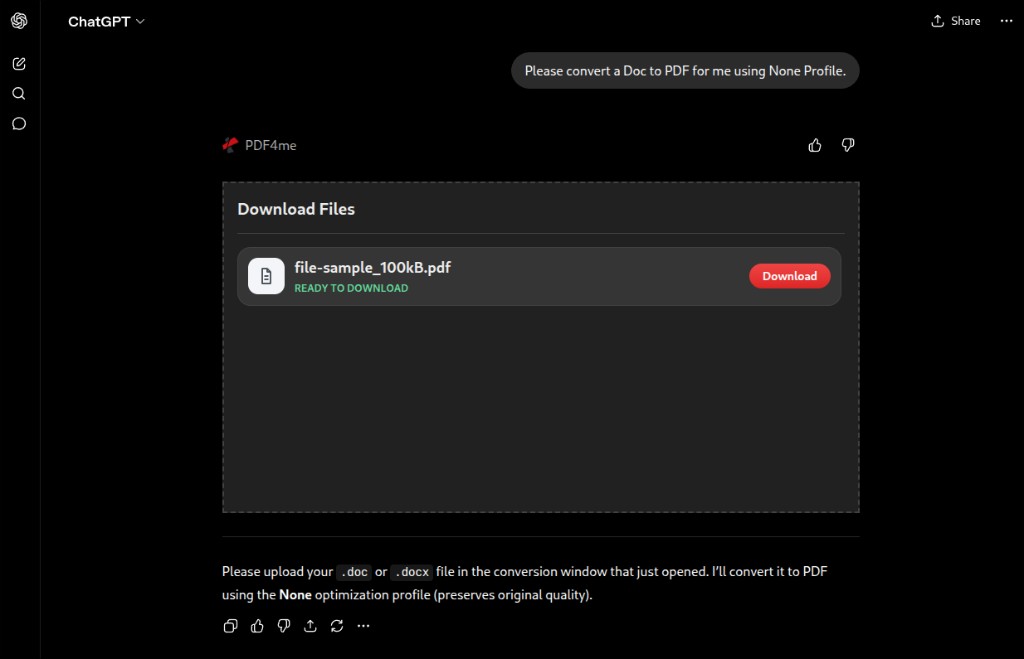
Download the processed PDF when status shows READY TO DOWNLOAD.
Tip: Keep the chat open until the download completes. Large files may take longer depending on size and your connection.
Example prompts
| Goal | Example prompt |
|---|---|
| Compress for email | Compress this PDF for email attachment using the Max profile. |
| Compress for screen | Compress this PDF using the Screen profile. |
| Word to PDF | Convert this DOCX to PDF using None profile. |
| Excel to PDF | Convert my Excel file to PDF with None profile. |
| PowerPoint to PDF | Convert this PowerPoint to PDF. Use None profile. |
Troubleshooting
Confirm your ChatGPT plan supports third-party apps. Update the ChatGPT app or try another browser.
In Search apps, type exactly pdf4me with no spaces. Select the app tagged PDF done simple and online!
Allow pop-ups and redirects for ChatGPT and pdf4me.com in your browser.
Finish login on the pdf4me tab, then return to ChatGPT manually. If the app stays disconnected, open Apps, open PDF4me, and tap Connect again.
Start a new chat after you connect the app.
Ask with clear action words such as compress or convert. For conversion, use an allowed file type: DOC, DOCX, XLS, XLSX, PPT, PPTX, or TXT.
Check your plan and remaining automation calls in the PDF4me dashboard.
Very large files may time out. Try a smaller file, or compress first, then convert.
Frequently asked questions
Yes. Connecting the app requires signing in with PDF4me. Processing runs on PDF4me cloud services and counts against your plan limits, same as the web app and other PDF4me integrations.
The in-chat uploader accepts XLSX, XLS, DOCX, DOC, PPTX, PPT, and TXT. For PDF compression, upload a PDF file.
In prompts, None profile usually means minimal optimization so the output stays close to the original quality. Screen and Max profiles target smaller file sizes for different use cases.
The connect screen notes that ChatGPT respects your training data preferences and only uses data you allow. Read the toggle for Reference memories and chats before enabling it.