Seguro Word Documento en n8n
Seguro Word Documento es un PDF4me acción del nodo en n8n que bloquea un .docx Archivo con contraseña, restricción de edición o ambas. Úselo para proteger informes confidenciales antes de enviarlos, evitar que se altere una plantilla firmada o permitir que los revisores comenten un contrato sin modificar su texto.
Lo que hace este nodo
PDF4me Word: Seguro Word Documento se aplica dos tipos de protección independientes. Seguro al abrir más Abrir contraseña decide si el archivo se abre o no. Tipo de protección más Contraseña de protección Decide qué se puede modificar una vez abierto, desde solo lectura hasta comentarios, campos de formulario o revisiones controladas. Puede usar una u otra opción, o ambas.
Autenticando su API Pedido
Cada PDF4me nodo en n8n requiere un válido Credencial para conectarse con. Crea o selecciona uno que contenga tu PDF4me API clave para que el flujo de trabajo pueda autenticar las solicitudes de seguridad de los documentos.
Datos importantes que no debes perderte
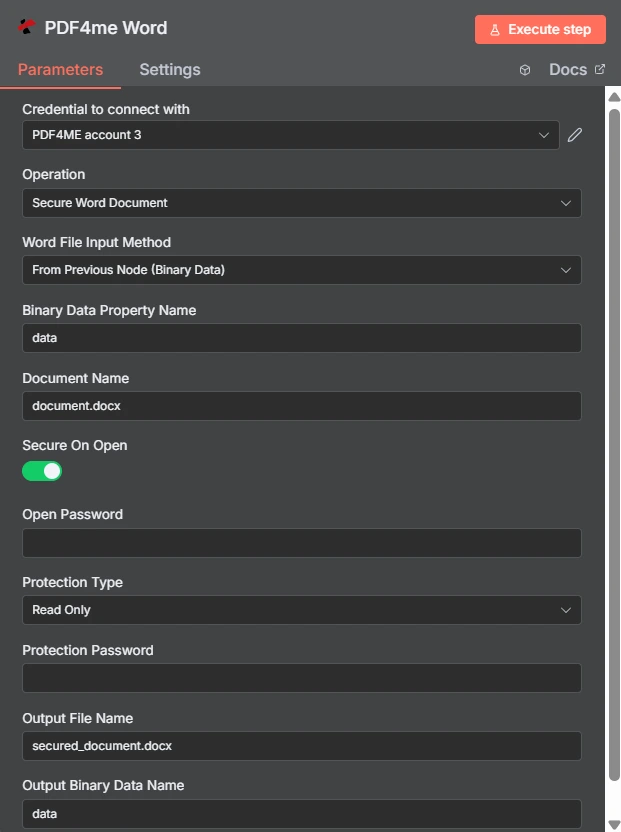
La opción "Seguridad al abrir" es un interruptor, y "Tipo de protección" es un menú desplegable independiente configurado como "Solo lectura". Los dos campos de contraseña que aparecen debajo son independientes entre sí.
Acceso mediante contraseña frente a restricción de edición
| Pregunta | Abrir contraseña | Restricción de edición |
|---|---|---|
| Which fields set it | Secure On Open and Open Password | Protection Type and Protection Password |
| What it blocks | Opening the document at all | Changing the document once open |
| Can the recipient read it | Only with the password | Yes, reading is always allowed |
| Typical recipient | A named person receiving something confidential | A reviewer or a form filler |
| Use it when | The content must not be seen by others | The content may be seen but not altered |
¿Qué parámetros asegura? Word ¿Necesita documentación?
| Parámetro | Requerido | Lo que hace | Ejemplo |
|---|---|---|---|
| Credential to connect with | Required | The PDF4me account credential the node authenticates with. | PDF4ME account |
| Operation | Required | The action this node performs. Select Secure Word Document. | Secure Word Document |
| Word File Input Method | Required | How the .docx reaches the node: from the previous node as binary data, as a Base64 string, or from a URL. | From Previous Node (Binary Data) |
| Binary Data Property Name | Conditional | Name of the binary property holding the document. Appears when the file comes from the previous node. | data |
| Document Name | Required | Filename of the input document including the extension. Drives format detection. | document.docx |
| Secure On Open | Optional | Toggle that requires a password before the document will open. Leave off if you only want an editing restriction. | enabled |
| Open Password | Conditional | The password needed to open the file. Required once Secure On Open is enabled. Supply it through an expression, not as literal text. | {{ $env.DOC_OPEN_PW }} |
| Protection Type | Optional | Editing restriction applied to the document: Read Only, Allow Comments, Allow Form Fields, or Allow Revisions. | Read Only |
| Protection Password | Conditional | The password that lifts the editing restriction. Required once a Protection Type is chosen, and should differ from Open Password. | {{ $env.DOC_EDIT_PW }} |
| Output File Name | Optional | Filename of the returned secured document. Keep the .docx extension. | secured_document.docx |
| Output Binary Data Name | Optional | Binary property the secured document is written to. Leave as data unless a later node expects another name. | data |
Opciones de tipo de protección
| Opción | Lo que el destinatario puede hacer |
|---|---|
Read Only | View the document only. No edits of any kind are accepted. |
Allow Comments | Add and edit comments, but not change the document text itself. |
Allow Form Fields | Fill in form fields while the surrounding content stays locked. |
Allow Revisions | Edit, but only with tracked changes recorded so every alteration is visible. |
Producción
| Campo | Tipo | Lo que contiene |
|---|---|---|
| fileName | String | Name of the returned secured document. |
| fileSize | Number | Size of the secured document in bytes. |
| success | Boolean | Whether protection was applied. Branch on this so failures surface as alerts. |
| originalFileName | String | Name of the input document as supplied in Document Name. |
| secureOnOpen | Boolean | Whether an open password was applied, echoed back for verification. |
| protectionType | String | The editing restriction applied, such as ReadOnly, or empty when none was set. |
| message | String | Human-readable status text describing the result of the operation. |
Comprobando protectionType En la respuesta está la forma más barata de confirmar que la restricción que pretendías es la que realmente se aplicó.
¿Cómo configuro la seguridad? Word Documento en n8n¿
- Añade el PDF4me Word nodo a su flujo de trabajo y configurar Operación a Seguro Word Documento.
- Seleccione su PDF4me credencial, o cree una y pegue su API llave.
- Elige uno Word Método de entrada de archivos y suministrar el
.docxa través del campo que hay debajo. - Colocar Nombre del documento con la extensión correcta.
- Para abrir la puerta, encienda Seguro al abrir y establecer Abrir contraseña a partir de una credencial o variable de entorno.
- Para restringir la edición, configure Tipo de protección y suministrar uno diferente Contraseña de protección.
- Colocar Nombre del archivo de salida terminando en
.docx. - Ejecutar el nodo, confirmar
secureOnOpenyprotectionTypeEn la respuesta, luego redirija el archivo protegido.
Configuraciones típicas
Ejemplos de flujo de trabajoCommon n8n workflow patterns using Secure Word Document.
- El proceso de elaboración de informes produce un documento con cifras confidenciales.
- La función Secure On Open aplica una contraseña almacenada en una variable de entorno.
- El archivo se envía por correo electrónico y la contraseña se comparte a través de un canal aparte.
- El tipo de protección está configurado para permitir comentarios.
- Los revisores realizan anotaciones sin alterar el texto de ninguna cláusula.
- La retroalimentación llega sin ninguna diferencia que conciliar posteriormente.
- La opción Permitir campos de formulario mantiene fijo el texto circundante.
- Los destinatarios solo deben completar los campos destinados a ellos.
- Los formularios devueltos son lo suficientemente consistentes como para ser analizados automáticamente.
- Se aprueba una plantilla y se publica en una unidad compartida.
- La protección de solo lectura impide las ediciones locales silenciosas.
- Todos trabajan a partir de la misma redacción autorizada.
Consejos prácticos
Hoja de trucos
| Campo | Valor |
|---|---|
| Operation | Secure Word Document |
| Word File Input Method | From Previous Node (Binary Data) |
| Binary Data Property Name | data |
| Document Name | document.docx |
| Secure On Open | enabled |
| Open Password | {{ $env.DOC_OPEN_PW }} |
| Protection Type | Read Only |
| Protection Password | {{ $env.DOC_EDIT_PW }} |
| Output File Name | secured_document.docx |
| Output Binary Data Name | data |