Cambiar tamaño de la imagen en n8n
Cambiar tamaño de la imagen es un PDF4me acción del nodo en n8n Esta herramienta ajusta el tamaño de una imagen, ya sea mediante un porcentaje de su tamaño original o a la anchura y altura exactas en píxeles, con la opción de conservar la relación de aspecto. Úsela para generar miniaturas, normalizar las imágenes subidas por los usuarios a un tamaño estándar o reducir el tamaño de las fotos demasiado grandes antes de que se almacenen.
Lo que hace este nodo
PDF4me: Cambiar tamaño de la imagen toma una imagen de Binary Data, un Base64 String, o un URL y devuelve una copia escalada. Tipo de cambio de tamaño El campo decide el método: Porcentaje escala en relación con el original, lo que se adapta a entradas de tamaños mixtos, mientras que Específico Esta función define un ancho y alto exactos en píxeles para espacios de diseño fijos. Dado que el nodo se ejecuta una vez por cada elemento entrante, un nodo configurado redimensiona todo un lote con la misma configuración.
Autenticando su API Pedido
Cada PDF4me nodo en n8n requiere un válido Credencial para conectarse con. Crea o selecciona uno que contenga tu PDF4me API clave para que el flujo de trabajo pueda autenticar las solicitudes de redimensionamiento de forma segura.
Datos importantes que no debes perderte
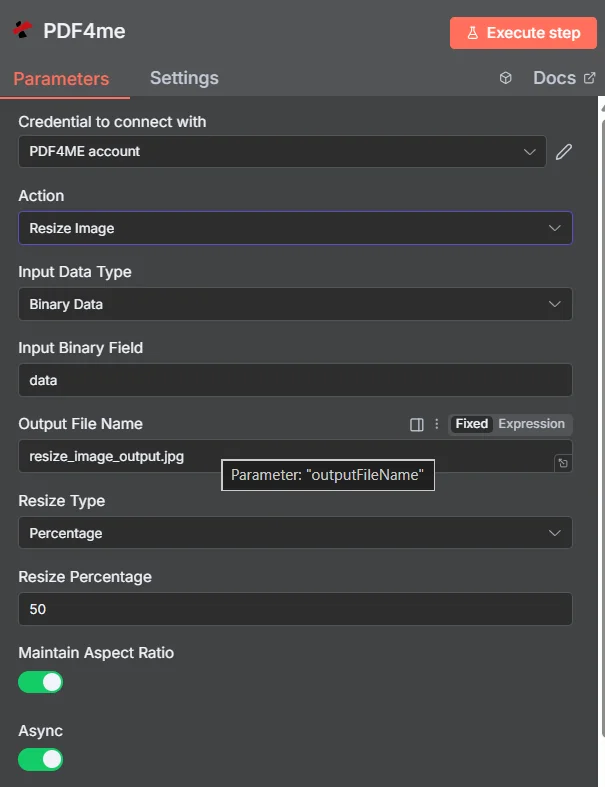
PDF4me Panel de parámetros de redimensionamiento de imagen en n8n, mostrado en modo porcentaje
Porcentaje vs. Tamaño específico: ¿Qué tipo de redimensionamiento debería usar?
Los dos modos resuelven problemas diferentes, y elegir el incorrecto es la causa más común de tamaños de salida inesperados.
| Tipo de cambio de tamaño | Campos que usted rellena | Mejor ajuste |
|---|---|---|
| Percentage | Resize Percentage, for example 50 to halve or 200 to double | Mixed-size inputs that should all shrink or grow by the same proportion, keeping their relative differences |
| Specific | Width and Height in pixels | A fixed layout slot, thumbnail grid, or platform that demands exact dimensions regardless of the source size |
¿Qué parámetros necesita la función de redimensionar imagen?
Requerido: Acción, tipo de datos de entrada, el campo que coincide con ese tipo de entrada, nombre del archivo de salida, tipo de redimensionamiento y los campos de dimensión que revela el tipo de redimensionamiento. Async y el nombre de salida de datos binarios tienen valores predeterminados de funcionamiento.
| Parámetro | Requerido | Lo que hace | Ejemplo |
|---|---|---|---|
| Action | Required | Selects the PDF4me node action to run. Choose Resize Image. | Resize Image |
| Input Data Type | Required | Format of the source image input. Choose Binary Data (from a previous node), Base64 String, or URL. | Binary Data |
| Input Binary Field | Conditional | Name of the binary property on the incoming n8n item that holds the image. Required when Input Data Type is Binary Data. Defaults to data. | data |
| Base64 Image Content | Conditional | Base64-encoded content of the source image. Required when Input Data Type is Base64 String. | /9j/4AAQSkZJRgAB... |
| Image URL | Conditional | Publicly reachable HTTPS URL to the source image. Required when Input Data Type is URL. | https://example.com/photo.jpg |
| Output File Name | Required | Filename for the resized image. Include the extension matching the output format. | resize_image_output.jpg |
| Resize Type | Required | Scaling method. Percentage scales relative to the original size, Specific targets exact pixel dimensions. Your choice decides which fields appear next. | Percentage |
| Resize Percentage | Conditional | Scaling percentage relative to the original. Below 100 reduces, above 100 enlarges. Required when Resize Type is Percentage. | 50 |
| Width | Conditional | Target width in pixels. Required when Resize Type is Specific. | 800 |
| Height | Conditional | Target height in pixels. Required when Resize Type is Specific. | 600 |
| Maintain Aspect Ratio | Optional | Toggle that preserves the original proportions so the image is not stretched. Leave enabled unless you need forced dimensions. | true |
| Async | Optional | Toggle that runs the resize in the background instead of holding the workflow execution open. Useful for large images or long batches. | true |
| Binary Data Output Name | Optional | Name of the binary property the output item exposes. Defaults to data. | data |
Campos de salida
Una carrera exitosa devuelve uno n8n Artículo que contiene la imagen redimensionada y su informe de dimensiones.
| Campo | Tipo | Lo que contiene |
|---|---|---|
Binary (data) | Binary | The resized image, under Binary Data Output Name (default data). |
fileName | String | Generated filename, matching Output File Name. |
mimeType | String | MIME type of the output image, for example image/jpeg or image/png. |
fileSize | Number | Size of the resized image in bytes. |
originalDimensions | String | Width and height of the source image in pixels, for example 1920x1080. |
newDimensions | String | Width and height after resizing, for example 960x540. Compare it against your target to confirm aspect ratio behaviour. |
success | Boolean | True when the resize completed, false on failure. Use it to branch error handling. |
message | String | Human-readable status message, carrying success confirmation or error detail. |
¿Cómo configuro el redimensionamiento de imágenes en? n8n¿
- Agregar PDF4me a tu n8n flujo de trabajo y elegir el Cambiar tamaño de la imagen acción.
- En Credencial para conectarse con, seleccione su PDF4me credenciales o haga clic Crear nueva credencial y pega tu API llave.
- Colocar Tipo de datos de entrada a Datos binarios (por defecto), Base64 String, o URL y proporcione el campo de imagen de origen correspondiente.
- Colocar Tipo de cambio de tamaño a Porcentaje y rellenar Porcentaje de redimensionamientoo para Específico y rellenar Ancho y Altura.
- Dejar Mantener la relación de aspecto habilitado para evitar el estiramiento y habilitar Async para imágenes grandes o lotes extensos.
- Colocar Nombre del archivo de salida, ejecute el nodo y verifique
newDimensionsen la salida para confirmar el resultado.
Configuraciones típicas
Ejemplos de flujo de trabajoCommon n8n workflow patterns using Resize Image.
- Se ha almacenado una nueva imagen de producto en la nube.
- La función Redimensionar imagen se ejecuta en modo específico con las dimensiones de la cuadrícula de miniaturas.
- La miniatura aparece junto a la imagen original a tamaño completo.
- Un webhook recibe una foto enviada a través de un formulario.
- La función Redimensionar imagen se ejecuta en modo Porcentaje para reducirla proporcionalmente.
- Se almacena un archivo más pequeño, lo que permite controlar el almacenamiento y el ancho de banda.
- Un nodo Loop Over Items itera sobre una carpeta existente de imágenes de diferentes tamaños.
- Redimensionar imagen aplica una configuración consistente a cada elemento, con Async activado.
- La biblioteca termina siendo uniforme sin que nadie abra un editor.
- Se extrae una imagen editorial de un CMS.
- La opción Redimensionar imagen la ajusta primero al ancho de la pantalla.
- La función Comprimir imagen reduce aún más el tamaño del archivo antes de publicarlo.
Consejos prácticos
Hoja de trucos
| Campo | Valor |
|---|---|
| Action | Resize Image |
| Input Data Type | Binary Data |
| Input Binary Field | data |
| Output File Name | resize_image_output.jpg |
| Resize Type | Percentage |
| Resize Percentage | 50 |
| Width / Height (Specific mode) | 800 / 600 |
| Maintain Aspect Ratio | true |
| Async | true |
| Binary Data Output Name | data |