Crear hipervínculos en PDF con Make
PDF4me PDF - Crear hipervínculos es un Make módulo que convierte una cadena de texto específica en un PDF en un enlace clicable, sin coordenadas ni un PDF Editor. Úselo para vincular nombres de productos a páginas de tiendas, citas a fuentes o frases de políticas a una página de preguntas frecuentes, y luego encadene módulos para agregar varios enlaces diferentes a un mismo documento.
Lo que hace este módulo
PDF4me, PDF - Crear hipervínculos convierte cualquier cadena de texto en un PDF en un enlace clicable dentro de un Make escenario. Le dices qué texto buscar, a dónde debe apuntar y en qué páginas buscar, el módulo se encarga del resto. Sin coordenadas, sin anotaciones manuales, sin PDF Editor abierto en un escritorio.
Autenticando su solicitud de API
Cada PDF4me módulo en Make requiere un válido Conexión. Crea o selecciona uno que contenga tu PDF4me API clave para que el escenario pueda llamar al servicio de hipervínculos de forma segura.
Datos importantes que no debes perderte
Mayoría PDF enlace APIs Requiere que especifiques las coordenadas x/y exactas. Este módulo encuentra el texto por ti; escribe la palabra o frase que deseas que sea clicable y se encarga del posicionamiento automáticamente.
Dejar New Text vacío y el texto buscado original permanece visible como etiqueta de enlace. Rellénelo para reemplazar lo que ve el lector, útil para convertir un texto sin procesar URL o convertir un código de producto en texto de anclaje legible.
Un módulo maneja un texto a-URL Para agregar varios enlaces diferentes al mismo documento, conecte varios módulos Crear hipervínculos en secuencia; cada uno recibe la salida del anterior.
El módulo escribe un estándar PDF anotación de enlace según se define en el PDF Especificación 32000-1:2008 (Sección 12.5.6.5, Anotaciones de enlaces), el mismo tipo de anotación documentado en el PDF Índice de especificaciones de la asociaciónPor eso, los enlaces resultantes se abren correctamente en Acrobat, navegadores y dispositivos móviles. PDF visores sin ningún complemento personalizado.
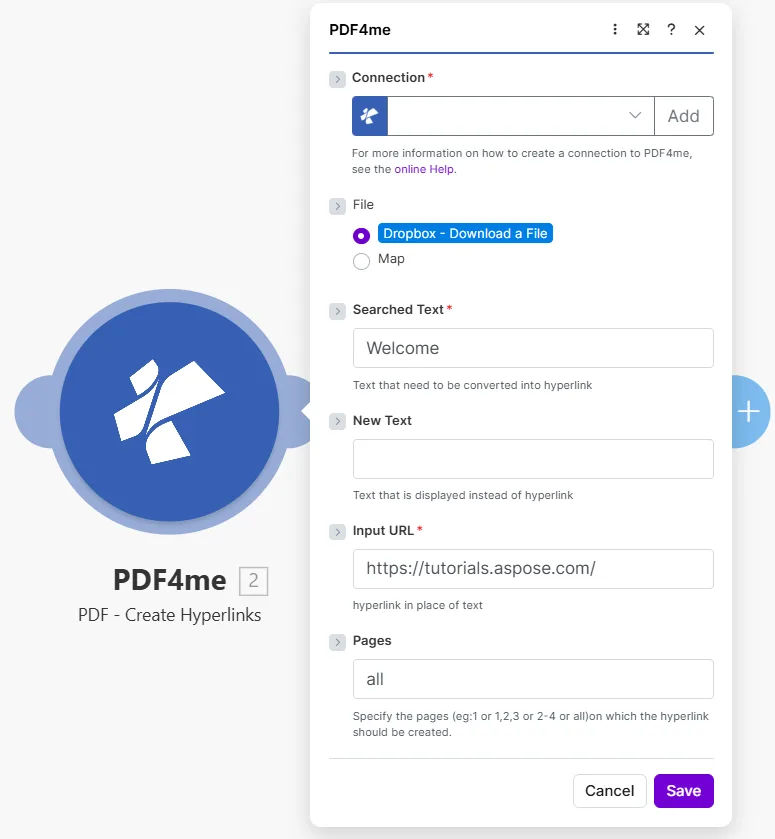
Introduzca el texto exacto que desea encontrar en Searched Text, el destino en Input URLy qué páginas buscar en Pages.
Parámetros
Requerido: Connection, Searched Text, y Input URL. New Text y Pages son opcionales.
| Parámetro | Requerido | Lo que hace | Ejemplo |
|---|---|---|---|
| Connection | Required | PDF4me API connection used to authenticate hyperlink creation requests. | Your PDF4me connection |
| File | Required | Source PDF. Choose Dropbox - Download a File for a direct Dropbox trigger, or Map to wire filename and binary data from a prior module. | Dropbox - Download a File |
| Searched Text | Required | The exact text string in the PDF that will become a clickable hyperlink. The module searches the specified pages for this text and wraps every occurrence in a link annotation. | Welcome |
| New Text | Optional | Optional label that replaces what the reader sees over the link. Leave empty to keep the original searched text as the visible link label. | Visit our site |
| Input URL | Required | The destination URL the hyperlink points to. Readers are taken to this address when they click the linked text. | https://tutorials.aspose.com/ |
| Pages | Optional | Pages to search for the text. Accepts a single number, a comma-separated list (1,3,5), a range (2-4), or the word all. Defaults to all if left empty. | all |
¿Cómo agrego hipervínculos a un PDF en Make¿
- Agregar PDF4me → PDF - Crear hipervínculos a tu escenario.
- Seleccionar Connection (o haga clic Agregar para crear uno con tu API llave).
- Colocar File a Dropbox - Descargar un archivo o Mapa de un módulo anterior.
- En Searched Text, escriba el texto exacto que desea que sea clicable (por ejemplo,
Welcomeo el nombre de un producto). - Opcionalmente, ingrese New Text Si desea que la etiqueta visible se lea de forma diferente al texto buscado.
- Pegue la dirección de destino en Input URL.
- Colocar Pages: tipo
allpara cada página, o páginas específicas como1,3o2-4. - Ahorrar y haga clic Correr una vez. La salida contiene Document Name y Document Data: el PDF con hipervínculos aplicados.
Producción
| Campo | Tipo | Lo que contiene |
|---|---|---|
Document Name | String | Filename of the output PDF with hyperlinks applied. |
Document Data | Buffer | Binary content of the PDF with link annotations added. Map this into an upload, email, or further processing module. |
¿Cuándo debo usar la función Crear hipervínculos?
Configuraciones típicasCommon Make scenario patterns that use PDF - Create Hyperlinks to enrich documents automatically.
- Un escenario programado obtiene la lista de productos más reciente de su base de datos y genera un catálogo. PDF.
- Un iterador recorre cada nombre de producto de la lista.
- Crear hipervínculos Se ejecuta una vez por producto, Searched Text = nombre del producto, Input URL = página del producto URL.
- Tras completar el bucle, cada nombre de producto del catálogo se convierte en un enlace directo a su página de tienda.
- El catálogo interactivo finalizado se sube a Google Drive y se envía por correo electrónico al equipo de ventas.
- Un informe mensual PDF Se genera a partir de una plantilla de Google Docs.
- Un almacén de datos contiene una lista de etiquetas de citas y sus coincidencias. URLs.
- Crear hipervínculos Se ejecuta una vez por cita, convirtiendo cada etiqueta en un enlace de origen en el que se puede hacer clic.
- Los lectores pueden hacer clic en cualquier cita en el PDF para abrir la fuente original en su navegador.
- El informe enriquecido se almacena en SharePoint y se distribuyó a las partes interesadas.
- Recursos Humanos sube una nueva política PDF a una carpeta de Dropbox vigilada.
- Crear hipervínculos Busca la frase "Más información" en todas las páginas.
- Cada suceso se convierte en un vínculo con el RRHH FAQ página en la intranet de la empresa.
- Un segundo módulo encadenado convierte la frase "Enviar una solicitud" en un enlace al sistema de gestión de incidencias.
- El terminado PDF Se guarda en la biblioteca de documentos de RRHH y se envía por correo electrónico a todo el personal.
Preguntas frecuentes
Consejos prácticos
Hoja de trucos
| Campo | Valor |
|---|---|
| Searched Text | Exact text to make clickable |
| New Text | Optional replacement label |
| Input URL | Destination address |
| Pages | all, a number, 1,3, or 2-4 |
| Output | Document Name + Document Data |