Konvertieren PDF zu Word in Power Automate
Was diese Aktion bewirkt
PDF4me Konvertieren PDF zu Word transformiert PDF Dokumente in vollständig bearbeitbare Microsoft Word-Datei (.docx) Dateien in Ihrem Power Automate Fluss. Behält Layout, Tabellen, Bilder, Schriftarten und Hyperlinks bei. Auswählen Entwurfsmodus für schnelle nativePDF Umrechnung (1 API Aufruf pro Datei) oder Hoher Modus mit KI OCR für gescannte Dokumente in 8+ Sprachen (2 API Aufrufe pro Seite). Ersetzen Sie manuelle Uploads mit SmallPDF, iLovePDF oder Adobe Acrobat durch eine einzige automatisierte Aktion, die direkt mit der folgenden Aktion verknüpft ist: SharePoint, OutlookTeams, Dynamics 365 und alle Microsoft 365 Arbeitsablauf.
Authentifizierung Ihres API Anfrage
Jeder PDF4me Aktion in Power Automate erfordert eine gültige PDF4me VerbindungErstellen Sie einen mit Ihrem API Schlüssel beim ersten Mal und Power Automate verwendet es für alle PDF4me Aktionen in Ihren Abläufen.
Wichtige Fakten, die Sie nicht verpassen sollten
.docx Format mit MIME-Typ application/vnd.openxmlformats-officedocument.wordprocessingml.documentVollständig kompatibel mit Word 2007+, Word for Web, Word für Mac, Microsoft 365, Google Docs und LibreOffice.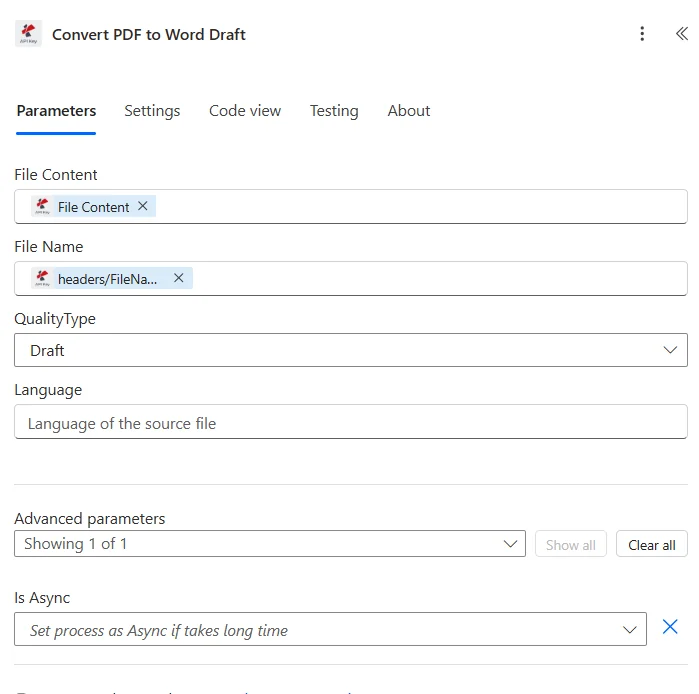
Dateiinhalt und Dateiname aus einem vorherigen Schritt zuordnen, Qualitätstyp auswählen (Entwurf für natives Material). PDFs, Hoch für gescannt), und ausführen, die bearbeitbare DOCX wird in der Ausgabe zurückgegeben.
Parameter
Erforderlich: Dateiinhalt, Dateiname und Qualitätstyp müssen angegeben werden. Ohne eine Binärquelle kann die Konvertierung nicht durchgeführt werden. PDF und eine hochwertige Auswahl.
| Parameter | Erforderlich | Was es tut | Beispiel |
|---|---|---|---|
| File Content | Yes | Binary content of the source PDF file. Map from any prior action that returns file bytes: SharePoint Get file content, OneDrive Get file content, Outlook email attachment, Forms file upload, HTTP Request, or Get file content using path. | File Content (binary) |
| File Name | Yes | Filename of the source PDF including the .pdf extension. Used for identification during processing and to derive the default output filename (replacing .pdf with .docx). Map dynamically from prior step variables. | contract-2026.pdf |
| Quality Type | Yes | Conversion quality mode. Draft for native born-digital PDFs (1 API call per file, fast and cost-efficient). High for scanned PDFs, image-based PDFs, or complex multi-column layouts (2 API calls per page with OCR and layout reconstruction). | Draft |
Optionen für Qualitätstypen
EntwurfStandard, schnell, 1 API Anruf pro DateiHochGenau, 2 API Anrufe pro Seite mit OCRAusgabefelder
| Feld | Typ | Was es enthält |
|---|---|---|
File Content | Binary | Converted DOCX file as binary content. Map directly into downstream actions: SharePoint Create file, OneDrive Create file, Outlook Send an email attachment, Teams Post a message with attachment, or Word Online (Business) for editing. |
File Name | String | Output filename of the generated Word document (e.g. contract-2026.docx). Derived from the input File Name with the .pdf extension replaced by .docx. Use directly as the filename in SharePoint or OneDrive Create file actions. |
Schnellkonfiguration
- In Ihrem Power Automate Ablauf, Klick + Neuer Schritt und suchen Sie nach PDF4meDie
- Wählen Sie die Konvertieren PDF zu Word Maßnahmen von der PDF4me Stecker anschließen.
- Wählen Sie Ihre PDF4me Verbindung oder Klick Neue Verbindung hinzufügen mit Ihrem API Schlüssel.
- Karte Dateiinhalt auf die Binärausgabe einer vorherigen Aktion: typischerweise
Get file content(SharePoint),Get file content using path(OneDrive), Outlook E-Mail-Anhang oder HTTP-Antworttext. - Satz Dateiname dynamisch aus dem vorherigen Schritt (muss beinhalten
.pdfErweiterung): z.B.triggerOutputs()?['body/Name']Die - Wählen Qualitätsart:
- Entwurf für einheimische PDFs (Word-Exporte, Browser-Druck, BI-Berichte): schnell und kostengünstig.
- Hoch für gescannt PDFs, fotografierte Seiten oder mehrspaltige Layouts gelten OCR + KI-Rekonstruktion.
- Speichern Sie den Ablauf und testen Sie ihn mit einem Beispiel. PDFDie
- Schließen Sie den Ausgang an. Dateiinhalt zu Ihrem nächsten Schritt: SharePoint Datei erstellen, OneDrive-Datei erstellen Outlook An E-Mail anhängen, in Teams einen Beitrag mit Anhang veröffentlichen oder in Word Online direkt bearbeiten.
Workflow-Beispiele
Workflow-BeispieleCommon Power Automate flow patterns using Convert PDF to Word.
- Ein Outlook Der Trigger wird ausgelöst, wenn eine E-Mail von einer bekannten Gegenparteidomäne mit einem PDF Vertragsanlage.
- Konvertieren PDF Word wird mit dem Qualitätstyp „Entwurf“ ausgeführt (Gegenparteiverträge sind typischerweise nativ). PDFs).
- Das Ergebnis DOCX wird hochgeladen auf SharePoint Bibliothek „Contracts In Review“ mit dem ursprünglichen Dateinamensmuster.
- Eine adaptive Microsoft Teams-Karte benachrichtigt das Rechtsteam mit einem Link zur bearbeitbaren Word-Datei. Die Anwälte können dann direkt in Word Online mit aktivierter Funktion „Änderungen nachverfolgen“ Änderungen vornehmen.
- Eine Dataverse-Zeile erfasst die Vertragsmetadaten (Vertragspartner, Eingangsdatum, zugewiesener Prüfer) für das Dashboard zum Vertragslebenszyklus.
- A SharePoint Der Trigger wird ausgelöst, wenn ein neues gescanntes Objekt PDF landet in einer Bibliothek mit dem Titel „Alte Dokumente zur Digitalisierung“.
- Konvertieren PDF Word-Ausführung mit Qualitätstyp = Hoch (gescannte Quelle, OCR erforderlich).
- Der OCR-extrahiert DOCX Enthält vollständig auswählbaren, durchsuchbaren Text; Absätze, Tabellen und Überschriften werden aus dem gescannten Bild rekonstruiert.
- Der DOCX wird in das "Digitalisierte Archiv" hochgeladen SharePoint Bibliothek, wo SharePointDank der integrierten Indexierungsfunktion ist die Volltextsuche im gesamten Unternehmen möglich.
- Eine E-Mail-Benachrichtigung bestätigt die erfolgreiche Digitalisierung und gibt den ursprünglichen Dateinamen des Scans sowie den Zeitstempel der Konvertierung an das Records-Management-Team weiter.
- Ein geplanter Workflow wird jede Nacht über eine "Quell-PDF" ausgeführt. SharePoint Bibliothek mit Vorlagenquellenberichten von Drittanbietertools.
- Für jedes neue PDF, Konvertieren PDF Word wird mit dem Qualitätstyp „Entwurf“ ausgeführt, um eine bearbeitbare Datei zu erzeugen. DOCX Vorlage.
- Ein zweiter Schritt führt die Funktion Suchen und Ersetzen auf dem/der DOCX um statische Platzhalter durch Serienbrieffeldmarkierungen zu ersetzen (z.B.
{{CustomerName}},{{InvoiceTotal}}). - Die vorgefertigte DOCX ist in einem Ordner namens „Vorlagen“ abgelegt SharePoint Bibliothek, geordnet nach Berichtskategorien, bereit für nachgelagerte Word-Serienbrief- oder Dokumentgenerierungsprozesse.
- Ein Power BI-Dashboard verfolgt den Durchsatz bei der Vorlagenerstellung; Rechts- und Finanzteams verwenden die Vorlagen wieder, ohne sie jedes Quartal von Grund auf neu erstellen zu müssen.