Entsperren PDF In n8n
Entsperren PDF ist ein PDF4me Knotenaktion in n8n das den Passwortschutz von einem entfernt PDF Wenn Sie das richtige Passwort eingeben. Verwenden Sie es, um geschützte Dateien in späteren Arbeitsschritten lesbar zu machen, die Verschlüsselung eines von Ihnen verwalteten Archivs aufzuheben oder alle Kontoauszüge eines Lieferanten zu entsperren, ohne sie einzeln öffnen zu müssen.
Was dieser Knoten bewirkt
PDF4me: Freischalten PDF nimmt einen geschützten PDF aus Binärdaten, ein Base64 Stringoder ein URLwendet das von Ihnen angegebene Passwort an und gibt eine Kopie zurück, die sich ohne weitere Eingabeaufforderung öffnet. Passwort Dieses Feld ist erforderlich, um Dokumente zu entsperren, für deren Öffnung Sie bereits berechtigt sind, anstatt ein verlorenes Passwort wiederherzustellen. Es befindet sich üblicherweise am Anfang einer Verarbeitungskette, da Extraktions- und Konvertierungsschritte verschlüsselte Dateien nicht lesen können.
Authentifizierung Ihres API Anfrage
Jeder PDF4me Knoten in n8n erfordert eine gültige Anmeldeinformationen zum Verbinden mitErstellen oder wählen Sie einen Eintrag aus, der Ihre Daten enthält. PDF4me API Schlüssel, damit der Workflow Entsperranfragen sicher authentifizieren kann.
Wichtige Fakten, die Sie nicht verpassen sollten
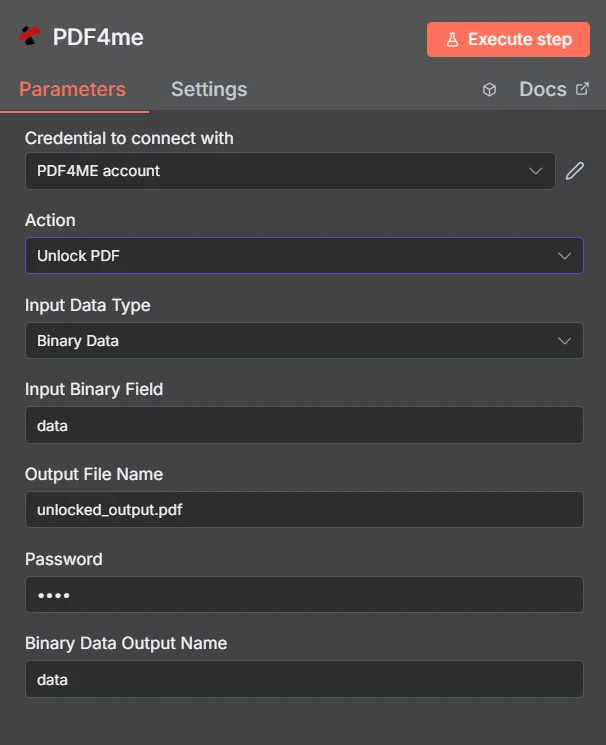
PDF4me Entsperren PDF Parameterbereich in n8n
Entsperren PDF vs. Dokument schützen
Diese beiden Aktionen stehen im Gegensatz zueinander, und in Arbeitsabläufen werden oft beide verwendet: Entsperren einer eingehenden Datei zum Lesen und anschließendes erneutes Schützen des Ergebnisses, bevor es wieder ausgegeben wird.
| Aspekt | Entsperren PDF | Dokument schützen |
|---|---|---|
| What it does | Removes existing password protection | Applies password protection |
| Password you supply | The current password on the document | The new password you want to set |
| Typical position | First step, so later nodes can read the file | Last step, before the file is sent or stored |
| Prerequisite | You must already know the password | None beyond the source document |
Welche Parameter werden freigeschaltet? PDF Brauchen?
Erforderlich: Aktion, Eingabedatentyp, das Feld, das diesem Eingabetyp entspricht, Ausgabedateiname und Passwort. Ausgabedateiname für Binärdaten und benutzerdefinierte Profile enthalten standardmäßig funktionierende Werte.
| Parameter | Erforderlich | Was es tut | Beispiel |
|---|---|---|---|
| Action | Required | Selects the PDF4me node action to run. Choose Unlock PDF. | Unlock PDF |
| Input Data Type | Required | Format of the source PDF input. Choose Binary Data (from a previous node), Base64 String, or URL. | Binary Data |
| Input Binary Field | Conditional | Name of the binary property on the incoming n8n item that holds the protected PDF. Required when Input Data Type is Binary Data. Defaults to data. | data |
| Base64 Document Content | Conditional | Base64-encoded content of the protected PDF. Required when Input Data Type is Base64 String. | JVBERi0xLjQK... |
| File URL | Conditional | Publicly reachable HTTPS URL to the protected PDF. Required when Input Data Type is URL. | https://example.com/statement.pdf |
| Output File Name | Required | Filename for the unlocked PDF returned by the node. Include the .pdf extension. | unlocked_output.pdf |
| Password | Required | The current password on the document. Shown masked in the panel. Reference a credential or environment variable rather than typing the secret into a saved workflow. | {{ $env.PDF_PASSWORD }} |
| Binary Data Output Name | Optional | Name of the binary property the output item exposes. Defaults to data. | data |
| Custom Profiles | Optional | Advanced Options field for extra processing settings, supplied in a JSON-like format. Leave blank unless you have a specific profile to apply. | { "preserveMetadata": true } |
Ausgabefelder
Ein erfolgreicher Lauf bringt eins zurück n8n Gegenstand, der das entsperrte PDFDie
| Feld | Typ | Was es enthält |
|---|---|---|
Binary (data) | Binary | The unlocked PDF, under Binary Data Output Name (default data). |
fileName | String | Generated filename, matching Output File Name. |
docName | String | Name of the processed document, for reference and tracking. |
mimeType | String | MIME type of the output, always application/pdf. |
fileSize | Number | Size of the returned PDF in bytes. |
isUnlocked | Boolean | Confirms the document was unlocked. A useful assertion before handing the file to an extraction step. |
securityRemoved | Boolean | Confirms password protection and access restrictions were removed. |
success | Boolean | True when the unlock completed, false on failure such as a wrong password. Use it to branch error handling. |
message | String | Human-readable status message, carrying success confirmation or error detail. |
Wie richte ich Unlock ein? PDF In n8n?
- Hinzufügen PDF4me zu Ihrem n8n Workflow und wählen Sie den Entsperren PDF Aktion.
- In Anmeldeinformationen zum Verbinden mit, wählen Sie Ihre PDF4me Anmeldeinformationen oder klicken Neue Anmeldeinformationen erstellen und fügen Sie Ihren ein API Schlüssel.
- Satz Eingabedatentyp Zu Binärdaten (Standard), Base64 String, oder URL und die passende Quelle bereitstellen PDF Feld.
- Satz Name der Ausgabedatei für die entsperrte Datei, die mit endet
.pdfDie - Dokument eingeben PasswortIdealerweise als Ausdruck, der eine Anmeldeinformation oder eine Umgebungsvariable ausliest.
- Verlassen Name der Binärdatenausgabe als
dataes sei denn, ein späterer Knoten erwartet eine andere Eigenschaft. - Führe den Knoten aus und leite die entsperrten Daten weiter PDF zum nächsten Schritt, wie z. B. Extraktion, Umwandlung oder Speicherung.
Typische Konfigurationen
Workflow-BeispieleCommon n8n workflow patterns using Unlock PDF.
- Ein Kontoauszug wird per E-Mail zugestellt, die mit einem bekannten Passwort geschützt ist.
- Entsperren PDF entfernt den Schutz mithilfe eines gespeicherten Geheimnisses.
- Ein Tabellenextraktionsschritt liest die Transaktionen in ein Tabellenblatt ein.
- Alle älteren Dokumente auf einem gemeinsam genutzten Laufwerk verwenden dasselbe alte Passwort.
- Entsperren PDF wird während eines Migrationsbatches über jede Datei ausgeführt.
- Die ungeschützten Kopien landen im neuen Dokumentensystem und sind durchsuchbar.
- Entsperren PDF öffnet ein eingehendes geschütztes Dokument.
- Der Workflow stempelt, führt zusammen oder bearbeitet die lesbare Datei.
- Protect Document wendet vor dem erneuten Versenden ein neues Passwort an.
- Entsperren PDF versucht, das gespeicherte Passwort bei jeder eingehenden Datei einzugeben.
- Ein IF-Knoten prüft den zurückgegebenen Wert. success und isUnlocked-Felder.
- Fehler werden zu einer Warnmeldung weitergeleitet, sodass ein geändertes Passwort sofort bemerkt wird.
Praktische Tipps
Spickzettel
| Feld | Wert |
|---|---|
| Action | Unlock PDF |
| Input Data Type | Binary Data |
| Input Binary Field | data |
| Output File Name | unlocked_output.pdf |
| Password | {{ $env.PDF_PASSWORD }} |
| Binary Data Output Name | data |
| Credentials | PDF4me API credential |