Sicher Word Dokument in n8n
Sicher Word Dokumentieren ist ein PDF4me Knotenaktion in n8n das sperrt .docx Datei mit Passwort, Bearbeitungsbeschränkung oder beidem. Verwenden Sie es, um vertrauliche Berichte vor dem Versand zu schützen, die Änderung einer signierten Vorlage zu verhindern oder Prüfern die Möglichkeit zu geben, einen Vertrag zu kommentieren, ohne dessen Text zu verändern.
Was dieser Knoten bewirkt
PDF4me Word: Sicher Word Dokumentieren gilt zwei unabhängige SchutzartenDie Sicher bei geöffnetem Zustand plus Passwort öffnen entscheidet, ob die Datei überhaupt geöffnet wird. Schutzart plus Schutzpasswort Legt fest, was nach dem Öffnen geändert werden darf – von reinem Lesezugriff bis hin zu Kommentaren, Formularfeldern oder nachverfolgten Änderungen. Sie können entweder das eine oder das andere oder beides gleichzeitig verwenden.
Authentifizierung Ihres API Anfrage
Jeder PDF4me Knoten in n8n erfordert eine gültige Anmeldeinformationen zum Verbinden mitErstellen oder wählen Sie einen Eintrag aus, der Ihre Daten enthält. PDF4me API Schlüssel, damit der Workflow Dokumentensicherheitsanforderungen authentifizieren kann.
Wichtige Fakten, die Sie nicht verpassen sollten
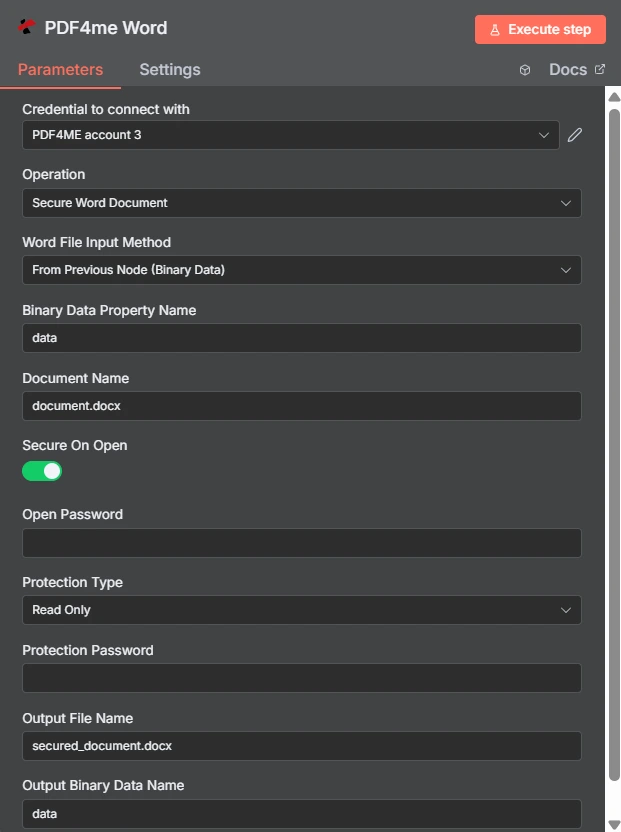
„Beim Öffnen sichern“ ist ein Schalter, und der Schutztyp ist ein separates Dropdown-Menü, das hier auf „Schreibgeschützt“ eingestellt ist. Die beiden darunter liegenden Passwortfelder sind voneinander unabhängig.
Passwort öffnen vs. Bearbeitungsbeschränkung
| Frage | Passwort öffnen | Bearbeitungsbeschränkung |
|---|---|---|
| Which fields set it | Secure On Open and Open Password | Protection Type and Protection Password |
| What it blocks | Opening the document at all | Changing the document once open |
| Can the recipient read it | Only with the password | Yes, reading is always allowed |
| Typical recipient | A named person receiving something confidential | A reviewer or a form filler |
| Use it when | The content must not be seen by others | The content may be seen but not altered |
Welche Parameter sichert Word Dokumentbedarf?
| Parameter | Erforderlich | Was es tut | Beispiel |
|---|---|---|---|
| Credential to connect with | Required | The PDF4me account credential the node authenticates with. | PDF4ME account |
| Operation | Required | The action this node performs. Select Secure Word Document. | Secure Word Document |
| Word File Input Method | Required | How the .docx reaches the node: from the previous node as binary data, as a Base64 string, or from a URL. | From Previous Node (Binary Data) |
| Binary Data Property Name | Conditional | Name of the binary property holding the document. Appears when the file comes from the previous node. | data |
| Document Name | Required | Filename of the input document including the extension. Drives format detection. | document.docx |
| Secure On Open | Optional | Toggle that requires a password before the document will open. Leave off if you only want an editing restriction. | enabled |
| Open Password | Conditional | The password needed to open the file. Required once Secure On Open is enabled. Supply it through an expression, not as literal text. | {{ $env.DOC_OPEN_PW }} |
| Protection Type | Optional | Editing restriction applied to the document: Read Only, Allow Comments, Allow Form Fields, or Allow Revisions. | Read Only |
| Protection Password | Conditional | The password that lifts the editing restriction. Required once a Protection Type is chosen, and should differ from Open Password. | {{ $env.DOC_EDIT_PW }} |
| Output File Name | Optional | Filename of the returned secured document. Keep the .docx extension. | secured_document.docx |
| Output Binary Data Name | Optional | Binary property the secured document is written to. Leave as data unless a later node expects another name. | data |
Optionen für den Schutztyp
| Option | Was der Empfänger tun kann |
|---|---|
Read Only | View the document only. No edits of any kind are accepted. |
Allow Comments | Add and edit comments, but not change the document text itself. |
Allow Form Fields | Fill in form fields while the surrounding content stays locked. |
Allow Revisions | Edit, but only with tracked changes recorded so every alteration is visible. |
Ausgabe
| Feld | Typ | Was es enthält |
|---|---|---|
| fileName | String | Name of the returned secured document. |
| fileSize | Number | Size of the secured document in bytes. |
| success | Boolean | Whether protection was applied. Branch on this so failures surface as alerts. |
| originalFileName | String | Name of the input document as supplied in Document Name. |
| secureOnOpen | Boolean | Whether an open password was applied, echoed back for verification. |
| protectionType | String | The editing restriction applied, such as ReadOnly, or empty when none was set. |
| message | String | Human-readable status text describing the result of the operation. |
Überprüfung protectionType Die Antwort ist der günstigste Weg, um zu bestätigen, dass die von Ihnen beabsichtigte Einschränkung auch tatsächlich umgesetzt wurde.
Wie richte ich Secure ein? Word Dokument in n8n?
- Füge die PDF4me Word Fügen Sie den Knoten zu Ihrem Workflow hinzu und legen Sie fest Betrieb Zu Sicher Word DokumentierenDie
- Wählen Sie Ihre PDF4me Anmeldeinformationen, oder erstellen Sie welche und fügen Sie Ihre ein. API Schlüssel.
- Wähle ein Word Dateieingabemethode und liefern Sie die
.docxdurch das darunter liegende Feld. - Satz Dokumentname mit der korrekten Dateiendung.
- Zum Öffnen des Tores einschalten Sicher bei geöffnetem Zustand und setzen Passwort öffnen aus Anmeldeinformationen oder Umgebungsvariablen.
- Um die Bearbeitung zu steuern, stellen Sie Folgendes ein: Schutzart und liefern Sie eine andere SchutzpasswortDie
- Satz Name der Ausgabedatei endet mit
.docxDie - Führe den Knoten aus und bestätige.
secureOnOpenUndprotectionTypeIn der Antwort wird dann die gesicherte Datei weitergeleitet.
Typische Konfigurationen
Workflow-BeispieleCommon n8n workflow patterns using Secure Word Document.
- Ein Meldevorgang erzeugt ein Dokument mit sensiblen Daten.
- Secure On Open verwendet ein in einer Umgebungsvariablen gespeichertes Passwort.
- Die Datei wird per E-Mail versendet, das Passwort wird über einen separaten Kanal übermittelt.
- Der Schutztyp ist auf „Kommentare zulassen“ eingestellt.
- Die Gutachter geben Anmerkungen ab, ohne den Text der einzelnen Klauseln zu verändern.
- Das Feedback kommt an, ohne dass im Nachhinein eine Differenz geklärt werden muss.
- Die Option „Formularfelder zulassen“ sorgt dafür, dass der umgebende Text unverändert bleibt.
- Die Empfänger füllen nur die für sie vorgesehenen Felder aus.
- Die zurückgegebenen Formulare sind konsistent genug, um automatisch analysiert zu werden.
- Eine Vorlage wird genehmigt und auf einem gemeinsamen Laufwerk veröffentlicht.
- Der Schreibschutz verhindert stille lokale Änderungen.
- Alle arbeiten mit der gleichen, maßgeblichen Formulierung.
Praktische Tipps
Spickzettel
| Feld | Wert |
|---|---|
| Operation | Secure Word Document |
| Word File Input Method | From Previous Node (Binary Data) |
| Binary Data Property Name | data |
| Document Name | document.docx |
| Secure On Open | enabled |
| Open Password | {{ $env.DOC_OPEN_PW }} |
| Protection Type | Read Only |
| Protection Password | {{ $env.DOC_EDIT_PW }} |
| Output File Name | secured_document.docx |
| Output Binary Data Name | data |