Entsperren Excel Datei und Schutz entfernen in n8n
Entsperrdatei ist ein PDF4me Excel Betrieb in n8n Dieses Tool entfernt den Passwortschutz einer .xlsx-Arbeitsmappe auf drei unabhängigen Ebenen: Dateiverschlüsselung, Arbeitsmappenstruktur und Tabellenblattschutz. Verwenden Sie es, um geschützte Vorlagen zu öffnen, Dateien für automatisierte Datenschreibvorgänge vorzubereiten oder Passwörter vor der Archivierung zu löschen, ohne die Datei öffnen zu müssen. ExcelDie
Was dieser Knoten bewirkt
PDF4me Excel: Datei entsperren entfernt Excel Schutz in einem Schritt. Dabei werden das Öffnungspasswort (Dateiverschlüsselung), die Sperre der Arbeitsmappenstruktur (die das Hinzufügen, Löschen oder Umbenennen von Tabellenblättern verhindert) und optional der Tabellenblattschutz (der die Bearbeitung von Zellen und Formeln verhindert) entfernt. Die von Ihnen angegebenen Passwörter werden als Ausweichpasswörter für alle Ebenen wiederverwendet, sodass für eine mit einem einzigen Passwort gesicherte Arbeitsmappe in der Regel nur ein Feld ausgefüllt werden muss.
Authentifizierung Ihres API Anfrage
Jeder PDF4me Knoten in n8n erfordert eine gültige Anmeldeinformationen zum Verbinden mitErstellen oder wählen Sie einen Eintrag aus, der Ihre Daten enthält. PDF4me API Schlüssel, damit der Workflow Entsperranfragen sicher authentifizieren kann.
Wichtige Fakten, die Sie nicht verpassen sollten
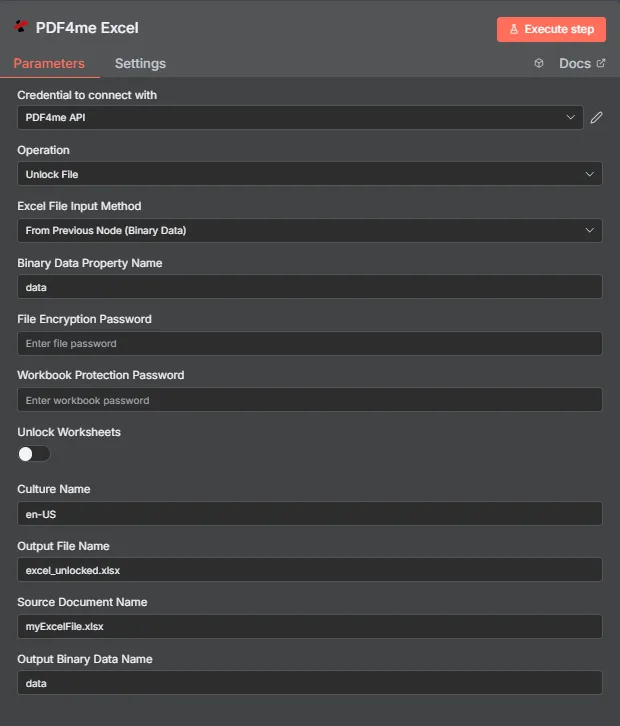
PDF4me Excel Entsperren Sie das Bedienfeld „Dateiparameter“ in n8n
Welche Excel Welche Schutzfunktionen werden durch die einzelnen Felder entfernt?
Excel Es bietet Schutz auf drei verschiedenen Ebenen, die leicht verwechselt werden können. Diese Tabelle ordnet jede Ebene den blockierten Elementen und dem entsprechenden Feld zum Aufheben der Blockierung zu.
| Schutzstufe | Was es blockiert | Feld, das es löscht |
|---|---|---|
| File encryption | The workbook cannot be opened at all without a password. Excel prompts before any content is visible. | File Encryption Password |
| Workbook structure | Sheets cannot be added, deleted, renamed, moved, hidden, or unhidden, though existing cells stay editable. | Workbook Protection Password |
| Worksheet protection | Cells, formulas, and objects on a sheet cannot be edited, though the file opens and the structure is intact. | Unlock Worksheets toggle |
Welche Parameter benötigt die Entsperrdatei?
Erforderlich: Operation Excel Dateieingabemethode, das zugehörige Eingabefeld und Ausgabedateiname. Die Passwortfelder sind bedingt und werden nur für die im Arbeitsmappenmodell vorhandenen Schutzstufen benötigt. Arbeitsblätter entsperren, Kulturname, Quelldokumentname und Name der Binärdatenausgabe sind optional.
| Parameter | Erforderlich | Was es tut | Beispiel |
|---|---|---|---|
| Operation | Required | Selects the PDF4me Excel action to run. Choose Unlock File. | Unlock File |
| Excel File Input Method | Required | How the workbook reaches the node. From Previous Node (Binary Data) reads it from an upstream item; the dropdown also offers base64 and file URL alternatives. | From Previous Node (Binary Data) |
| Binary Data Property Name | Conditional | Name of the binary property on the incoming n8n item holding the .xlsx workbook. Applies when the input method is binary data. Defaults to data. | data |
| File Encryption Password | Conditional | The password required to open the workbook. Supply it when the file is encrypted; it is also reused as a fallback against the other protection levels. | FilePass123 |
| Workbook Protection Password | Conditional | The password guarding workbook structure, which prevents sheets being added, deleted, renamed, or moved. Supply it when structure protection is set. | StructurePass |
| Unlock Worksheets | Optional | Toggle that extends the run to worksheet-level protection so cells, formulas, and objects become editable. Off by default. | true |
| Culture Name | Optional | Locale used while processing the workbook, relevant for locale-sensitive number and date formatting. | en-US |
| Output File Name | Required | Filename for the unlocked workbook the node returns. Include the .xlsx extension. | excel_unlocked.xlsx |
| Source Document Name | Optional | Reference label for the incoming workbook. Echoed back as originalFileName for tracking; it does not change the output. | myExcelFile.xlsx |
| Output Binary Data Name | Optional | Name of the binary property the output item exposes. Defaults to data. | data |
Ausgabefelder
Ein erfolgreicher Lauf bringt eins zurück n8n Gegenstand trägt JSON Metadaten plus die entsperrte Arbeitsmappe als Binärdaten.
| Feld | Typ | Was es enthält |
|---|---|---|
success | Boolean | True when protection was removed successfully. Use it to route error-handling branches. |
fileName | String | Filename of the unlocked workbook, matching Output File Name. |
fileSize | Number | Size of the returned workbook in bytes. |
originalFileName | String | The value supplied in Source Document Name, echoed back for tracking. |
message | String | Human-readable result message for the unlock operation. |
Binary (data) | Binary | The unlocked .xlsx under Output Binary Data Name (default data). Pass into Write Binary File, Email, or a cloud-storage upload. |
N8N Maßnahmenreaktion
- JSON
- Schema
- Binary
JSON Antwortformat
[
  {
    "fileName": "excel_unlocked.xlsx",
    "fileSize": 14234,
    "success": true,
    "originalFileName": "myExcelFile.xlsx",
    "message": "Excel document unlocked successfully"
  }
]
Schemaansicht
1 item
fileName: T excel_unlocked.xlsx
fileSize: # 14234
success: true
originalFileName: T myExcelFile.xlsx
message: T Excel document unlocked successfully
Typenindikatoren: T = String, # = NumberDie
Binärdatenansicht
data
File Name: excel_unlocked.xlsx
File Extension: xlsx
Mime Type: application/vnd.openxmlformats-officedocument.spreadsheetml.sheet
File Size: 14.2 kB
Zugriff auf Binärdaten: Sie erreichen das Arbeitsbuch unter $binary.data.dataBereit zum Herunterladen, Versenden per E-Mail oder zum Speichern.
Wie richte ich eine Entsperrdatei ein? n8n?
- Füge die PDF4me Excel Fügen Sie den Knoten zu Ihrem Workflow hinzu und legen Sie fest Betrieb Zu EntsperrdateiDie
- In Anmeldeinformationen zum Verbinden mit, wählen Sie Ihre PDF4me API Anmeldeinformationen oder erstellen Sie eine mit Ihren API Schlüssel.
- Satz Excel Dateieingabemethode Zu Vom vorherigen Knoten (Binärdaten) und setzen Name der Binärdateneigenschaft an das Grundstück, auf dem sich das Arbeitsbuch befindet, normalerweise
dataDie - Eingeben Dateiverschlüsselungspasswort wenn zum Öffnen der Arbeitsmappe ein Passwort erforderlich ist.
- Eingeben Arbeitsmappenschutzpasswort wenn die Blattstruktur gesperrt ist.
- Einschalten Arbeitsblätter freischalten wenn Zellen und Formeln ebenfalls bearbeitbar werden sollen.
- Optional einstellbar Kulturname für lokalisierungssensitive Arbeitsmappen.
- Satz Name der Ausgabedatei endet mit
.xlsx, den Knoten ausführen und die entsperrte Arbeitsmappe weiterleiten.
Typische Konfigurationen
Workflow-BeispieleCommon n8n workflow patterns using Unlock File for Excel.
- Ein Workflow ruft eine gesperrte Berichtsvorlage ab von SharePointDie
- Durch das Entsperren der Datei wird die Struktursperre aufgehoben, sodass neue Blätter hinzugefügt werden können.
- PDF4me Excel Mit Add Rows werden die Periodenwerte in die Arbeitsmappe geschrieben.
- Ein Zeitplan-Trigger sammelt Arbeitsmappen, die zur Langzeitarchivierung anstehen.
- Die Funktion „Datei entsperren“ entfernt das Öffnungspasswort, sodass das Archiv später lesbar bleibt.
- Die gelöschten Dateien werden im Archiv-Bucket gespeichert.
- Ein E-Mail-Trigger empfängt eine geschützte Preisliste von einem Lieferanten.
- Die Option „Datei entsperren“ wird zusammen mit der Option „Arbeitsblätter entsperren“ ausgeführt, damit Zellwerte analysiert werden können.
- Die Zeilen werden extrahiert und mit einer internen Datenbank synchronisiert.
- Mit „Datei entsperren“ wird der Schutz einer genehmigten Arbeitsmappe entfernt.
- Nachgelagerte Knoten aktualisieren die Messwerte und ein Übersichtsblatt.
- PDF4me Excel Sicher Excel wendet vor der Weiterverteilung ein neues Passwort an.
Praktische Tipps
Spickzettel
| Feld | Wert |
|---|---|
| Operation | Unlock File |
| Excel File Input Method | From Previous Node (Binary Data) |
| Binary Data Property Name | data |
| File Encryption Password | (only if the file needs a password to open) |
| Workbook Protection Password | (only if the sheet structure is locked) |
| Unlock Worksheets | off (on to make cells editable) |
| Culture Name | en-US |
| Output File Name | excel_unlocked.xlsx |
| Source Document Name | myExcelFile.xlsx |
| Output Binary Data Name | data |
| Credentials | PDF4me API credential |