Anhang hinzufügen PDF In n8n
Anhang hinzufügen PDF ist ein PDF4me Knotenaktion in n8n das eine oder mehrere Dateien in ein PDFalso eine Tabellenkalkulation, ein Bild, ein Archiv oder eine zweite PDF Es wird zusammen mit dem Dokument transportiert, anstatt daneben. Verwenden Sie es, um Belege mit einem Vertrag zu bündeln, Rohdaten neben einem Bericht zu versenden oder Zertifikate mit einer Konformitätsmeldung zu verpacken.
Was dieser Knoten bewirkt
PDF4meAnhang hinzufügen PDF nimmt einen Gastgeber PDF aus Binärdaten, ein Base64 Stringoder ein URL, bettet dann jede Datei ein, die Sie unter auflisten Anlagen Darin befindet sich ein separates Objekt. Anders als beim Zusammenführen behalten die angehängten Dateien ihr Format und ihren Dateinamen und können vom Empfänger einzeln geöffnet oder gespeichert werden. Jeder Anhang kann aus einer anderen Quelle stammen, beispielsweise eine Binärdatei von einem vorherigen Knoten und eine Datei, die von einem anderen Knoten abgerufen wurde. URL kann in denselben Durchlauf eingebettet werden.
Authentifizierung Ihres API Anfrage
Jeder PDF4me Knoten in n8n erfordert eine gültige Anmeldeinformationen zum Verbinden mitErstellen oder wählen Sie einen Eintrag aus, der Ihre Daten enthält. PDF4me API Schlüssel, damit der Workflow Anhangsanfragen sicher authentifizieren kann.
Wichtige Fakten, die Sie nicht verpassen sollten
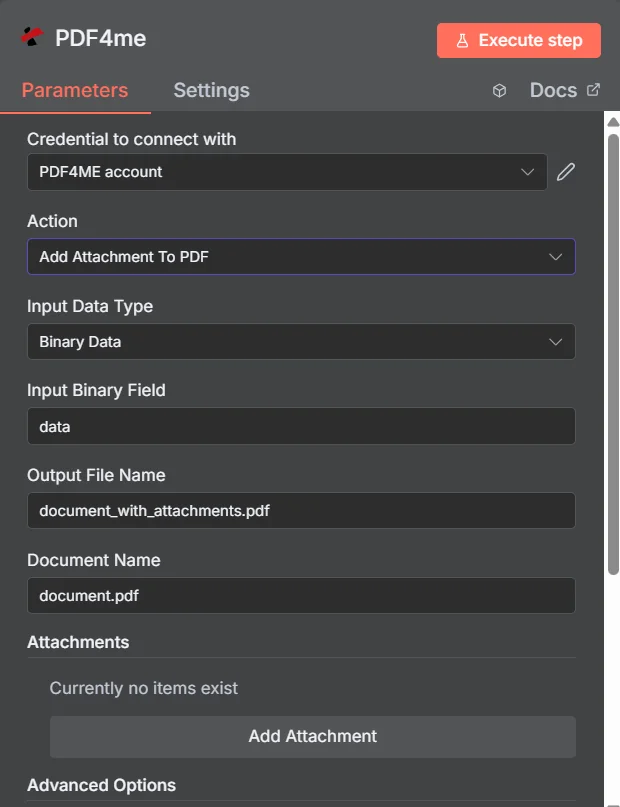
PDF4me Anhang hinzufügen zu PDF Parameterbereich in n8nDie Sammlung „Anhänge“ ist leer, bevor der erste Eintrag hinzugefügt wird.
Anhängen vs. Zusammenführen vs. Zippen
Drei Möglichkeiten, mehrere Dateien als eine einzige Sendung zu übermitteln, mit unterschiedlichen Konsequenzen für den Empfänger.
| Ansatz | Was der Empfänger erhält | Optimale Passform |
|---|---|---|
| Add Attachment to PDF | One PDF that opens normally, with the extra files available in the attachments panel | Supporting material that must stay in its original format, such as a spreadsheet or an archive |
| Merge PDFs | One continuous document where all pages read in sequence | Content that genuinely belongs together as a single readable document |
| Zip the files together | An archive that must be unpacked before anything can be read | Bulk transfer where nothing needs to be readable without extracting first |
Welchen Parametern fügt „Anhang hinzufügen“ hinzu? PDF Brauchen?
Erforderlich: Aktion, Eingabedatentyp, das Feld, das diesem Eingabetyp entspricht, Ausgabedateiname, Dokumentname und mindestens ein Eintrag unter Anhänge. Ausgabename für Binärdaten und benutzerdefinierte Profile enthalten standardmäßige Arbeitswerte.
| Parameter | Erforderlich | Was es tut | Beispiel |
|---|---|---|---|
| Action | Required | Selects the PDF4me node action to run. Choose Add Attachment To PDF. | Add Attachment To PDF |
| Input Data Type | Required | Format of the host PDF input. Choose Binary Data (from a previous node), Base64 String, or URL. | Binary Data |
| Input Binary Field | Conditional | Name of the binary property on the incoming n8n item that holds the host PDF. Required when Input Data Type is Binary Data. Defaults to data. | data |
| Base64 Document Content | Conditional | Base64-encoded content of the host PDF. Required when Input Data Type is Base64 String. | JVBERi0xLjQK... |
| File URL | Conditional | Publicly reachable HTTPS URL to the host PDF. Required when Input Data Type is URL. | https://example.com/contract.pdf |
| Output File Name | Required | Filename for the PDF returned with the files embedded. Include the .pdf extension. | document_with_attachments.pdf |
| Document Name | Required | Filename of the source PDF, used for reference and tracking on the request. | document.pdf |
| Attachments | Required | Collection of files to embed. Click Add Attachment once per file, then fill in the per-attachment fields listed below. | One entry per embedded file |
| Binary Data Output Name | Optional | Name of the binary property the output item exposes. Defaults to data. | data |
| Custom Profiles | Optional | Advanced Options field for extra processing settings, supplied in a JSON-like format. Leave blank unless you have a specific profile to apply. | { "preserveMetadata": true } |
Felder innerhalb jedes Anhangseintrags
Jeder Eintrag, den Sie erstellen mit Anhang hinzufügen legt seine eigenen Felder offen.
| Parameter | Erforderlich | Was es tut | Beispiel |
|---|---|---|---|
| Attachment Content Type | Required | How this particular attachment is supplied. Choose Binary Data, Base64 Content, or File URL. Each entry can differ. | Binary Data |
| Attachment Name | Required | Filename the embedded file will carry inside the PDF. Include the correct extension so readers can open it after extraction. | supporting_data.xlsx |
| Binary Field Name | Conditional | Name of the binary property holding this attachment. Required when Attachment Content Type is Binary Data. | data |
| Base64 Content | Conditional | Base64-encoded content of this attachment. Required when Attachment Content Type is Base64 Content. | SGVsbG8gV29ybGQ= |
| File URL | Conditional | Publicly reachable HTTPS URL to this attachment. Required when Attachment Content Type is File URL. | https://example.com/certificate.pdf |
Ausgabefelder
Ein erfolgreicher Lauf bringt eins zurück n8n Gegenstand, der den PDF mit seinen eingebetteten Dateien.
| Feld | Typ | Was es enthält |
|---|---|---|
Binary (data) | Binary | The PDF with all listed files embedded, under Binary Data Output Name (default data). |
fileName | String | Generated filename, matching Output File Name. |
mimeType | String | MIME type of the output, always application/pdf. |
fileSize | Number | Size of the returned PDF in bytes, including the embedded files. |
attachmentCount | Number | Number of attachments successfully embedded. Compare it against your expected count to catch a silently skipped file. |
success | Boolean | True when the attachment operation completed, false on failure. Use it to branch error handling. |
message | String | Human-readable status message, carrying success confirmation or error detail. |
Wie richte ich das Hinzufügen von Anhängen ein? PDF In n8n?
- Hinzufügen PDF4me zu Ihrem n8n Workflow und wählen Sie den Anhang hinzufügen zu PDF Aktion.
- In Anmeldeinformationen zum Verbinden mit, wählen Sie Ihre PDF4me Anmeldeinformationen oder klicken Neue Anmeldeinformationen erstellen und fügen Sie Ihren ein API Schlüssel.
- Satz Eingabedatentyp Zu Binärdaten (Standard), Base64 String, oder URL und den passenden Host bereitstellen PDF Feld.
- Unter Anlagen, klicken Anhang hinzufügen Einmal für jede Datei, dann setzen Sie es Anhangsinhaltstyp, Name der Anlageund passendes Quellfeld.
- Satz Name der Ausgabedatei (muss enden in
.pdf) Und Dokumentname für die Quelldatei. - Führe den Knoten aus und leite die zurückgegebenen Daten weiter. PDF weiter, Überprüfung
attachmentCountim Vergleich zur Anzahl der von Ihnen erwarteten Dateien.
Typische Konfigurationen
Workflow-BeispieleCommon n8n workflow patterns using Add Attachment to PDF.
- Eine Rechnung PDF wird aus Abrechnungsdaten generiert.
- Anhang hinzufügen PDF bindet die entsprechenden Belege und den Genehmigungsnachweis ein.
- Eine Akte geht an die Kreditorenbuchhaltung und enthält den gesamten Beweisablauf.
- Ein geplanter Analysebericht wird gerendert an PDFDie
- Anhang hinzufügen PDF bettet die zugrunde liegende CSV Als benannten Anhang exportieren.
- Die Leser erhalten den Sachverhalt und können die Rohdaten bei Bedarf zur Überprüfung abrufen.
- Auf Anfrage zur Unterschrift wird ein Vertrag anhand einer Vorlage erstellt.
- Anhang hinzufügen PDF bettet Zertifikate und Zeitpläne ein, die von URLsDie
- Die Gegenpartei erhält ein einzelnes, in sich abgeschlossenes Dokument zur Unterzeichnung.
- Ein Loop-Over-Items-Knoten sammelt Beweisdateien für einen Ablagezeitraum.
- Anhang hinzufügen PDF bettet jedes einzelne in das Deckblatt ein.
- Das Paket ist archiviert, und Anhang extrahieren von PDF Kann auf Anfrage später ausgepackt werden.
Praktische Tipps
Spickzettel
| Feld | Wert |
|---|---|
| Action | Add Attachment To PDF |
| Input Data Type | Binary Data |
| Input Binary Field | data |
| Output File Name | document_with_attachments.pdf |
| Document Name | document.pdf |
| Attachments | One entry per file, added with Add Attachment |
| Attachment Content Type | Binary Data |
| Attachment Name | supporting_data.xlsx |
| Binary Data Output Name | data |
| Credentials | PDF4me API credential |