Passwort entfernen PDF In Make
Passwort entfernen PDF ist ein Make Modul von PDF4me das ein passwortgeschütztes Passwort dauerhaft entschlüsselt PDF Bei korrektem Passwort können Sie damit Dateien entsperren, bevor Sie sie bearbeiten, zusammenführen oder Inhalte extrahieren. So werden sowohl die Passwort- als auch die Berechtigungsbeschränkungen in einem einzigen automatisierten Schritt aufgehoben.
Was dieses Modul bewirkt
PDF4mePasswort entfernen PDF Entschlüsselt und entsperrt passwortgeschützte Dateien dauerhaft PDFs in Ihrem Make Szenario. Geben Sie das an. PDF Wenn der Puffer und das korrekte Passwort eingegeben werden, gibt das Modul einen uneingeschränkten Puffer zurück. PDF bereit für Bearbeitung, Zusammenführung, Aufteilung oder Inhaltsextraktion in den nächsten Modulen Ihres Szenarios. Funktioniert sowohl mit Benutzerpasswörtern (offener Schutz) als auch mit Besitzerpasswörtern (Berechtigungsbeschränkungen), sodass ein einzelnes Modul alle Zugriffsbarrieren in einem Schritt beseitigt.
Wie authentifiziere ich mein Konto? Make Szenario?
Jeder PDF4me Modul in Make erfordert eine gültige VerbindungErstellen oder wählen Sie einen Eintrag aus, der Ihre Daten enthält. PDF4me API Schlüssel, damit das Szenario authentifiziert werden kann PDF Entsperrungsanfragen sicher bearbeiten.
Wichtige Fakten, die Sie nicht verpassen sollten
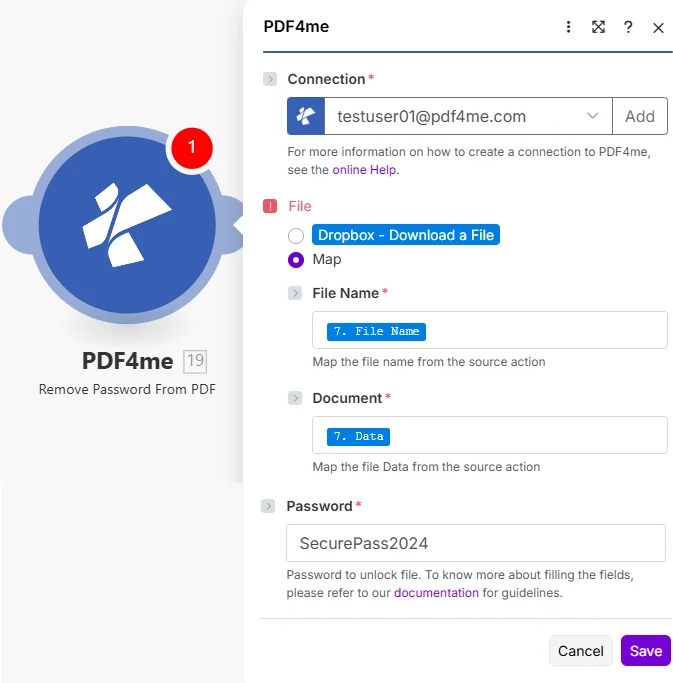
Wählen Sie „Datei zuordnen“, verbinden Sie Dateiname und Dokument aus dem vorherigen Download-Schritt und geben Sie dann das Passwort ein. Die Dokumentdatenausgabe ist vollständig entsperrt. PDF bereit für jedes nachgelagerte Modul.
Von welchen Parametern wird das Passwort entfernt? PDF Brauchen?
Erforderlich: Verbindung, Dateiname, Dokument und Passwort müssen angegeben werden. Das Modul kann keine Datei entschlüsseln. PDF ohne das richtige Passwort.
| Parameter | Erforderlich | Was es tut | Beispiel |
|---|---|---|---|
| Connection | Required | PDF4me API connection. Click Add and paste your API key if connecting for the first time. Reused automatically across all PDF4me modules in your scenarios. | My PDF4me connection |
| File | Required | How the protected PDF is supplied. Choose Map to wire File Name and Document from a prior module. Choose Dropbox, Download a File to pull directly from Dropbox without a separate download step. | Map |
| File Name | Required | Filename of the password-protected PDF including .pdf extension. Map from the filename output of your source module: e.g. the Name field of a Dropbox or Google Drive download step. | protected_document.pdf |
| Document | Required | Binary content of the password-protected PDF. Must be raw file bytes from a download or upload module: the Data field in Dropbox, Google Drive, or OneDrive. Do not pass a URL string or filename here. | 1. Data |
| Password | Required | The exact password needed to unlock the PDF. Accepts both user passwords (open protection) and owner passwords (permission lock). Retrieve from a Make Data Store or environment variable rather than hardcoding. | SecurePass2024 |
Ausgabefelder
| Feld | Typ | Was es enthält |
|---|---|---|
Name | String | Output filename with password removed. Map into an upload module as the destination filename. |
Doc Data | Buffer | Unlocked PDF document as a binary buffer with all password restrictions permanently removed. Map directly into any downstream PDF4me module or cloud storage upload step. |
Wie richte ich die Funktion "Passwort entfernen" ein? PDF In Make?
- Hinzufügen PDF4me → Passwort entfernen PDF zu Ihrem Make Szenario.
- Wählen Verbindung (oder klicken Sie hier) Hinzufügen um einen mit Ihrem PDF4me API Schlüssel).
- Unter Datei, wählen Karte um die Felder „Dateiname“ und „Dokument“ anzuzeigen.
- Karte Dateiname zum Dateinamen der Ausgabedatei Ihres Quellschritts (einschließlich
.pdfVerlängerung). - Karte Dokumentieren zum Binärdatenfeld desselben Schritts: typischerweise benannt Daten in Dropbox-, Google Drive- oder OneDrive-Modulen.
- Geben Sie die PasswortAus Sicherheitsgründen sollten Sie es von einem Make Den Datenspeicher-Lookup-Schritt verwenden, anstatt ihn hier fest zu kodieren.
- Klicken Speichern und das Szenario ausführen. Dokumentendatum Ausgabe an das nächste Modul: Hochladen, Zusammenführen, Konvertieren oder Archivieren der entsperrten Daten PDFDie
Typische Konfigurationen
Workflow-BeispieleCommon Make scenario patterns using Remove Password from PDF.
- Ein Auslöser für einen Überwachungsordner wird aktiviert, wenn ein neuer Schutz angezeigt wird. PDFs landen im Dropbox-Archivposteingang.
- Ein Datenspeicher-Suchschritt ermittelt anhand des Dateinamens das korrekte Passwort für das Dokument.
- Passwort entfernen PDF Entschlüsselt die gesperrte Datei mithilfe des abgerufenen Passworts.
- A PDF4me Erstellen PDF/A Das Modul wandelt das entsperrte PDF zum Archiv PDF/A Vom Datenverwaltungssystem gefordertes Format.
- Der Beschwerer PDF/A Uploads in den Langzeitarchivordner in SharePointIn Google Sheets wird ein Indexeintrag mit Dateiname und Verarbeitungsdatum angehängt.
- Gmail löst eine Benachrichtigung aus, wenn eine neue E-Mail von einer bekannten Absenderadresse mit einem bestimmten Schlüssel eingeht. PDF Rechnungsanlage.
- Eine Abfrage im Datenspeicher ruft das Rechnungspasswort des Lieferanten anhand der Absender-E-Mail-Adresse ab.
- Passwort entfernen PDF Entsperrt die verschlüsselte Rechnung.
- A PDF4me Text extrahieren oder AIDas Modul „Rechnungsanalyse“ liest Rechnungsnummer, Betrag und Fälligkeitsdatum aus der entsperrten Rechnung. PDFDie
- Ein HTTP Das Modul erstellt den Rechnungsdatensatz im Buchhaltungssystem. PDF werden zur Prüfung in den Ordner „Verarbeitete Rechnungen“ in Dropbox hochgeladen.
- Ein Webhook wird ausgelöst, wenn die Zusammenstellung eines Dokumentpakets über ein Formular angefordert wird.
- Google Drive listet alle PDF Dateien im Projektordner, einige geschützt, andere nicht.
- Ein Iterator durchläuft jede Datei. Ein Router prüft, ob die Datei geschützt ist; falls ja, wird das Passwort entfernt. PDF wird mithilfe des Projektpassworts aus einem Datenspeicher entsperrt.
- PDF4me Zusammenführen PDFs kombiniert alle entsperrten Dateien zu einem einzigen Paketdokument.
- Die Funktion „Seitenzahlen hinzufügen“ kennzeichnet das zusammengeführte Dokument. Gmail übermittelt das endgültige Paket mit einer Bestätigungsnachricht an den Absender.
Praktische Tipps
Spickzettel
| Feld | Wert |
|---|---|
| Module | Remove Password from PDF |
| Connection | PDF4me API key |
| File (from previous step) | Map |
| File (direct from Dropbox) | Dropbox, Download a File |
| File Name format | filename.pdf |
| Document | Binary content from a previous module |
| Password source (recommended) | Make Data Store or environment variable |
| Output fields | Name, Doc Data |