Lesen PDF Metadaten in Make: Dokumentinformationen abrufen
PDF4me Die Dokumenteninformationen abrufen ist eine Make Modul, das ein PDF Es liefert 11 Metadatenfelder – Titel, Autor, Seitenzahl, Dateigröße und mehr – ohne die Quelldatei zu verändern. Nutzen Sie es, um Dokumente anhand von Schlüsselwörtern zu sortieren, zu große Uploads vor der Konvertierung zu blockieren oder Archivdateien automatisch in eine Tabellenkalkulation zu katalogisieren.
Was dieses Modul bewirkt
PDF4me - Dokumentinformationen abrufen liest die Metadaten und Struktureigenschaften von beliebigen PDF ohne die Quelldatei zu verändern. Es gibt Folgendes zurück: 11 einzelne Felder - Titel, Autor, Betreff, Stichwörter, Urheber, Produzent, Erstellungsdatum, Änderungsdatum, Seitenzahl, Dateigröße und PDF-Version - als zuweisbare Token, die Sie direkt einbinden können Make Filter, Router, Datenbankmodule oder Benachrichtigungsschritte. Nutzen Sie es, um die Dokumentgröße vor einem Konvertierungsschritt vorab zu prüfen, Dateien nach Autor oder Abteilungs-Keyword zu sortieren, Katalogarchive automatisch in Airtable oder Google Sheets hochzuladen oder die Seitenzahl in einer Genehmigungs-E-Mail anzuzeigen, damit die Prüfer wissen, was sie freigeben.
Authentifizierung Ihres API Anfrage
Jeder PDF4me Modul in Make erfordert eine gültige VerbindungErstellen oder wählen Sie einen Eintrag aus, der Ihre Daten enthält. PDF4me API Schlüssel, damit das Szenario den Metadatendienst sicher aufrufen kann.
Wichtige Fakten, die Sie nicht verpassen sollten
Das Modul liest die Dateistruktur und gibt Daten zurück. Keine Bytes im Original. PDF werden geschrieben, neu angeordnet oder gelöscht. Das von Ihnen eingelesene Dokument ist identisch mit dem, das weiterverarbeitet wird – es kann bedenkenlos auf Produktionsdateien ausgeführt werden, ohne dass das Risiko besteht, den Quellcode zu verändern.
Titel, Autor, Betreff, Stichwörter, Urheber, Produzent, Erstellungsdatum, Änderungsdatum, Seitenzahl, Dateigröße und PDF-Version sind alle als einzelne zuordnungsfähige Token im Ausgabepaket verfügbar – es ist kein Parsing-Schritt oder eine benutzerdefinierte Funktion erforderlich, um einzelne Werte zu extrahieren.
Kartenseitenzahl, Autor oder Schlüsselwörter direkt in eine Make Filtern oder Routern Sie Ihr Szenario anhand von Dokumenteigenschaften. Leiten Sie übergroße Dateien an einen Ablehnungspfad weiter und senden Sie abteilungsbezogene Dokumente. PDFs in passende Ordner verschieben oder bereits katalogisierte Dokumente mit einer Duplikatsprüfung überspringen.
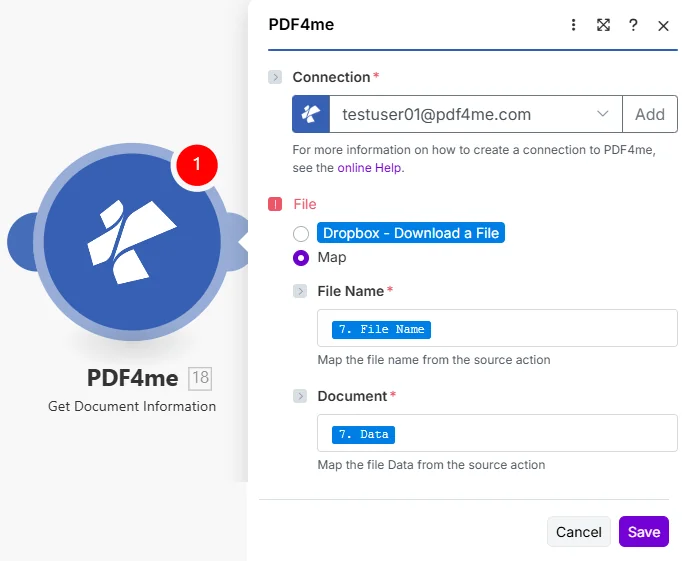
Wählen Karte unter Datei, dann Karte Dateiname Und Dokumentieren aus dem Schritt, der die heruntergeladen hat PDFDie
Parameter
Erforderlich: Verbindung, Dateiname, Und Dokumentieren. Satz Datei Zu Karte Zuerst müssen beide Eingabefelder sichtbar werden. Für das Dokument werden Binärdateien benötigt – eine URL oder ein Dateiname allein reicht nicht aus.
| Parameter | Erforderlich | Was es tut | Beispielzuordnung |
|---|---|---|---|
| Connection | Required | PDF4me API connection used by the scenario to authenticate metadata requests. Click Add and paste your API key if connecting for the first time. | Your PDF4me connection |
| File | Required | Determines how the PDF is supplied. Choose Map to wire File Name and Document from a prior module's output - the most common setup for multi-step scenarios. | Map |
| File Name | Conditional | Filename with .pdf extension from the source module, required when File is set to Map. Map from the file name field of your Dropbox, Drive, or OneDrive step. | 7. File Name |
| Document | Conditional | Binary PDF content from the download step, required when File is set to Map. Must be actual file bytes - not a URL or a filename string. Map from the Data field of Dropbox or the File Content field of SharePoint. | 7. Data |
Wie lese ich? PDF Metadaten in Make?
- Hinzufügen PDF4me → Dokumentinformationen abrufen zu Ihrem Szenario.
- Wählen Verbindung (oder klicken Sie hier) Hinzufügen um einen mit Ihrem API Schlüssel).
- Unter Datei, wählen KarteDie
- Karte Dateiname Fügen Sie im Dateinamenfeld aus Ihrem Download-Schritt Folgendes hinzu:
.pdfVerlängerung. - Karte Dokumentieren zum Binärdatenfeld aus demselben Schritt (normalerweise Daten in Dropbox oder Dateiinhalt in SharePoint/OneDrive-Modulen).
- Speichern und klicken Einmal ausführenErweitern Sie die Dateiinformationen Ausgabebündel – jedes der 11 Metadatenfelder ist ein separates, zuordnungsfähiges Token, das in jedes nachfolgende Modul eingebunden werden kann.
Welche Metadatenfelder gibt dieses Modul zurück?
Das Modul gibt einen Wert zurück Dateiinformationen Das Paket enthält 11 einzelne Metadatenfelder – jedes ist unabhängig zuordenbar. Titel, Autor, Thema, Schlagwörter, Urheber und Produzent stammen aus dem PDF-Dokumentinformationswörterbuch (Abschnitt 14.3.3 des PDF 32000-1:2008 Spezifikation), während Erstellungsdatum und Änderungsdatum folgen ISO 8601 Zeitstempelformatierung.
| Feld | Typ | Was es enthält und wie man es verwendet |
|---|---|---|
Title | String | Document title as stored in the PDF metadata dictionary. Empty string if not set. Map into an Airtable record or email subject line. |
Author | String | Name of the person or system that created the document. Use in a Router to send files to department-specific folders based on creator. |
Subject | String | Subject or description field from the document properties dialog. Often populated by enterprise document management systems. |
Keywords | String | Comma-separated keyword tags embedded by the author. Filter on this field in a Make Filter to route to the correct team or project. |
Creator | String | Application that originally created the document - for example, Microsoft Word, Adobe InDesign, or a PDF library name. |
Producer | String | PDF conversion library or printer driver that generated the final PDF bytes. Different from Creator when a Word file was later exported to PDF. |
Creation Date | DateTime | ISO 8601 timestamp of when the document was first created. Use in a Filter to process only documents created within a target date range. |
Modification Date | DateTime | ISO 8601 timestamp of the last save. Compare to a stored baseline date to detect documents that have changed since last processing. |
Page Count | Integer | Total number of pages. Use in a Filter to block files over a page limit or route short vs. long documents to different processing branches. |
File Size | Integer | File size in bytes. Gate on this before a conversion or email step - reject oversized files and notify the submitter to re-upload a compressed version. |
PDF Version | String | PDF specification version (e.g. 1.4, 1.7, 2.0). Verify conformance before routing to a PDF/A archive that requires a specific version. |
Wann sollte ich „Dokumentinformationen abrufen“ verwenden?
Typische KonfigurationenCommon Make scenario patterns that use Get Document Information to drive routing, validation, or cataloging.
- Ein neues PDF landet in einem gemeinsam genutzten Dropbox-Posteingangsordner und löst das Szenario aus.
- Dokumentinformationen abrufen Extrahiert das Metadatenfeld „Schlüsselwörter“.
- A Make Der Router prüft den Wert des Schlüsselworts anhand der Abteilungsnamen (Finanzen, Recht, Personalwesen).
- Jede Niederlassung lädt die Datei in den entsprechenden Teamordner in Google Drive hoch.
- Eine Slack-Benachrichtigung informiert das Zielteam über den Dokumenttitel und die Seitenzahl.
- Das Absenden eines Formulars löst das Szenario mit dem zugehörigen Anhang aus. PDFDie
- Dokumentinformationen abrufen Gibt Seitenzahl und Dateigröße zurück.
- Ein Filter verhindert, dass Dateien, die größer als 50 MB oder kleiner als 1 Seite sind, weiterverarbeitet werden.
- Gültige Dokumente werden an das Konvertierungs- oder E-Signatur-Modul weitergeleitet.
- Abgelehnte Dateien lösen eine E-Mail-Antwort aus, in der der Einreicher aufgefordert wird, eine kleinere Version erneut hochzuladen.
- Ein geplantes Szenario durchläuft neue Abschnitte PDFs in einem OneDrive-Archivordner.
- Dokumentinformationen abrufen Extrahiert alle 11 Metadatenfelder pro Datei.
- Ein Airtable-Modul erstellt einen neuen Datensatz mit Titel, Autor, Erstellungsdatum und Seitenzahl.
- Der Datensatz verlinkt zurück zur OneDrive-Datei-URL, um den Zugriff mit einem Klick zu ermöglichen.
- Ein Filter überspringt Dateien, die bereits einen entsprechenden Airtable-Datensatz haben, um Duplikate zu vermeiden.
Praktische Tipps
Spickzettel
| Feld | Wert |
|---|---|
| File | Map |
| File Name | 7. File Name |
| Document | 7. Data |
| Always populated | Page Count, File Size, PDF Version |
| Can be empty | Title, Author, Subject, Keywords, Creator, Producer |