Zum Hauptinhalt springen

PDF Hyperlink löschen in Make

Was dieses Modul bewirkt

PDF4me, PDF - Hyperlink löschen Entfernt alle anklickbaren Hyperlink-Anmerkungen von bestimmten Seiten eines PDF Ohne den sichtbaren Text zu verändern. Legen Sie einzelne Seiten, einen Bereich oder das gesamte Dokument in einem Schritt fest. Programme wie UPDF und Adobe Acrobat erfordern die manuelle Bearbeitung jeder einzelnen Datei; dieses Modul erledigt dies automatisch in Ihrem Dokument. Make Szenario für jedes durchlaufende Dokument.

Verwandte Blog-Beiträge
Zu dieser Funktion gibt es noch keinen Blogbeitrag – folgt in Kürze.
Schauen Sie sich in der Zwischenzeit im PDF4me-Blog Tutorials und Arbeitsabläufe für alle Plattformen an.
Besuchen Sie den Blog

Authentifizierung Ihrer API-Anfrage

Jeder PDF4me Modul in Make erfordert eine gültige VerbindungErstellen oder wählen Sie einen Eintrag aus, der Ihre Daten enthält. PDF4me API Schlüssel, damit das Szenario den Hyperlink-Löschdienst sicher aufrufen kann.

Wichtige Fakten, die Sie nicht verpassen sollten

Der Text bleibt erhalten, nur die Linkanmerkung wird entfernt.

Der Ankertext, der zuvor der anklickbare Link war, bleibt unverändert – Schriftart und Farbe sind gleich. Leser können ihn lesen, aber ein Klick hat keine Auswirkung mehr.

Alle Links auf den Zielseiten werden gleichzeitig entfernt.

Alle Hyperlinks auf den von Ihnen angegebenen Seiten werden in einem einzigen Durchgang entfernt, es gibt keine URL-Level-Filter. Falls eine selektive Entfernung erforderlich ist, führen Sie zuerst „Hyperlinks extrahieren“ aus, um die zu entfernenden Seiten zu planen.

PDF Lesezeichen und Inhaltsverzeichnis-Links bleiben unberührt.

Intern PDF Lesezeichennavigation und Inhaltsverzeichnis-Anker bleiben vollständig unverändert. Nur externe URL Hyperlinks und klickbare href-Anmerkungen innerhalb der Seite werden entfernt.
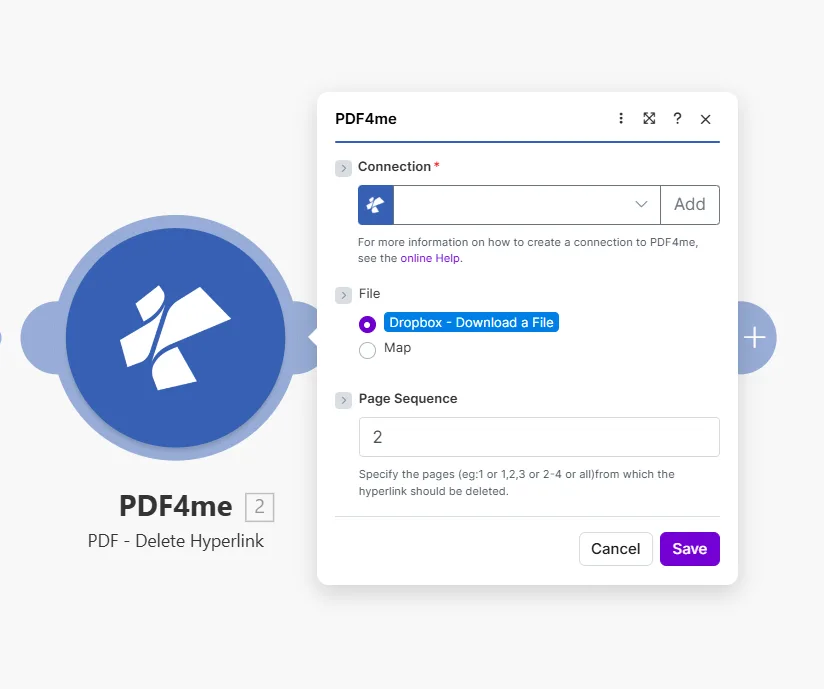
Das Modul „PDF4me PDF-Hyperlink löschen“ zeigt das Verbindungsfeld leer an, inklusive Schaltfläche „Hinzufügen“. Die Datei ist auf „Dropbox – Datei mit Karte herunterladen“ eingestellt, und das Feld „Seitenreihenfolge“ ist auf 2 gesetzt. Der Hinweis lautet: „Geben Sie die Seiten an, z. B. 1, 1, 2, 3, 2–4 oder alle, von denen der Hyperlink gelöscht werden soll.“

Geben Sie eine einzelne Seite, eine durch Kommas getrennte Liste, einen Bereich oder all Alle Links aus dem gesamten Dokument entfernen.

Parameter

Erforderlich: Alle drei Parameter, Connection, File, Und Page Sequence, muss für die Ausführung des Moduls bereitgestellt werden.

ParameterErforderlichWas es tutBeispiel
ConnectionYesPDF4me API connection used to authenticate hyperlink deletion requests. Click Add to create one with your API key.Your PDF4me connection
FileYesSource PDF. Choose Dropbox - Download a File for a direct Dropbox trigger, or Map to supply the filename and binary content from a prior module.Dropbox - Download a File
Page SequenceYesWhich pages to strip of hyperlinks. Accepts a single page, comma-separated list, a range, or all to clean the entire document at once.2 or 1,2,3 or 2-4 or all

Schnellkonfiguration

  1. Hinzufügen PDF4mePDF - Hyperlink löschen zu Ihrem Make Szenario.
  2. Wählen Connection (oder klicken Sie hier) Hinzufügen um einen mit Ihrem API Schlüssel).
  3. Satz File Zu Dropbox – Datei herunterladen oder Karte von einem vorherigen Modul, das eine Ausgabe erzeugt PDF Binär.
  4. Geben Sie die zu reinigenden Seiten ein. Page Sequence: verwenden all Links von jeder Seite auf einmal entfernen.
  5. Speichern und klicken Einmal ausführenDie Ausgabe enthält Document Name Und Document Data: Die PDF wobei alle Hyperlinks auf den angegebenen Seiten entfernt werden.

Workflow-Beispiele

Workflow-BeispieleCommon Make scenario patterns that use PDF - Delete Hyperlink to sanitize, prepare, and archive documents.
Dokument vor dem Versenden an einen Kunden bereinigen.
  1. Ein fertiger Vorschlag PDF wird im Ordner „Bereit für den Kunden“ in Google Drive abgelegt.
  2. PDF – Hyperlink löschen Läuft mit Page Sequence eingestellt auf allDie
  3. Der zurückgegebene Link-freie PDF wird an eine Gmail-Nachricht angehängt und an den Kunden gesendet.
  4. Die ursprüngliche Arbeitskopie im Quellordner behält alle internen Verknüpfungen bei.
Automatisch eine druckfertige Version erstellen
  1. Mit der Übermittlung eines Typeform-Formulars wird ein Vertrag als genehmigt markiert und das entsprechende Szenario ausgelöst.
  2. PDF – Hyperlink löschen Entfernt sämtliche Links von jeder Seite.
  3. Der linkfreie PDF wird in den Ordner „Druckwarteschlange“ in Dropbox hochgeladen.
  4. Gmail benachrichtigt das Druckteam, dass ein neuer Auftrag bereit ist.
Monatlicher Archiv-Snapshot ohne aktive Links
  1. Ein geplantes Szenario wird am 1. jedes Monats ausgeführt.
  2. Google Drive lädt das aktuell aktive Dokument herunter.
  3. PDF – Hyperlink löschen Entfernt alle Links von jeder Seite.
  4. Der statische Snapshot wird in einen Ordner "Archiv / [Monat]" hochgeladen, ohne tote Links oder veraltete Weiterleitungen.

Häufig gestellte Fragen

Does removing a hyperlink also delete the visible text?+
No. The module removes only the URI annotation: the invisible clickable layer, while leaving all visible text completely intact. The anchor text stays in its original position with the same font, size, colour, and formatting. Readers can still read the text; it just no longer responds to clicks or open a URL. This makes the module safe for sanitizing documents before print or client distribution, since the content itself is not altered. If you also need to remove or replace the visible text, add a Find and Replace module before or after Delete Hyperlink.
Can I target just one specific link and keep others on the same page?+
The module removes all hyperlinks from the pages you specify: there is no URL-level or text-level filter within a single Page Sequence value. If a page contains five links and you want to remove only one, this is straightforward only when the link you want to keep is on a different page. For more granular control, run Extract Hyperlinks first to get a full list of links and which pages they appear on, then decide which pages to pass to Delete Hyperlink. If links you want to keep share a page with those you want to remove, use Create Hyperlinks afterward to re-add the ones you want to preserve.
What page formats does Page Sequence accept?+
Page Sequence accepts four formats: a single page number like 1, a comma-separated list like 1,2,5, a hyphenated range like 3-7, or the word all to process every page in the document at once. For a 40-page report where you want to strip links from the cover and the appendix only, enter 1,35-40. Using all is the safest default when you want a fully link-free PDF in one step, since it covers every page regardless of total page count. The module returns an error if you specify a page that does not exist in the document, so use Get Document Information first when the total page count is unknown.
Does it affect internal bookmark links or the table of contents?+
No. The module only removes URI annotation objects: the clickable external URL links embedded in the PDF. Internal PDF bookmarks in the outline navigation panel, named destination anchors, and table-of-contents click-through links that jump to another page within the same document are stored as different annotation or action types and are completely unaffected. Readers can still navigate long documents using the table of contents after external links are sanitized. Cross-reference links pointing to headings within the document also remain intact.
Is my original source file changed in any way?+
No. PDF4me processes a server-side copy and streams the result back to Make as a new binary document in the Document Data output field. Your source file: whether in Dropbox, Google Drive, OneDrive, SharePoint, or passed as an email attachment binary, is never written to or modified. The original remains exactly as it was before the scenario ran. If you want to replace the source file with the sanitized version, add an upload module after Delete Hyperlink and explicitly overwrite the original path, that is a deliberate action your scenario takes, not something the PDF4me module does on its own.

Verwandte Module

Hilfe erhalten