Erstellen Sie Hyperlinks in PDF mit Make
PDF4me PDF - Hyperlinks erstellen ist ein Make Modul, das eine bestimmte Textzeichenfolge in eine umwandelt PDF in einen anklickbaren Link, ohne Koordinaten oder PDF Mit diesem Editor können Sie Produktnamen mit Shopseiten, Quellenangaben oder Richtlinienformulierungen mit einer FAQ-Seite verknüpfen und anschließend Module verketten, um mehrere verschiedene Links zu einem Dokument hinzuzufügen.
Was dieses Modul bewirkt
PDF4me, PDF - Hyperlinks erstellen wandelt jede Textzeichenfolge in eine PDF in einen anklickbaren Link innerhalb eines Make Das ist ganz einfach: Sie geben an, welcher Text gefunden werden soll, wohin die Suche führen soll und welche Seiten durchsucht werden sollen – den Rest erledigt das Modul. Keine Koordinaten, keine manuellen Anmerkungen, kein … PDF Der Editor ist auf einem Desktop geöffnet.
Authentifizierung Ihrer API-Anfrage
Jeder PDF4me Modul in Make erfordert eine gültige VerbindungErstellen oder wählen Sie einen Eintrag aus, der Ihre Daten enthält. PDF4me API Schlüssel, damit das Szenario den Hyperlink-Dienst sicher aufrufen kann.
Wichtige Fakten, die Sie nicht verpassen sollten
Am meisten PDF Link APIs Sie müssen die genauen x/y-Koordinaten angeben. Dieses Modul findet den Text für Sie; geben Sie einfach das Wort oder die Phrase ein, die anklickbar sein soll, und die Positionierung erfolgt automatisch.
Verlassen New Text Wenn Sie das Feld leeren, bleibt der ursprüngliche Suchtext als Linkbeschriftung sichtbar. Füllen Sie es aus, um den angezeigten Text zu ersetzen. Dies ist nützlich, um einen Rohdaten-Eintrag zu erstellen. URL oder einen Produktcode in lesbaren Ankertext umwandeln.
Ein Modul verarbeitet eine Text-zu-URL Paar. Um mehrere verschiedene Links zum selben Dokument hinzuzufügen, verbinden Sie mehrere Module zum Erstellen von Hyperlinks nacheinander; jedes Modul erhält die Ausgabe des vorherigen.
Das Modul schreibt einen Standard PDF Link-Annotation, wie sie in der PDF Spezifikation 32000-1:2008 (Abschnitt 12.5.6.5, Link-Anmerkungen), der gleiche Anmerkungstyp, der in der PDF Spezifikationsindex des VerbandesDeshalb lassen sich die erstellten Links in Acrobat, Browsern und auf Mobilgeräten korrekt öffnen. PDF Viewer ohne benutzerdefiniertes Plugin.
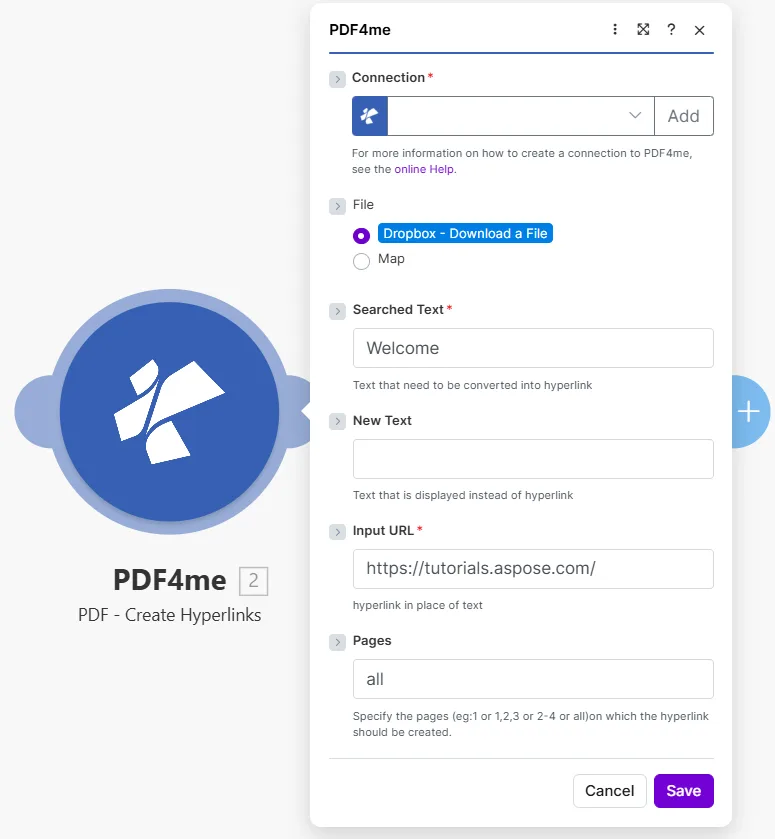
Geben Sie den genauen Text ein, der gesucht werden soll. Searched Text, das Reiseziel in Input URLund auf welchen Seiten gesucht werden soll PagesDie
Parameter
Erforderlich: Connection, Searched Text, Und Input URLDie New Text Und Pages sind optional.
| Parameter | Erforderlich | Was es tut | Beispiel |
|---|---|---|---|
| Connection | Required | PDF4me API connection used to authenticate hyperlink creation requests. | Your PDF4me connection |
| File | Required | Source PDF. Choose Dropbox - Download a File for a direct Dropbox trigger, or Map to wire filename and binary data from a prior module. | Dropbox - Download a File |
| Searched Text | Required | The exact text string in the PDF that will become a clickable hyperlink. The module searches the specified pages for this text and wraps every occurrence in a link annotation. | Welcome |
| New Text | Optional | Optional label that replaces what the reader sees over the link. Leave empty to keep the original searched text as the visible link label. | Visit our site |
| Input URL | Required | The destination URL the hyperlink points to. Readers are taken to this address when they click the linked text. | https://tutorials.aspose.com/ |
| Pages | Optional | Pages to search for the text. Accepts a single number, a comma-separated list (1,3,5), a range (2-4), or the word all. Defaults to all if left empty. | all |
Wie füge ich Hyperlinks zu einem PDF In Make?
- Hinzufügen PDF4me → PDF - Hyperlinks erstellen zu Ihrem Szenario.
- Wählen Connection (oder klicken Sie hier) Hinzufügen um einen mit Ihrem API Schlüssel).
- Satz File Zu Dropbox – Datei herunterladen oder Karte aus einem vorherigen Modul.
- In Searched TextGeben Sie den genauen Text ein, den Sie anklickbar machen möchten (z. B.
Welcomeoder ein Produktname). - Optionale Eingabe New Text Wenn Sie möchten, dass die sichtbare Beschriftung anders lautet als der Suchtext.
- Fügen Sie die Zieladresse ein in Input URLDie
- Satz Pages: Typ
allfür jede Seite oder gezielt bestimmte Seiten ansprechen wie1,3oder2-4Die - Speichern und klicken Einmal ausführenDie Ausgabe enthält Document Name Und Document Data: Die PDF mit angewendeten Hyperlinks.
Ausgabe
| Feld | Typ | Was es enthält |
|---|---|---|
Document Name | String | Filename of the output PDF with hyperlinks applied. |
Document Data | Buffer | Binary content of the PDF with link annotations added. Map this into an upload, email, or further processing module. |
Wann sollte ich „Hyperlinks erstellen“ verwenden?
Typische KonfigurationenCommon Make scenario patterns that use PDF - Create Hyperlinks to enrich documents automatically.
- Ein geplantes Szenario ruft die aktuelle Produktliste aus Ihrer Datenbank ab und generiert einen Katalog. PDFDie
- Ein Iterator durchläuft jeden Produktnamen der Liste.
- Hyperlinks erstellen Wird einmal pro Produkt ausgeführt. Searched Text = Produktname, Input URL = Produktseite URLDie
- Nach der Schleife ist jeder Produktname im Katalog ein direkter Link zur jeweiligen Shopseite.
- Der fertige interaktive Katalog wird auf Google Drive hochgeladen und per E-Mail an das Vertriebsteam gesendet.
- Ein monatlicher Bericht PDF wird aus einer Google Docs-Vorlage generiert.
- Ein Datenspeicher enthält eine Liste von Zitationsbezeichnungen und ihren entsprechenden Zuordnungen. URLsDie
- Hyperlinks erstellen Wird einmal pro Zitat ausgeführt und wandelt jedes Label in einen anklickbaren Quelllink um.
- Leser können auf jedes Zitat in der PDF um die Originalquelle im Browser zu öffnen.
- Der angereicherte Bericht wird gespeichert in SharePoint und an die Beteiligten verteilt.
- Die Personalabteilung lädt eine neue Richtlinie hoch PDF in einen überwachten Dropbox-Ordner.
- Hyperlinks erstellen sucht auf allen Seiten nach dem Ausdruck „Weitere Informationen“.
- Jedes Ereignis wird zu einer Verbindung mit der Personalabteilung. FAQ Seite im Firmenintranet.
- Ein zweites, nachgeschaltetes Modul wandelt den Ausdruck „Anfrage einreichen“ in einen Link zum Ticketsystem um.
- Das fertige PDF wird in der HR-Dokumentenbibliothek gespeichert und per E-Mail an alle Mitarbeiter versendet.
Häufig gestellte Fragen
Praktische Tipps
Spickzettel
| Feld | Wert |
|---|---|
| Searched Text | Exact text to make clickable |
| New Text | Optional replacement label |
| Input URL | Destination address |
| Pages | all, a number, 1,3, or 2-4 |
| Output | Document Name + Document Data |