Bild - Drehen um EXIF Daten - Automatische Ausrichtung für Make
Drehen um EXIF Daten ist ein Make Modul von PDF4me das liest EXIF Orientierungsetikett auf einem JPG oder PNG Das Programm richtet das Bild automatisch aus und dreht es in die richtige, aufrechte Position. Verwenden Sie es, um seitlich liegende Smartphone-Fotos zu korrigieren, bevor sie in einer Galerie landen, gedruckt werden oder PDF, ohne dass ein manueller Drehwinkel erforderlich ist.
Was dieses Modul bewirkt
PDF4me Drehen um EXIF Daten liefert eine automatische Bildrotation basierend auf EXIF Orientierungsmetadaten innerhalb Make Szenarien. Es liest die EXIF Orientierungsmarkierung von Bildern (üblich bei Smartphone- und Kamerafotos) und Anwendung der korrekten Drehung, um eine korrekte Fotoanzeige, Druckvorbereitung, Webveröffentlichung und automatisierte Workflows zur Orientierungskorrektur zu ermöglichen.
Wie authentifiziere ich mein Konto? Make Szenario?
Um auf die PDF4me Web API durch MakeJede Anfrage muss einen gültigen Verbindung halten PDF4me API Schlüssel. Dies ermöglicht eine sichere, authentifizierte Kommunikation zwischen Ihrem Make Szenario und PDF4meBildrotationsdienst von 's.
Wichtige Fakten, die Sie nicht verpassen sollten
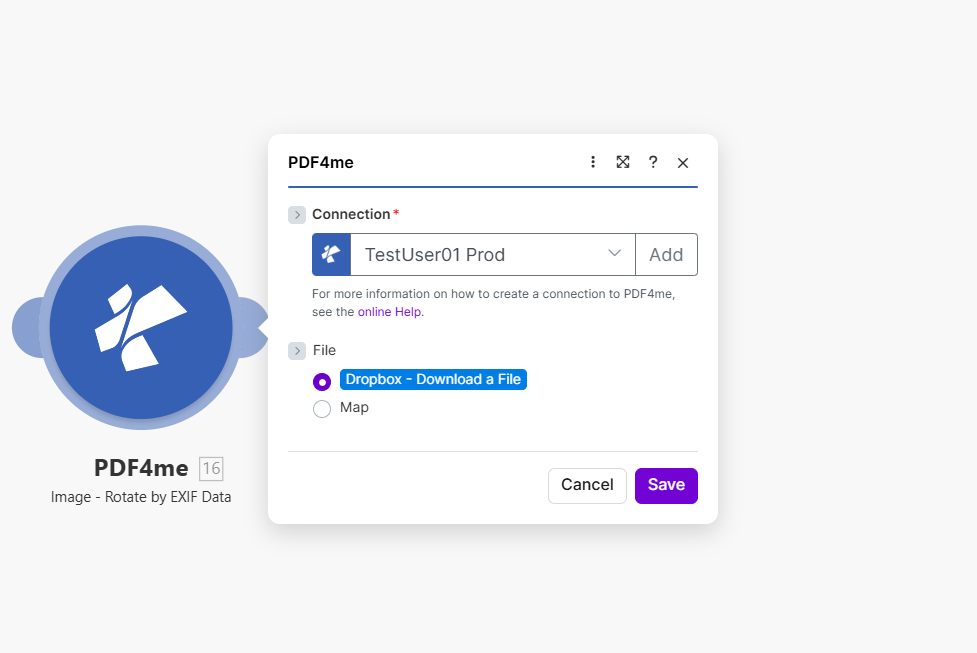
Das Quellbild wird zugeordnet, Bilddateiname und Bildtyp werden festgelegt. Das Modul liest die EXIF Ausrichtungsmarkierung und automatische Bilddrehung.
Um welche Parameter rotiert es? EXIF Datenbedarf?
Erforderlich: Verbindung, Datei, Bilddateiname und Bildtyp müssen angegeben werden.
| Parameter | Erforderlich | Was es tut | Beispiel |
|---|---|---|---|
| Connection | Required | PDF4me API connection. Click Add and paste your API key the first time. Reused automatically across all PDF4me modules in your scenarios. | My PDF4me connection |
| File | Required | Binary content of the source image. Map from Dropbox, Google Drive, HTTP, or any previous module that outputs image binary data. | 1. Data |
| Image File Name | Required | Filename of the image with extension. Map from the previous module output or set explicitly. | photo.jpg |
| Image Type | Required | Format of the source image. Must match the actual file: JPG for JPEG images, PNG for PNG images. | JPG |
Ausgabe
| Feld | Typ | Was es enthält |
|---|---|---|
Image Name | String | Output image filename with corrected orientation. |
Image Data | Buffer | The image with EXIF-based rotation already applied, ready for upload or downstream processing. |
Typische Konfigurationen
Workflow-BeispieleCommon Make scenario patterns using Rotate by EXIF Data.
- Ein Dropbox Watch Files-Trigger wird ausgelöst, wenn ein neues Foto im Upload-Ordner landet.
- Bei einem Batch-Upload verarbeitet ein Iterator jedes neue Bild.
- Die Funktion „Rotate by EXIF Data“ korrigiert die Ausrichtung mithilfe des EXIF-Tags des Bildes.
- Ein Dropbox-Upload-Schritt speichert das korrigierte Bild im Hauptordner der Fotobibliothek.
- Ein Aktualisierungsschritt des Katalogindexes aktualisiert die Bibliotheksliste mit der korrigierten Datei.
- Ein Trigger wird ausgelöst, wenn ein neues Produktfoto für den Shop hochgeladen wird.
- Die Drehung anhand der EXIF-Daten korrigiert die Ausrichtung, bevor nachgelagerte Größenänderungen oder Komprimierungen erfolgen.
- Ein optionaler Schritt zur Bildkomprimierung reduziert die Dateigröße und sorgt so für schnellere Seitenladezeiten.
- Im Schritt „Upload to CDN“ wird das korrigierte, optimierte Bild veröffentlicht.
- Ein Schritt zur Aktualisierung des Produktdatensatzes verknüpft die korrigierte Bild-URL mit dem Eintrag.
- Eine mobile Inspektions-App lädt Fotos, die im Außendienst aufgenommen wurden, in einen gemeinsamen Ordner hoch.
- Die Funktion „Rotate by EXIF Data“ korrigiert alle seitlich oder auf dem Kopf stehenden Aufnahmen, die während der Bewegung auf dem Gelände entstanden sind.
- Die korrigierten Bilder werden mithilfe eines Dokumentengenerierungsmoduls in einen PDF-Bericht eingebettet.
- Der fertige Bericht wird in ein gemeinsames Inspektionsarchiv hochgeladen.
- Eine E-Mail-Benachrichtigung informiert den prüfenden Manager darüber, dass der Bericht fertig ist.
Praktische Tipps
Spickzettel
| Feld | Wert |
|---|---|
| Module | Rotate by EXIF Data |
| Connection | PDF4me API key |
| File | Binary image content from a previous module |
| Image File Name | filename.jpg or filename.png |
| Image Type (JPEG) | JPG |
| Image Type (PNG) | PNG |
| Rotation angle input | None needed, read from EXIF tag automatically |
| Output fields | Image Name, Image Data |
Häufig gestellte Fragen
Branchenspezifische Anwendungsfälle und Anwendungen
- Photography & Media
- E-Commerce & Retail
- Real Estate & Property
- Document Processing
- Fotobibliotheken: Korrekte Ausrichtung in Fotosammlungen
- Stockfotos: Bilder für Bilddatenbanken vorbereiten
- Eventfotografie: Ausrichtung bei Fotostapeln von Veranstaltungen korrigieren
- PorträtkorrekturStellen Sie sicher, dass die Ausrichtung im Hochformat korrekt ist.
- ProduktfotosKorrekte Ausrichtung des Produktbildes
- Katalogbilder: Bilder für Kataloge vorbereiten
- Fotos der Angebote: Ausrichtung der Marktplatzangebote korrigieren
- Galeriebilder: Korrekte Anzeige in Galerien sicherstellen
- ImmobilienfotosKorrekte Ausrichtung des Angebotsfotos
- Virtuelle Touren: Ausrichtung des Tourbildes korrigieren
- Inspektionsfotos: Inspektionsbilder vorbereiten
- MarketingmaterialienKorrekte Ausrichtung von Marketingfotos
- PDF Schöpfung: Korrigieren Sie die Bilder vorher PDF Einbettung
- Bericht BilderAusrichtung in Berichtsgrafiken korrigieren
- Präsentationsgrafiken: Bilder für Präsentationen vorbereiten
- DokumentationKorrekte Screenshots und Diagramme