Formularfeld hinzufügen PDF für Make
Formularfeld hinzufügen PDF ist ein Make Modul, das interaktive Formularfelder (Texteingabefelder, Kontrollkästchen, Optionsfelder, Dropdown-Menüs und Unterschriftenfelder) an präzisen X/Y-Koordinaten auf beliebiger Seite platziert PDF Seite. Nutzen Sie es, um die Erstellung ausfüllbarer Formulare für Verträge, HR-Onboarding, Umfragen und jeden Workflow zu automatisieren, bei dem Empfänger ein Formular ausfüllen müssen. PDF digital. Ausgabe ist Base64-kodiert und bereit für die Füllung PDF Formularmodul oder direkter Upload.
Was dieses Modul bewirkt
Was dieses Modul bewirkt: Der PDF4me Formularfeld hinzufügen PDF Das Modul platziert interaktive Formularfelder – Texteingabefelder, Kontrollkästchen, Optionsfelder, Dropdown-Menüs und Unterschriftenfelder – an präzisen X/Y-Koordinaten auf jeder beliebigen Seite einer PDF in Ihrem Make Szenario. Füttere es mit einem PDF Puffer von Google Drive, Dropboxoder ein früheres Modul, definieren Sie den Feldnamen, den Typ und die Position und erhalten Sie eine Antwort zurück Base64-kodiert ausfüllbar PDF Bereit zum Hochladen, Versenden per E-Mail oder Übergeben an den Füllservice PDF Formularmodul. Verwenden Sie Make'S Iterator Eine Liste von Felddefinitionen durchlaufen und in einem einzigen Szenariolauf Dutzende von Feldern hinzufügen – ohne manuelle Eingabe PDF Redakteur/in gesucht.
Authentifizierung Ihres API Anfrage
Jeder PDF4me Modul in Make erfordert eine gültige API Schlüssel. Verbinden. PDF4me einmal in MakeDer Verbindungsmanager von - Ihr Schlüssel wird sicher gespeichert und für alle Anwendungen wiederverwendet PDF4me Module werden in all Ihren Szenarien automatisch integriert.
Wichtige Fakten, die Sie nicht verpassen sollten
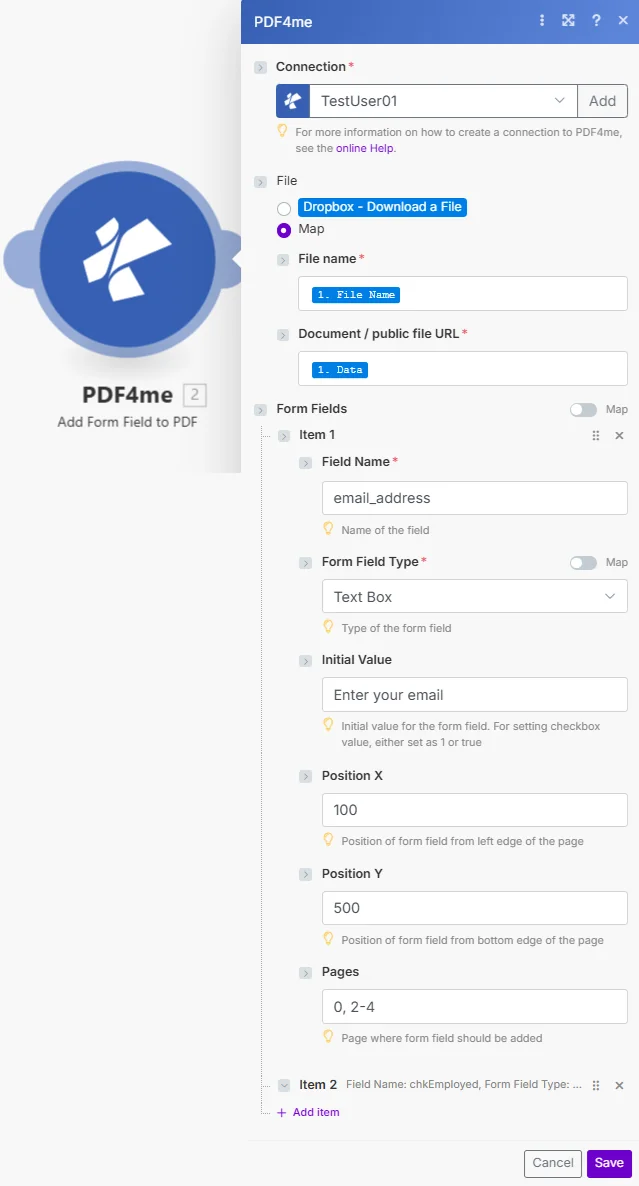
Parameter
⚠️ Dateiname, Dokument, Feldname und Formularfeldtyp sind allesamt Pflichtfelder. Optionale Parameter steuern die Feldplatzierung, den Standardwert und die Seitenausrichtung.
| Parameter | Erforderlich | Was es tut | Beispiel |
|---|---|---|---|
| File Name | Required | Filename of the source PDF including the .pdf extension. Map from the previous module's file name output or enter a static name. Used for output identification and file format validation. | application_form.pdf |
| Document | Required | The PDF file content as a binary buffer. Map from a Get File module (Google Drive, Dropbox, OneDrive, HTTP) or from the Document Data output of a previous PDF4me module. This is the base PDF that will receive the new form field. | [Buffer from Google Drive Get File] |
| Field Name | Required | Unique identifier for the form field. Used for field recognition when filling the form programmatically or with the Fill PDF Form module. Use descriptive names without spaces (e.g. FirstName, EmailAddress, AgreeToTerms). Must be unique within the document. | email_address |
| Form Field Type | Required | The type of interactive field to add. Text - single or multi-line text input. Checkbox - boolean tick box (true/false). Radio - radio button selection (group via shared Field Name). Dropdown - drop-down list selection. Signature - digital signature field. | Text |
| Initial Value | Conditional | Default value pre-populated in the field. For Text fields: any string (appears as placeholder text). For Checkbox: "1" or "true" to pre-check, "0" or "false" for unchecked. Leave empty for blank fields that the recipient fills in. | Enter your email address |
| Position X | Conditional | Horizontal position of the field from the left edge of the page, measured in PDF points (72 points = 1 inch). Default: 0 (left edge). Use a PDF ruler or coordinate tool to determine the exact X value for your layout. | 100 |
| Position Y | Conditional | Vertical position of the field from the bottom-left corner of the page, measured in PDF points (72 points = 1 inch). Y = 0 is the bottom edge. For A4 (842 pt tall), Y = 770 places the field approximately 1 inch from the top. | 500 |
| Pages | Conditional | Target pages for the field using 0-based indexing. Use comma-separated indices for specific pages (e.g. "0,2,4"), ranges with hyphen (e.g. "0-3" for first four pages), or leave empty to apply to all pages. | 0 |
Ausgabefelder
| Feld | Typ | Was es enthält |
|---|---|---|
Document Name | String | Output PDF filename with the form field added |
Document Data | Base64 | The updated PDF with the new form field encoded as Base64; map directly to the next module's Document input or a storage upload field |
So richten Sie das Hinzufügen eines Formularfelds ein PDF Modul in Make
- Erstellen oder öffnen Sie ein Make Szenario und fügen Sie einen Trigger oder ein Modul hinzu, das die Quelle bereitstellt. PDF - Google Drive Watch Files, Dropbox Überwachungsordner oder ein HTTP Modul.
- Fügen Sie ein „Datei abrufen“-Modul hinzu. (Google Drive, Dropbox, oder OneDrive) um die Binärdatei abzurufen PDF Puffern, falls der Trigger nur Metadaten zurückgibt.
- Füge die PDF4me Formularfeld hinzufügen PDF Modul - suchen PDF4me in der Modulliste auswählen.
- Authentifizieren mit Ihrem PDF4me API Schlüssel eingeben, falls noch nicht verbunden (geben Sie ihn ein in der Make Verbindungsdialog).
- Kartendateiname aus der Dateinamenausgabe des vorherigen Moduls.
- Kartendokument aus dem Dateipuffer oder der Binärdatenausgabe des vorherigen Moduls.
- Feldnamen eingeben - eine eindeutige, beschreibende Kennung (z.B.
ApplicantName,SignatureField). - Formularfeldtyp auswählen - Text, Kontrollkästchen, Optionsfeld, Dropdown-Menü oder Signatur.
- Position X und Y festlegen In PDF Punkte für eine präzise Feldplatzierung.
- Seiten festlegen um gezielt bestimmte Seiten anzusprechen (0-basiert), oder lassen Sie das Feld leer, um alle Seiten zu erfassen.
- Schließen Sie ein nachgelagertes Modul an. - Dokumentdaten einem Feld zuordnen PDF Formularmodul oder Upload zu Google Drive/DropboxDie
Welche Formularfeldtypen können Sie einem Formular hinzufügen? PDF In Make?
PDF4me Unterstützt fünf interaktive Feldtypen: Text für ein- oder mehrzeilige Eingänge, Kontrollkästchen für boolesche Auswahlen Radio Schaltflächen, gruppiert nach einem gemeinsamen Feldnamen, Runterfallen Listen für ausgewählte Optionen und Unterschrift Felder für digitale Signaturen. Alle Positionen verwenden PDF Koordinatenpunkte (72 pt = 1 Zoll) vom Ursprung unten links. Für die vollständige PDF Formularfeldspezifikation siehe PDF 32000-1 Standard und die Make PDF4me IntegrationDie