How to Create a ZUGFeRD Invoice in Zapier with Dropbox and XML (Step by Step)
If you sell into Germany, Austria, or any EU buyer that requires structured electronic invoicing under EN 16931, you have probably been asked to send a ZUGFeRD (or Factur-X) invoice. That is a single PDF that is both human-readable and machine-readable, thanks to XML embedded inside the PDF.
This guide shows the full Zapier workflow that watches a Dropbox folder for new uploads, pulls a base PDF and an invoice XML payload, runs PDF4me Create ZUGFeRD Invoice, and writes the finished hybrid file back to Dropbox. Five Zap steps. No code. Reproducible end to end.
The screenshots use these sample paths:
- Trigger folder:
/Blog Data/Zugferd Invoice - Base PDF:
/pdf4metest/sample/10 page.pdf - Invoice XML:
/pdf4metest/Zugfred Invoice/version2.xml - Output folder:
/pdf4meoutput
1. Dropbox triggers on a new file in /Blog Data/Zugferd Invoice. 2. Find the base PDF. 3. Find the invoice XML. 4. PDF4me Create ZUGFeRD Invoice runs with Input Format = XML, Output Mode = XmlWithPdf, ZUGFeRD 1.0, Conformance = BASIC, Language = de. 5. Upload the hybrid PDF back to Dropbox.
Set Input Format = XML, then map only Invoice Xml Data. Keep Invoice Json Data and Invoice Csv Data empty. For XmlWithPdf output, the base PDF (the File field) is required, because that becomes the visual layer with your XML embedded inside.
What you are building
You produce a ZUGFeRD-compliant hybrid invoice: a PDF/A-3 document with structured XML invoice data embedded inside it. Humans see the PDF in any reader. ERP systems and accounts-payable platforms parse the XML automatically. The same file works for both audiences. No separate XML attachment, no manual re-keying, no compliance gap.
This pattern is mandatory in Germany for B2B invoicing from January 2025 under the Wachstumschancengesetz (Growth Opportunities Act), and is widely accepted across EU markets that follow EN 16931.
At a glance: the five steps
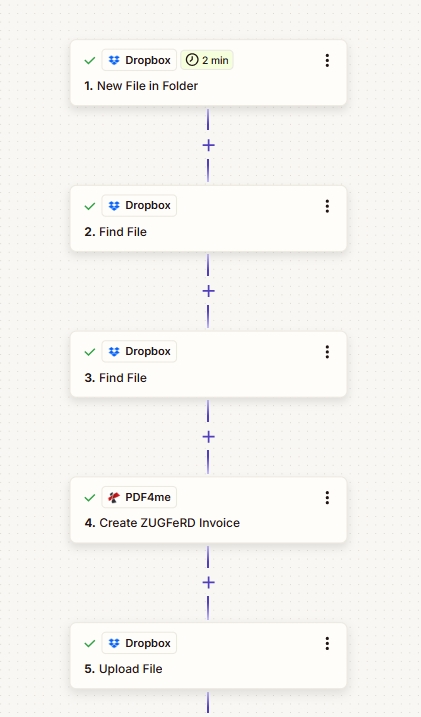
The complete five-step Zap chain for ZUGFeRD generation from a Dropbox trigger.
Why this workflow layout works
The visual PDF template and the XML payload live in different Dropbox folders. You can update one without touching the other. Designers iterate on the PDF, accounting iterates on the XML.
Create ZUGFeRD Invoice receives the PDF and the XML, embeds one inside the other, applies the conformance profile, and outputs a single hybrid file. No XML stitching code required.
Zapier polls Dropbox every 2 minutes, so new invoices process within minutes of arrival. No cron jobs, no idle compute, no missed files.
Before you start
- Zapier account. The free tier supports this workflow because five Zap steps fits within the free-tier limit per Zap.
- PDF4me API key. First-time setup: Connect PDF4me to Zapier.
- Dropbox connection with read access to source folders and write access to the output folder.
- A base PDF and a ZUGFeRD-compatible XML invoice payload stored in Dropbox.
Step 1: Trigger on a new file in a Dropbox folder
Flow so far: Trigger.
This kicks off the Zap whenever a file lands in the watch folder. Typically this is your "ready for invoicing" hand-off folder. Use it as the signal that a new invoice job is queued.
- Add the Dropbox trigger and select New File in Folder.
- Set Space to Default.
- Set Folder to your watch path. In this example we use
/Blog Data/Zugferd Invoice. - Leave Include files in subfolders? as False unless you intentionally want nested files.
- Set Include file contents? to Yes and Include sharing link? to Yes so downstream steps can read the file content cleanly.
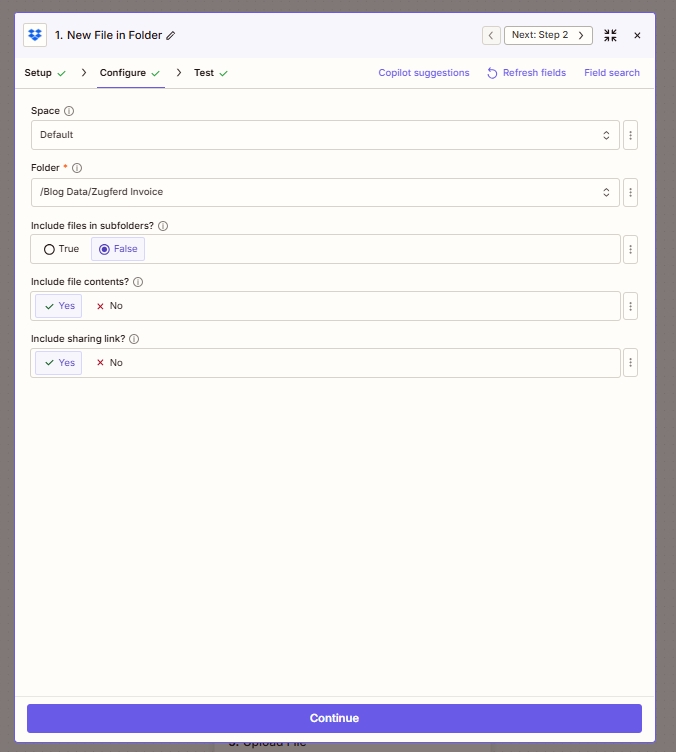
Step 1: Dropbox trigger watching the invoicing folder every two minutes.
Steps 2 and 3: Find the base PDF and the XML invoice
Flow so far: Trigger then Find base PDF then Find XML.
ZUGFeRD's hybrid format needs two ingredients. The visual PDF that humans read, and the structured XML that machines parse. Both are stored in known Dropbox locations, and we fetch them with two Find File actions.
Step 2: Find the base PDF
- Add a Dropbox action and pick Find File.
- Space: Default.
- Folder:
/pdf4metest/sample(the location of your visual template). - File Name:
10 page.pdf(or whatever your template is called). - Include file contents? set to Yes. This is the binary the next step needs.
- Include sharing link? set to Yes.
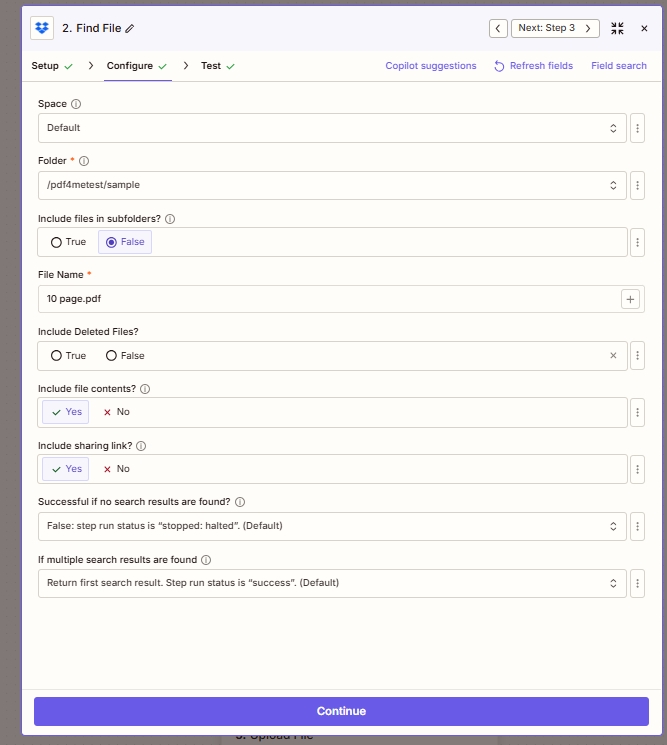
Step 2: Find File configuration for the base PDF template.
Step 3: Find the invoice XML
Same action, different inputs:
- Add another Dropbox then Find File step.
- Folder:
/pdf4metest/Zugfred Invoice. - File Name:
version2.xml. - Include file contents? set to Yes. This is critical so step 4 can read the XML bytes.
- Keep Successful if no search results are found? as False so the Zap stops cleanly if the file is missing instead of silently producing an empty PDF.
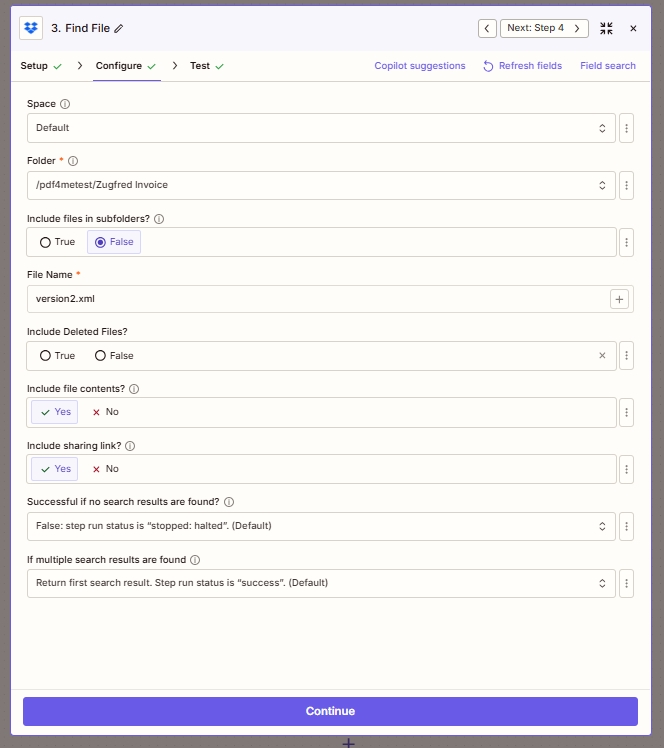
Step 3: Find File configuration pointing to the XML invoice payload.
Why two separate Find File steps instead of one? Because PDF4me's Create ZUGFeRD Invoice action takes the PDF and the XML as two distinct inputs in step 4. Keeping them separated upstream means cleaner mapping and easier debugging when something breaks.
Step 4: Create the ZUGFeRD invoice with PDF4me
Flow so far: Trigger then Find PDF then Find XML then Create ZUGFeRD.
This is where the hybrid file is built. The PDF4me action takes the base PDF, embeds your XML invoice payload inside it, applies the chosen conformance profile (BASIC here), and returns a single ZUGFeRD-compliant file.
Configure PDF4me, Create ZUGFeRD Invoice like this:
- File maps from step 2's File output (the base PDF).
- File Name maps step 2's File Name plus File Ext so the output inherits a sensible name.
- Input Format is set to XML. This tells PDF4me what payload type to expect.
- Invoice Xml Data maps from step 3's File output (the XML content).
- Output Mode is set to XmlWithPdf. This produces the hybrid PDF/A-3 with embedded XML, which is the canonical ZUGFeRD format.
- ZUGFeRD Version is
1.0. Use 2.0 or higher if your trading partner specifies it. Versions 2.0 and above align with the German 2025 mandate. - Conformance Level is
BASIC. This is the minimum legal invoice with line items. Switch to EN16931 for full EU compliance or XRECHNUNG when invoicing German public-sector entities. - Render Invoice On Pdf is
True. PDF4me draws invoice content visually on the PDF for human readability. - Language is
de. German labels are the default. Switch toen,fr,it, and so on depending on your buyer's region.
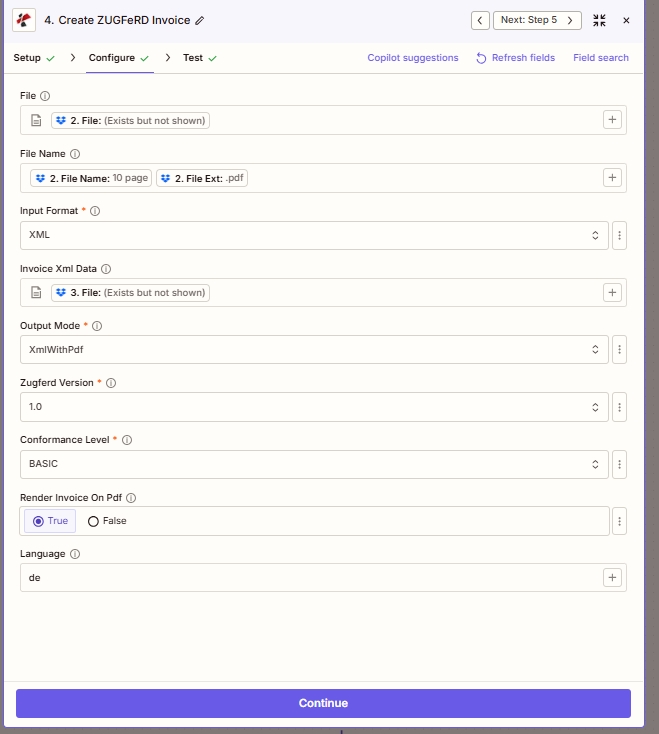
Step 4: full parameter mapping for XML-based ZUGFeRD generation with BASIC conformance.
Step 5: Upload the hybrid PDF back to Dropbox
Flow so far: Trigger then Read PDF and XML then Generate ZUGFeRD then Save back to Dropbox.
The final step writes the result to your output folder where the finance team, or your accounts-payable portal connector, can pick it up.
- Add Dropbox then Upload File.
- Space: Default.
- Folder:
/pdf4meoutput(or your archive location). - File maps step 4's File Url (PDF4me returns a secure URL Dropbox can ingest directly).
- Overwrite is
True. This replaces previous runs cleanly during testing. Flip toFalseonce in production. - Specify File Name maps step 4's File Name so the output retains the invoice reference.
- Specify File Extension maps step 4's File Extension (
.pdf). - Include sharing link? is Yes if you want the next step (notification, ERP push, email) to use a shareable Dropbox URL.
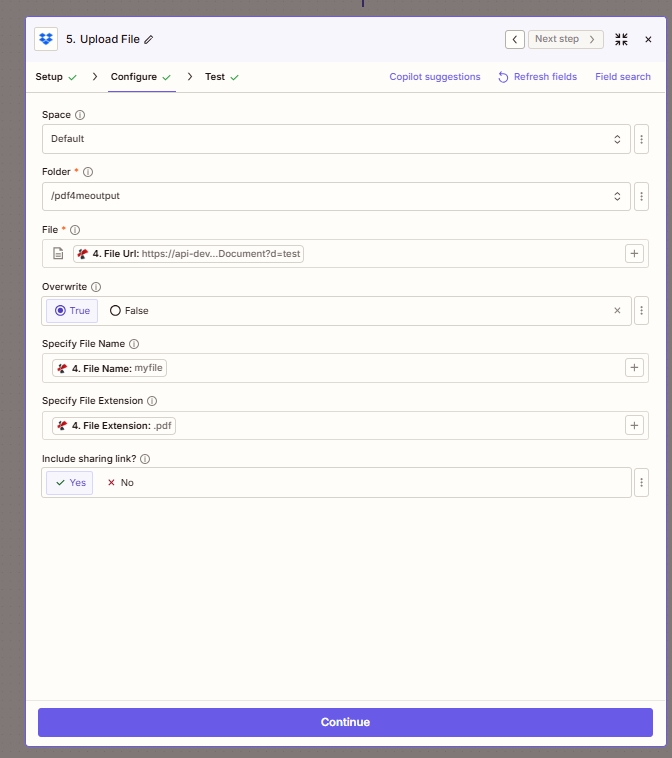
Step 5: the hybrid PDF lands in the Dropbox output folder, ready for downstream delivery.
Quick reference
| # | Step | Key mapping |
|---|---|---|
| 1 | Dropbox New File in Folder | Folder /Blog Data/Zugferd Invoice, Include file contents Yes |
| 2 | Dropbox Find File (base PDF) | Folder /pdf4metest/sample, File 10 page.pdf |
| 3 | Dropbox Find File (XML) | Folder /pdf4metest/Zugfred Invoice, File version2.xml |
| 4 | PDF4me Create ZUGFeRD Invoice | Input Format XML, Output Mode XmlWithPdf, BASIC, 1.0, Render on PDF True |
| 5 | Dropbox Upload File | Folder /pdf4meoutput, File from step 4 File Url, Overwrite True |
Deep parameter references: Create ZUGFeRD Invoice (Zapier docs), Zapier getting started.
Frequently asked questions
How do I create a ZUGFeRD invoice in Zapier?
You chain five Zap steps as shown above. A Dropbox trigger detects new invoicing jobs. Two Dropbox Find File actions fetch your base PDF and XML payload. The PDF4me Create ZUGFeRD Invoice action runs with Input Format XML, Output Mode XmlWithPdf, your chosen ZUGFeRD version, and a conformance profile. A final Dropbox Upload File step stores the result. No coding, no XML stitching. PDF4me handles the embedding and PDF/A-3 packaging.
Is ZUGFeRD mandatory in Germany in 2025 and 2026?
Yes. Germany's Wachstumschancengesetz (Growth Opportunities Act) requires all B2B invoice recipients to accept structured e-invoices from 1 January 2025, with full sending obligations phasing in through 2028. Mandatory for businesses with annual revenue over €800,000 from 2027 and for everyone from 2028. ZUGFeRD 2.0 or higher with EN16931 or XRECHNUNG conformance satisfies the mandate. ZUGFeRD 1.0 is legacy and does not comply.
What is the difference between XML, JSON, and CSV input for Create ZUGFeRD Invoice?
The action's Input Format parameter accepts three payload types. XML is best when your ERP already produces a ZUGFeRD-compatible XML file you just need to embed. This guide uses XML. JSON is the modern API-friendly choice when invoice data arrives from a webhook or modern accounting platform. PDF4me maps JSON fields to the ZUGFeRD XML schema automatically. CSV suits batch billing exports from spreadsheets or legacy systems. Pick the format that matches your upstream data source and fill only the matching Invoice Data field in step 4.
What is XmlWithPdf vs XmlOnly?
XmlWithPdf produces the canonical ZUGFeRD hybrid: a PDF/A-3 archival PDF with the XML embedded as an attachment inside. Humans read the visual PDF. Machines parse the XML. One file serves both audiences. XmlOnly outputs a pure XML file with no PDF wrapper. Useful for XRechnung pure-XML public-sector submissions, EDI pipelines, or data-layer integration testing. For standard B2B invoicing, choose XmlWithPdf.
Which conformance level should I use for German B2B invoices?
For ZUGFeRD 1.0 (this guide), BASIC is the minimum legal invoice profile with line items. Good for most B2B scenarios. For ZUGFeRD 2.x, EN16931 is the recommended default for EU B2B (and the one the German mandate references). XRECHNUNG is mandatory when invoicing German federal, state, or municipal authorities. EXTENDED adds industry-specific fields. Start with BASIC (1.0) or EN16931 (2.0+) and only escalate to XRECHNUNG when your buyer is a public-sector entity.
Troubleshooting
Your Input Format and the data field you mapped do not match. With Input Format = XML, fill Invoice Xml Data only. Leave Invoice Json Data and Invoice Csv Data blank. Confirm step 3's Include file contents = Yes so the XML bytes actually reach PDF4me.
Either the base PDF did not make it into step 4's File field, or Render Invoice On Pdf is False. Map step 2's File output into step 4's File field and confirm Render Invoice On Pdf is True so PDF4me draws invoice content on the visual layer.
Check your PDF4me API key is current and your account has credits. See PDF4me Troubleshooting for connector reauthorization steps if Zapier shows the connection as disconnected.
Dropbox polling runs every 2 minutes on the free tier. Wait, or click Test trigger manually. Double-check that Include files in subfolders? matches where you are dropping the file. The default False only watches the exact folder, not its children.
What to try next
Optional hardening: add a Zapier Filter step after step 1 to skip files that do not match a naming convention, or a Path step after step 4 to branch on output success vs failure before the Dropbox upload.