Create a ZUGFeRD Invoice in Power Automate from a Dropbox PDF + XML: A 5-Action Workflow

Germany's Wachstumschancengesetz (Growth Opportunities Act) turned ZUGFeRD-style hybrid e-invoices from a "nice to have" into a B2B requirement. From 1 January 2025 every German business must be able to receive structured e-invoices, with full sending obligations phased in by 2028. The fastest path for any Microsoft 365 team is a five-action Power Automate flow: Manually trigger → Dropbox Get file content (PDF) → Dropbox Get file content (XML) → PDF4me Create ZUGFeRD Invoice → Dropbox Create file. The XML payload is embedded inside a PDF/A-3 archival shell, producing one file that humans open and accounting systems parse. This walkthrough uses the exact screenshots captured in the canvas: /pdf4metest/sample/10 page.pdf for the visual carrier and /pdf4metest/zugfred invoice/version2.xml for the structured data, with the hybrid output landing in /pdf4meoutput under a unique GUID-prefixed name. Production-ready in under 10 minutes.
Two Dropbox Get-file steps, one PDF4me action, one Dropbox Create-file step. The PDF is the human-readable carrier; the XML is the machine-readable data. PDF4me wraps both into a single PDF/A-3 hybrid file that satisfies the 2025 German B2B e-invoicing mandate. No code, no desktop tools, no Java SDK.
Why-Based Q&A
Why ZUGFeRD at all? Because EU-wide e-invoicing rules and Germany's Wachstumschancengesetz made structured invoices mandatory for B2B. ZUGFeRD is the hybrid format that solves both sides: humans get a normal PDF, AP and ERP systems get the structured XML embedded inside the same file. One artifact, two readers.
Why two Get file content steps? One fetches the visual PDF that becomes the carrier shell (the page the recipient opens); the other fetches the structured ZUGFeRD XML that becomes the attachment embedded inside the carrier. Both outputs feed Create ZUGFeRD Invoice: PDF as PDF File Content, XML as Invoice XML Data.
Why "2.0-XML" in the combined dropdown? ZUGFeRD 2.0+ is required for the 2025 German mandate (legacy 1.0 does not satisfy it). The "-XML" suffix tells the connector your invoice payload is already in ZUGFeRD XML. Pick 2.0-JSON or 2.0-CSV for structured data sources; the connector converts them to the schema before embedding.
Why XmlWithPdf and not XmlOnly? XmlWithPdf returns the canonical ZUGFeRD hybrid: a PDF/A-3 file with the XML attached inside. XmlOnly returns only the XML. Most outbound invoicing scenarios send the hybrid file because customers expect to open a PDF; XmlOnly is for direct ERP-to-ERP feeds.
What You'll Get
Input: A 10-page invoice PDF (the visual carrier) and a ZUGFeRD XML file (the structured data). Output: A single PDF/A-3 file with the XML embedded inside it, EN 16931 aligned, BASIC conformance, ready to email customers, archive to SharePoint, or post to your ERP. The Dropbox Create file step writes it back to /pdf4meoutput under a unique guid() + headers/FileName name so concurrent runs never collide.
What You Need
- Power Automate. Open Power Automate. Create a new cloud flow (Instant or Automated).
- PDF4me API key. Get your API key. Connect it when you add Create ZUGFeRD Invoice. First time? See Connect PDF4me to Power Automate.
- Dropbox (or SharePoint, OneDrive). Hosts the source PDF, the ZUGFeRD XML, and the output folder. This walkthrough uses Dropbox throughout.
- A ZUGFeRD XML file. EN 16931 aligned. The repo includes a starter at ZUGFeRD-invoice-sample-2.0.xml; rename to
version2.xmlif you want to mirror the screenshots exactly.
The Flow at a Glance
- Manually trigger a flow (or When a file is created in Dropbox for automation).
- Dropbox Get file content for the carrier PDF (
/pdf4metest/sample/10 page.pdf). - Dropbox Get file content for the ZUGFeRD XML (
/pdf4metest/zugfred invoice/version2.xml). - PDF4me Create ZUGFeRD Invoice with
2.0-XML,XmlWithPdf,BASIC, render on, languagede. - Dropbox Create file to
/pdf4meoutputwithguid() + headers/FileNamefor a collision-free output name.
Complete flow overview
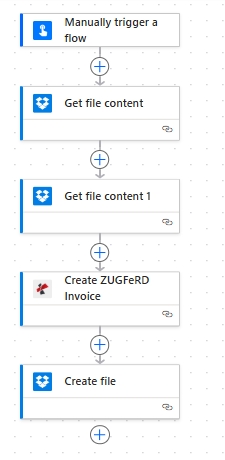
Five steps stacked top to bottom. Each Dropbox action shows the blue file-content icon; PDF4me Create ZUGFeRD Invoice sits in the middle. Both Get-file outputs feed the same PDF4me action; PDF4me's File Content feeds Create file.
Step 1: Trigger the Flow
- In Power Automate, click + Create, pick Instant cloud flow.
- Name it
Create ZUGFeRD Invoice from Dropbox, choose Manually trigger a flow, click Create. - Once you have the moving parts wired up you can swap the trigger for When a file is created in Dropbox (
/pdf4metest/zugfred invoice/) so every new XML triggers the run automatically. Same downstream actions, no rebuilding.
Step 2: Get the Carrier PDF from Dropbox
Flow so far: Trigger → Get file content (PDF).
- Click + New step. Search for Dropbox, pick Get file content using path. Sign in to your Dropbox connection if prompted.
- File.
/pdf4metest/sample/10 page.pdf. This is the visual invoice your customer opens. - Advanced parameters → Infer Content Type. Yes (Power Automate uses the file extension and bytes to tag the content type so PDF4me knows it is PDF data).
- Save. The output File Content becomes the source PDF for ZUGFeRD embedding in step 4.
Get file content (PDF): Configuration
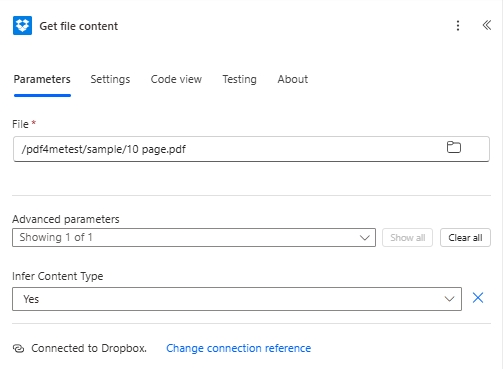
The carrier PDF at /pdf4metest/sample/10 page.pdf. Infer Content Type Yes returns clean PDF bytes that PDF4me can wrap into PDF/A-3.
Step 3: Get the ZUGFeRD XML from Dropbox
Flow so far: Get file content (PDF) → Get file content (XML).
- Click + New step. Add another Dropbox → Get file content using path. Rename it to Get file content 1 (Power Automate does this automatically) so the two Dropbox actions are distinguishable.
- File.
/pdf4metest/zugfred invoice/version2.xml. This is the EN 16931 aligned ZUGFeRD XML payload. - Advanced parameters → Infer Content Type. Yes.
- Save. The output File Content becomes the structured invoice data PDF4me will embed inside the PDF/A-3 hybrid.
Get file content (XML): Configuration
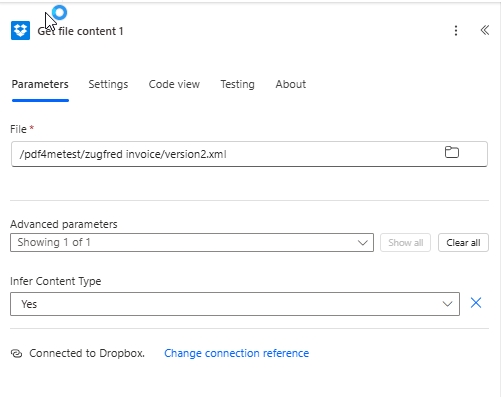
The ZUGFeRD XML payload at /pdf4metest/zugfred invoice/version2.xml. This file lives at ZUGFeRD 2.0 EN 16931 conformance; pick 2.0-XML in the next action to match.
Pro tip. Need to validate the XML before embedding? Drop a Compose action between Step 3 and Step 4 and inspect File Content in the run history. ZUGFeRD XML always starts with <?xml version="1.0" and contains a CrossIndustryInvoice root for 2.x payloads.
Step 4: Create the ZUGFeRD Invoice
Flow so far: Trigger → PDF → XML → Create ZUGFeRD Invoice.
- Click + New step, search PDF4me, pick Create ZUGFeRD Invoice. Sign in with your PDF4me API key if you have not connected before.
- ZUGFeRD version and Input Format.
2.0-XML. The combined dropdown picks both the spec version (2.0) and the data shape (XML) in one go. The "2.0" prefix is what satisfies the 2025 German B2B mandate. - Output Mode.
XmlWithPdf. Returns the canonical PDF/A-3 hybrid file with the XML attached inside. - Invoice Xml Data. File Content from Get file content 1 (the XML step). Map only this one. Do not populate the JSON or CSV fields.
- Conformance Level.
BASIC. Entry-level profile with line items and tax breakdown, broadest receiver compatibility. Move up to COMFORT or EXTENDED only after the receiver confirms support. - Render Invoice on PDF.
Yes. PDF4me redraws the invoice content on the carrier PDF using your data so the visible page and the embedded XML stay in sync. - File Content. File Content from Get file content (the PDF step). This is the carrier shell.
- File Name.
abc.pdf(or your real source filename). Used for trace context. - Advanced parameters → Language.
de(German labels). Other accepted codes:en, fr, it, es, nl, pl, pt, cs. - Save.
Create ZUGFeRD Invoice: Configuration
ZUGFeRD version and Input Format: 2.0-XMLOutput Mode: XmlWithPdfInvoice Xml Data: File Content from XML stepConformance Level: BASICRender Invoice on PDF: YesFile Content: File Content from PDF stepFile Name:abc.pdf
Language: de (German, default)- Accepted:
de, en, fr, it, es, nl, pl, pt, cs - The XML stays language-neutral; only the labels drawn on the PDF use this locale.
Three combinations you will actually use. 2.0-XML when your upstream system already emits ZUGFeRD XML. 2.0-JSON when your billing platform speaks JSON and you want PDF4me to convert it to the ZUGFeRD schema. 2.0-CSV for batch exports out of spreadsheets and accounting tools. All three produce identical hybrid output; the difference is only the data shape you provide.
Step 5: Save the Hybrid PDF Back to Dropbox
Flow so far: PDF → XML → Create ZUGFeRD Invoice → Create file.
- Click + New step. Search Dropbox, pick Create file.
- Folder Path.
/pdf4meoutput. - File Name.
guid()+headers/FileName(from Create ZUGFeRD Invoice). Two ways to fill it:- Expression:
concat(guid(), '_', outputs('Create_ZUGFeRD_Invoice')?['headers']?['FileName']). Or simpler: - Dynamic content: type
guid()first (Expression tab), then addheaders/FileNamefrom the PDF4me action output.
- Expression:
- File Content. File Content from Create ZUGFeRD Invoice.
- Save the flow.
Create file (Dropbox): Configuration
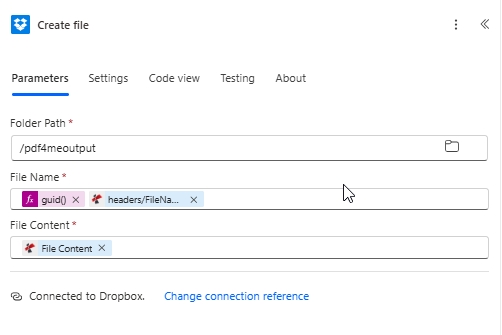
Output written to /pdf4meoutput with a GUID-prefixed name. The GUID makes parallel runs collision-free; the headers/FileName part keeps a human-readable suffix.
Run the Flow and Verify
- Click Test in the top-right, pick Manually, click Test, then Run flow.
- After a few seconds every action shows a green checkmark.
- Open Dropbox
/pdf4meoutput. The new file matches<guid>_<filename>.pdf. - Download it. Open in any PDF viewer to see the invoice. Open in any ZUGFeRD-aware AP tool (or unzip with a ZIP-aware tool) to see the embedded
factur-x.xml/zugferd.xmlattachment.
What did you actually produce? A PDF/A-3 archival PDF with an embedded ZUGFeRD 2.0 EN 16931 XML file. The PDF page count and the visual content match the original 10-page invoice (because Render Invoice on PDF was Yes). The XML inside satisfies the structured-data requirement of the German B2B mandate. One file, two readers.
ZUGFeRD vs Factur-X vs XRechnung in 30 Seconds
| Format | Where it is used | Output type |
|---|---|---|
| ZUGFeRD | Germany B2B, EU buyers | Hybrid PDF/A-3 + embedded XML (this blog) |
| Factur-X | France, sister format technically identical to ZUGFeRD 2.x | Hybrid PDF/A-3 + embedded XML |
| XRechnung | German public sector (federal, state, municipal) | Strict pure-XML profile |
The flow you just built produces ZUGFeRD; switch to a Factur-X workflow with zero changes (same hybrid file works on both sides of the Rhine). For German public-sector invoicing, swap the Conformance Level for an XRechnung-aligned profile when the receiver demands pure XML.
Common Variations You Can Add Without Rebuilding
.json or .csv file. Change the combined dropdown to 2.0-JSON or 2.0-CSV. Map the matching Invoice JSON Data or Invoice CSV Data field. PDF4me converts to the ZUGFeRD schema before embedding.concat('Invoice-', utcNow(), '.pdf') as the attachment name. Customer gets the hybrid invoice directly.Troubleshooting Real Mistakes
ZUGFeRD 1.0 does not satisfy the 2025 German B2B mandate. If your output must be mandate-compliant, always pick a 2.0-* combination in the combined dropdown.
Map only the one matching your dropdown choice. Power Automate will not stop you from filling both, but the action will throw a validation error on run. Leave the other format fields empty.
With Render Invoice on PDF off, PDF4me embeds the XML but does not redraw the invoice content. The carrier PDF you sent in File Content stays as-is. Only turn off if your carrier PDF already shows the invoice content visually.
EXTENDED adds industry-specific fields beyond EN 16931 and is rejected by receivers tuned for the baseline. Start with BASIC for compatibility tests; move up only when the buyer or ERP confirms support.
Next Steps
The same five-step pattern works for any document automation in Power Automate: trigger, fetch inputs, run the PDF4me action, write the result. Once you ship one, the next ones cost almost nothing.