How Do You Create a ZUGFeRD Invoice in Power Automate? A Dropbox + JSON Step-by-Step Workflow.
This guide shows a full Power Automate workflow that reads a base PDF and invoice JSON from Dropbox, generates a ZUGFeRD/Factur-X invoice using PDF4me Create ZUGFeRD Invoice, and writes the final file back to Dropbox.
The screenshot sequence uses these sample paths:
- Base PDF:
/blog data/zugferd invoice/simplepdf.pdf - JSON:
/blog data/zugferd invoice/sample-invoice.json - Output folder:
/blog data/zugferd invoice/output
1. Manually trigger flow → 2. Get Base PDF File (Dropbox) → 3. Get JSON File (Dropbox) → 4. Create ZUGFeRD Invoice (PDF4me, Input Format = JSON, Output Mode = Pdf With Xml) → 5. Create file (Dropbox output folder).
Set Input Format = JSON, then map only Invoice JSON Data. Keep Invoice XML Data and Invoice CSV Data empty in this run. For Pdf With Xml, PDF File Content is required and must come from the base PDF step.
What you are building
You produce a hybrid invoice PDF from a template PDF and structured JSON data. The output is suitable for teams that need readable PDF output with machine-readable invoice data packaged via ZUGFeRD/Factur-X conventions.
At a glance: all five steps
Why this workflow layout works
PDF and JSON are fetched independently, so you can update payload files without touching the visual PDF template flow.
Create ZUGFeRD Invoice receives both content sources in one place and returns a file output directly usable by Dropbox Create file.
After generation, you can add validation, notifications, ERP/API delivery, or archive routing without restructuring the core flow.
Before you start
- Power Automate environment with permission to create cloud flows.
- PDF4me API key. First-time setup: Connect PDF4me to Power Automate.
- Dropbox connection with read access to source files and write access to output folder.
- A valid invoice JSON payload and a base PDF file available in Dropbox.
Input files used in this walkthrough
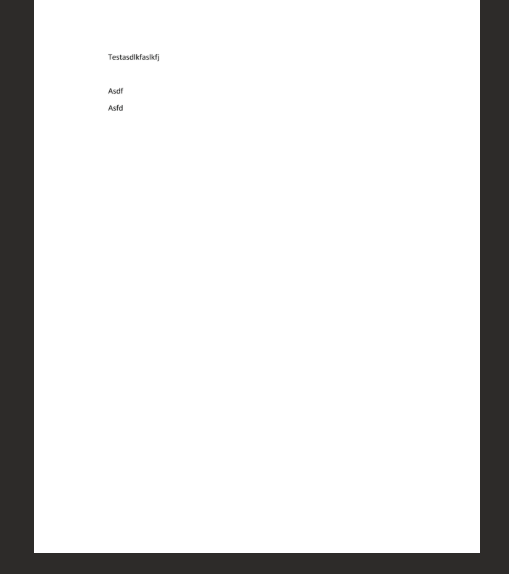
Base PDF input file.
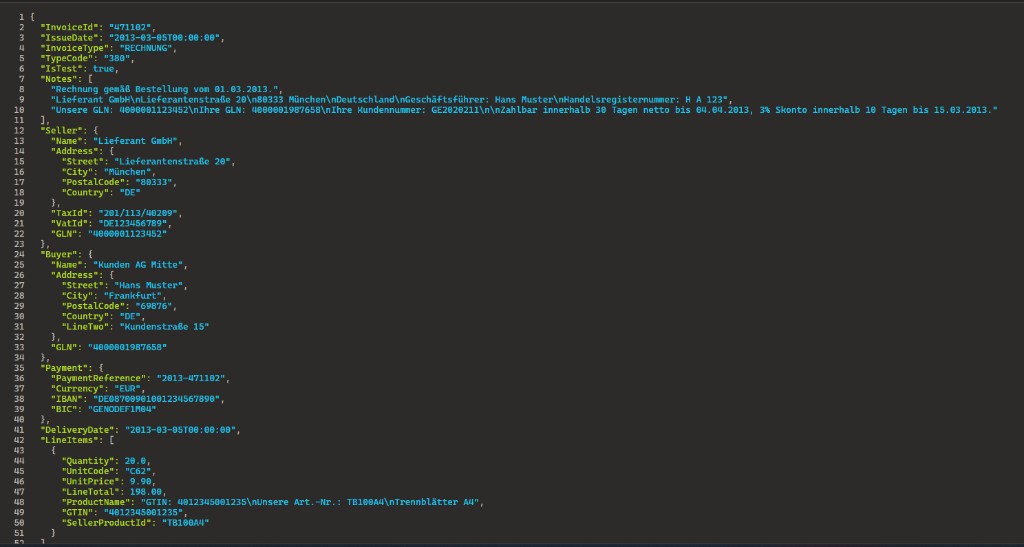
Invoice JSON payload input.
The flow at a glance (five steps)
- Manually trigger a flow — Run on demand while configuring.
- Get Base PDF File (Dropbox) — Reads the template PDF bytes.
- Get JSON File (Dropbox) — Reads invoice JSON bytes/content.
- Create ZUGFeRD Invoice (PDF4me) — Combines inputs using JSON mode.
- Create file (Dropbox) — Stores generated output in target folder.
Flow overview
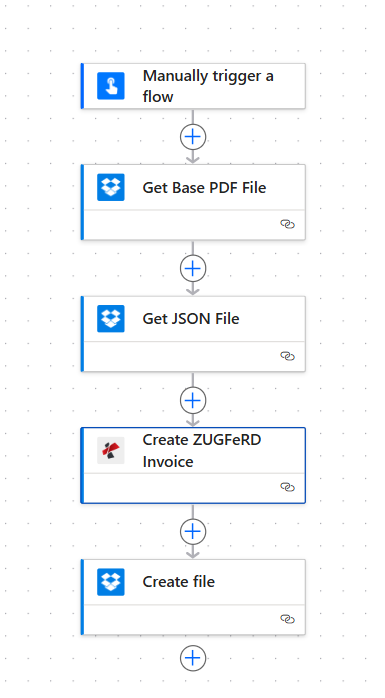
Complete flow chain used for this ZUGFeRD generation pattern.
Step 1: Get Base PDF File (Dropbox)
Flow so far: Trigger → Get Base PDF File.
- Add Dropbox action to fetch file content by path.
- Set File Path to the base template PDF (example:
/blog data/zugferd invoice/simplepdf.pdf). - In advanced options, keep Infer Content Type = Yes.
- Save and test this step; ensure it returns file content/binary output.
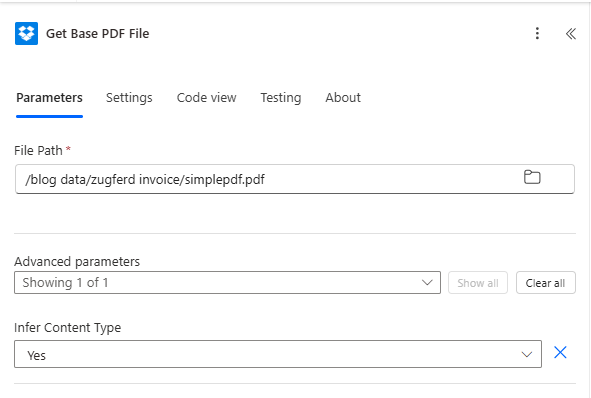
Step 1 screenshot: base PDF path and content inference configured.
Step 2: Get JSON File (Dropbox)
Flow so far: Trigger → Get Base PDF → Get JSON File.
- Add another Dropbox file-content action.
- Set File Path to your invoice data JSON (example:
/blog data/zugferd invoice/sample-invoice.json). - Keep Infer Content Type = Yes.
- Save and test; confirm JSON content is available for mapping in step 3.
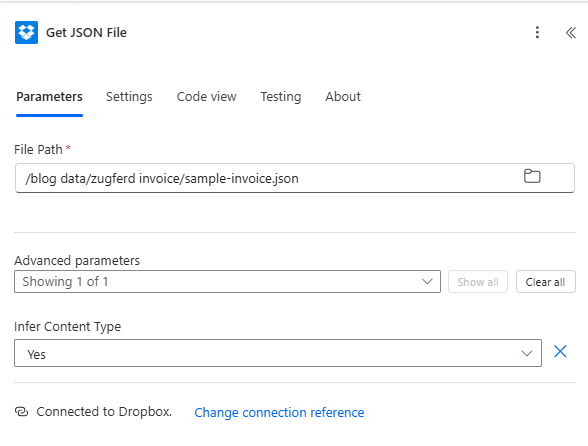
Step 2 screenshot: JSON source file from Dropbox.
Step 3: Create ZUGFeRD Invoice (PDF4me)
Flow so far: Trigger → Get Base PDF → Get JSON → Create ZUGFeRD.
Configure PDF4me – Create ZUGFeRD Invoice as shown:
- File Name — source PDF name (example:
Test.pdf). - PDF File Content — map from Get Base PDF File.
- Output File Name — desired output file name (example:
Zugferd Invoice.pdf). - Input Format — set to JSON.
- Output Mode — set to Pdf With Xml.
- Invoice JSON Data — map from Get JSON File.
- Conformance Level — example: BASIC.
- ZUGFeRD Version — example: 1.0 (or your required version).
- Render Invoice on PDF — example: Yes.
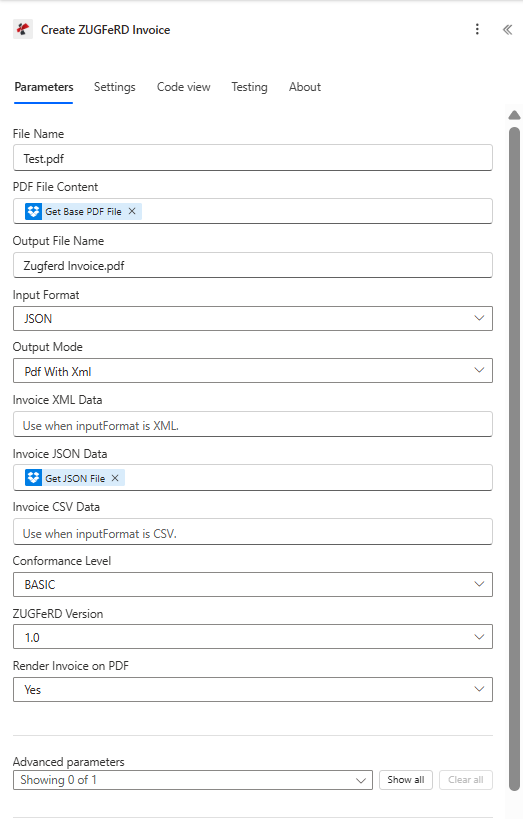
Step 3 screenshot: full parameter mapping for JSON-based ZUGFeRD generation.
Step 4: Create file (Dropbox)
Flow so far: Trigger → Read PDF + JSON → Generate ZUGFeRD → Save file.
- Add Dropbox – Create file.
- Folder Path — output target folder (example:
/blog data/zugferd invoice/output). - File Name — map output filename from Create ZUGFeRD Invoice.
- File Content — map generated file content from Create ZUGFeRD Invoice.
- Save and run the full flow.
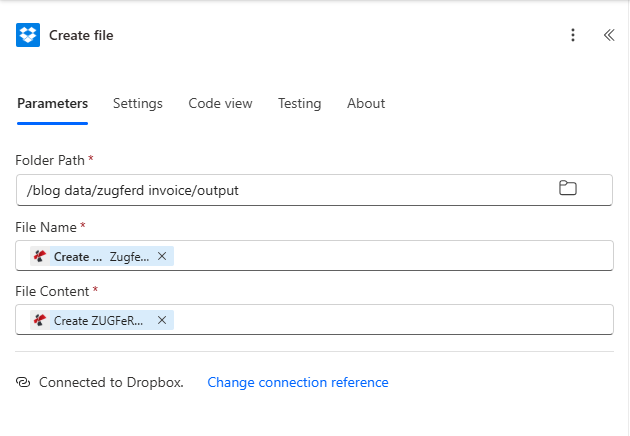
Step 4 screenshot: output file write-back to Dropbox.
Output verification
Open output examples
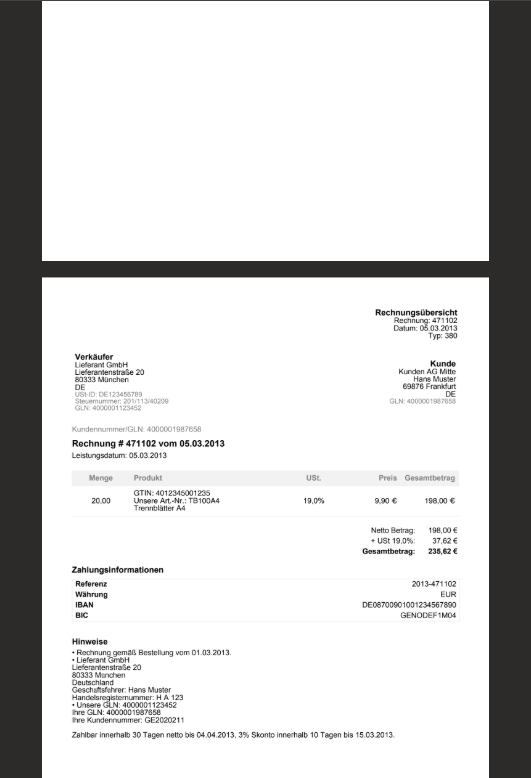
Generated invoice PDF output.
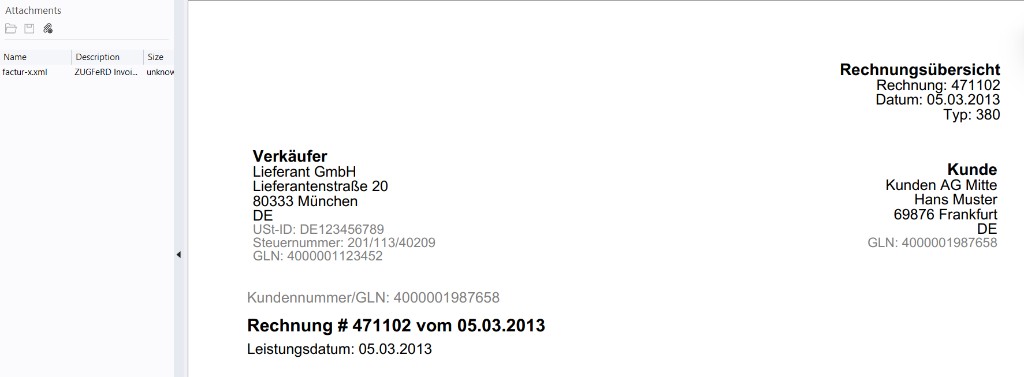
Attachment view showing embedded structured invoice data.
Quick reference
| # | Step | Key mapping |
|---|---|---|
| 1 | Get Base PDF File | File path to template PDF + Infer Content Type = Yes |
| 2 | Get JSON File | File path to invoice JSON + Infer Content Type = Yes |
| 3 | Create ZUGFeRD Invoice | PDF File Content from step 1, Input Format = JSON, Invoice JSON Data from step 2 |
| 4 | Create file | File Name and File Content from Create ZUGFeRD Invoice output |
Deep parameter references: Create ZUGFeRD Invoice, Validate PDFA.
Troubleshooting
If Input Format = JSON, map only Invoice JSON Data. Clear XML/CSV fields for this run.
With Pdf With Xml, missing PDF File Content causes errors. Map file bytes from the base PDF step.
See PDF4me Troubleshooting for API key, credits, and connector authorization checks.
What to try next
Optional hardening: add a Condition after step 3 to check output presence, then branch to success/failure notifications before final file write.