How Do You Create a ZUGFeRD Invoice in n8n? A Dropbox + JSON Workflow, Step by Step!
This guide builds an n8n workflow that takes invoice data as JSON, creates a ZUGFeRD/Factur‑X invoice with PDF4me, and uploads the final PDF to Dropbox.
You will wire three core parts:
- push invoice JSON into PDF4me (so you get a stable document URL),
- generate the ZUGFeRD invoice from that input,
- upload the output PDF to Dropbox as a binary file.
1. Trigger (Execute workflow) → 2. PDF4me: Upload JSON file → 3. PDF4me: Create Zugferd Invoice (JSON, URL input) → 4. Dropbox: Upload a file (binary data).
Keep one consistent binary field name end-to-end (this walkthrough uses data). Also, if you choose Invoice Data Input Type = URL, the JSON must be reachable from the link you pass (that is why we upload JSON to PDF4me first).
What you will get!
Input: invoice JSON data.
Output: a generated ZUGFeRD/Factur‑X PDF (PDF with embedded invoice XML) uploaded to a Dropbox path such as /blog data/zugferd invoice/output/Zugferd_Result.pdf.
At a glance: the workflow steps
Before you start (checklist!)
- n8n (cloud or self-hosted) and permission to create a workflow.
- PDF4me credentials (API key) configured in n8n. See Connect PDF4me to n8n.
- Dropbox OAuth2 credential in n8n with access to your output folder.
- A valid invoice JSON payload (start with a known-good sample, then replace fields gradually).
Workflow overview
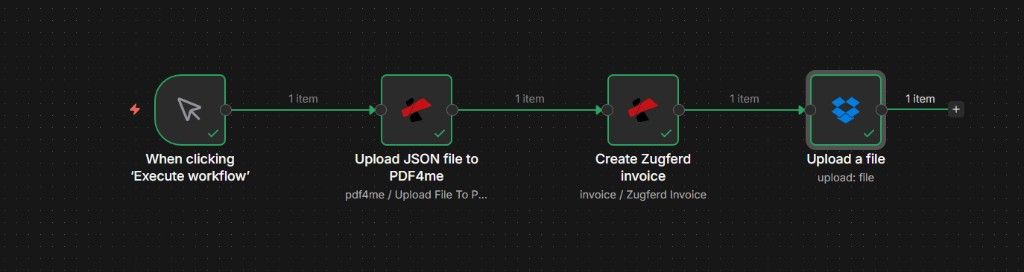
Four nodes in sequence: trigger → upload JSON → generate ZUGFeRD invoice → upload PDF to Dropbox.
Step 1: Trigger (Execute workflow)
Workflow so far: just the trigger.
- Create a new workflow in n8n.
- Use When clicking “Execute workflow” while you build the first version.
- Later, swap this to Cron, Webhook, or a “new file” trigger when the workflow is stable.
Step 2: Upload JSON file to PDF4me
This step turns your JSON into a PDF4me-hosted document, so you can pass a document URL to the invoice generation node.
- Add PDF4me node.
- Resource: PDF4me.
- Operation: Upload File To PDF4me.
- Input Data Type: choose the same type you are actually providing (the screenshot uses a base64 string).
- Set File Retention Hours to your preferred window (example shown: 2 hours).
- Execute the node once and confirm it outputs a usable URL/token you can reference in the next node.
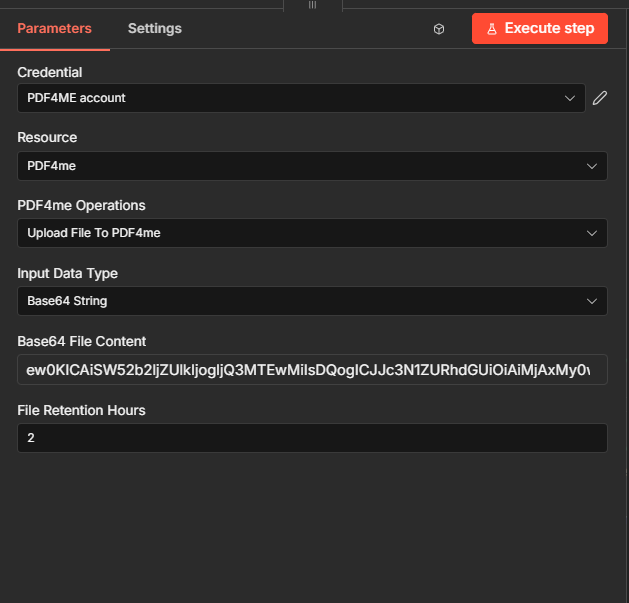
Step 2 screenshot: upload JSON so PDF4me returns a document URL for the next step.
Step 3: Create Zugferd invoice (PDF4me)
This is the main generation step. It uses the uploaded JSON URL as input and returns a binary PDF (saved into a binary field like data).
Core settings to match
- Resource: Invoice.
- Operation: Create Zugferd Invoice.
- Input Data Type: Base64 String (matches the example run).
- Output Mode: XML With PDF (hybrid PDF).
- Conformance Level: BASIC (start here unless your receiver requires more).
- Zugferd Version: 1.0 (use the version your receiver expects).
- Language: English (or your preferred language).
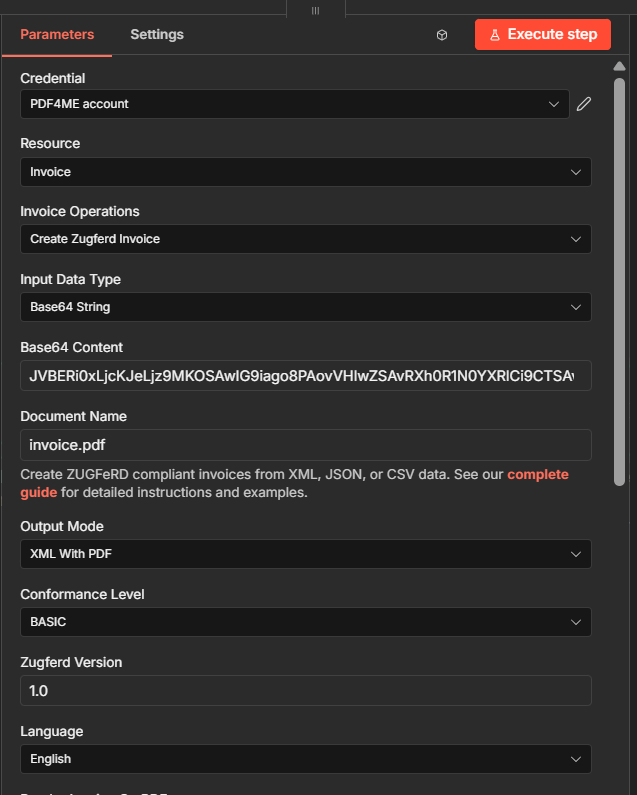
Step 3 screenshot (part 1): invoice operation settings and core profile/version choices.
JSON mapping (URL input)
- Input Format: JSON.
- Invoice Data Input Type: URL.
- Invoice Data URL: map the URL output from Step 2 (the uploaded JSON document).
- Output File Name: set a predictable output name (example:
zugferd_invoice.pdf). - Output Binary Field Name:
data(keep it consistent with Dropbox upload).
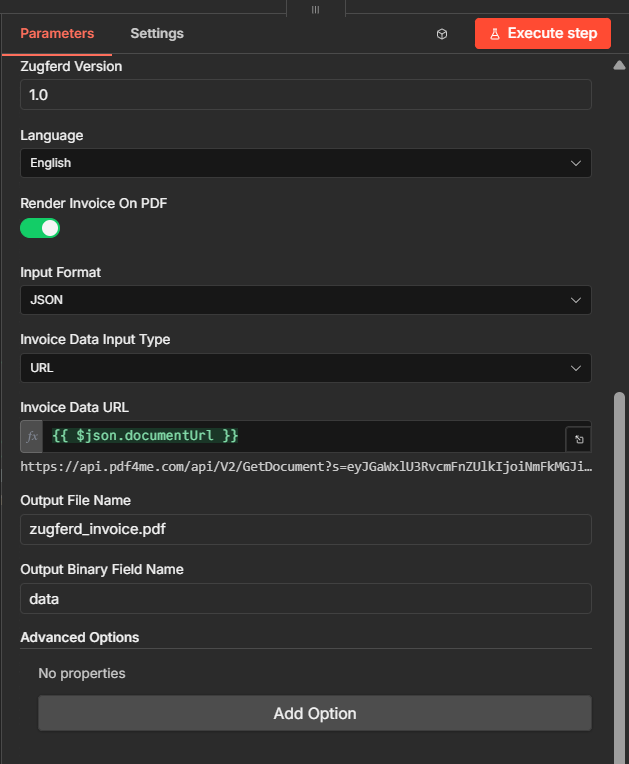
Step 3 screenshot (part 2): JSON + URL mapping and binary output field name.
Step 4: Upload a file (Dropbox)
This publishes the generated PDF to Dropbox.
- Add Dropbox node.
- Resource: File. Operation: Upload.
- File Path: set full destination path including file name (example:
/blog data/zugferd invoice/output/Zugferd_Result.pdf). - Binary File: On.
- Input Binary Field:
data(from Step 3). - Execute the node and confirm Dropbox returns metadata (path, id, etc.).
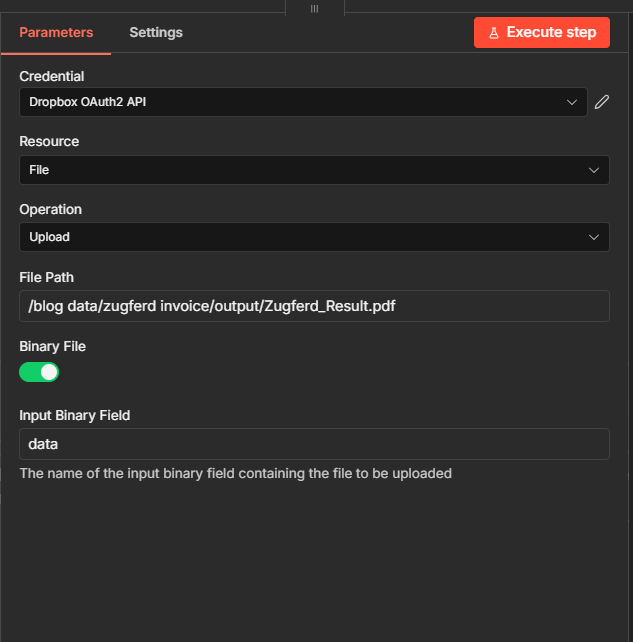
Step 4 screenshot: Dropbox upload publishes the generated invoice PDF.
Quick reference
| # | Node | Key setting |
|---|---|---|
| 1 | Trigger | Execute workflow (during setup) |
| 2 | PDF4me – Upload File To PDF4me | Retention hours + returns URL/token |
| 3 | PDF4me – Create Zugferd Invoice | Input Format JSON + Data Input Type URL + Output Binary Field Name data |
| 4 | Dropbox – Upload | Binary File On + Input Binary Field data |
Related reading: Create ZUGFeRD Invoice (docs), Power Automate version, Validate PDFA workflow.
Troubleshooting!
Your output node expects the binary field name you configured. Confirm Output Binary Field Name in Step 3 is data, and the Dropbox node uses the same Input Binary Field.
If you use Invoice Data Input Type = URL, the link must still be valid when the invoice node runs. Increase retention hours or regenerate the JSON URL immediately before Step 3.
See PDF4me Troubleshooting for API keys, credits, and reconnecting the integration.