ZUGFeRD E-Invoice from a SharePoint List: Turn JSON into EN 16931 XML and a PDF/A-3 in Power Automate with PDF4me

PDF4me Create ZUGFeRD Invoice is a Power Automate action that turns invoice data into a hybrid PDF/A-3 e-invoice. Pointed at a SharePoint list, it takes the JSON a Compose action builds from each row, writes the EN 16931 XML itself, draws the readable invoice onto your base PDF, files the result and emails it to the buyer.
Look up ZUGFeRD and you land in one of three places: an explanation of what the format is, a validator that tells you whether a file you already have is correct, or a library in PHP, Java or C# for developers building invoicing software. All three assume the invoice already exists somewhere. The question none of them answers is the one a finance team actually has: the invoice data is sitting in a list, in a spreadsheet, in whatever system records what was sold, and it has to come out the other end as a compliant e-invoice. This flow is that missing middle, in seven actions and without code.
A row lands in a SharePoint list with the seller, the buyer, one line item and the dates. Four seconds later there is a PDF/A-3 invoice in a document library: a page a person can read, with the EN 16931 XML embedded inside it for the buyer's software to process. You never write that XML. You describe the invoice as a short JSON object and PDF4me produces the schema. The row gets the status and a link, and the buyer gets the file by email.
Why-Based Q&A
Why keep the invoice data in a SharePoint list? Because that is the format the data is already in for most small finance teams: a row per invoice, filled in by a person. The columns map one to one onto the fields the standard asks for, which means the mapping is visible to anyone who opens the list, and a new invoice is a new row rather than a new file in a watched folder.
Why describe the invoice as JSON instead of writing the XML? Because the Cross Industry Invoice syntax is verbose and strict: nested namespaces, element names nobody remembers, codes that have to sit in exactly the right place. The JSON object says the same thing in a fraction of the lines, with keys that read like the business terms they stand for. PDF4me converts it to the schema, so the part that is easy to get wrong is the part you do not maintain.
Why render the invoice onto a base PDF? Because a ZUGFeRD file has two halves and both have to agree. The XML is for the buyer's software, the printed page is for the person who opens it. Render Invoice on PDF draws the invoice onto the base page from the same data that produced the XML, so the two can never drift apart the way they do when a layout is maintained separately.
Why PDF/A-3 and not an ordinary PDF? Because PDF/A-3 is the archival container that is allowed to carry an attachment, and the embedded XML is that attachment. It is also the part that makes the invoice readable years later: fonts and colour profiles travel inside the file, which matters for a document most companies are required to keep for a decade.
What You'll Get
Input: a row with the invoice number, the dates, the currency, the seller block, the buyer block and one line item. Output: a ZUGFeRD PDF/A-3 invoice in the ZUGFeRD Invoices library, the row updated with its status and a link, and an email to the buyer with the invoice attached.
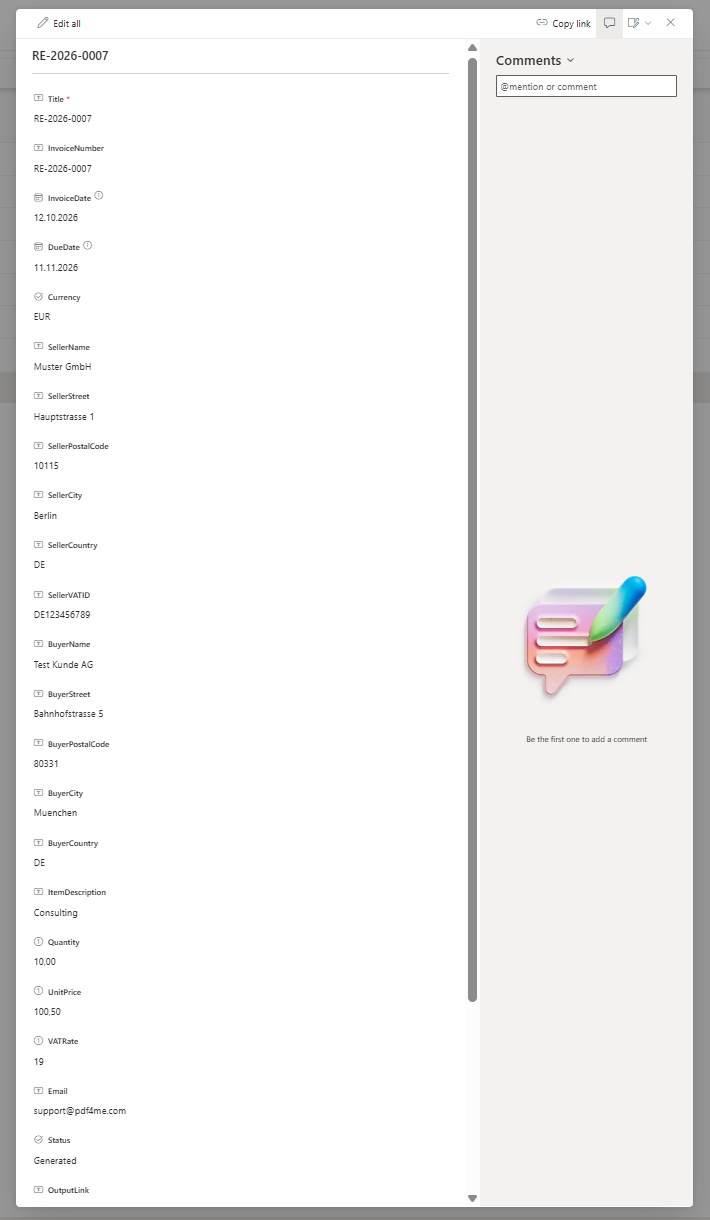
One row per invoice. Every column in this pane becomes a key in the JSON the flow builds.
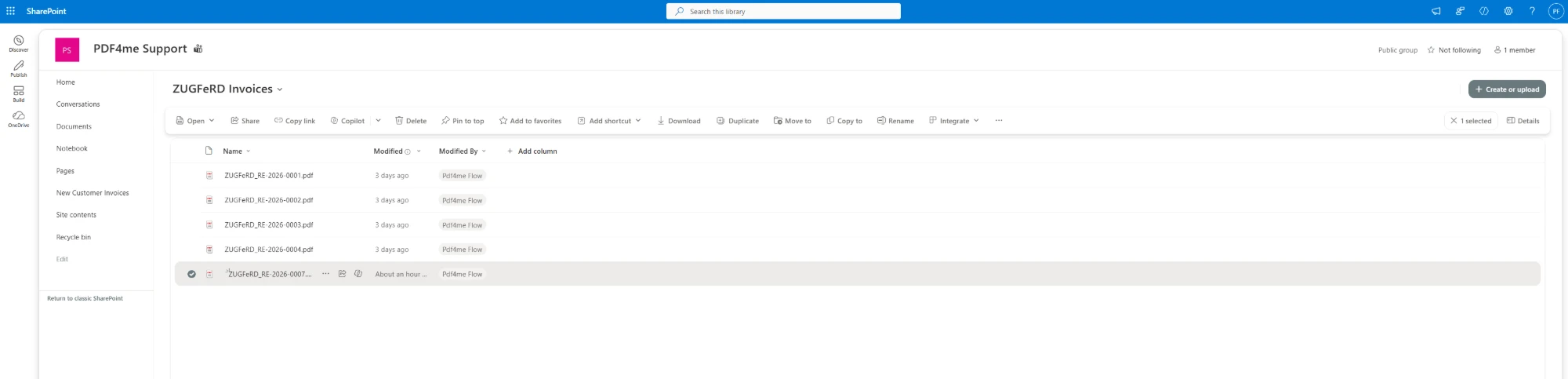
One file per invoice number, written by the flow account.
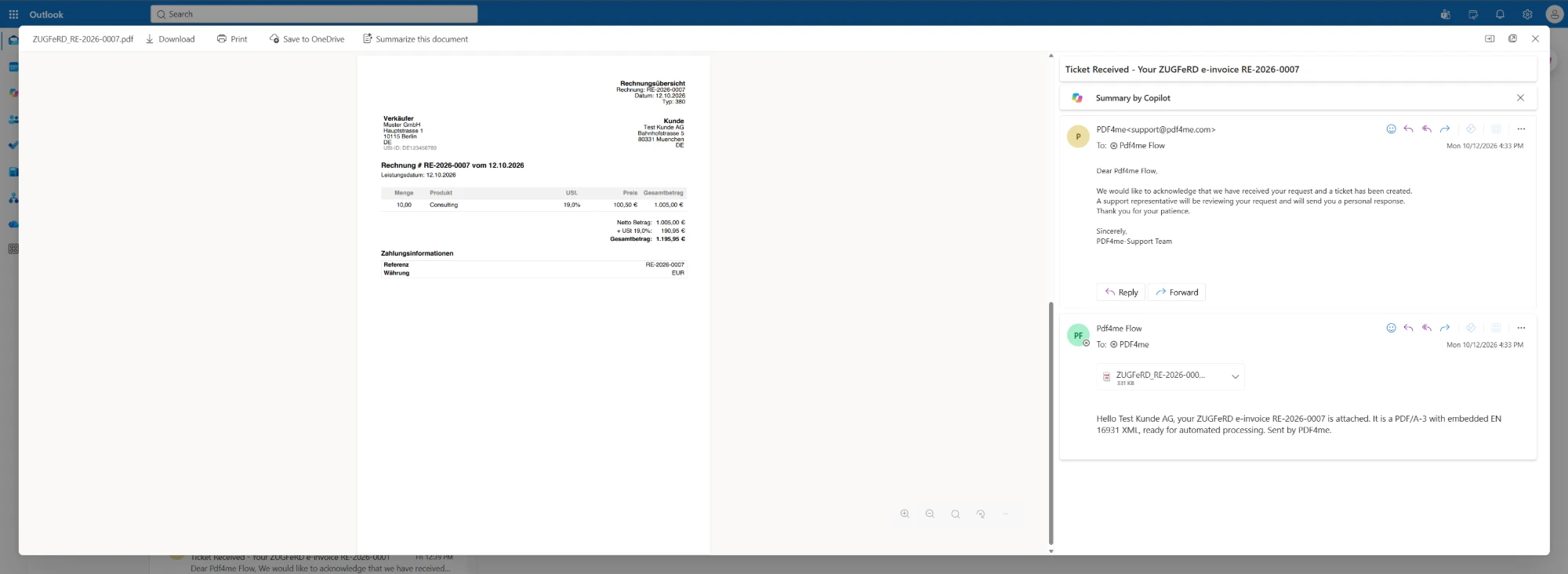
The readable half of the same file, as the buyer sees it.
What You Need
- Power Automate. Open Power Automate. An automated cloud flow on standard connectors. SharePoint, Office 365 Outlook and PDF4me need no premium plan.
- PDF4me API key. Get your API key. This flow uses one PDF4me connection, PDF4me PDF.
- A SharePoint list for the requests. The captured list is called ZUGFeRD Requests, with InvoiceNumber, InvoiceDate, DueDate, Currency, the Seller block (name, street, postal code, city, country, VAT ID), the Buyer block, ItemDescription, Quantity, UnitPrice, VATRate, an Email column, a Status choice column and an OutputLink column the flow writes to.
- A base invoice PDF. The captured flow keeps
BaseInvoice.pdfin a library called ZUGFeRD Templates. This is the page the invoice is drawn on, so your letterhead belongs here. - A library for the finished invoices. The captured flow writes into ZUGFeRD Invoices.
- Your own seller details, including a VAT ID. They go into the list columns, so the same flow can issue invoices for more than one legal entity.
The Flow at a Glance
- When an item is created (SharePoint) watches the list named
ZUGFeRD Requests. - Compose builds the invoice JSON from the row.
- Get file content using path reads
/ZUGFeRD Templates/BaseInvoice.pdf. - Create ZUGFeRD Invoice (PDF4me PDF) converts the JSON to EN 16931 XML and returns the hybrid PDF.
- Create file (SharePoint) saves it as
ZUGFeRD_<invoice number>.pdf. - Update item (SharePoint) sets Status to
Generatedand fills OutputLink. - Send an email (V2) (Office 365 Outlook) sends the invoice to the buyer.
Complete flow overview
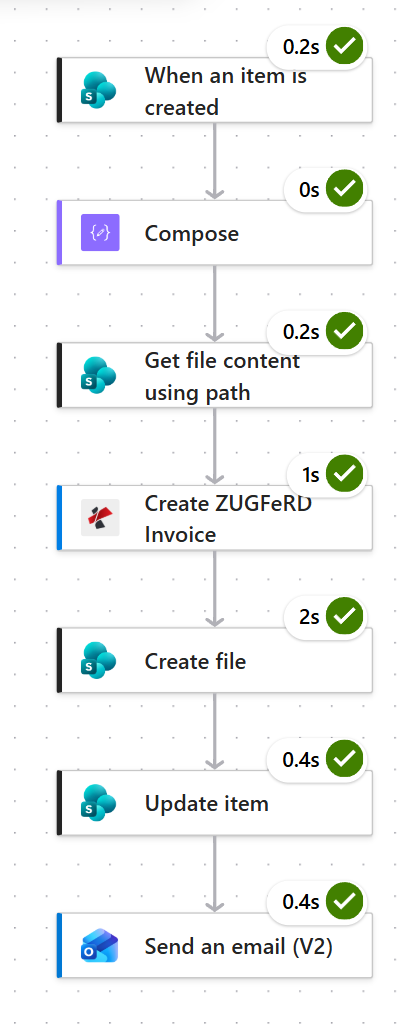
Four and a bit seconds end to end, and the e-invoice itself takes about a second. The slowest step is SharePoint writing the file.
Step 1: How do you trigger an e-invoice when a request arrives?
Flow so far: nothing yet, this is the trigger.
Adding a row is how an invoice gets requested, so that is the signal.
- Create an Automated cloud flow and pick SharePoint > When an item is created.
- Configure:
- Site Address:
PDF4me Support - https://ynoox1.sharepoint.com/sites/PDF4meSupport - List Name:
ZUGFeRD Requests
- Site Address:
When an item is created configuration
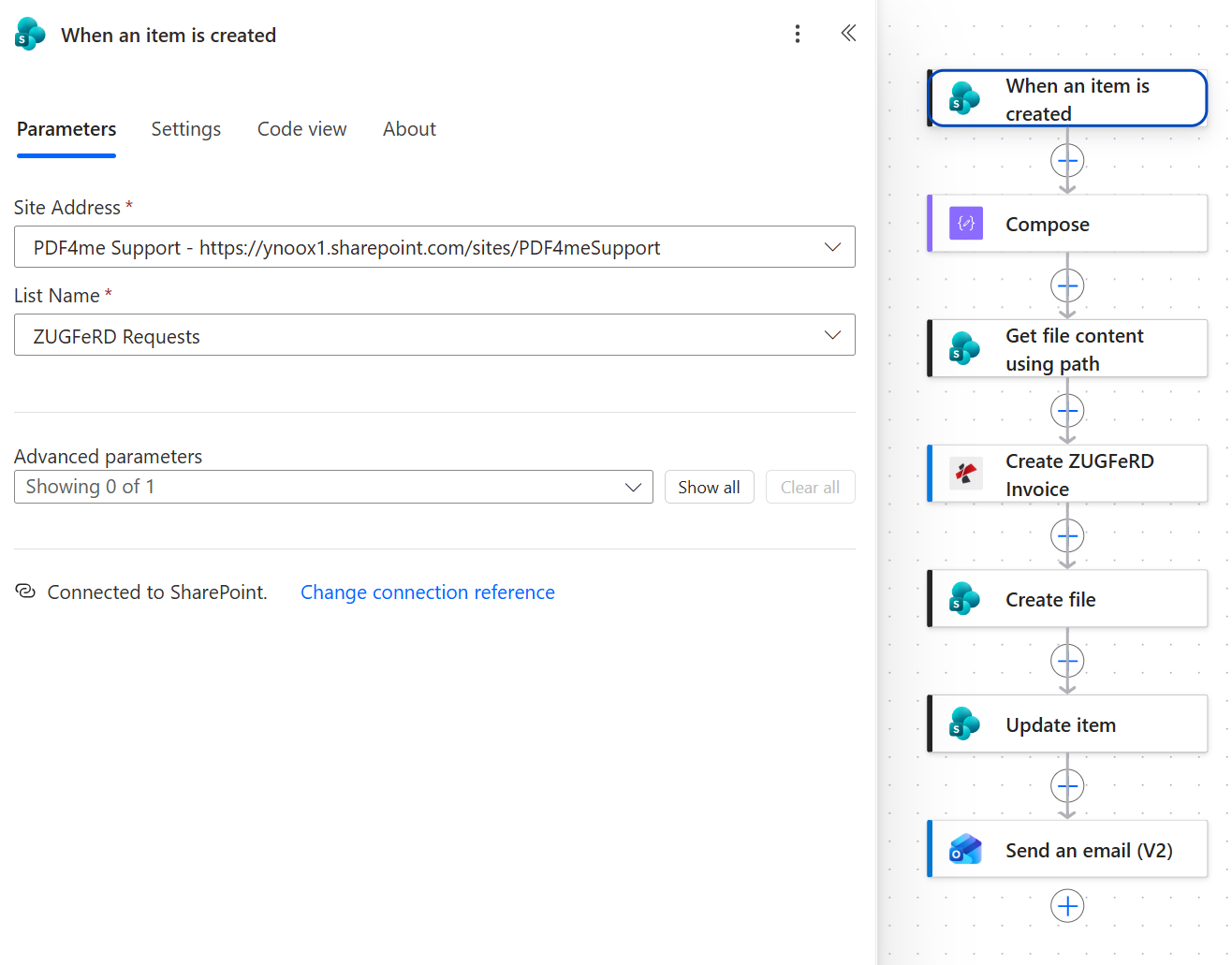
Every column on the new row becomes a token the next six actions can use.
Step 2: How do you build the invoice JSON from list columns?
Flow so far: the SharePoint trigger.
One Compose action describes the whole invoice. This is where your column names meet the names the standard expects, and it is short enough to read on one screen.
- Add Data Operation > Compose.
- Paste the object below into Inputs and replace each value with the matching token.
{
  "InvoiceId": "@{triggerBody()?['InvoiceNumber']}",
  "TypeCode": "380",
  "InvoiceType": "RECHNUNG",
  "IssueDate": "@{triggerBody()?['InvoiceDate']}T00:00:00",
  "DeliveryDate": "@{triggerBody()?['InvoiceDate']}T00:00:00",
  "IsTest": false,
  "Seller": {
    "Name": "@{triggerBody()?['SellerName']}",
    "VatId": "@{triggerBody()?['SellerVATID']}",
    "Address": {
      "Street": "@{triggerBody()?['SellerStreet']}",
      "PostalCode": "@{triggerBody()?['SellerPostalCode']}",
      "City": "@{triggerBody()?['SellerCity']}",
      "Country": "@{triggerBody()?['SellerCountry']}"
    }
  },
  "Buyer": {
    "Name": "@{triggerBody()?['BuyerName']}",
    "Address": {
      "Street": "@{triggerBody()?['BuyerStreet']}",
      "PostalCode": "@{triggerBody()?['BuyerPostalCode']}",
      "City": "@{triggerBody()?['BuyerCity']}",
      "Country": "@{triggerBody()?['BuyerCountry']}"
    }
  },
  "LineItems": [
    {
      "ProductName": "@{triggerBody()?['ItemDescription']}",
      "Quantity": @{triggerBody()?['Quantity']},
      "UnitCode": "C62",
      "UnitPrice": @{triggerBody()?['UnitPrice']},
      "LineTotal": @{float(...)}
    }
  ],
  "Totals": {
    "Currency": "@{triggerBody()?['Currency']?['Value']}",
    "LineTotal": @{float(...)},
    "TaxBasisTotal": @{float(...)},
    "TaxPercent": @{triggerBody()?['VATRate']},
    "TaxTotal": @{float(...)},
    "GrandTotal": @{float(...)},
    "ChargeTotal": 0,
    "AllowanceTotal": 0
  },
  "Payment": {
    "Currency": "@{triggerBody()?['Currency']?['Value']}",
    "PaymentReference": "@{triggerBody()?['InvoiceNumber']}",
    "DueDate": "@{triggerBody()?['DueDate']}T00:00:00"
  }
}
Compose configuration
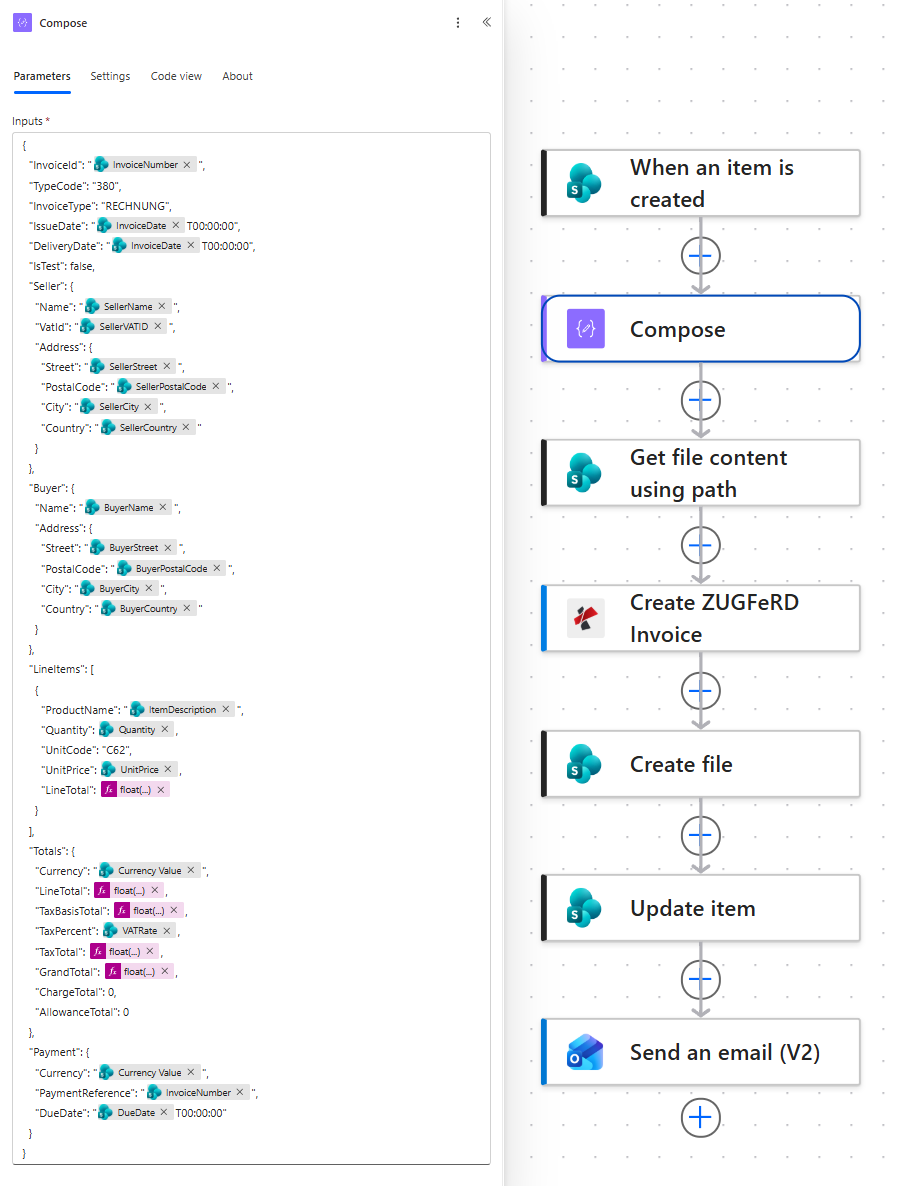
Text values are tokens in quotes. Money and quantities are bare numbers, which is why they go through float.
Where each part of the invoice comes from
| JSON key | What it carries | Source |
|---|---|---|
InvoiceId, TypeCode, InvoiceType | Invoice number, the document type code 380 for a commercial invoice, and the label printed on the page | InvoiceNumber, then fixed values |
IssueDate, DeliveryDate | When the invoice was issued and when the service was delivered | InvoiceDate, suffixed with T00:00:00 |
Seller | Name, VAT ID and the full address block | SellerName, SellerVATID, SellerStreet, SellerPostalCode, SellerCity, SellerCountry |
Buyer | Name and address of the customer | BuyerName, BuyerStreet, BuyerPostalCode, BuyerCity, BuyerCountry |
LineItems | Description, quantity with unit code C62, unit price and the line total | ItemDescription, Quantity, UnitPrice |
Totals | Currency, net total, tax basis, VAT rate and amount, grand total | Currency, VATRate and the computed amounts |
Payment | Currency, the reference the buyer quotes when paying, and the due date | Currency, InvoiceNumber, DueDate |
Tip. The money keys are the only part that needs arithmetic, and they must end up as bare numbers rather than quoted strings, which is what the float expressions are for. LineTotal is quantity times unit price, TaxBasisTotal is the sum of the line totals, TaxTotal is the tax basis times the rate divided by 100, and GrandTotal is the two added together. For the captured row that is 1005, 1005, 190.95 and 1195.95. A quoted "1005" will be rejected where a plain 1005 is accepted.
Step 3: Where does the base PDF come from?
Flow so far: the trigger plus Compose.
ZUGFeRD files have a readable page, and this is where it starts.
- Add SharePoint > Get file content using path.
- Configure:
- Site Address:
PDF4me Support - https://ynoox1.sharepoint.com/sites/PDF4meSupport - File Path:
/ZUGFeRD Templates/BaseInvoice.pdf - Infer content type (advanced):
Yes
- Site Address:
Get file content using path configuration
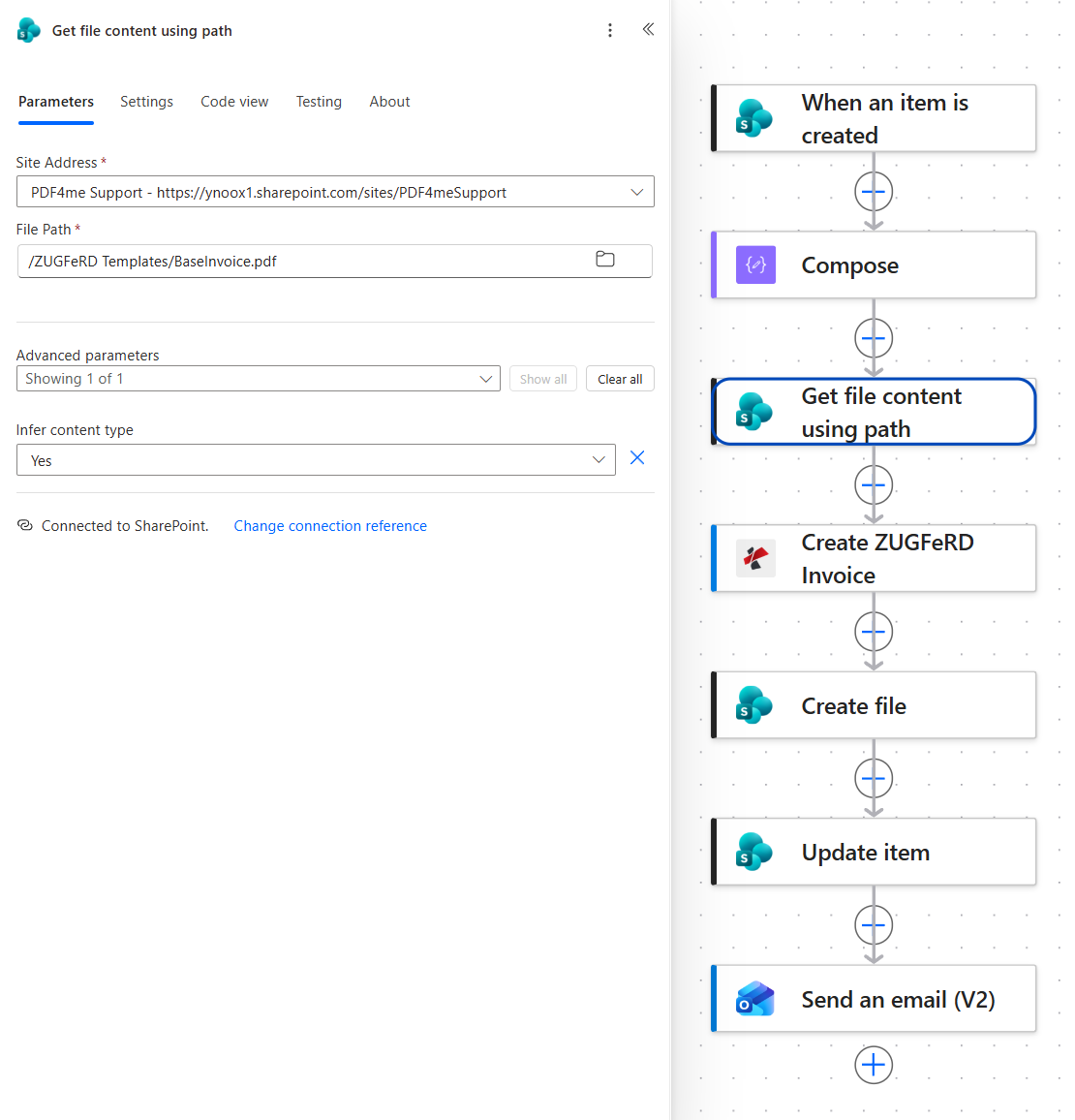
Keep your letterhead in this file. It is read fresh on every run, so changing it changes the next invoice.
Step 4: How do you turn the JSON into a ZUGFeRD PDF/A-3?
Flow so far: the trigger, Compose and Get file content using path.
This is the action that produces the e-invoice. It reads the JSON, writes the EN 16931 XML itself, and hands back one file with both halves in it.
- Add Create ZUGFeRD Invoice from the PDF4me PDF connection.
- Configure:
- ZUGFeRD version and Input Format:
2.0-JSON - Output Mode:
XmlWithPdf - Invoice JSON Data: the expression
base64(outputs('Compose')) - Conformance Level:
EN16931 - Render Invoice on PDF:
Yes - File Content: a
base64()expression over the content from Get file content using path - File Name:
BaseInvoice.pdf
- ZUGFeRD version and Input Format:
Create ZUGFeRD Invoice configuration
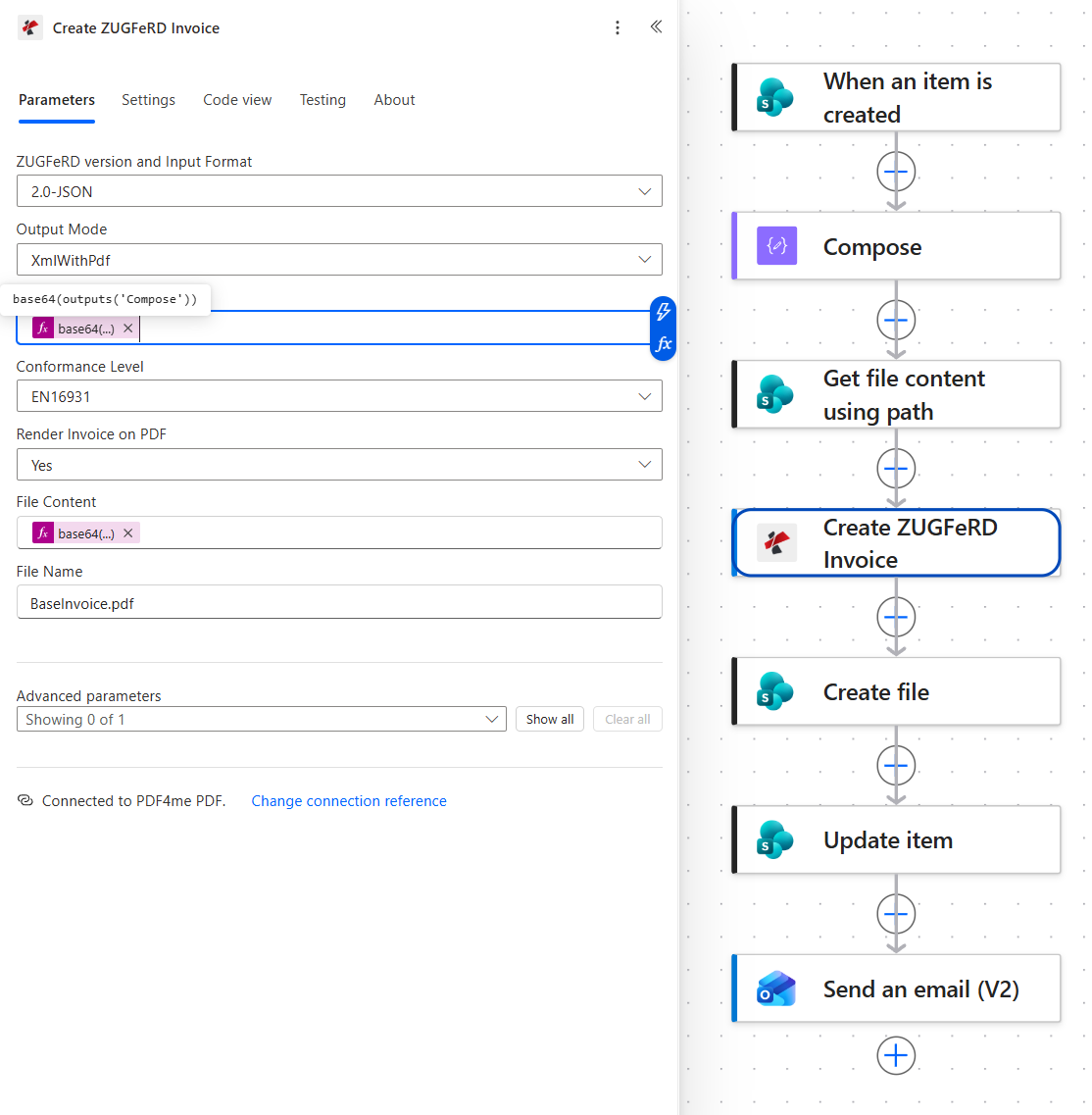
The input format drives which data field appears. Pick 2.0-JSON and the action asks for Invoice JSON Data, not Invoice XML Data.
What each setting decides
| Field | Value here | What it controls |
|---|---|---|
| ZUGFeRD version and Input Format | 2.0-JSON | Which ZUGFeRD generation the output follows, and that the data arrives as JSON. This choice is what makes the Invoice JSON Data field appear |
| Output Mode | XmlWithPdf | Return one hybrid file, the PDF with the XML embedded, rather than XML on its own |
| Invoice JSON Data | base64(outputs('Compose')) | The invoice object, base64 encoded on the way in |
| Conformance Level | EN16931 | The profile the invoice claims to meet, and therefore which keys the JSON has to supply |
| Render Invoice on PDF | Yes | Draw the readable invoice onto the base PDF instead of leaving the page as it was |
| File Content, File Name | The base PDF | The page the invoice is drawn on, and the name the action reports back |
Tip. The action shows Invoice XML Data, Invoice JSON Data or Invoice CSV Data depending on the format half of the dropdown. Fill in only the one that matches your choice. Populating two data fields in the same run is the most common cause of validation failures on this action.
Step 5: Where does the invoice get filed?
Flow so far: everything through Create ZUGFeRD Invoice.
The invoice number names the file, which keeps the library searchable.
- Add SharePoint > Create file.
- Configure:
- Site Address:
PDF4me Support - https://ynoox1.sharepoint.com/sites/PDF4meSupport - Folder Path:
/ZUGFeRD Invoices - File Name:
ZUGFeRD_followed by the InvoiceNumber token and.pdf - File Content: the Body token from Create ZUGFeRD Invoice
- Site Address:
Create file configuration
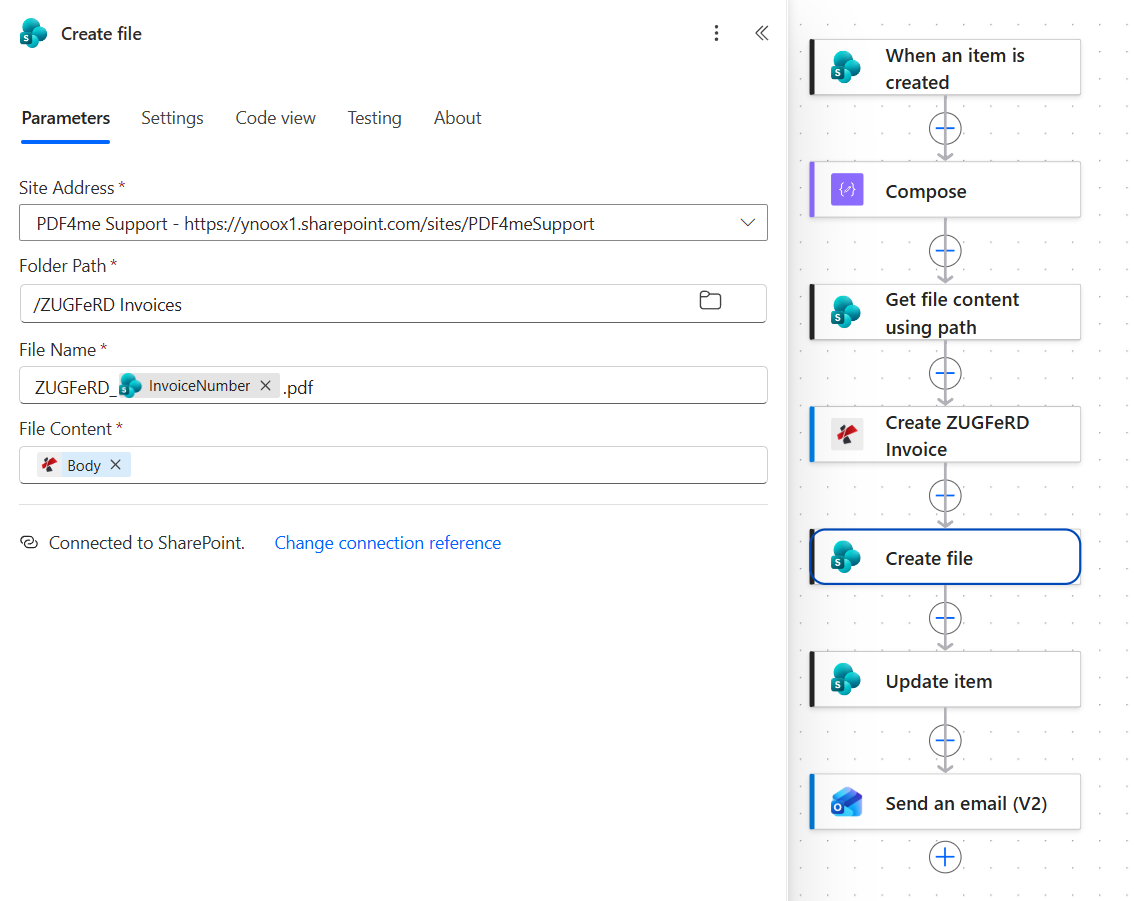
For RE-2026-0007 this writes ZUGFeRD_RE-2026-0007.pdf.
Step 6: How do you record the result on the request?
Flow so far: everything through Create file.
The row that asked for the invoice should also say what happened to it.
- Add SharePoint > Update item.
- Configure:
- Site Address:
PDF4me Support - https://ynoox1.sharepoint.com/sites/PDF4meSupport - List Name:
ZUGFeRD Requests - Id: the ID token from the trigger
- Title: the Title token from the trigger
- Status Value (advanced):
Generated - OutputLink (advanced): the library URL followed by
ZUGFeRD_, the InvoiceNumber token and.pdf
- Site Address:
Update item configuration
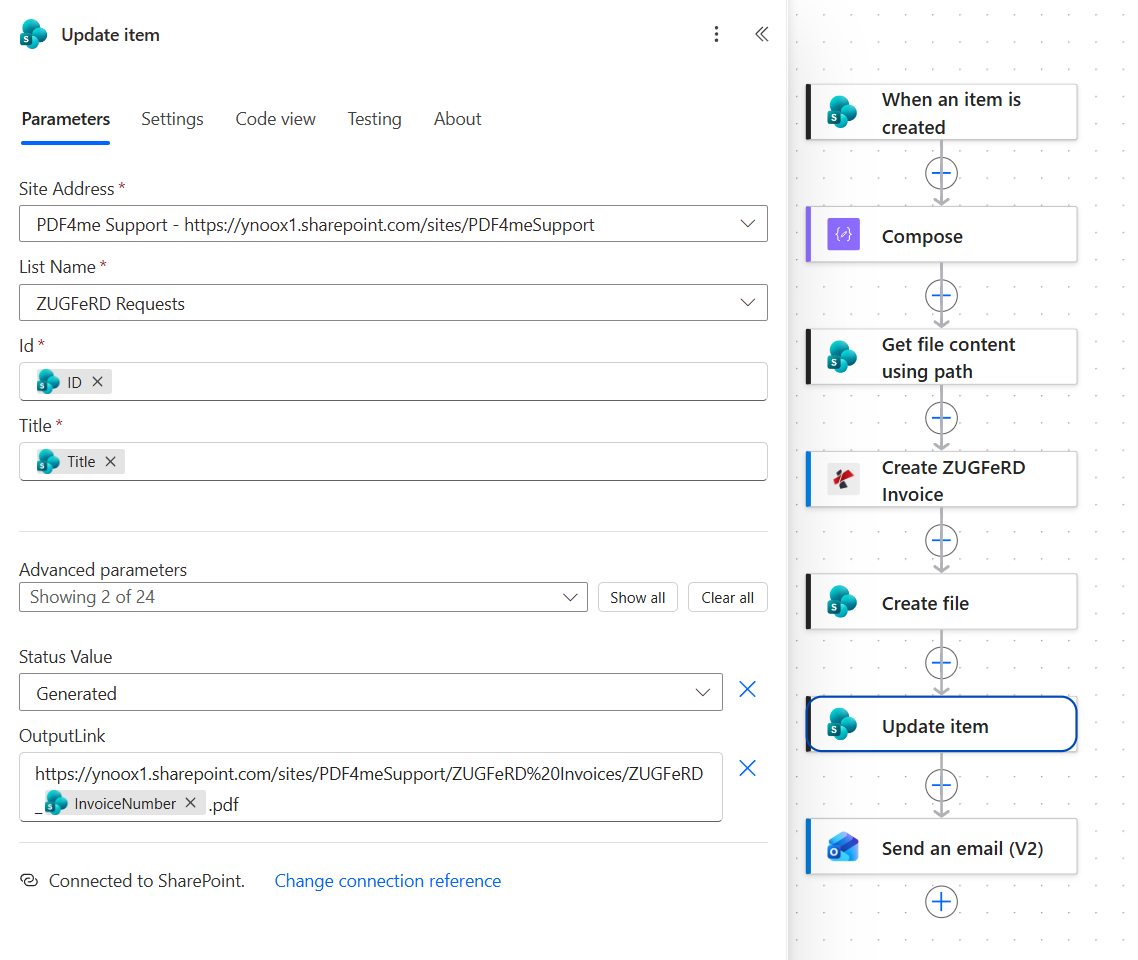
The link is assembled from the library URL and the same name pattern Create file used, with the space in the library name already encoded as %20.
Step 7: How do you send the invoice to the buyer?
Flow so far: everything through Update item.
An e-invoice that stays in a library has not been issued, so the last action delivers it.
- Add Office 365 Outlook > Send an email (V2).
- Configure:
- To: the Email token from the trigger
- Subject:
Your ZUGFeRD e-invoicefollowed by the InvoiceNumber token - Body: a line naming the buyer and the invoice, and saying the file is a PDF/A-3 with embedded EN 16931 XML
- Open Advanced parameters and add the attachment:
- Attachments Name - 1:
ZUGFeRD_plus the InvoiceNumber token plus.pdf - Attachments Content - 1: the File Content token from Create ZUGFeRD Invoice
- Importance:
Normal
- Attachments Name - 1:
Send an email (V2) configuration
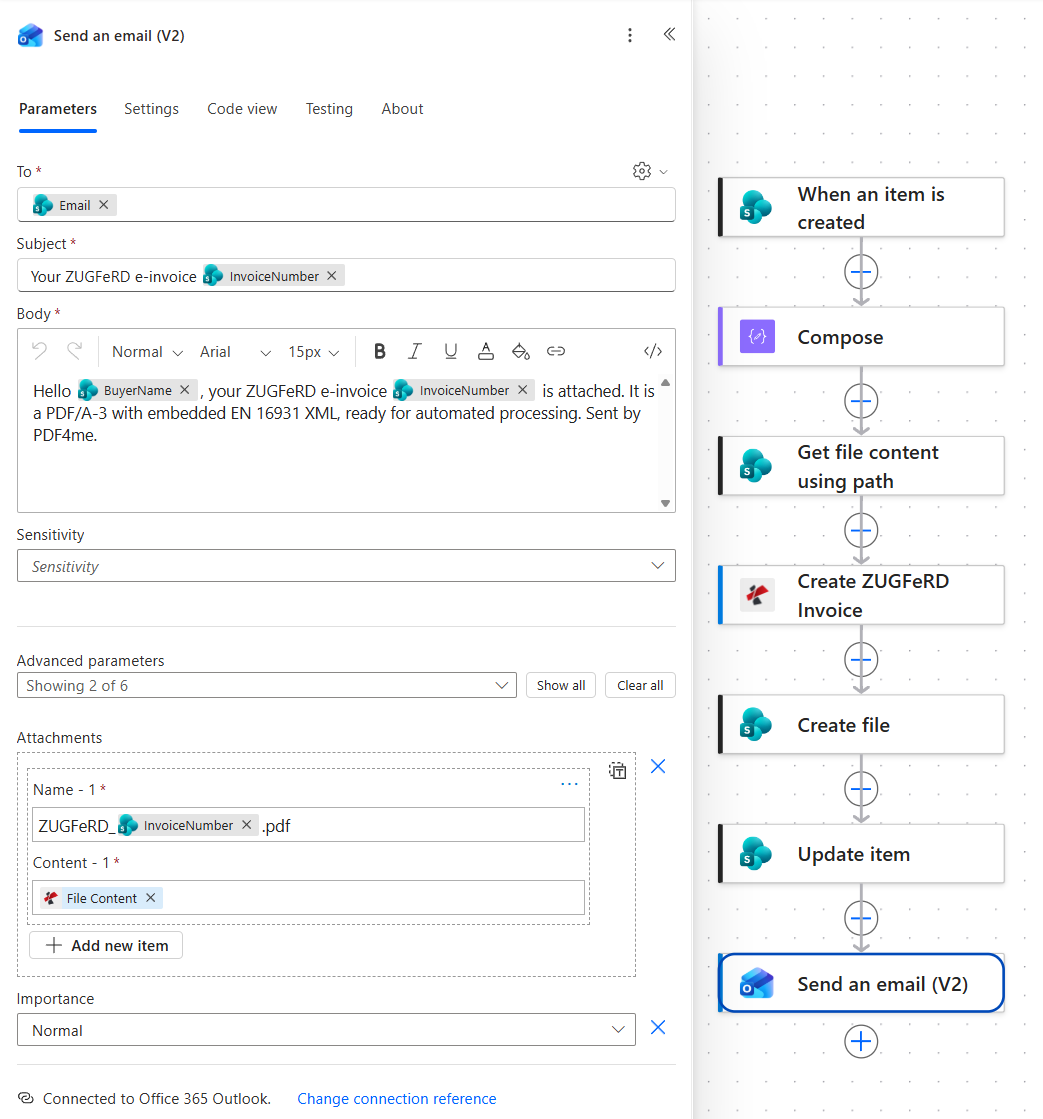
The attachment takes its bytes from the action that produced them, so SharePoint is never read back.
Run the Flow and Verify
- Save the flow.
- Add a row to ZUGFeRD Requests with a buyer, one line item, both dates and an address you can check.
- Open the run history. All seven actions should be green, and the whole run should take a few seconds.
- Open the ZUGFeRD Invoices library and check the file is there under the invoice number.
- Go back to the row: Status should read Generated and OutputLink should open the invoice.
- Open the attachment from the email and check both halves: the page should show the right amounts, and the file should carry the XML inside it.
The captured run took about four seconds in total, with the e-invoice itself produced in one of them. The result, ZUGFeRD_RE-2026-0007.pdf, is about 331 KB and renders as a German invoice: seller Muster GmbH in Berlin with VAT ID DE123456789, customer Test Kunde AG in Muenchen, document type 380, one line of Consulting at 19 percent VAT, net 1.005,00 EUR, VAT 190,95 EUR and a total of 1.195,95 EUR.
What did you actually build? An e-invoicing pipeline that starts from your own records. The data stays where finance keeps it, the standard is satisfied by XML you never had to write, the buyer receives a file their software can read automatically and their staff can read on screen, and the request row records that it went out.
Common Variations You Can Add Without Rebuilding
How this compares to the other ways of producing a ZUGFeRD invoice
Each row describes the alternative. The last row is this flow.
| Comparison | Who runs it | Where the data comes from | What you maintain |
|---|---|---|---|
| Invoicing software with ZUGFeRD export vs this flow | Anyone, inside that product | The product's own records | A subscription, and whatever the product supports |
| E-invoicing platform vs this flow | Finance, through a portal | Uploads or an integration | A per-document contract and a connection to it |
| Developer library vs this flow | A developer, inside an application | Your database, through code | The code, the schema updates and the releases |
| This flow | Anyone who can add a list row | A SharePoint list the team keeps | One JSON object and a base PDF |
Common questions
What is a ZUGFeRD invoice?
A ZUGFeRD invoice is one file that works two ways. It is a normal PDF a person can open and read, and inside it sits an XML attachment holding the same invoice as structured data. The buyer's accounting system reads the XML and books the invoice without anyone typing it in, while the person in accounts payable still sees a page.
The format comes from FeRD, the German forum for electronic invoicing, and its French counterpart is Factur-X, which is the same idea under another name.
What is the ZUGFeRD format?
Technically it is a PDF/A-3 container with an embedded XML file in the Cross Industry Invoice syntax, and a profile that says how complete the data is. The profile used here is EN16931, which maps to the European semantic standard for e-invoicing: the set of fields that EN 16931 defines as the core of an invoice.
The practical consequence for an automation is that the output is judged on the XML, not on the page. Supply the data the profile asks for and the file passes; make the page prettier and nothing changes.
How to create a ZUGFeRD invoice?
You need three things: the invoice data in a structured form, a page for the human half, and something that writes the XML into the PDF as a PDF/A-3 attachment.
In this flow the data is a SharePoint row turned into JSON, the page is BaseInvoice.pdf, and Create ZUGFeRD Invoice does the third part with Output Mode XmlWithPdf. If your data already exists as Cross Industry Invoice XML or as a CSV row, switch the input format and feed that instead. The rest of the flow does not change.
What is the difference between ZUGFeRD and XRechnung?
Both satisfy the same European standard, and the difference is the packaging. ZUGFeRD is hybrid: a readable PDF with the XML inside it, which suits invoices sent to customers who may open them by hand. XRechnung is XML only, and it is the format German public-sector buyers ask for.
If you send to businesses, the hybrid file is usually the safer choice, because it is readable by whoever opens it. If you invoice a public authority, check which format that authority requires before you send.
Troubleshooting
Open the Compose output in the run history and read it as JSON before anything else. An empty column leaves a key empty, and a money value that kept its quotes arrives as text where a number is expected. Both produce an object that looks fine and still fails conversion.
Conformance Level decides which fields the profile requires. Claiming EN16931 while the JSON omits keys that profile expects fails validation, even though the file opens normally. Either supply the missing keys or drop to a lower profile.
Render Invoice on PDF is set to No, so the XML was embedded without drawing anything. The file is still a valid e-invoice, but the human half is whatever the base PDF contained.
Check the attachment content in the email step and the File Content in Create file. Both must come from Create ZUGFeRD Invoice. Attaching the base PDF instead sends a page that looks right and carries nothing for their software to read.
Next Steps
The same seven-step pattern (a row arrives, an invoice is described as data, a file is produced, filed, recorded and sent) is what every e-invoicing mandate is really asking for, whichever format your buyers end up needing.