How Do You Validate PDF/A When a File Lands in Dropbox? A Two-Step Power Automate Flow.
This guide builds an automated cloud flow with two actions: Dropbox – When a file is created watches a folder, then PDF – Validate PDFA (PDF4me) checks whether the uploaded PDF conforms to PDF/A (ISO 19005). The run returns Conformance, IsConforming, and IsPdfA for use in Condition or Switch steps. The screenshots use folder path /blog data/validate pdfa; replace with your own paths.
1. Dropbox – When a file is created → folder (e.g. /blog data/validate pdfa). 2. PDF – Validate PDFA → File Content and File Name from the trigger → read Conformance, IsConforming, IsPdfA in the action output.
File Content must be the PDF binary from the trigger (or from a Get file content step if your trigger does not expose bytes). File Name must be the real filename including .pdf (e.g. dynamic field headers/x-ms-file-name-encoded from Dropbox). Metadata-only or path strings are not valid substitutes for file content.
What this flow produces
Input: A PDF file created in a monitored Dropbox folder. Output: Validation fields from PDF – Validate PDFA—typically Conformance (e.g. PDF/A-1b), IsConforming, IsPdfA—plus HTTP statusCode when you inspect the raw action output. The action does not modify the file; it only analyzes it.
At a glance: both steps
Building blocks
When a file is created limits runs to one folder path. Each run carries the file identity and, when available, File Content for the next action.
PDF4me checks ISO 19005–oriented PDF/A rules. The action is read-only: it does not repair or rewrite the PDF.
Use Conformance, IsConforming, and IsPdfA together in Condition steps. See Validate PDFA — Power Automate for field definitions.
Before you start
- Power Automate account and permission to create automated cloud flows.
- PDF4me API key. First-time setup: Connect PDF4me to Power Automate.
- Dropbox connection signed in with access to the watch folder.
- Test PDF files ready in the folder (conforming and non-conforming if you want to test both branches).
The flow at a glance (two steps)
- Dropbox – When a file is created — Folder set to the intake path (example:
/blog data/validate pdfa). - PDF – Validate PDFA — File Content from the trigger’s file body; File Name from the trigger’s file name field (e.g. encoded name).
Flow overview
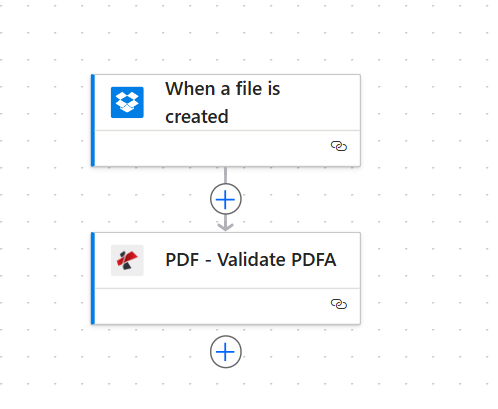
Two connected actions: Dropbox trigger, then PDF4me validation.
Step 1: When a file is created (Dropbox)
Flow so far: Trigger only.
- Create a new automated cloud flow. Search for Dropbox and add When a file is created (wording may vary slightly by connector version).
- Sign in to Dropbox if prompted.
- Folder — Enter or browse the folder path. This walkthrough uses
/blog data/validate pdfa. Only files created in this folder start the flow. - Save the trigger. Open Dynamic content and confirm the trigger exposes at least:
- File Content (or equivalent binary output for the PDF), and
- A file name field (often under headers, e.g.
headers/x-ms-file-name-encoded).
- If File Content is not listed, insert Dropbox – Get file content using path (or Get file metadata + Get file content) after the trigger and map validation inputs from that step instead.
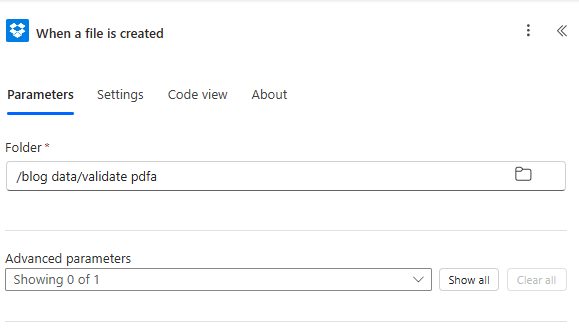
Step 1 screenshot: Parameters tab with required Folder path.
Step 2: PDF – Validate PDFA (PDF4me)
Flow so far: Trigger → Validate.
- Add a new step. Search PDF4me (or PDF under PDF4me) and select PDF – Validate PDFA.
- Connection — Select or create the PDF4me connection and supply the API key when asked.
- Open the Parameters tab.
- File Content — From Dynamic content, under When a file is created, select File Content (the PDF bytes). If you used Get file content in step 1, map from that action’s output instead.
- File Name — Map the filename that includes the
.pdfextension. In the reference screenshot this is the Dropbox field such asheaders/x-ms-file-name-encoded. If your trigger exposes a plain Name or File name token, use that when it is the full filename. - Save the action. Use Test (manual trigger upload or Run trigger) to execute the flow.
- Inspect the run history for PDF – Validate PDFA. Open Outputs to view the JSON body.
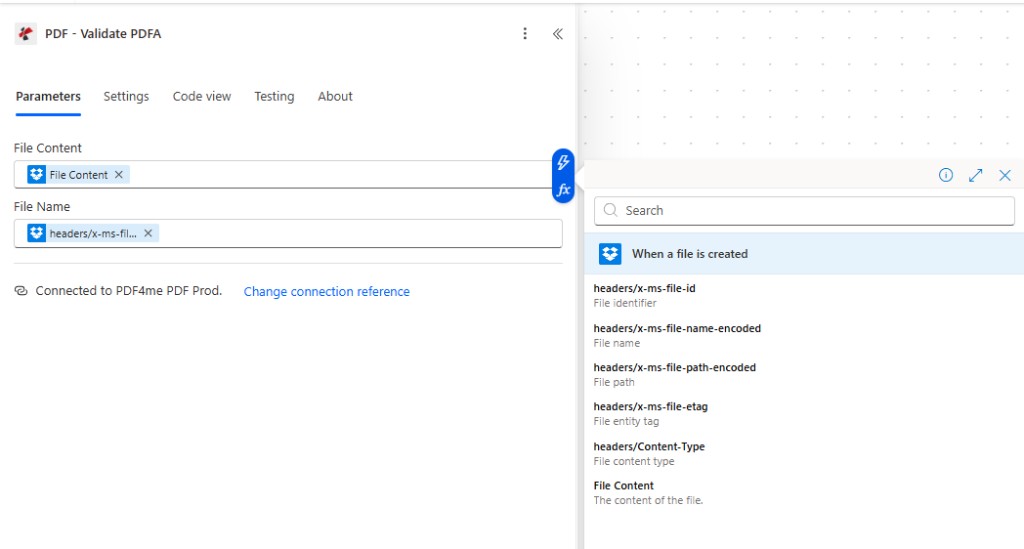
Step 2 screenshot: File Content and File Name mapped from the same trigger.
Output: Conformance and flags
After a successful run, the action output includes a JSON body (exact structure matches your connector version). A typical conforming result contains:
conformance— String such asPDF/A-1bnaming the level evaluated.isConforming— Boolean —trueif the file conforms to the checked profile.isPdfA— Boolean — additional PDF/A signal; use together withisConformingfor routing logic.
Example output (JSON)
Illustrative run output: HTTP 200 and a body with conformance flags.
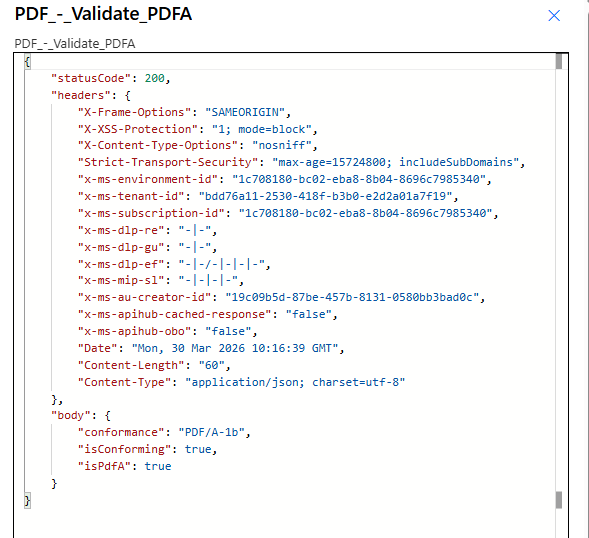
Output screenshot: use these fields in a Condition to branch pass vs fail.
Next actions (optional): Add a Condition on isConforming equals true. On false, call a Convert to PDF/A flow or notify an owner. On true, move the file, append a row to a list, or end the run.
Quick reference
| # | Action | Job |
|---|---|---|
| 1 | When a file is created | Start flow on new file in folder |
| 2 | PDF – Validate PDFA | Return Conformance, IsConforming, IsPdfA |
Full parameter and output reference: Validate PDFA — Power Automate.
Troubleshooting
Re-map File Content from the trigger (or from Get file content). Do not pass a path string or metadata-only token.
Ensure File Name ends with .pdf and matches the uploaded object. Prefer the encoded filename field from Dropbox when that is what the connector documents.
PDF4me Troubleshooting — API key, credits, and connector sign-in.
What to try next
Optional: add a Condition immediately after Validate PDFA on isConforming, then branch to Move file, Send an email, or a child flow that runs Create PdfA.