Insert a Swiss QR Bill on a Custom Page Number in Power Automate (4-Action Dropbox Flow with PDF4me)

Most Swiss QR-bill tutorials put the payment slip on page 1 (or append it to the end). Real invoices often need it somewhere in the middle: a 10-page contract pack where the QR-bill belongs right after the summary, or a quarterly statement where the slip should follow the cover page. The PDF4me Power Automate connector handles that in one action via Paging Options = custom plus a Page Number field. This guide walks through the exact run captured in the canvas: /pdf4metest/sample/10 page.pdf becomes a Swiss-compliant file with the QR-bill inserted as page 3, then uploaded to /pdf4meoutput with a guid-prefixed name so re-runs do not collide. 4 actions, zero code, runs in seconds.
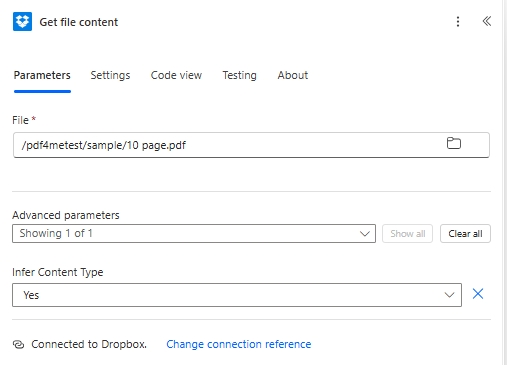
Four Power Automate actions. Manually trigger starts the flow. Dropbox Get file content reads /pdf4metest/sample/10 page.pdf with Infer Content Type set to Yes. PDF4me Barcode - Create SwissQR Bill appends a Swiss Payment Standards compliant QR-bill page with Output Format Type PNG (in this run; pick PDF for the hybrid container, plus JPEG and Tiff available), IBAN CH4431999123000889012, Amount 5253531, Currency CHF, Reference Type QRR, Language English, Seperator Line LineWithScissor, Creditor Var Schneider AG (S address, biel 2501), Ultimate Debtor Pia-Maria Rutschmann-Schnyder (S address, biel 9400), Reference 210000000003139471430009017, plus full AV1 and AV2 alternative scheme parameters. Under Advanced parameters: Paging Options custom and Page Number 3. Dropbox Create file writes to /pdf4meoutput with File Name built from guid() + headers/FileName for uniqueness. Output: a Swiss-bank-scannable file in the archive folder.
First, the IBAN must start with CH or LI and be 21 characters max. For QRR Reference Type, the IBAN must be a QR-IBAN, not a standard IBAN. Second, when Reference Type is QRR, the Reference is a 27-digit numeric with a mod-10 check digit. If you do not have one, switch to SCOR or NON. Third, Paging Options + Page Number only apply when Output Format Type is PDF. Image format types (PNG, JPEG, Tiff) ignore both because the output is a standalone slip image, not a multi-page document.
Common real-world questions this solves
People search this exact problem with phrasings like:
- "How do I insert a Swiss QR bill on a specific page of my PDF in Power Automate?" Use Output Format Type
PDF, Paging Optionscustom, and Page Number with the 1-based page index (3 in this guide). - "Can I output the Swiss QR as a PNG image instead of a PDF page?" Yes. Set Output Format Type to
PNG,JPEG, orTiffand the action returns a standalone image of the slip alone, ignoring Paging Options. - "How do I make sure my output file name does not collide on re-runs?" Use a
guid()Power Automate expression in the File Name field of the Dropbox upload, optionally concatenated withheaders/FileNamefrom the PDF4me output. - "What goes under Advanced parameters in the Power Automate action?" Four fields: Page Number, Paging Options, File Content (source PDF), File Name. Click Show all on Advanced parameters to expose them.
- "Will Swiss banks scan a PNG-format QR-bill?" Yes. the QR encoding is identical across PDF and image outputs. PNG is the right choice for inline email or web-embedded slips; PDF for full invoice + slip delivery.
What you are building
A reusable 4-action Power Automate flow that produces a Swiss-bank-scannable invoice with the QR-bill on whatever page you choose. Same flow handles the standalone-image case (skip the source PDF, switch Output Format Type to PNG / JPEG / Tiff) for email-embedded payment reminders.
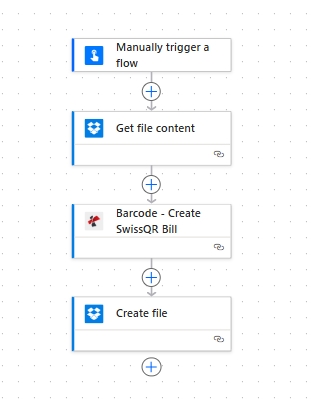
Four actions, top to bottom. Manual trigger keeps the flow easy to test; swap for any storage trigger in production.
What you need
- Power Automate account with a flow open. Open Power Automate.
- PDF4me API key. Get your API key. Sign in to the PDF4me Connect connector the first time you drop the action.
- Dropbox with
/pdf4metest/sampleas the source folder and/pdf4meoutputas the destination. Any storage works: SharePoint, OneDrive, Dataverse map the same way. - An invoice PDF. Download the 10-page sample from the screenshots to follow along exactly.
- Swiss payment data: CH or LI IBAN (max 21 chars), Amount, Currency (
CHForEUR), full Creditor + Ultimate Debtor name/address blocks. Full field reference in the action docs.
Quick reference: the 4 fields that decide the output
Build the flow
Action 1: Manually trigger a flow
Manual trigger for testing. In production swap for Dropbox When a file is created, SharePoint When a file is created, OneDrive When a file is created, Outlook When a new email arrives, Recurrence, or Webhooks depending on your AR pipeline.
Action 2: Dropbox - Get file content
Pull the source invoice from your input folder.
| Field | Value used in this run |
|---|---|
| File | /pdf4metest/sample/10 page.pdf |
| Infer Content Type | Yes |
Action 3: PDF4me Barcode - Create SwissQR Bill
The action that does the work. Search for PDF4me in the action picker and pick Barcode - Create SwissQR Bill. The action has the payment fields in the main panel and 4 fields under Advanced parameters (Paging Options, Page Number, File Content, File Name). Configure:
| Group | Field | Value |
|---|---|---|
| Output | Output Format Type | PNG |
| Payment | IBAN | CH4431999123000889012 |
| Payment | Amount | 5253531 |
| Payment | Currency | CHF |
| Payment | Reference Type | QRR |
| Payment | Language Type | English |
| Payment | Seperator Line | LineWithScissor |
| Creditor | Creditor Name | Var Schneider AG |
| Creditor | Creditor Address Type | S |
| Creditor | Creditor: Address Line 1 | Var Schneider AG |
| Creditor | Creditor: Address Line 2 | 23 |
| Creditor | Creditor PostalCode | 2501 |
| Creditor | Creditor City | biel |
| Debtor | Ultimate Debtor Name | Pia-Maria Rutschmann-Schnyder |
| Debtor | Ultimate Debtor AddressType | S |
| Debtor | Ultimate Debtor: Address Line 1 | Grosse Marktgasse |
| Debtor | Ultimate Debtor: Address Line 2 | 33 |
| Debtor | Ultimate Debtor PostalCode | 9400 |
| Debtor | Ultimate Debtor City | biel |
| Ref/Msg | Reference | 210000000003139471430009017 |
| Ref/Msg | Unstructured Message | Instruction of 15.09.2019 |
| Ref/Msg | Billing Info | S1/01/20170309/11/10201409/20/14000000/22/36958/30/CH106017086/40/1020/41/3010 |
| Ref/Msg | AV1 Parameters | Name AV1: UV;UltraPay005;12345 |
| Ref/Msg | Av2 Parameters | Name AV2: XY;XYService;54321 |
| Advanced | Paging Options | custom |
| Advanced | Page Number | 3 |
| Advanced | File Content | File Content (from Action 2) |
| Advanced | File Name | abc.pdf |
Action 4: Dropbox - Create file
Save the populated file with a unique guid-prefixed name so re-runs do not collide.
| Field | Value used in this run |
|---|---|
| Folder Path | /pdf4meoutput |
| File Name | guid() + headers/FileName (concat expression for a unique-per-run name) |
| File Content | File Content (from Action 3 dynamic content) |
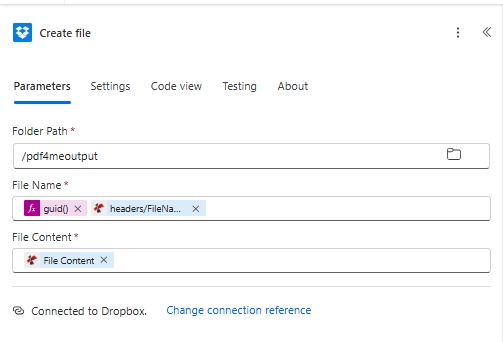
The guid() expression in File Name guarantees a unique name on every run. Concatenating headers/FileName from the PDF4me output preserves the original invoice name inside the new filename.
Save and click Test. The Swiss-bank-scannable file lands in /pdf4meoutput.
The 4 Output Format Type choices, side by side
PDFPNGJPEGTiff