Word, Swiss QR Bill, and a Base PDF. n8n Merges Them Into One. Six Nodes, Done!
You have a Word file (e.g. 3page.docx) and a base PDF (e.g. demo_5_page.pdf) in Dropbox, and you need a Swiss QR Bill merged on top so the final PDF is ready to send. n8n and PDF4me do it in one workflow: Download a file (Word), Convert to PDF, Create SwissQR bill with creditor and debtor details, Download Base PDF file, Merge two PDF files one over another as overlay, then Upload a file to Dropbox. Six nodes. One run. No code.
This guide uses authentic screenshots and descriptive image captions so you can follow each step and match the configuration (paths, binary fields, and parameters) in your own n8n workflow.
In a nutshell: When clicking Execute workflow → Dropbox – Download a file (/blog data/convert-swissqr-merge/3page.docx, output in field data) → PDF4me – Convert to PDF (Binary Property data, Output File Name output.pdf) → PDF4me – Create SwissQR bill (Amount 500, Currency Swiss Franc, IBAN, creditor Test AG, debtor Test Debt AG, Output swissqr_bill.pdf) → Dropbox – Download Base PDF file (/blog data/convert-swissqr-merge/demo_5_page.pdf, output in field base) → PDF4me – Merge two PDF files one over another as overlay (Base base, Layer data, Output overlayed_output.pdf) → Dropbox – Upload a file (/blog data/convert-swissqr-merge/output/Overlayed_Output.pdf). Result: one merged PDF with base content and Swiss QR payment slip.
What You'll Get
Input: A Word file (e.g. 3page.docx) and a base PDF (e.g. demo_5_page.pdf) in Dropbox, plus payment data for the Swiss QR Bill (IBAN, amount, creditor, debtor, reference type, language). Output: A single PDF that combines the base document with the generated Swiss QR Bill as an overlay, saved as Overlayed_Output.pdf in /blog data/convert-swissqr-merge/output/. The QR bill shows Receipt and Payment part, scannable QR code, creditor (e.g. Test AG, 8001 Zurich), debtor (e.g. Test Debt AG, 3000 Bern), and amount (e.g. CHF 500.00).
What You Need
- n8n — n8n instance (cloud or self-hosted). Create a new workflow.
- PDF4me credentials — Get your API key. Add a PDF4me account in n8n. See Connect PDF4me to n8n.
- Dropbox — Credential: Dropbox OAuth2 API. Operations: Download (file by path) and Upload (binary file).
- Word file — e.g.
3page.docxat/blog data/convert-swissqr-merge/3page.docx. Downloaded into a binary field (e.g.data) for Convert to PDF. - Base PDF — e.g.
demo_5_page.pdfat/blog data/convert-swissqr-merge/demo_5_page.pdf. Downloaded into a binary field (e.g.base) for the overlay merge. - Swiss QR Bill data — Amount (e.g. 500), Currency (Swiss Franc), IBAN (e.g.
CH0102030405060708090), Creditor (Test AG, Test Strasse, House 2, 8001 Zurich), Ultimate Debtor (Test Debt AG, Test Deb Strasse, House 8, 3000 Bern), Reference Type (No Reference), Language Type (English). Optional: Reference, Unstructured Message, Billing Info, AV1/AV2, Custom Profiles.
The Workflow at a Glance (6 Nodes)
- Trigger — When clicking Execute workflow (or a schedule/ webhook).
- Dropbox – Download a file — File Path:
/blog data/convert-swissqr-merge/3page.docx. Put Output File in Field:data. - PDF4me – Convert to PDF — Input Data Type: Binary Data. Binary Property:
data. Input File Name: e.g.Test.docx. Output File Name:output.pdf. Binary Data Output Name:data. - PDF4me – Create SwissQR bill — Invoice Operations: Create SwissQR Bill. Input Data Type: Binary Data. Binary Property:
data. File Name:Test.pdf. Amount, Currency, IBAN, Creditor and Ultimate Debtor fields. Output File Name:swissqr_bill.pdf. Output Binary Field Name:data. - Dropbox – Download Base PDF file — File Path:
/blog data/convert-swissqr-merge/demo_5_page.pdf. Put Output File in Field:base. - PDF4me – Merge two PDF files one over another as overlay — Base PDF Binary Field:
base. Layer PDF Binary Field:data. Output File Name:overlayed_output.pdf. Binary Data Output Name:data. - Dropbox – Upload a file — File Path:
/blog data/convert-swissqr-merge/output/Overlayed_Output.pdf. Binary File: on. Input Binary Field:data.
Complete workflow overview

Six nodes plus trigger: Download file (Word), Convert to PDF, Create SwissQR bill, Download Base PDF file, Merge overlay, Upload file. Each node shows 1 item and success state.
Step 1: Download a file (Dropbox)
Workflow so far: Trigger and one Dropbox node.
- Add Trigger → When clicking Execute workflow (or another trigger).
- Add Dropbox → Download a file (or equivalent node that downloads by path).
- Credential — Dropbox OAuth2 API.
- Resource — File. Operation — Download.
- File Path —
/blog data/convert-swissqr-merge/3page.docx. - Put Output File in Field —
data(so the next node can use the binary in propertydata). - Execute the step. Output shows
3page.docx, directory/blog data/convert-swissqr-merge, MIME type for Word, file size.
Download a file: Parameters
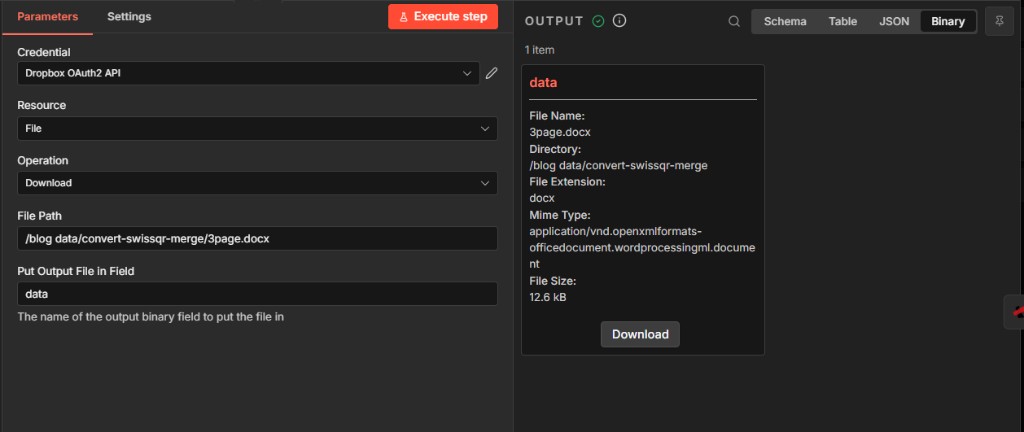
Dropbox Download configured with File Path /blog data/convert-swissqr-merge/3page.docx and Put Output File in Field data. OUTPUT panel shows 3page.docx and binary details.
Step 2: Convert to PDF (PDF4me)
Workflow so far: Trigger → Download file → Convert to PDF.
- Add PDF4me node. Resource — Convert. Convert Operations — Convert to PDF.
- Credential — PDF4ME account.
- Input Data Type — Binary Data.
- Binary Property —
data(from the previous node). - Input File Name — e.g.
Test.docx. - Output File Name —
output.pdf. Binary Data Output Name —data. - Execute the step. OUTPUT shows
output.pdf, application/pdf, file size (e.g. 34.4 kB). This binary is passed to Create SwissQR bill.
Convert to PDF: Parameters and output
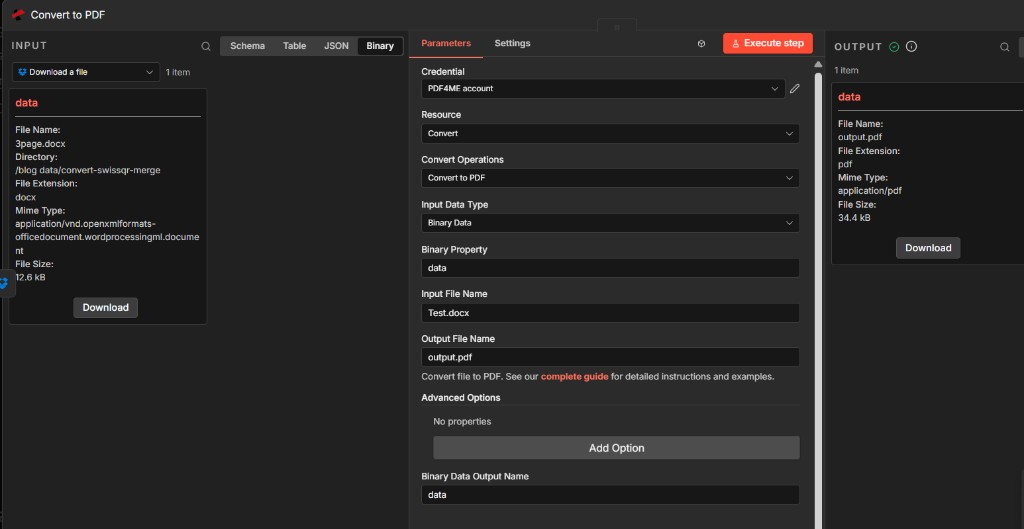
Convert to PDF with Binary Property data, Input File Name Test.docx, Output File Name output.pdf. Output binary in field data is used by the Create SwissQR bill node.
Step 3: Create SwissQR bill (PDF4me)
Workflow so far: Trigger → Download → Convert to PDF → Create SwissQR bill.
- Add PDF4me node. Resource — Invoice. Invoice Operations — Create SwissQR Bill.
- Credential — PDF4ME account.
- Input Data Type — Binary Data. Binary Property —
data(from Convert to PDF). File Name —Test.pdf. - Amount —
500. Currency — Swiss Franc. IBAN — e.g.CH0102030405060708090. - Creditor: Creditor Name
Test AG, Creditor Address TypeStructured, Creditor Address Line 1Test Strasse, Creditor Address Line 2House 2, Creditor Postal Code8001, Creditor CityZurich. - Ultimate Debtor: Ultimate Debtor Name
Test Debt AG, Ultimate Debtor Address TypeStructured, Ultimate Debtor Address Line 1Test Deb Strasse, Ultimate Debtor Address Line 2House 8, Ultimate Debtor Postal Code3000, Ultimate Debtor CityBern. - Reference Type — No Reference. Language Type — English. Separator Line — Line With Scissor (or LineWithScissor).
- Output File Name —
swissqr_bill.pdf. Output Binary Field Name —data. - Advanced Options (optional): Reference, Unstructured Message (e.g. Thank you for your business), Billing Info (e.g. Invoice for services rendered), AV1/AV2, Custom Profiles (e.g.
{ 'outputDataFormat': 'base64' }). - Execute the step. OUTPUT shows
swissqr_bill.pdfin binary fielddata(this becomes the layer in the merge).
Create SwissQR bill: Invoice operations and payment
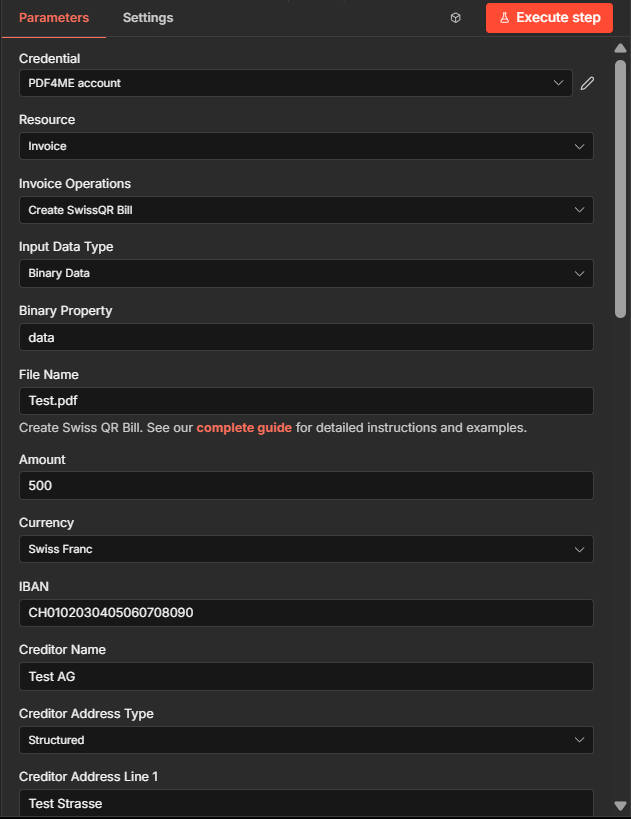
Create SwissQR bill node with Credential PDF4ME account, Invoice Operations Create SwissQR Bill, Binary Property data, Amount 500, Currency Swiss Franc, IBAN and Creditor Test AG with Structured address.
Create SwissQR bill: Debtor and reference
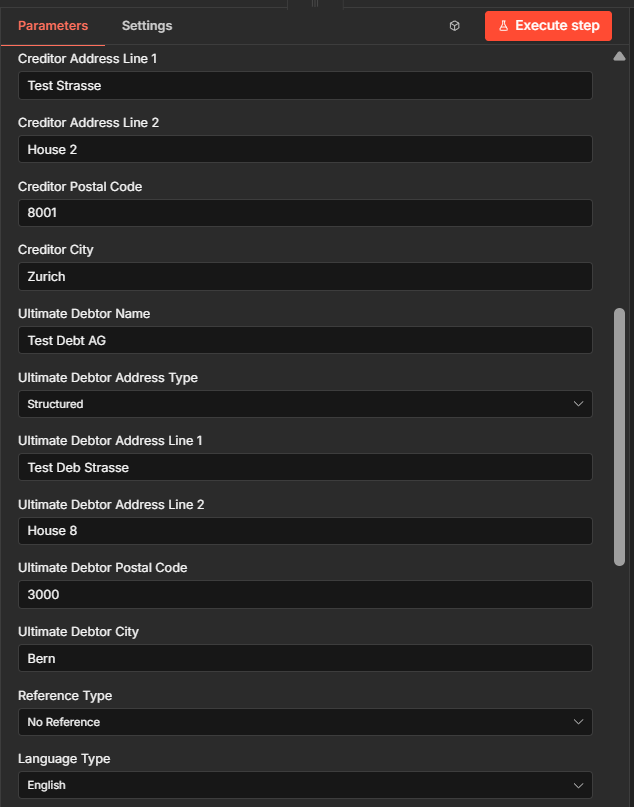
Creditor and Ultimate Debtor address fields: Test AG Zurich 8001, Test Debt AG Bern 3000, Reference Type No Reference, Language Type English.
Create SwissQR bill: Output and advanced options
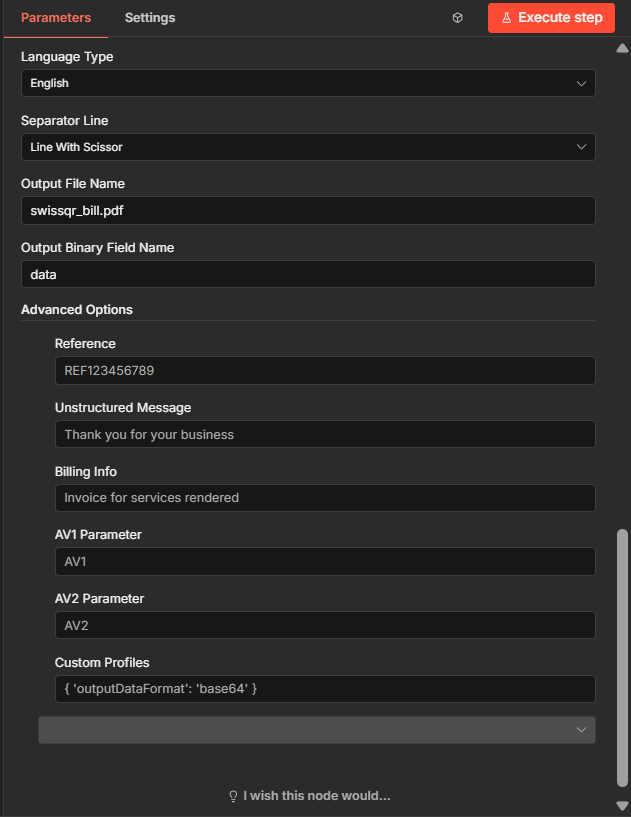
Output File Name swissqr_bill.pdf, Output Binary Field Name data. Advanced options: Reference, Unstructured Message, Billing Info, AV1/AV2, Custom Profiles.
Step 4: Download Base PDF file (Dropbox)
Workflow so far: Trigger → Download Word → Convert to PDF → Create SwissQR bill → Download Base PDF.
- Add Dropbox → Download Base PDF file (or the node that downloads a file by path and puts it in a named field).
- Credential — Dropbox OAuth2 API. Resource — File. Operation — Download.
- File Path —
/blog data/convert-swissqr-merge/demo_5_page.pdf. - Put Output File in Field —
base(so the merge node has base and layer in separate fields). - Execute the step. Output shows
demo_5_page.pdfin fieldbase.
Download Base PDF file: Parameters
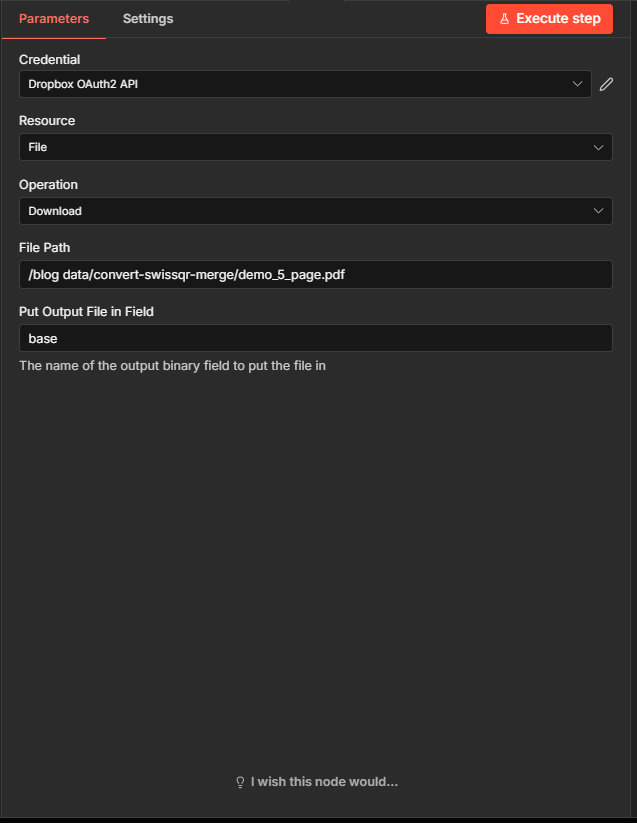
Download Base PDF file with File Path /blog data/convert-swissqr-merge/demo_5_page.pdf and Put Output File in Field base. This PDF is used as the base layer in the overlay merge.
Step 5: Merge two PDF files one over another as overlay (PDF4me)
Workflow so far: All nodes up to the merge.
- Add PDF4me node. Resource — Merge & Split. Merge & Split Operations — Merge two PDF files one over another as Overlay.
- Credential — PDF4ME account.
- Base PDF Input Type — Binary Data. Layer PDF Input Type — Binary Data.
- Base PDF Binary Field —
base(from Download Base PDF file). Layer PDF Binary Field —data(from Create SwissQR bill). - Output File Name —
overlayed_output.pdf. Binary Data Output Name —data. - Execute the step. OUTPUT shows
overlayed_output.pdf(e.g. 144 kB) in binary fielddata. This is the merged PDF (base + Swiss QR Bill layer).
Merge two PDF files one over another as overlay
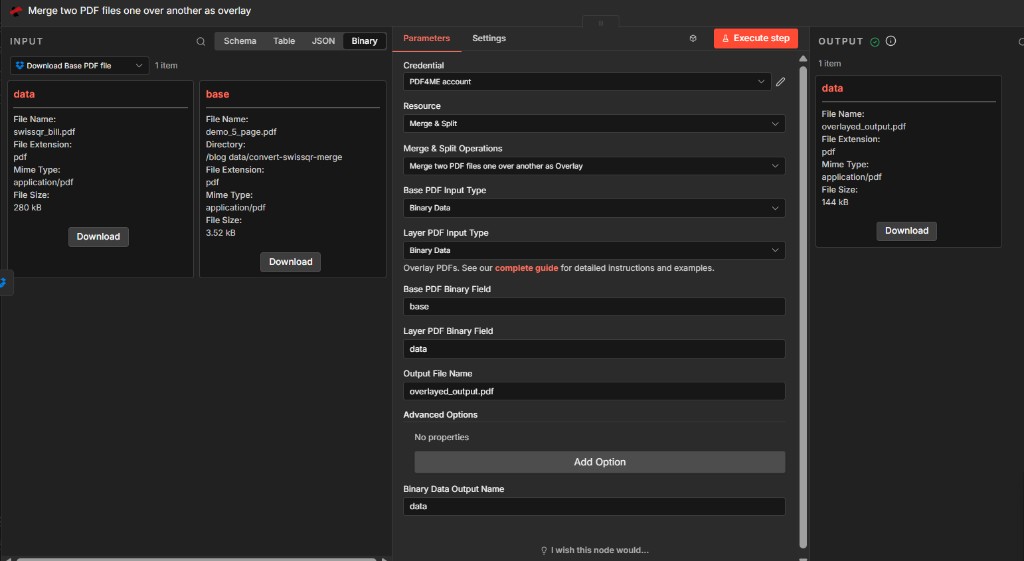
Merge overlay with Base PDF Binary Field base (demo_5_page.pdf) and Layer PDF Binary Field data (swissqr_bill.pdf). Output overlayed_output.pdf in field data for the Upload node.
Step 6: Upload a file (Dropbox)
Workflow so far: All six nodes; final node saves the merged PDF.
- Add Dropbox → Upload a file (or equivalent that uploads binary to a path).
- Credential — Dropbox OAuth2 API. Resource — File. Operation — Upload.
- File Path —
/blog data/convert-swissqr-merge/output/Overlayed_Output.pdf. - Binary File — On. Input Binary Field —
data(from the merge node). - Execute the step. OUTPUT JSON shows
name: Overlayed_Output.pdf,path_display,size, and success metadata. - The merged PDF is now in Dropbox at the given path.
Upload a file: Parameters and output
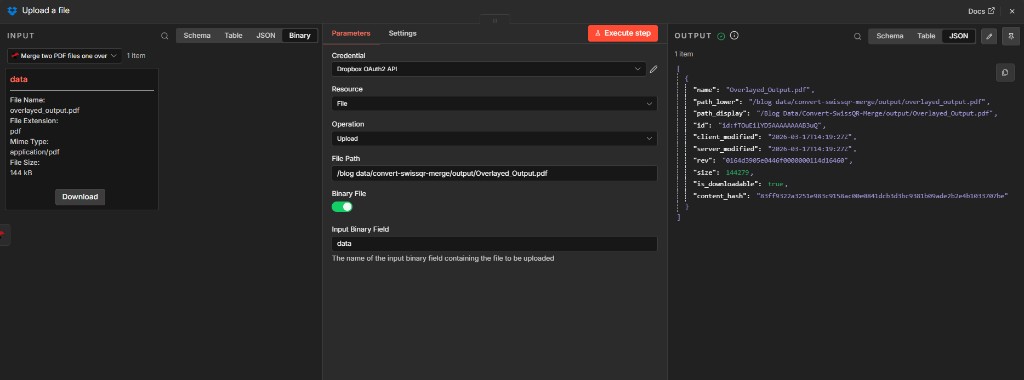
Upload a file with File Path /blog data/convert-swissqr-merge/output/Overlayed_Output.pdf, Binary File on, Input Binary Field data. Output confirms name, path_display, and size of the uploaded file.
Output: Merged PDF with Swiss QR Bill
The workflow produces a single PDF that combines the base document (e.g. demo_5_page.pdf) with the generated Swiss QR Bill as an overlay. The QR bill shows Receipt and Payment part, scannable QR code, Account/Payable to (e.g. CH01 0203 0405 0607 0809 0, Test AG, Test Strasse House 2, 8001 Zurich), Payable by (e.g. Test Debt AG, Test Deb Strasse House 8, 3000 Bern), and Currency Amount CHF 500.00. The file is saved as Overlayed_Output.pdf in /blog data/convert-swissqr-merge/output/.
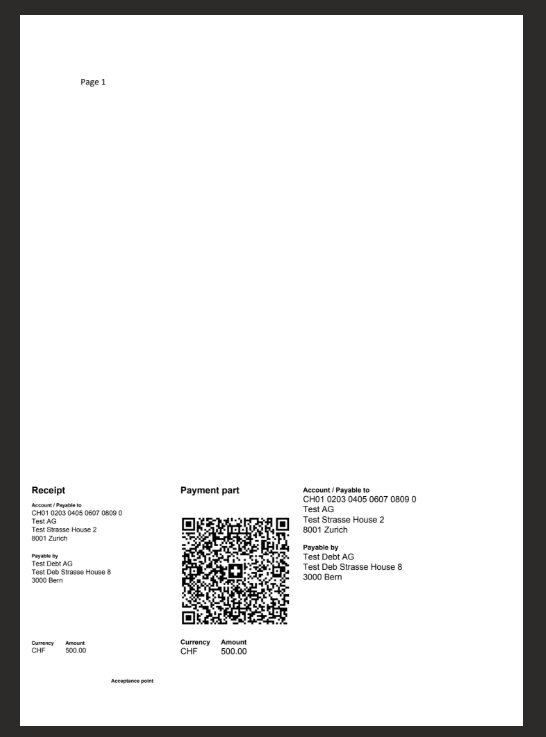
Final merged document with Swiss QR Bill layout: Receipt, Payment part with QR code, creditor and debtor details, and CHF amount. Ready for distribution or printing.
Use Cases
Invoices and quotes: Use a Word or PDF invoice as the base; add a compliant Swiss QR Bill as overlay so each PDF is human-readable and machine-scannable for payment.
Bulk payment slips: Trigger the workflow from a webhook or schedule; pass different amounts and debtor data (e.g. from a database or spreadsheet) into the Create SwissQR bill node to generate one merged PDF per run.
Self-hosted automation: Run n8n on your own infrastructure and keep document and payment data in your control while using PDF4me for conversion and QR bill generation.
Quick Reference
| Node | Key setting | Example |
|---|---|---|
| Dropbox Download a file | File Path, Put Output File in Field | /blog data/convert-swissqr-merge/3page.docx; data |
| PDF4me Convert to PDF | Binary Property, Output File Name, Binary Data Output Name | data; output.pdf; data |
| PDF4me Create SwissQR bill | Binary Property, Amount, Currency, IBAN, Creditor/Debtor, Output File Name | data; 500; Swiss Franc; CH01...; Test AG / Test Debt AG; swissqr_bill.pdf |
| Dropbox Download Base PDF file | File Path, Put Output File in Field | /blog data/convert-swissqr-merge/demo_5_page.pdf; base |
| PDF4me Merge overlay | Base PDF Binary Field, Layer PDF Binary Field, Output File Name | base; data; overlayed_output.pdf |
| Dropbox Upload a file | File Path, Binary File, Input Binary Field | /blog data/convert-swissqr-merge/output/Overlayed_Output.pdf; on; data |
For full parameter details, see Create Swiss QR Bill — n8n and Merge two PDF files one over another as Overlay (or the equivalent merge node in the n8n docs). For the same flow in Power Automate, see Swiss QR merge (Power Automate).
Troubleshooting
Base PDF Binary Field must point to the node that outputs the base PDF (Download Base PDF file → base). Layer PDF Binary Field must point to the Swiss QR Bill output (Create SwissQR bill → data). Ensure the previous nodes have run successfully and the field names match.
Check IBAN format (Swiss IBAN), amount and currency, and that creditor and debtor address fields use the correct Address Type (Structured). Reference Type and optional Reference must follow Swiss standards when used.
See PDF4me Troubleshooting for API key, credits, and connectivity.
What's Next
- Run the workflow — Execute and confirm
Overlayed_Output.pdfappears in/blog data/convert-swissqr-merge/output/with base content and Swiss QR Bill visible. - Automate — Replace the manual trigger with Schedule or Webhook and pass file paths or payment data from another system.
- Dynamic data — Use expressions to set Amount, IBAN, creditor, and debtor from a previous node (e.g. database or CSV) for batch runs.
- Same flow elsewhere — Use Swiss QR merge in Power Automate for the same logic in Microsoft flows.