Swiss QR Bill from a SharePoint List: Generate and Email Every QR Bill in Power Automate with PDF4me

PDF4me Create SwissQR Bill is a Power Automate action that turns payment details into a QR slip that follows the Swiss Payment Standards. Pointed at a SharePoint list, it renders a QR bill for every request that arrives, files the image in a document library, links it back on the row, and emails it to the debtor.
Search for a Swiss QR bill and you get two kinds of answer. One explains the standard: what the receipt and the payment part must contain, which reference formats exist, why the slip replaced the old payment slips in 2022. The other is a code library, in PHP or JavaScript or Python, for developers who are building invoicing software. Between those two sits the company that simply has to send one. The payment details already live in a list that someone keeps up to date, and what is missing is the part where the slip gets produced, stored and sent. That is this flow, in five actions and without code.
Someone adds a row to a SharePoint list with the debtor, the amount, the currency and a message. About thirty-five seconds later the QR bill exists as a PNG in a document library, the row carries a link to it and the status Generated, and the debtor has it in their inbox ready to scan. Five actions, standard connectors, and nobody opens a banking portal.
Why-Based Q&A
Why keep the payment details in a SharePoint list? Because the people who know them are not the people who would run a script. A list row is a form anyone in finance can fill in, it keeps a history of what was requested, and its columns are what drive the slip: the amount, the currency, the message on the payment part, even the language the labels are printed in.
Why produce a PNG instead of a PDF? Because there is no invoice to attach the slip to. With Output Format Type set to PDF, the action expects a source document and appends the payment part to it. With PNG it returns the slip on its own, which is what you want when the QR bill is the whole message: it previews in SharePoint, and it opens in the email without a download.
Why the QRR reference type? Because it is the reference that reconciles the payment automatically. QRR is the Swiss 27-digit numeric reference with a check digit, and it only works with a QR-IBAN, an IBAN whose institution number falls in the QR range. When the debtor scans and pays, the reference comes back with the credit and the invoice closes itself. SCOR and NON are the alternatives when you do not need that.
Why write the link back to the row? Because the request should be able to answer the question "did this go out?" on its own. The flow sets the status to Generated and stores a link to the image, so the list is both the queue and the record, and nobody has to go looking in the library to find out what happened.
What You'll Get
Input: a row in a SharePoint list holding the invoice number, the debtor's name and address, the amount, the currency, the message, the language and the email address. Output: a Swiss QR bill PNG in the QR Bills library, the same row updated with the status and a link, and an email to the debtor with the slip attached.
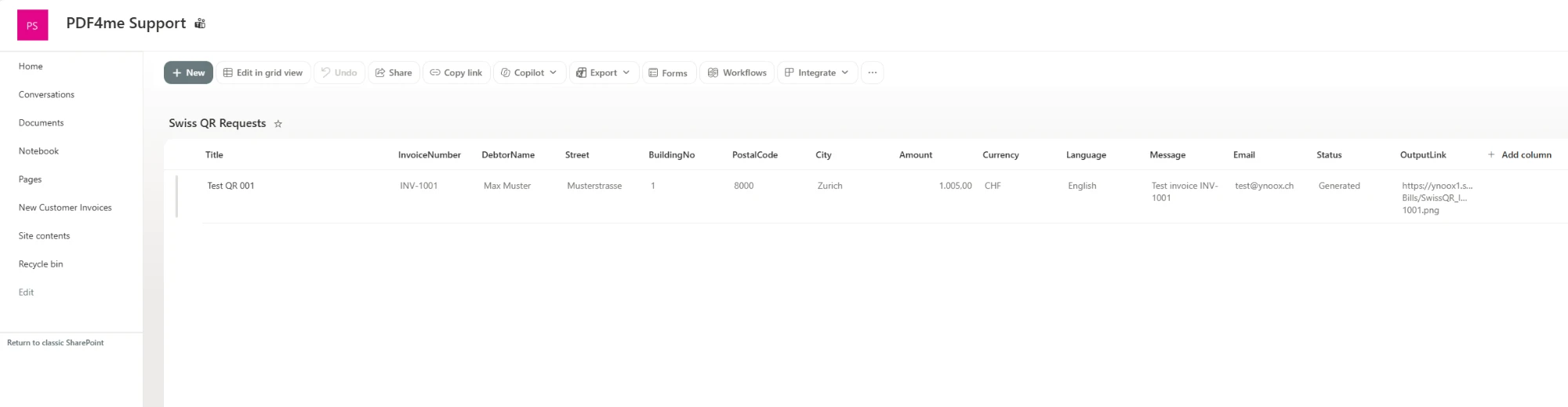
One row is one QR bill. Status and OutputLink are written by the flow, not by the person filling in the request.
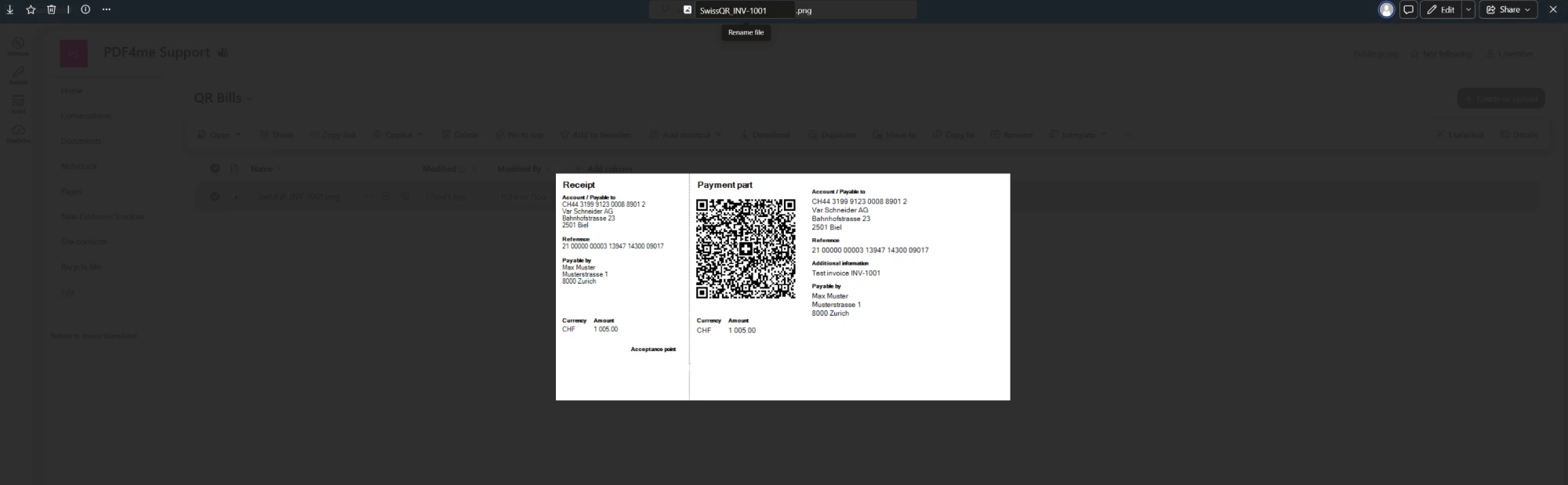
The slip in the library, named after the invoice number.
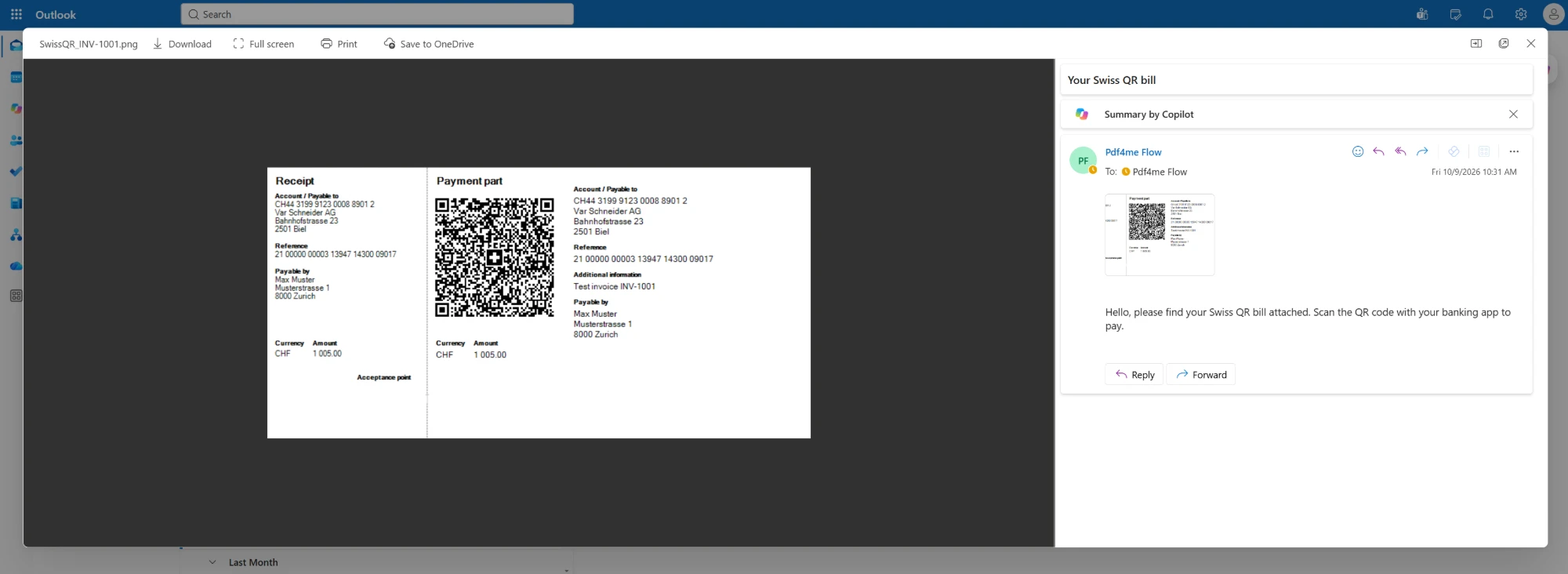
The same slip in the debtor's inbox, ready to scan.
What You Need
- Power Automate. Open Power Automate. An automated cloud flow on standard connectors. SharePoint, Office 365 Outlook and PDF4me need no premium plan.
- PDF4me API key. Get your API key. This flow uses one PDF4me connection, PDF4me Barcode.
- A SharePoint list for the requests. The captured list is called Swiss QR Requests, with columns InvoiceNumber, DebtorName, Street, BuildingNo, PostalCode, City, Amount, Currency, Language, Message and Email, plus a Status choice column and an OutputLink column the flow writes to.
- A document library for the slips. The captured flow writes into a library called QR Bills.
- Your creditor details and a QR-IBAN. The account the money goes to, with its address. The QR-IBAN is required for QRR references, and the Swiss Payment Standards spec limits the account to Swiss or Liechtenstein issuers and the currency to CHF or EUR.
The Flow at a Glance
- When an item is created (SharePoint) watches the
Swiss QR Requestslist. - Barcode - Create SwissQR Bill (PDF4me Barcode) renders the slip as a
PNG. - Create file (SharePoint) saves it into
/QR BillsasSwissQR_<invoice number>.png. - Update item (SharePoint) sets Status to
Generatedand fills OutputLink. - Send an email (V2) (Office 365 Outlook) sends the slip to the debtor.
Complete flow overview
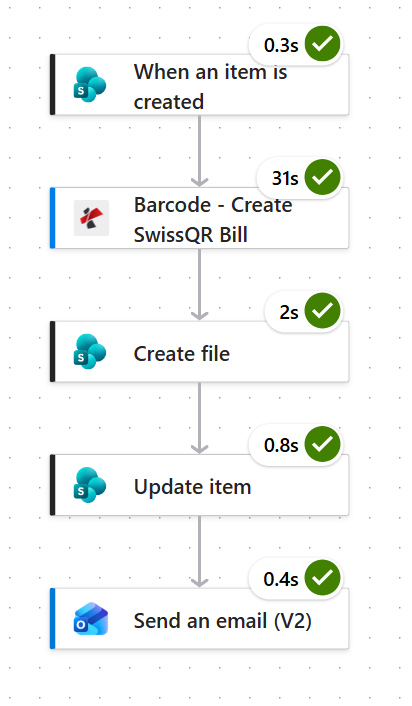
Rendering the slip is the whole cost of this flow: 31 of the 35 seconds. Everything after it is SharePoint and Outlook moving a small PNG around.
Step 1: How do you trigger a QR bill when a request arrives?
Flow so far: nothing yet, this is the trigger.
The list is the request queue, so creating a row is the signal.
- Create an Automated cloud flow and pick SharePoint > When an item is created.
- Configure:
- Site Address:
PDF4me Support - https://ynoox1.sharepoint.com/sites/PDF4meSupport - List Name:
Swiss QR Requests
- Site Address:
When an item is created configuration
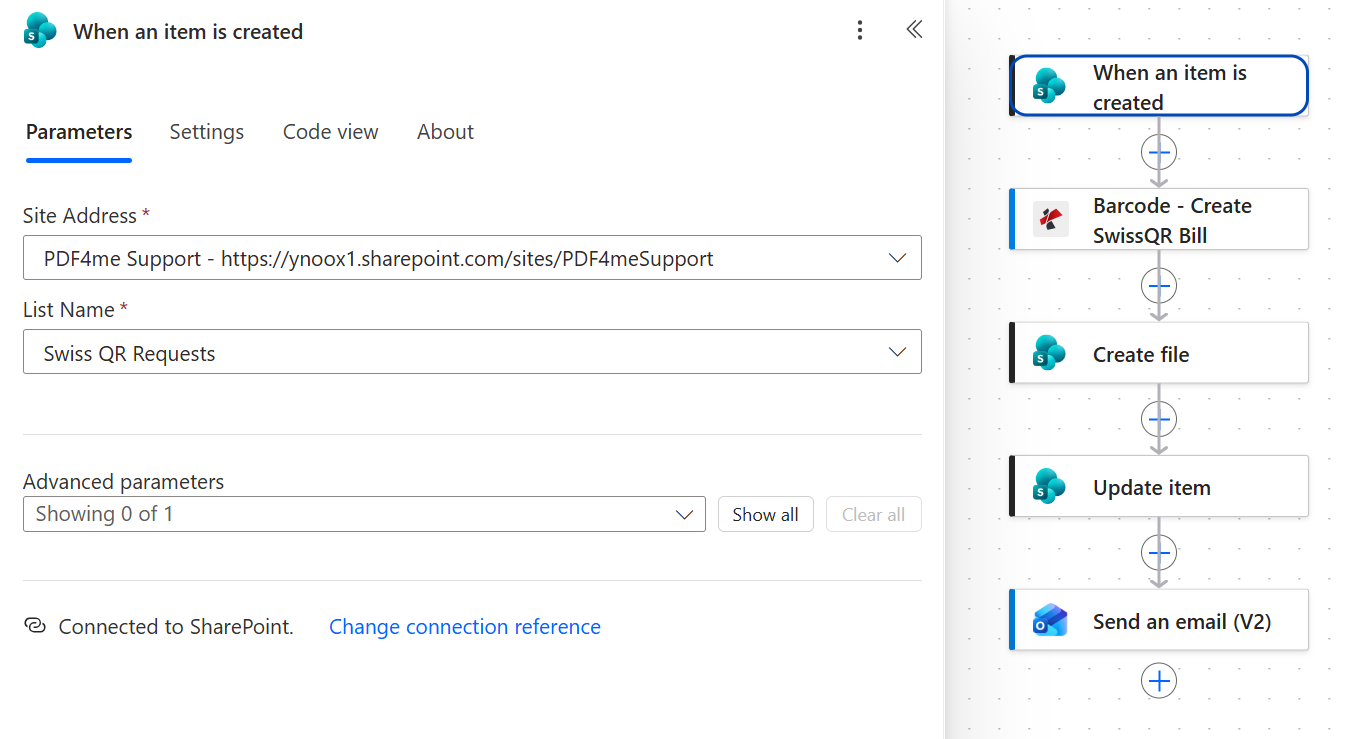
Every column on the new row is available as a token in the four actions that follow.
Step 2: What goes into the Create SwissQR Bill action?
Flow so far: the SharePoint trigger.
This is the action that does the work, and it has more fields than the rest of the flow put together. They split into two groups: the creditor side, which is your own account and address and never changes, and the debtor side, which comes from the row.
- Add Barcode - Create SwissQR Bill from the PDF4me Barcode connection.
- Configure the output and the creditor (static values):
- Output Format Type:
PNG - IBAN:
CH4431999123000889012 - Creditor Name:
Var Schneider AG - Creditor Address Type:
S - Creditor street, building, PostalCode, City:
Bahnhofstrasse,23,2501,Biel - Reference Type:
QRR - Seperator Line:
LineWithScissor
- Output Format Type:
- Map the debtor and the payment from the trigger:
- Amount, Currency, Ultimate Debtor Name, Street, Building Number, PostalCode, City, Unstructured Message and Language Type all take their value from the matching list column.
- Ultimate Debtor AddressType:
S - Billing Info, AV1 Parameters and Av2 Parameters: left empty
Barcode - Create SwissQR Bill configuration
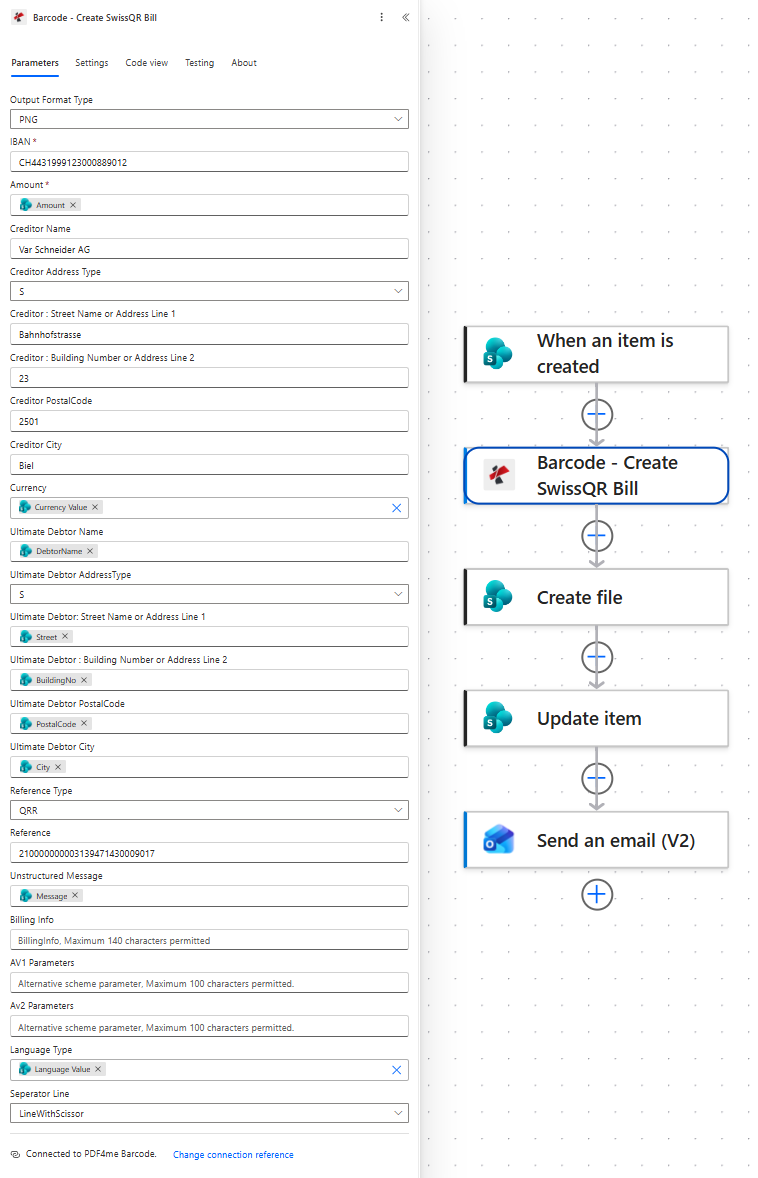
Address Type S means structured: separate fields for street, building number, postal code and city. K would take two free-text lines instead.
Where each field comes from
| Field | Value in the captured flow | Source |
|---|---|---|
| Output Format Type | PNG | Static, the slip on its own |
| IBAN | CH4431999123000889012 | Static, your QR-IBAN |
| Creditor block | Var Schneider AG, Bahnhofstrasse 23, 2501 Biel | Static, your own address |
| Amount, Currency | 1,005.00, CHF | Amount and Currency columns |
| Ultimate Debtor block | Max Muster, Musterstrasse 1, 8000 Zurich | DebtorName, Street, BuildingNo, PostalCode, City |
| Reference Type, Reference | QRR, 210000000003139471430009017 | Static in this flow, see the warning below |
| Unstructured Message | Test invoice INV-1001 | Message column |
| Language Type | English | Language column |
| Seperator Line | LineWithScissor | Static |
Give every bill its own reference before you go live. The captured flow sends the same 27-digit QRR reference on every slip, which is fine for a test and wrong in production: the reference is what tells your bank which invoice a payment belongs to, so one shared value makes every incoming payment look identical. Generate it per invoice, in the list or in the flow, and keep the mod-10 check digit correct. The reference is also the one field a debtor never has to type, so there is no reason to keep it short or memorable.
Tip. QRR only works with a QR-IBAN, which is an IBAN whose institution number sits in the QR range. The account used here, CH4431999123000889012, has 31999 in those positions, so it qualifies. If your bank gave you an ordinary IBAN, use SCOR or NON as the Reference Type instead, or ask the bank for the QR-IBAN that belongs to the account.
Step 3: Where does the QR bill image get saved?
Flow so far: the trigger plus Create SwissQR Bill.
The action returns the image, and SharePoint is where it goes to live.
- Add SharePoint > Create file.
- Configure:
- Site Address:
PDF4me Support - https://ynoox1.sharepoint.com/sites/PDF4meSupport - Folder Path:
/QR Bills - File Name:
SwissQR_followed by the InvoiceNumber token and.png - File Content: the Body token from Barcode - Create SwissQR Bill
- Site Address:
Create file configuration
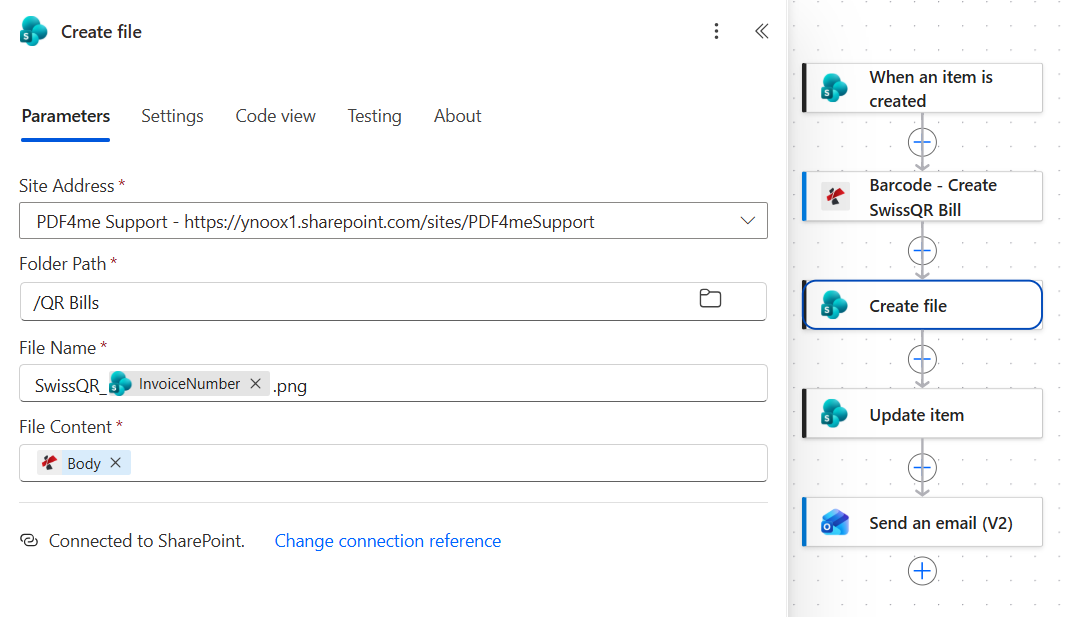
Naming the file after the invoice number is what makes the library searchable later. For INV-1001 this writes SwissQR_INV-1001.png.
Step 4: How do you record the result on the request?
Flow so far: the trigger, Create SwissQR Bill and Create file.
The row that asked for the bill is also the right place to record that it exists.
- Add SharePoint > Update item.
- Configure:
- Site Address:
PDF4me Support - https://ynoox1.sharepoint.com/sites/PDF4meSupport - List Name:
Swiss QR Requests - Id: the ID token from the trigger
- Title: the Title token from the trigger
- Status Value (advanced):
Generated - OutputLink (advanced): the site URL followed by the Path token from Create file
- Site Address:
Update item configuration
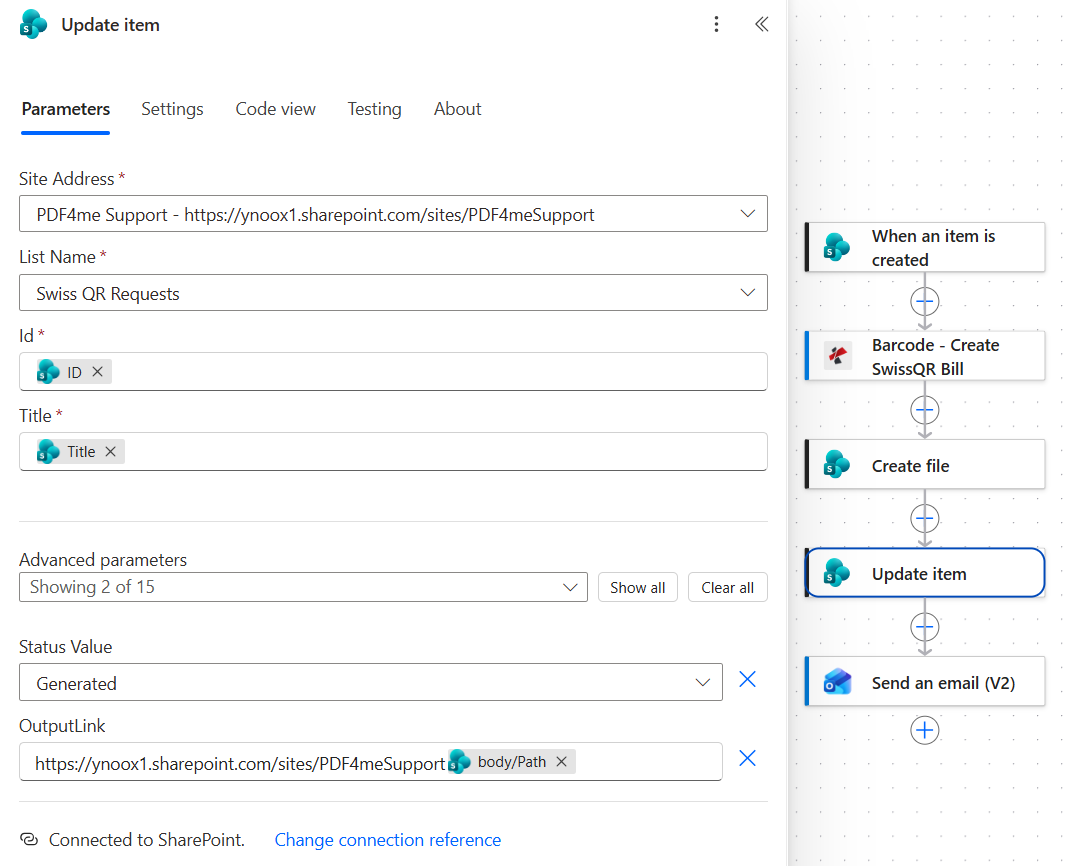
Title is passed straight back from the trigger. The connector treats it as required, and feeding it the current value is what keeps it unchanged.
Tip. Open the stored link once after your first run. The library here is called QR Bills, with a space, so the path that Create file returns contains that space and a browser has to encode it. If the link does not open cleanly, wrap the expression in encodeUriComponent or rename the library to something without spaces.
Step 5: How do you email the QR bill to the debtor?
Flow so far: everything through Update item.
The last action turns the slip into something the debtor can act on, which is the whole point of a QR bill.
- Add Office 365 Outlook > Send an email (V2).
- Configure:
- To: the Email token from the trigger
- Subject:
Your Swiss QR bill - Body:
Hello, please find your Swiss QR bill attached. Scan the QR code with your banking app to pay.
- Open Advanced parameters and add an attachment:
- Attachments Name - 1: the Name token from Create file
- Attachments Content - 1: the File Content token from Barcode - Create SwissQR Bill
- Importance:
Normal
Send an email (V2) configuration
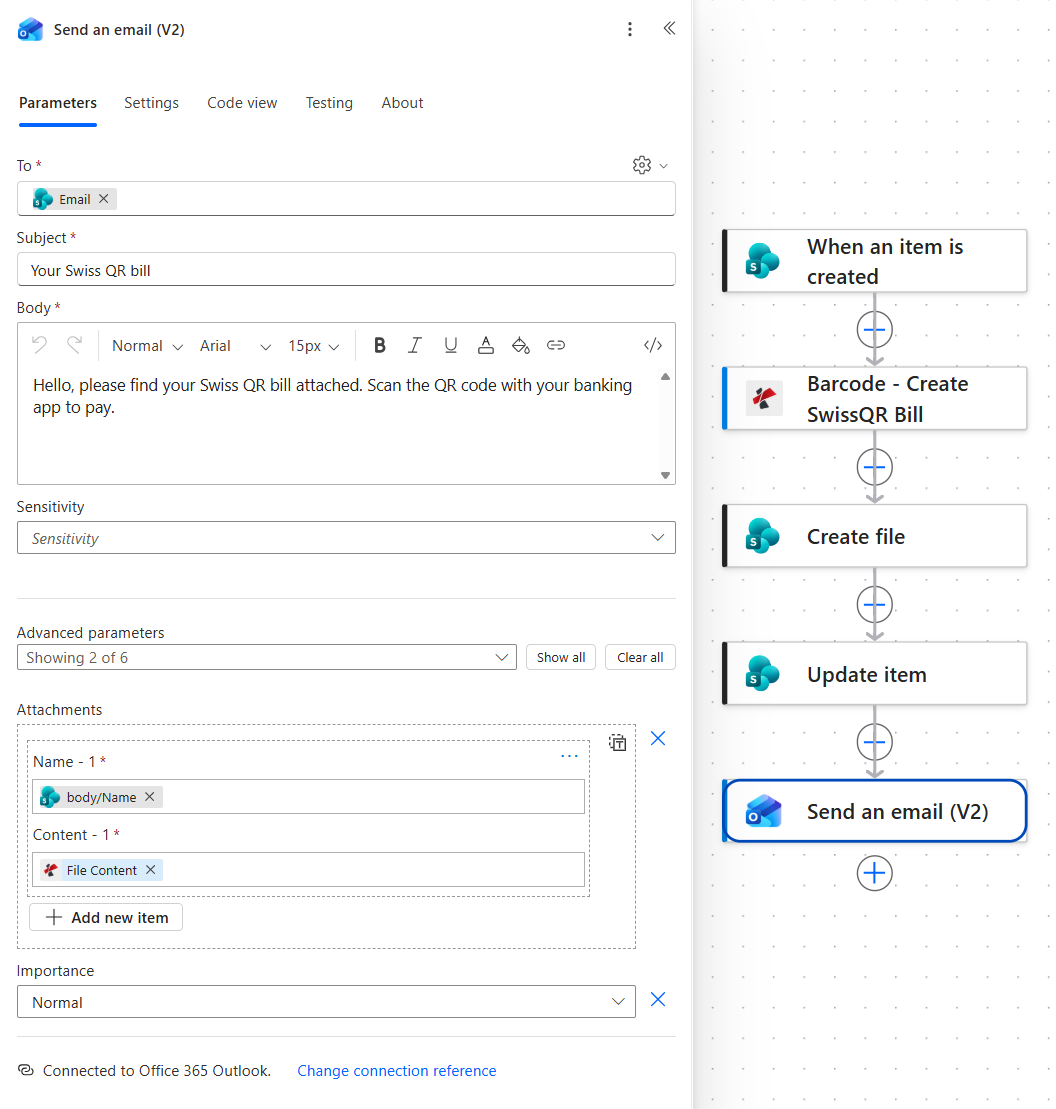
The attachment takes its name from the file that was just created and its bytes from the action that produced them, so nothing has to be read back out of SharePoint.
Run the Flow and Verify
- Save the flow.
- Add a row to Swiss QR Requests with a debtor, an amount, a currency, a language and an email address you can check.
- Open the run history. All five actions should be green, with Create SwissQR Bill taking most of the time.
- Open the QR Bills library and check the PNG is there and previews as a payment slip.
- Go back to the row: Status should read Generated and OutputLink should open the image.
- Open the email and scan the QR code with a banking app to confirm the amount, the account and the reference come back the way you entered them.
In the captured run the whole thing took about thirty-five seconds, of which thirty-one were the slip itself. The output, SwissQR_INV-1001.png, carries the receipt on the left and the payment part on the right: account CH44 3199 9123 0008 8901 2 for Var Schneider AG in Biel, reference 21 00000 00003 13947 14300 09017, payable by Max Muster in Zurich, CHF 1 005.00, with Test invoice INV-1001 in the additional information block.
What did you actually build? A QR bill desk that runs on a list. The finance team enters what they already know, the slip comes back in the format Swiss banks expect, it is filed where the rest of the paperwork lives, and the debtor gets it without anyone opening a banking portal or a design tool.
Common Variations You Can Add Without Rebuilding
How this compares to the usual ways of making a QR bill
Each row describes the alternative. The last row is this flow.
| Comparison | Who can produce a bill | Where the data comes from | Delivery and record |
|---|---|---|---|
| Bank portal generator vs this flow | Whoever has the e-banking login | Typed in by hand, one bill at a time | Download, then attach it to an email yourself |
| Developer library vs this flow | A developer, inside an application | Your database, through code you maintain | Whatever you build around it |
| ERP or invoicing module vs this flow | Anyone, inside that product | The ERP's own records | Inside that product, if it ships the feature |
| This flow | Anyone who can add a row to a list | A SharePoint list the team already keeps | Filed, linked on the row, and emailed automatically |
Common questions
What is a Swiss QR bill?
A Swiss QR bill is the payment slip that replaced the old orange and red payment slips in Switzerland. It carries a receipt on the left and a payment part on the right, with a Swiss Cross QR code holding everything a bank needs: the creditor's account and address, the debtor, the amount, the currency and the reference. Scanning it is what makes paying a matter of a few taps instead of typing an account number.
The format is defined by the Swiss Payment Standards, published by SIX, and the official QR-bill flyer explains the layout in a page. The practical part for an automation is that the content is fixed: get the fields right and any Swiss banking app will read the result.
How to pay a Swiss QR bill?
Open your banking app, choose the scan option, and point the camera at the Swiss Cross QR code. The app fills in the account, the amount, the currency and the reference, and you confirm. Nothing has to be typed, which is the entire reason the standard exists.
Paper still works the same way. The receipt part is yours, the payment part goes to the bank or the post office, and the printed numbers mirror what the code contains.
How do you generate a QR bill in Switzerland?
Three routes are common. Banks offer a generator inside e-banking, which suits the company that sends a handful of bills a month. Invoicing and ERP products generate the slip as part of an invoice. Developers reach for a library and build it into their own software.
This flow is a fourth: keep the payment details in a list your team already maintains and let Create SwissQR Bill render the slip whenever a row appears. No portal, no code, and the result is a standards-compliant image you can file, attach or print.
How do you send an email with an attachment in Power Automate?
Use Send an email (V2) from the Office 365 Outlook connector, open Advanced parameters, and add an attachment with two fields: a name and the content. The name is just text, so a token from an earlier action works. The content must be the file bytes, which usually means the output of the action that produced or fetched the file.
In this flow the name comes from Create file, so the mail matches what is in SharePoint, and the content comes straight from the PDF4me action. If the attachment arrives empty or the mail fails, the Content field is almost always pointing at something that is not file bytes.
Troubleshooting
The Swiss Payment Standards spec only allows accounts issued in Switzerland or Liechtenstein, up to 21 characters, and the currency must be CHF or EUR. An IBAN from anywhere else, or a currency column someone filled in with USD, fails here rather than later.
A QRR reference is 27 digits, ends in a mod-10 check digit, and requires a QR-IBAN. If the account is an ordinary IBAN, or the reference was shortened or edited by hand, switch the Reference Type to SCOR or NON until the right account and reference are in place.
Check the Content field of the attachment. It needs the file bytes, which is the File Content output of the barcode action. A token that returns a path, a name or a whole action body produces a mail that sends successfully and carries nothing useful.
OutputLink is assembled from the site URL and the path of the new file. A library name with a space, a missing slash between the two halves, or a trailing slash on the site URL all produce a link that looks right and resolves to nothing. Compare the stored value with the address bar when you open the file by hand.
Next Steps
The same five-step pattern (a row arrives, a document is rendered, it is filed, the row is stamped, the customer is told) fits any small document a list can describe: reminders, delivery notes, membership cards and tickets.