Swiss QR Bill from Airtable in Zapier: Filter the Rows, Generate the Slip, Email the Debtor

Filter by Zapier is the step that decides which Airtable rows become payment slips. Put it between a New Record trigger and PDF4me, and only rows marked ready get a Swiss QR bill, which is then written back onto the record and emailed to the debtor.
A Zap that watches a table fires on every row you add. For most automations that is merely wasteful. For one that emails a customer a payment slip, it is the difference between a working process and sending the same bill three times because somebody was still typing when the trigger polled. The Filter step is the whole answer, and it is worth understanding properly rather than copying.
Someone fills in an Airtable row and sets Status to New. The Zap picks it up, the Filter checks that one field, PDF4me renders a Swiss QR bill, and the image goes back onto the record while a copy goes to the debtor by email. Setting the status to Generated in the same run is what stops the Zap seeing it again. Five steps, and the interesting one is the filter.
Why-Based Q&A
Why does this need a Filter step at all? Because Zapier's Airtable trigger has no condition of its own. It hands you every new record and leaves the decision to you. A half-typed row, a duplicate, a record someone created to experiment with: all of them reach step 3 unless something stops them, and step 5 emails a customer.
Why filter on Status rather than checking the fields are filled in? Because Status is a decision a person makes, and the other columns are just data. You could test that the QR-IBAN is non-empty and the amount is above zero, and you would still be guessing whether the row is finished. One field that means "I am done with this" is both simpler and more honest about who is responsible.
Why clean the IBAN in Airtable instead of in the Zap? Because Zapier has no expression language in a field. Make lets you wrap a value in replace() where you use it; Zapier does not. So the cleaning moves one step earlier, into Airtable formula fields, and the Zap maps those. The side effect is pleasant: the cleaned values are visible in the grid, so you can see what the Zap will send before it sends it.
Why does step 4 warn about a loop? Because it writes to the table that triggers the Zap, so in principle its own update could wake the Zap again. In this build it cannot, because the update sets Status to Generated and the Filter only passes New. That is worth understanding rather than dismissing: the filter is not only a tidiness measure, it is the thing that breaks the cycle.
What You'll Get
Input: an Airtable row with a creditor, a debtor, an amount, a QR-IBAN and a reference, with Status set to New. Output: a Swiss QR bill on that record, the row marked Generated with a link, and an email to the debtor.

Note the two columns on the right. QRIBANClean and AmountText are formula fields, and they are what the Zap actually maps.
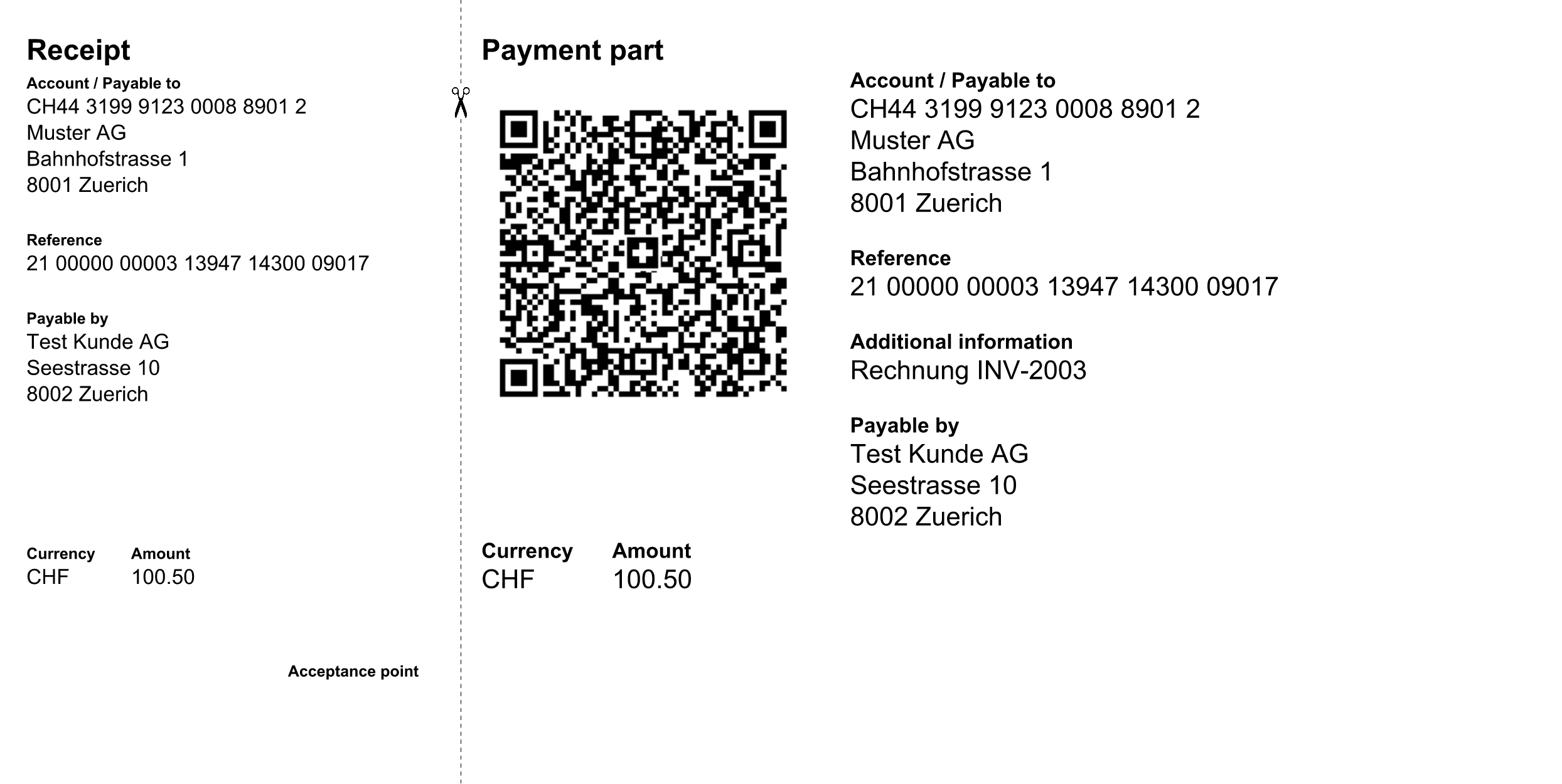
Receipt, scissor line, payment part. The layout is fixed by the standard.
The amount reads 100.50, not 100.5, because the body maps the formula field too.
What You Need
- A Zapier account on a plan that allows multi-step Zaps. Filter by Zapier is built in, but it counts as a step.
- PDF4me API key. Get your API key.
- An Airtable base. The captured base is
PDF4me Live Automationswith a table namedSwiss QR Requests: the creditor block, the debtor block, QRIBAN, Reference, Amount, Currency, Message, Email, a Status field, an OutputLink field and an attachment field calledDocument. - Two Airtable formula fields.
QRIBANCleanstrips spaces from the QR-IBAN,AmountTextformats the amount to two decimals. See the Airtable formula reference if you have not written one before. - A Gmail account connected to Zapier, and a QR-IBAN from your bank. A QR reference needs a QR-IBAN, not an ordinary one.
The Zap at a Glance
- New Record (Airtable) fires on every new row in
Swiss QR Requests. - Filter conditions (Filter by Zapier) continues only when Status is exactly
New. - Create SwissQR Bill (PDF4me) renders the slip as a PNG.
- Update Record (Airtable) writes the file, the status and a link back to the row.
- Send Email (Gmail) delivers the slip to the debtor.
Complete Zap overview
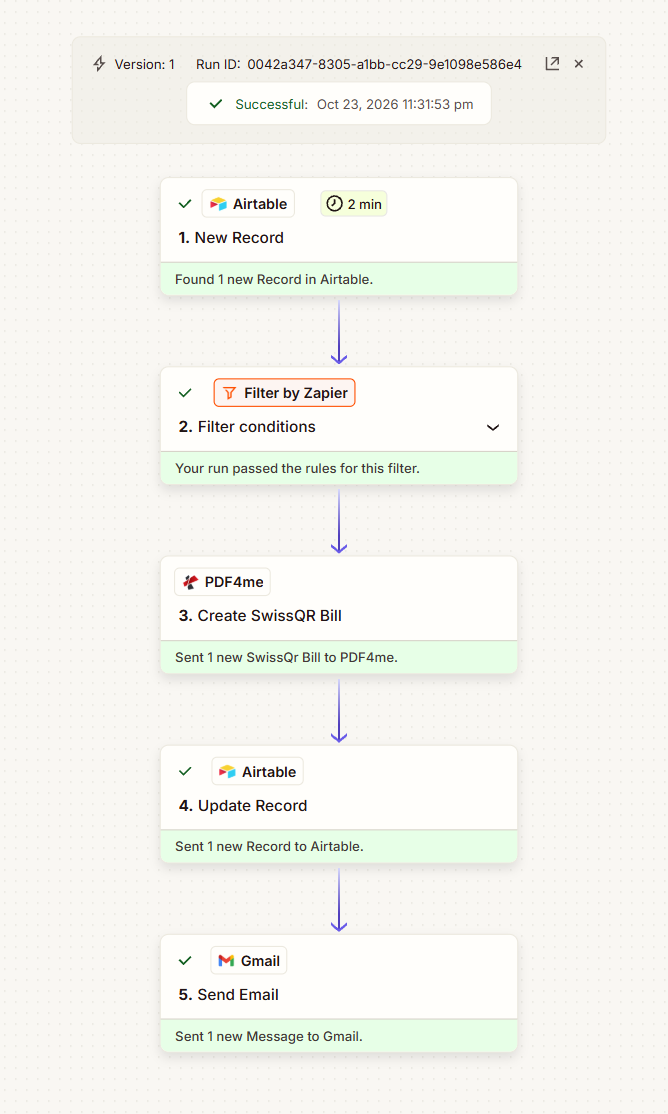
One successful run. The filter in position 2 is what makes the three steps after it safe.
Step 1: How do you trigger a Zap from a new Airtable row?
Flow so far: nothing yet, this is the trigger.
- Create a Zap and pick Airtable > New Record.
- Connect your account, then choose the Base
PDF4me Live Automationsand the TableSwiss QR Requests. - Test. Zapier reports Found 1 new Record in Airtable and every column becomes available to later steps.
The polling badge on the captured Zap reads 2 min, which comes from the plan rather than anything you configure here.
Tip. New Record means new, not changed. If someone creates a row and fills it in ten minutes later, the Zap already saw it as empty and the Filter already rejected it, and nothing will fire when they finish. If your team works that way, trigger on an updated-record event instead and keep the same filter.
Step 2: How do you stop a Zap running on rows that are not ready?
Flow so far: the Airtable trigger.
This is the step the rest of the Zap depends on.
- Add Filter by Zapier > Only continue if....
- Build one rule:
- Field: 1. Status
- Condition: (Text) Exactly matches
- Value:
New
- Test it. Zapier tells you whether the record it has would have continued, and names the field that decided.
Filter conditions configuration
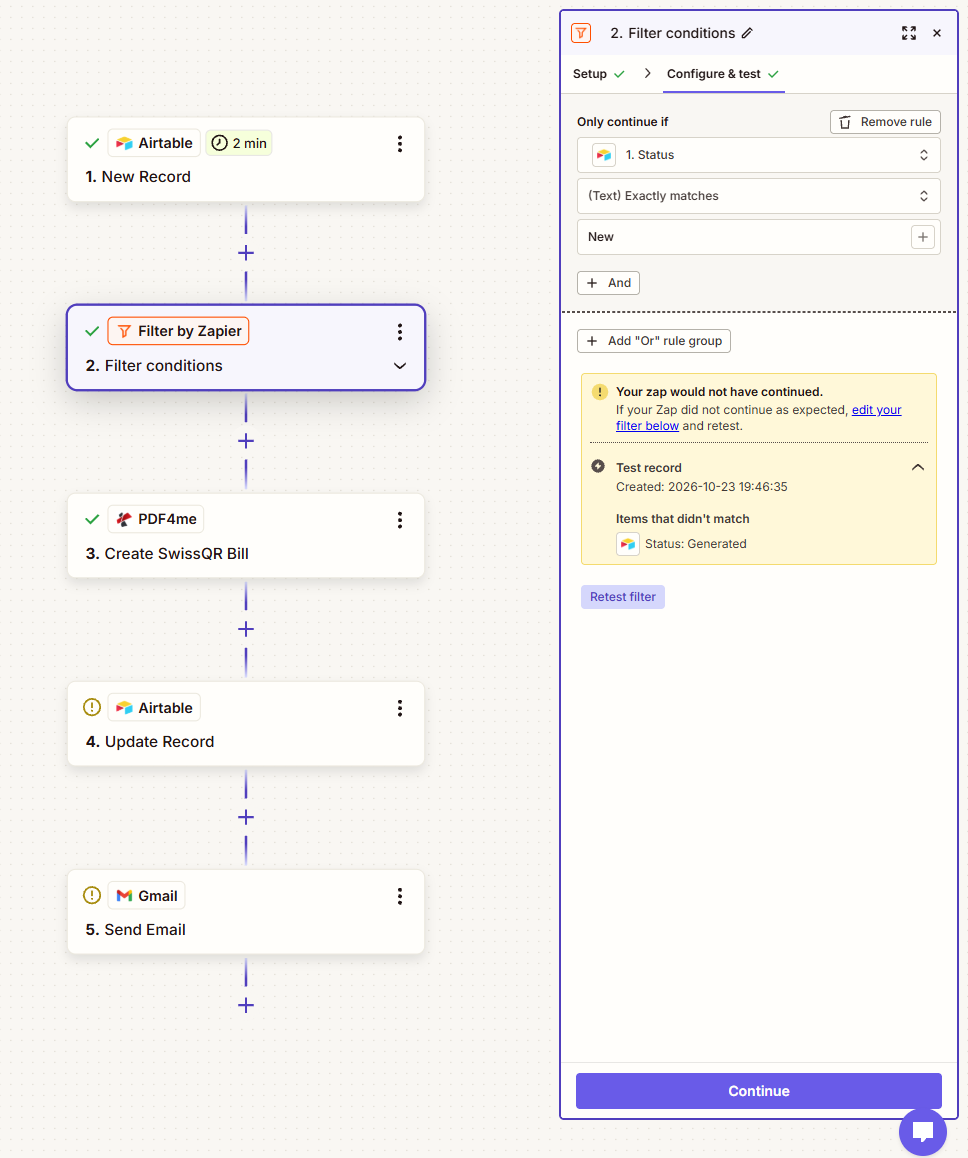
This is the filter working, not failing. The test record was already Generated, so the Zap correctly refuses to issue a second slip for it.
That yellow box is worth reading carefully, because it is the most useful thing on the screen. Your zap would not have continued is not an error. Zapier tested the rule against the most recent record, that record had Status Generated from an earlier run, and the filter did its job. Items that didn't match names the exact field and value that stopped it.
Tip. Exactly matches is case sensitive and whitespace sensitive. new and New with a trailing space both fail, silently, on every row. If a filter never passes, compare the value in the yellow box against your rule character by character before you change anything else. A single select field is safer than free text here precisely because nobody can mistype it.
Step 3: How do you turn the row into a Swiss QR bill?
Flow so far: the trigger and the filter.
Everything from here runs only for rows that passed.
- Add PDF4me > Create SwissQR Bill.
- Set the fields that shape the output:
- Format Type:
PNG - Currency:
CHF - Reference Type:
QRR - Language Type:
English - Separator Line:
Line with Scissor - Creditor Address Type and Ultimate Debtor Address Type:
S
- Format Type:
- Map the payment data from the trigger:
- Amount: the Amount Text formula field, not the raw Amount
- IBAN: the QRIBAN Clean formula field
- Creditor Name, Creditor Street, Creditor City, Creditor Postal Code from the creditor columns, with Creditor Country set to
CH-Switzerland - The Ultimate Debtor fields from the debtor columns, same pattern
- Reference and Unstructured Message from the row
Create SwissQR Bill configuration
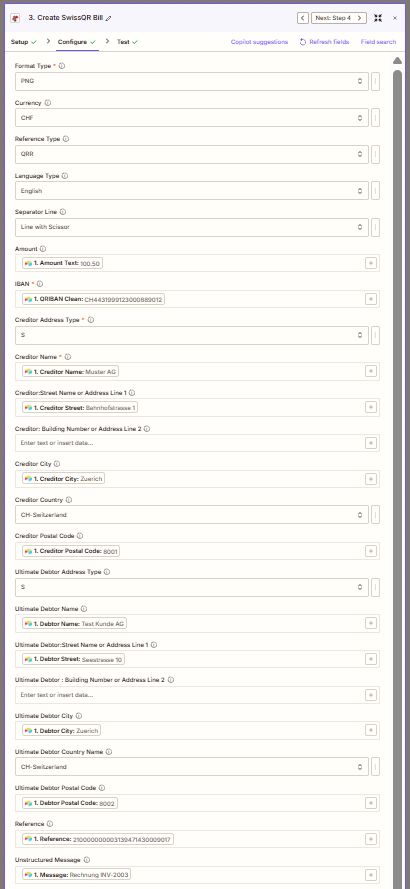
Amount and IBAN both come from formula fields. Everything else maps straight from its column.
What each setting decides
| Field | Value here | What it controls |
|---|---|---|
| Format Type | PNG | An image rather than a PDF, which previews inline in an Airtable attachment cell |
| Reference Type | QRR | A structured QR reference, which requires a QR-IBAN. The alternatives are SCOR and NON |
| Separator Line | Line with Scissor | Draws the cut line between the receipt and the payment part |
| Creditor Address Type | S | Structured address: street, postal code and town in separate fields |
| Amount | AmountText | The formula field, already at two decimals |
| IBAN | QRIBANClean | The formula field, already stripped of spaces |
Tip. Reference Type and the account have to agree. QRR needs a QR-IBAN and a 27 digit reference. Point it at an ordinary IBAN and you get a slip that looks correct and will not scan, which is the worst kind of failure because nothing in the Zap reports a problem.
Step 4: How do you write the slip back to the record?
Flow so far: everything through the PDF4me step.
- Add Airtable > Update Record.
- Configure:
- Base and Table: as in step 1
- Record: the ID from the trigger
- Append attachments:
False - Document: the File Url from step 3
- Status:
Generated - OutputLink: the record URL, if you keep one
- Leave every other field empty.
Update Record configuration
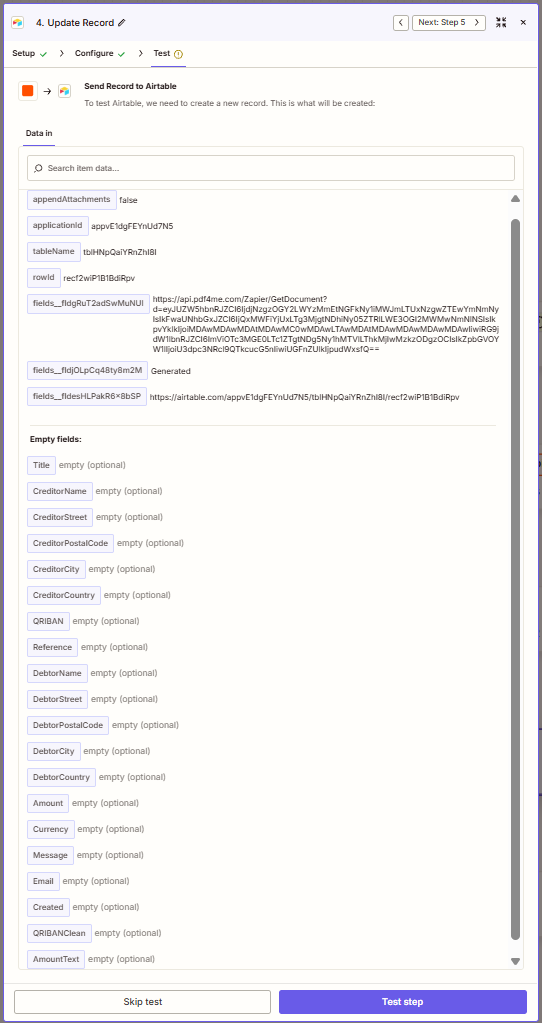
Three fields written, everything else listed as empty. That list is your safety check before you turn the Zap on.
Two things here differ from how you would build this elsewhere. The attachment is a URL, not a file: Zapier hands Airtable the PDF4me link and Airtable fetches it, which is why there is no separate upload step. And Append attachments set to False replaces whatever was in the Document field, so re-running a row overwrites its slip rather than collecting copies.
Zapier will warn you about a loop here, and it is right to. This step writes to the table the Zap triggers on, so its own update could in principle wake the Zap again. It does not, because the update sets Status to Generated and the filter in step 2 only passes New. If you ever relax that filter, read this step again first.
Step 5: How do you send the slip to the debtor?
Flow so far: everything through the record update.
- Add Gmail > Send Email.
- Configure:
- To: the Email column from the trigger
- Subject:
Your Swiss QR billplus the Title - Body type:
Html - Body: a short greeting naming the debtor, the bill and the amount
- Attachments: the File Url from step 3
Send Email configuration
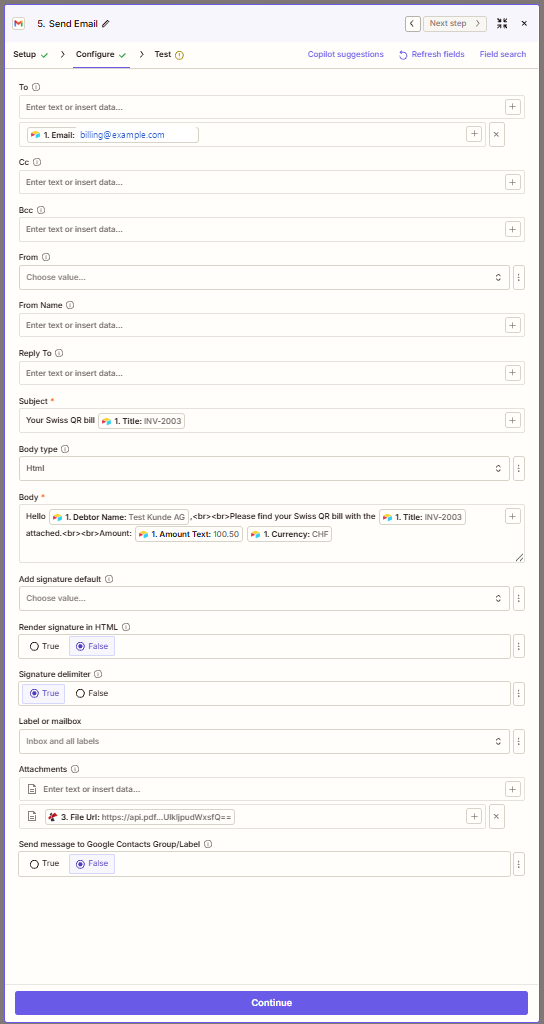
The recipient comes from the row, so each debtor gets their own slip and nobody maintains a mailing list.
Use Amount Text in the body rather than the raw Amount column. It costs nothing and it means the figure in the email matches the figure on the slip, which is the sort of mismatch a customer notices and you do not.
Run the Zap and Verify
- Publish the Zap.
- Add a row to
Swiss QR Requestswith a creditor, a debtor, an amount, a QR-IBAN and StatusNew. - Wait for the poll, then open the Zap run. All five steps should be green.
- Open the row:
Documentshould hold the slip,Statusshould readGenerated. - Open the slip and check the receipt and payment part show the same account, reference and amount.
- Check the debtor's inbox.
- Now add a row with Status
Generatedand confirm the Zap stops at step 2. That is the test most people skip, and it is the one that proves the filter.
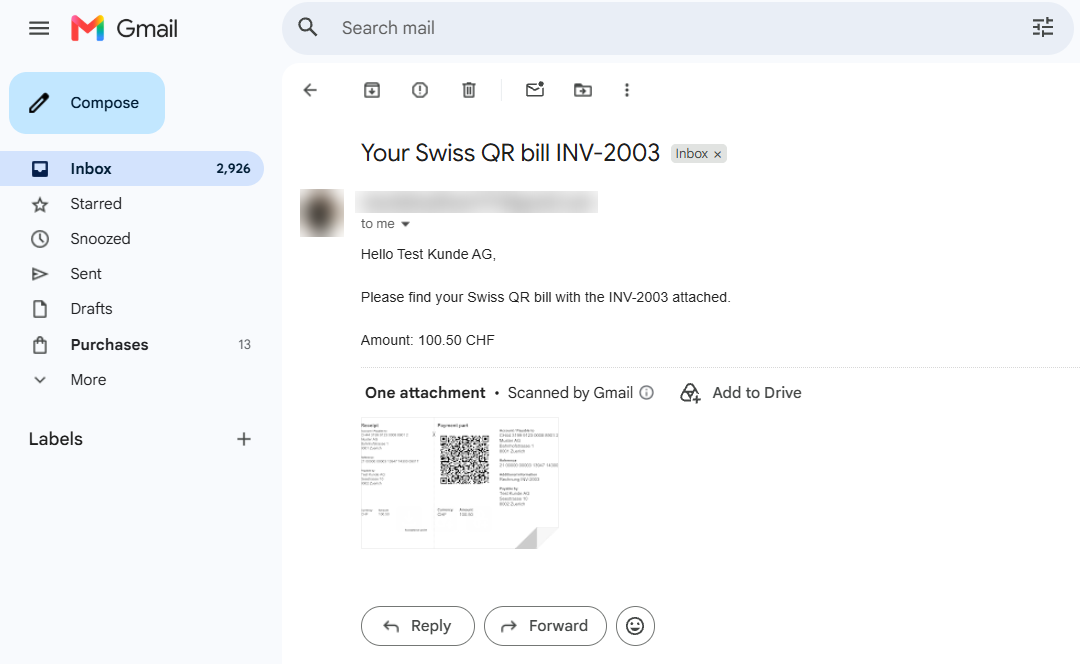
In the captured run, version 1 of the Zap completed successfully on Oct 23 2026 at 11:31:53 pm, producing a slip for INV-2003 payable to Muster AG in Zuerich for CHF 100.50.
What did you actually build? A payment slip generator with a safety catch. The data stays in the base your team edits, the slip ends up attached to the record that produced it, and a single field decides what gets issued. Nobody opens a bank portal, and nobody sends the same bill twice.
Common Variations You Can Add Without Rebuilding
How this compares to building the same flow in Make
We published the same scenario in Make the day before this one: same base, same PDF4me action, same output. The differences are all in how the platform makes you say it.
| Comparison | In Make | In this Zap |
|---|---|---|
| Filtering rows vs this Zap | A Formula on the trigger, free | A Filter step, which consumes a task per row seen |
| Cleaning the IBAN and amount vs this Zap | replace() and formatNumber() inside the module | Two Airtable formula fields the Zap maps |
| Attaching the file vs this Zap | A separate Upload an attachment module carrying bytes | A File Url written straight into the attachment field |
| This Zap | 5 modules, logic split between trigger and modules | 5 steps, logic split between Airtable and the filter |
Common questions
What is a Swiss QR bill?
A Swiss QR bill is the payment slip that replaced the old orange and red forms in Switzerland. It carries a QR code holding the creditor, the debtor, the amount and the reference, so the payer scans it in their banking app instead of typing anything.
It has two halves, a receipt and a payment part, separated by a cut line, and the layout is fixed by the Swiss implementation guidelines published by SIX. Generating one is a specification problem, not a design problem.
What is the QR-IBAN number in Switzerland?
A QR-IBAN is a second account number your bank issues alongside your ordinary IBAN, recognisable because its institution identifier falls in a reserved range. It tells the bank that an incoming payment carries a structured QR reference, so it can match the payment to an invoice automatically.
For this Zap the rule is simple: if Reference Type is QRR, the IBAN field must hold the QR-IBAN. Mixing them produces a slip that scans into an error.
Can Airtable create invoices?
Not payable ones. Airtable holds the data and can lay it out in an interface or a printable view, but it cannot render a QR code to a payment specification, and it has no way to validate what it produced.
What it does well here is being the record and, through formula fields, the place where the data is cleaned. The Zap carries it to something that speaks the standard and brings the result back.
Why is my Zapier filter not working?
Nine times out of ten the value does not match the way you think it does. Exactly matches compares the whole string including case and trailing spaces, so new, New and NEW all fail against New.
Open the filter's test panel and read the Items that didn't match line. It prints the field and the value Zapier actually saw, which is usually enough to spot the difference immediately. Switching the Airtable column to a single select removes the problem for good.
Troubleshooting
Read the Items that didn't match line in the filter's test panel: it names the field and the value. Usually the Status column holds something other than exactly New, or the trigger fired on a row before anyone set it.
Step 4 is not setting Status, or it is setting it to a value the filter still passes. The update and the filter are one mechanism: if they disagree, the Zap can re-process its own output. Check them together, not separately.
Airtable fetches the file from the URL you give it, so the URL has to be reachable when Airtable asks. Confirm step 4 maps File Url from the PDF4me step and not some other field, and check the record id comes from the trigger.
The filter runs on every row the trigger sees, so rows it rejects still cost you. If the table takes a lot of traffic that is never meant to be invoiced, give the Zap a view that only contains candidate rows instead of the whole table.
Next Steps
Most automations fail on the rows you did not mean to process, not the ones you did. One field and one step is usually the whole fix.