Swiss QR Bill from an Airtable Base: Generate, Attach and Email It in Make with PDF4me
PDF4me Create Swiss QR-bill is a Make module that turns payment details into a Swiss QR bill image. Pointed at an Airtable base, it reads the creditor, the debtor and the QR-IBAN from a row, puts the finished slip back on that same record as an attachment, and emails it to the debtor.
Ask whether Airtable can produce an invoice and the honest answer is no, not a payable one. It holds the creditor, the debtor, the amount and the QR-IBAN perfectly well, but a Swiss QR bill is a specification: a defined layout, a scissor line, a reference in the right format, and a QR code a bank app will actually accept. The usual advice is to leave Airtable, open your bank's portal and retype the row. This scenario does the opposite, and the data never leaves the base it already lives in.
Someone adds a row to an Airtable table with a creditor, a debtor, an amount and a QR-IBAN, and sets Status to New. Make picks it up, PDF4me renders the Swiss QR bill, and the image goes straight back onto that record as an attachment. The debtor gets it by email. Five modules, no bank portal, and the invoice data stays in the base your team already edits.
Why-Based Q&A
Why keep the payment data in Airtable? Because for a lot of small finance teams it is already there, next to the client record and the project it belongs to. Moving it into an accounting package to produce one payment slip means maintaining the same customer in two systems. A row is also something a non-technical colleague can fix without asking anyone.
Why put the image back on the record instead of into a folder? Because a file in a folder loses its connection to the thing that produced it. Attaching the PNG to the Document field on the same row means the slip, the amount it was built from and the status all travel together, and anyone looking at the row can see the artefact without going anywhere else.
Why filter the trigger on Status rather than watching everything? Because Watch records would otherwise fire on every row you ever add, including half-finished ones. The formula on the trigger makes New an explicit instruction: the row is complete and ready. It also gives you a safe way to re-issue a slip, which is to set the status back.
Why does the QR-IBAN get cleaned before it is sent? Because people type IBANs with spaces, and the specification wants the account without them. The IBAN field runs the column through a replace that strips spaces, which is the difference between a slip a bank app reads and one it rejects. The same thinking applies to the amount, which is formatted to two decimals rather than passed raw.
What You'll Get
Input: an Airtable row with a creditor, a debtor, an amount, a currency and a QR-IBAN, with Status set to New. Output: a Swiss QR bill PNG attached to that same record, and an email to the debtor with the slip attached.

One row per bill. Every column here maps onto a field the Swiss QR specification asks for.
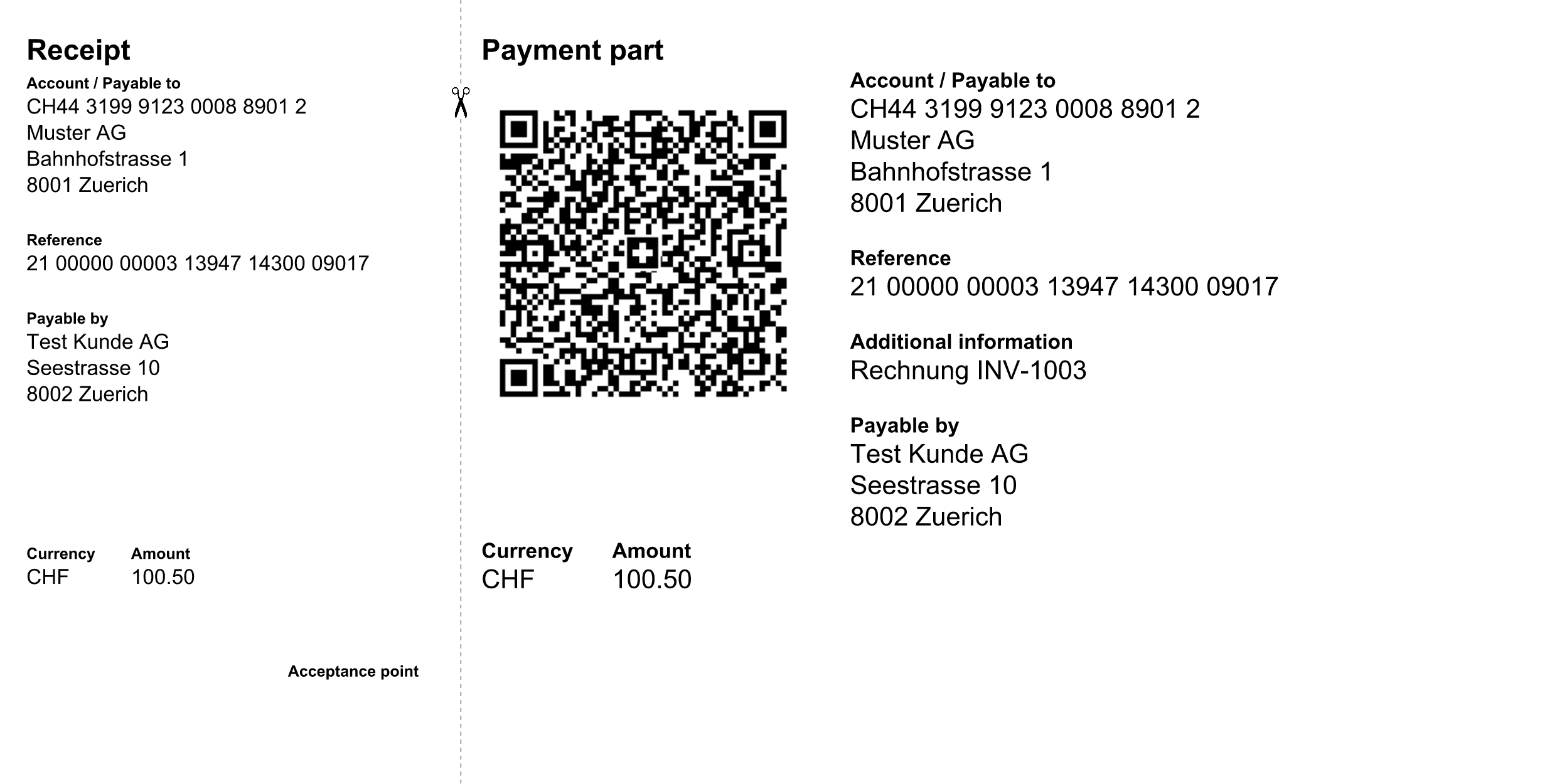
Receipt on the left, payment part on the right, scissor line between them.
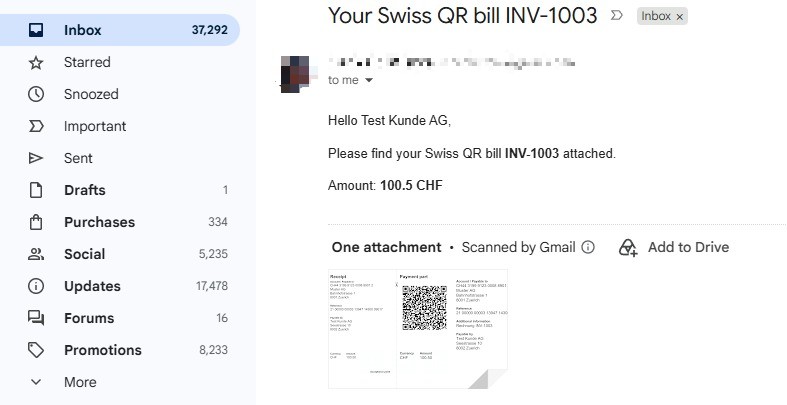
What the debtor receives, built entirely from the row.
What You Need
- A Make account. Open Make. Five modules on standard apps, no premium tier needed.
- PDF4me API key. Get your API key. One PDF4me connection covers the whole scenario.
- An Airtable base. The captured base is called
PDF4me Live Automationswith a table namedSwiss QR Requests. It needs the creditor block, the debtor block, QRIBAN, Reference, Amount, Currency, Message, Email, a Status field, and an attachment field calledDocumentfor the finished slip. - A Gmail account for delivery, connected to Make.
- A real QR-IBAN from your bank. This is not an ordinary IBAN: Swiss QR-IBANs sit in a dedicated institution range and are what make a structured QR reference work. Your bank issues one on request.
The Scenario at a Glance
- Watch records (Airtable) picks up new rows in
Swiss QR Requests. - Create Swiss QR-bill (PDF4me) renders the slip as a PNG.
- Upload an attachment (Airtable) attaches it to the
Documentfield on the same row. - Update a record (Airtable) writes the outcome back to the row.
- Send an email (Gmail) delivers the slip to the debtor.
Complete scenario overview
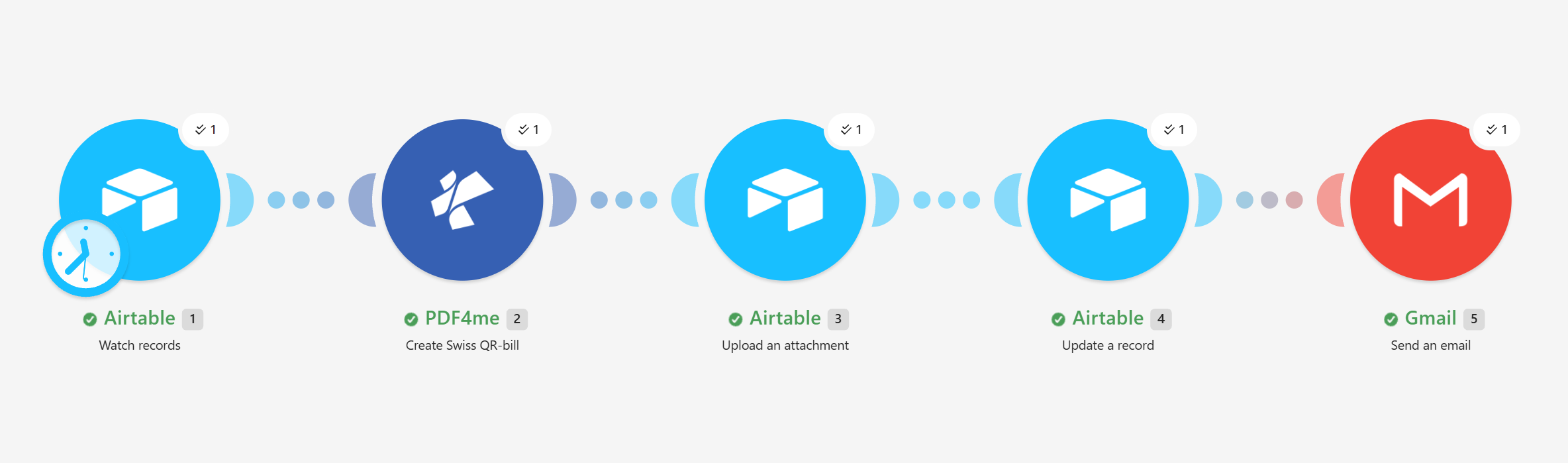
Three Airtable modules, one PDF4me module and one Gmail module. The base is both the source and the destination.
Step 1: How do you trigger a scenario from an Airtable row?
Flow so far: nothing yet, this is the trigger.
A row marked ready is the request, so that is what Make watches.
- Add Airtable > Watch records as the trigger.
- Configure:
- Base:
PDF4me Live Automations - Table:
Swiss QR Requests - Trigger field:
Created - Label field:
Title - Limit:
10 - Formula:
{Status}='New'
- Base:
Watch records configuration
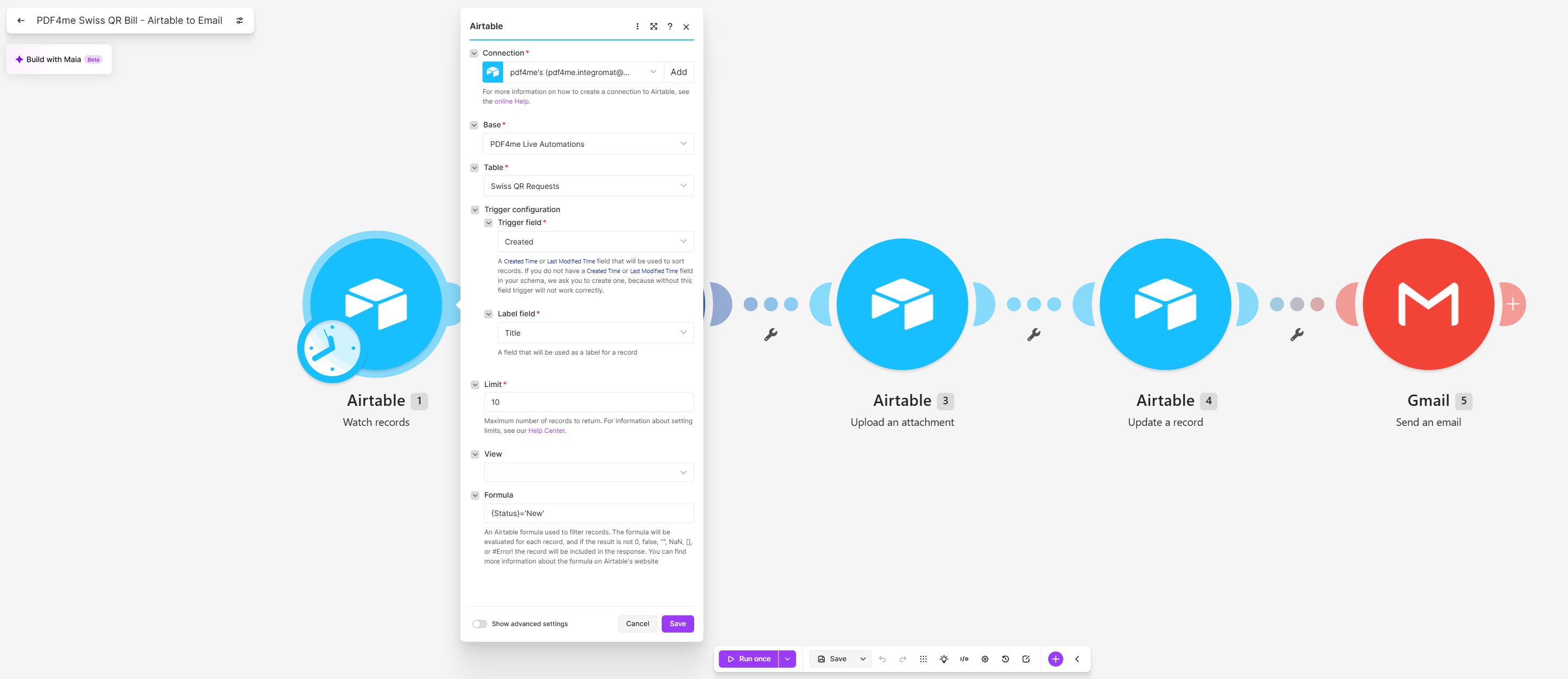
The Formula is what stops the scenario firing on half-finished rows.
Tip. Trigger field must be a Created Time or Last Modified Time field, and Make says so in the module. Without one the trigger cannot sort records and will behave unpredictably. If your table has no such field, add one before you build the rest of this.
Step 2: How do you turn a row into a Swiss QR bill?
Flow so far: the Airtable trigger.
This is the module that produces the slip. Most of its fields are a direct mapping from the row; two of them need an expression.
- Add PDF4me > Create Swiss QR-bill.
- Configure the settings that shape the output:
- Format Type:
PNG - Reference Type:
QRR - Language:
English - Separator Line:
Line With Scissor - Creditor Address Type:
S
- Format Type:
- Map the payment data from the trigger:
- Amount:
formatNumber(1.Amount; 2; "."; "") - IBAN:
replace(1.QRIBAN; " "; "") - Creditor Name, street, postal code, city and country from the Creditor columns
- Debtor name and address from the Debtor columns, and the Reference from the row
- Amount:
Create Swiss QR-bill configuration
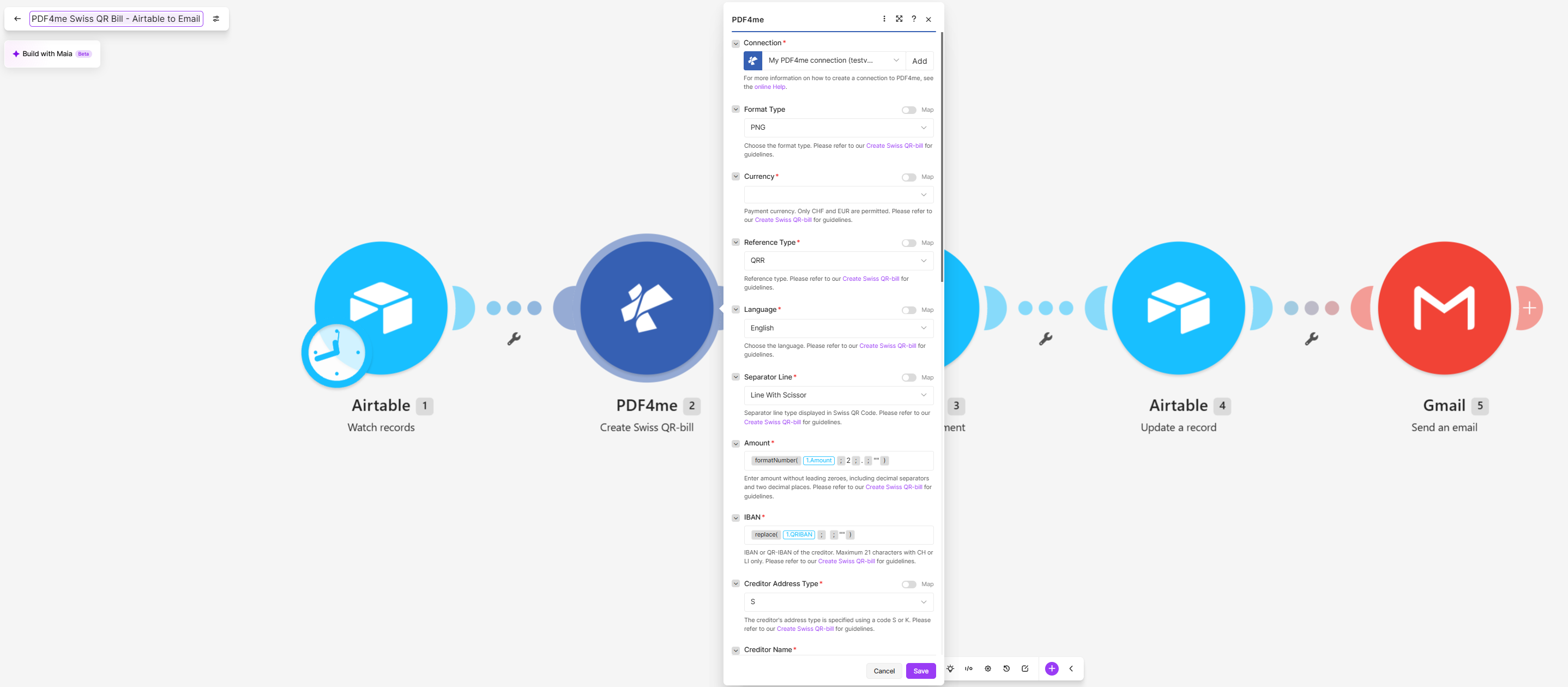
The panel is scrolled here. Below Creditor Name sit the rest of the creditor address and the whole debtor block.
What each setting decides
| Field | Value here | What it controls |
|---|---|---|
| Format Type | PNG | An image rather than a PDF, which is what lets it attach to an Airtable cell and preview inline |
| Reference Type | QRR | A structured QR reference, which is the type that needs a QR-IBAN. The alternatives are SCOR and NON |
| Separator Line | Line With Scissor | Draws the cut line between the receipt and the payment part |
| Creditor Address Type | S | Structured address, meaning street, postal code and town in separate fields rather than free text |
| Amount | formatNumber(...) | Two decimals and no thousands separator, which is what the specification expects |
| IBAN | replace(...) | Strips the spaces people type into IBANs before the account is validated |
Tip. Reference Type and the account have to agree. QRR requires a QR-IBAN and a 27 digit QR reference; an ordinary IBAN with a QRR reference is the single most common reason a generated slip fails validation. If you do not have a QR-IBAN yet, use NON and leave the reference empty until your bank issues one.
Step 3: How do you put the slip back on the record?
Flow so far: the trigger plus the PDF4me module.
The row asked for the bill, so the row should carry it.
- Add Airtable > Upload an attachment.
- Configure:
- Base and Table: as in step 1
- Record ID: the
idfrom the trigger - Attachment field:
Document - File: the output of PDF4me - Create Swiss QR-bill
- File name:
QRBill_plus the Title from the row plus.png - Data: the Document output of module 2
- Content type:
PNG image
Upload an attachment configuration
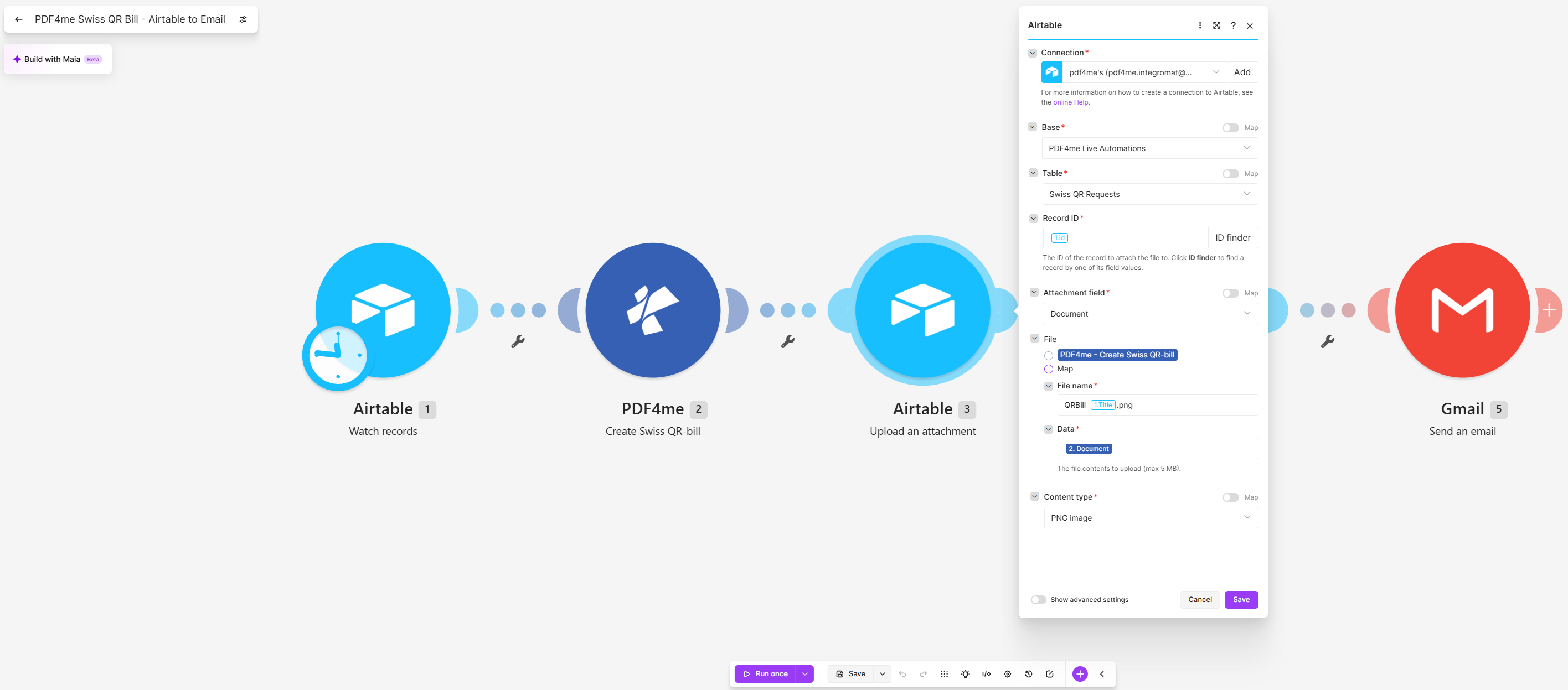
Record ID comes from the trigger, so the slip lands on the row that asked for it.
Step 4: How do you record the outcome on the row?
Flow so far: everything through the attachment upload.
Attaching the file is not the same as saying the work is done. A separate update writes the outcome.
- Add Airtable > Update a record.
- Configure:
- Base and Table: as in step 1
- Record ID: the
idfrom the trigger - Record: fill in the fields you want written back. Status is the important one, because it is what the trigger formula reads, and an OutputLink column is a convenient place for a shareable URL.
Update a record configuration
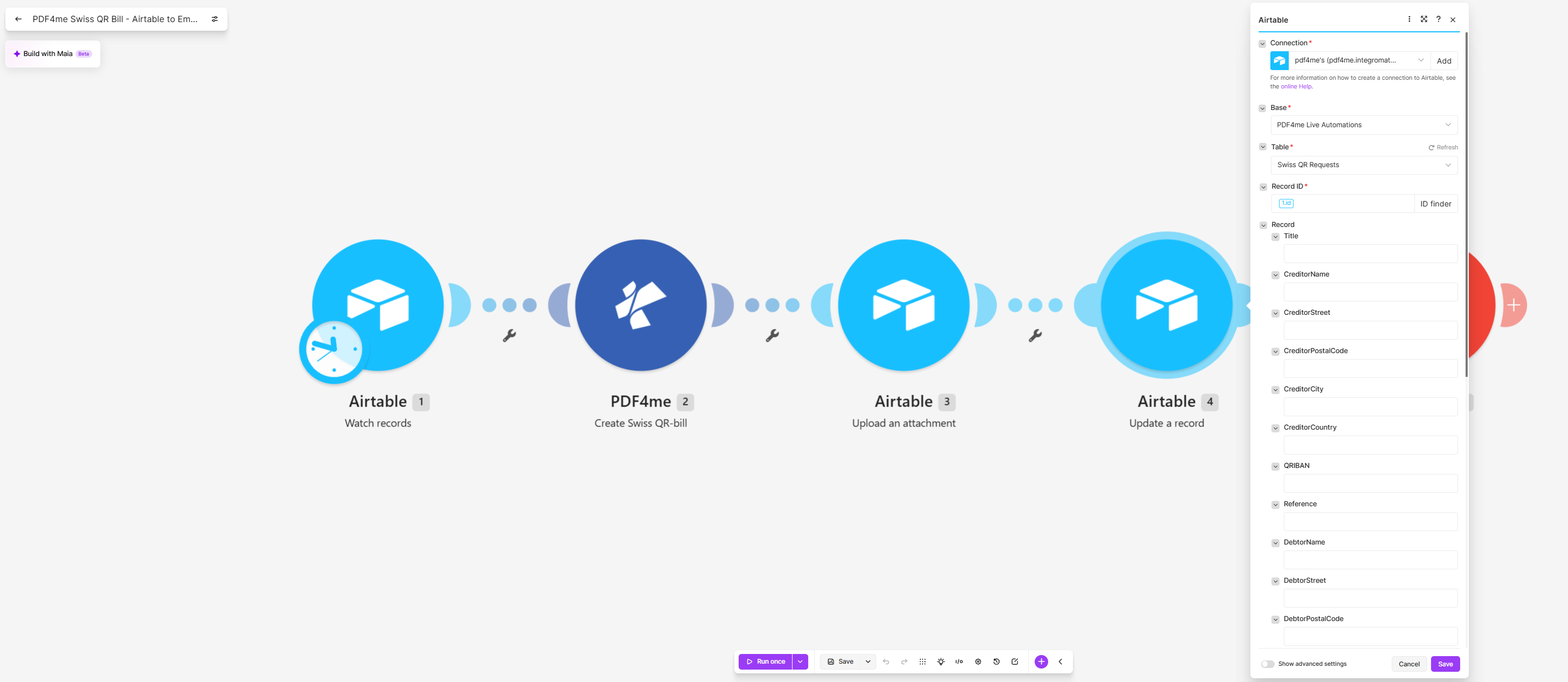
The panel lists every column in the table. Leave blank anything you do not want overwritten.
Tip. Leave every field blank except the ones you actually intend to change. A mapped-but-empty field will clear the cell, which is an easy way to wipe a creditor address on a scenario that otherwise looks like it worked. In the captured run the panel is scrolled and the visible fields are all empty, so set Status deliberately rather than copying what you see.
Step 5: How do you send the bill to the debtor?
Flow so far: everything through the record update.
The last module delivers the slip to the address on the row.
- Add Gmail > Send an email.
- Configure:
- To: the Email column from the trigger
- Subject:
Your Swiss QR billplus the Title - Body type:
Raw HTML - Content: a short HTML body naming the debtor, the bill and the amount
- Add the attachment:
- File: the PDF4me - Create Swiss QR-bill output
- File name:
QRBill_plus the Title plus.png - Data: the Document output of module 2
Send an email configuration
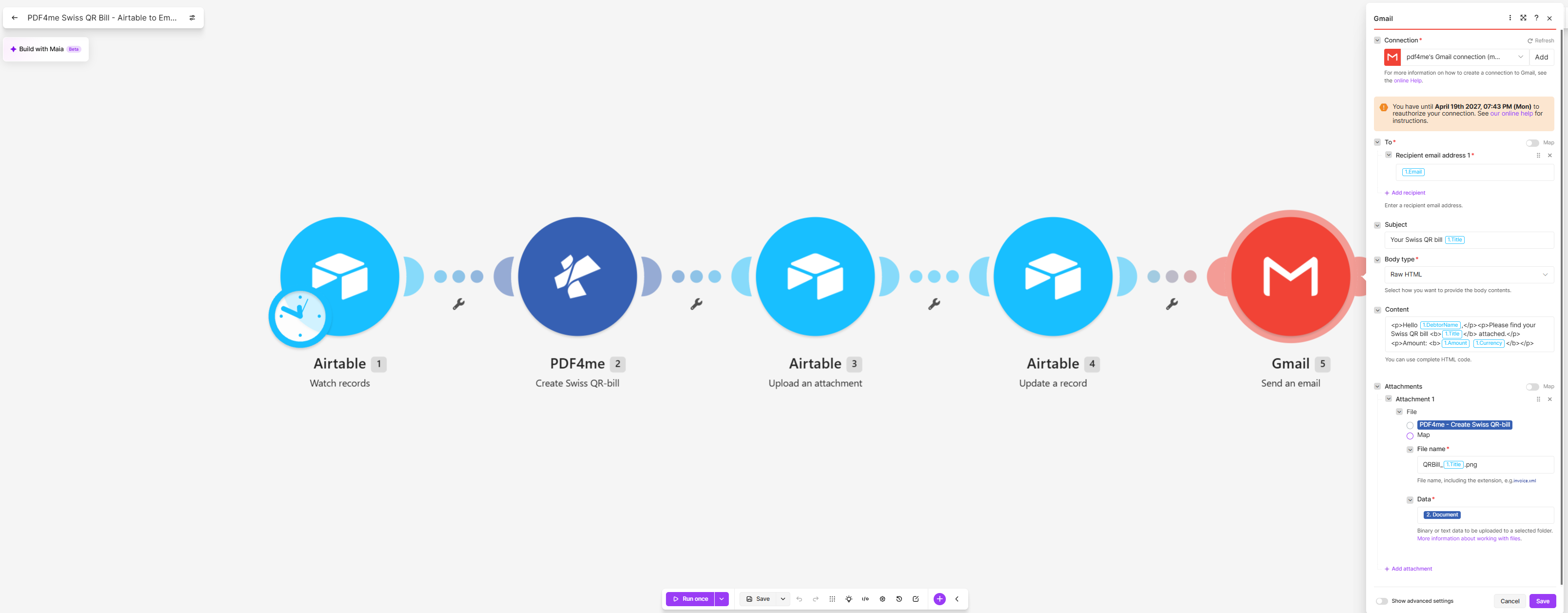
The attachment takes its bytes from module 2, so Airtable is never read back.
Tip. Watch the amount in the email body. The captured message reads Amount: 100.5 CHF while the slip itself reads 100.50, because the body maps the raw column while the QR bill goes through formatNumber. Use the same expression in both places unless you enjoy explaining the difference to a customer.
Run the Scenario and Verify
- Save the scenario and run it once.
- Add a row to
Swiss QR Requestswith a creditor, a debtor, an amount, a QR-IBAN and StatusNew. - Watch the five modules light up. Each should report one operation.
- Open the row: the
Documentfield should hold a PNG named after the Title. - Open the attachment and check both halves. The receipt and the payment part must show the same account, reference and amount, with the scissor line between them.
- Check the inbox on the Email column for the message and its attachment.
In the captured run, row INV-1003 produced a slip payable to Muster AG at Bahnhofstrasse 1, 8001 Zuerich, on account CH44 3199 9123 0008 8901 2, with reference 21 00000 00003 13947 14300 09017, payable by Test Kunde AG at Seestrasse 10, 8002 Zuerich, for CHF 100.50.
What did you actually build? A payment slip generator that lives inside the database your team already uses. Nobody logs into a bank portal, nobody retypes an IBAN, and the slip ends up attached to the record that produced it, so a month later you can still see which row made which bill.
Common Variations You Can Add Without Rebuilding
How this compares to the other ways of producing a Swiss QR bill
Each row describes the alternative. The last row is this scenario.
| Comparison | Who runs it | Where the data comes from | What you maintain |
|---|---|---|---|
| Bank portal vs this scenario | A person, one slip at a time | Retyped by hand | Nothing, but every bill costs someone minutes |
| Accounting package with Swiss QR export vs this scenario | Finance, inside that product | The product's own ledger | A subscription, and a second home for your customers |
| Developer library vs this scenario | A developer, inside an application | Your database, through code | The code, the spec updates and the releases |
| This scenario | Anyone who can add an Airtable row | The base the team already keeps | Five modules and a QR-IBAN |
Common questions
What is a Swiss QR bill?
A Swiss QR bill is the payment slip that replaced the old orange and red payment forms in Switzerland. It carries a QR code holding the creditor, the debtor, the amount and the reference, so the payer scans it in their banking app instead of typing anything.
It comes in two halves, a receipt and a payment part, separated by a cut line, and the layout is fixed by the Swiss implementation guidelines published by SIX. That is why generating one is a specification problem rather than a design problem.
What is the QR-IBAN number in Switzerland?
A QR-IBAN is a second account number your bank issues alongside your ordinary IBAN, recognisable because its institution identifier falls in a reserved range. It exists so the bank can tell that an incoming payment carries a structured QR reference and match it to an invoice automatically.
The practical rule for this scenario: if you set Reference Type to QRR you must use the QR-IBAN, not your normal one. Mixing them is what produces a slip that looks right and will not scan.
How to pay a Swiss QR bill?
The payer opens their banking app, scans the QR code in the payment part, checks the amount on screen and confirms. Nothing is typed, which is the entire point of the format.
A slip can also be paid at a post office counter or entered manually from the printed fields, which is why the payment part repeats the account, reference and amount as readable text next to the code.
Can Airtable create invoices?
Not on its own. Airtable stores the data and can lay it out in an interface or a printable view, but it has no way to produce a document that satisfies a payment standard, and no way to render a scannable QR code to that specification.
What it is good at is being the source of truth. This scenario keeps that division: Airtable holds the row, PDF4me produces the compliant artefact, and the result comes back to the row as an attachment.
Troubleshooting
Check the account and the reference type together. A QRR reference needs a QR-IBAN; an ordinary IBAN needs SCOR or NON. Then check the IBAN actually reached the module without spaces, which is what the replace expression is there for.
The trigger Formula is missing or does not match. {Status}='New' is case sensitive and the field has to be a single select or text field whose value is exactly New. Also confirm Trigger field is a Created Time or Last Modified Time field.
Check Record ID in module 3. It must come from the trigger, not from the PDF4me module. Then check Content type matches Format Type: a PNG from module 2 uploaded as a PDF file will attach and then refuse to preview.
Module 4 lists every field in the table, and a field that is mapped but empty clears the cell. Leave untouched anything you are not deliberately writing.
Next Steps
The database you already keep is usually closer to a finished payment document than it looks. It just needs something that speaks the specification.