Split PDF by Text in Power Automate: Turn One Scanned Batch into Separate Files with PDF4me

PDF4me Split PDF by Text is a Power Automate action that cuts one PDF into several files wherever a text marker appears. This flow watches a SharePoint folder, splits each new scan on a Serial#: marker, then loops the results into Dropbox. One batch scan becomes three named files, with no manual page picking.
Anyone who runs a scanner knows the problem. Somebody drops a stack of documents in the feeder, hits scan once, and you get back a single PDF holding twenty unrelated records. Every online splitter on the first page of Google will happily fix that, as long as a human uploads the file, clicks through a page picker, and downloads the pieces. That is fine once. It is not fine when the scanner runs every morning. This flow removes the human from the loop entirely.
A scan lands in a SharePoint library. PDF4me reads the text layer, finds every page that starts a new record, and returns an array of separate PDFs. A For each loop walks that array and drops each file into Dropbox. Four actions, no expressions to write, and the whole run finishes in under six seconds.
Why-Based Q&A
Why split on text instead of page count? Page count only works when every record is the same length. Real batches are not uniform. One invoice runs a page, the next runs four. A text marker travels with the record, so the split stays correct no matter how the lengths move around.
Why does the PDF need a text layer? The action searches the text inside the document, not the pixels. A photographed or flatbed scan with no OCR applied has no text to find, so every match returns empty. Run OCR first and the same flow works on paper originals.
Why a For each loop after the split? The action gives back an array, not a single file. Power Automate cannot write an array to storage in one move, so the loop turns "three documents" into three separate Create file calls.
Why send the output to Dropbox and not back to SharePoint? Habit, mostly, plus it keeps the input and output folders visibly separate while you test. Swap the last action for SharePoint Create file and nothing else in the flow changes.
What You'll Get
Input: one multi-record PDF dropped into a SharePoint document library, where each record begins with a line reading Serial#: SPTEST-A, Serial#: SPTEST-B, and so on. Output: one PDF per record in a Dropbox folder, each holding exactly the pages belonging to that record.
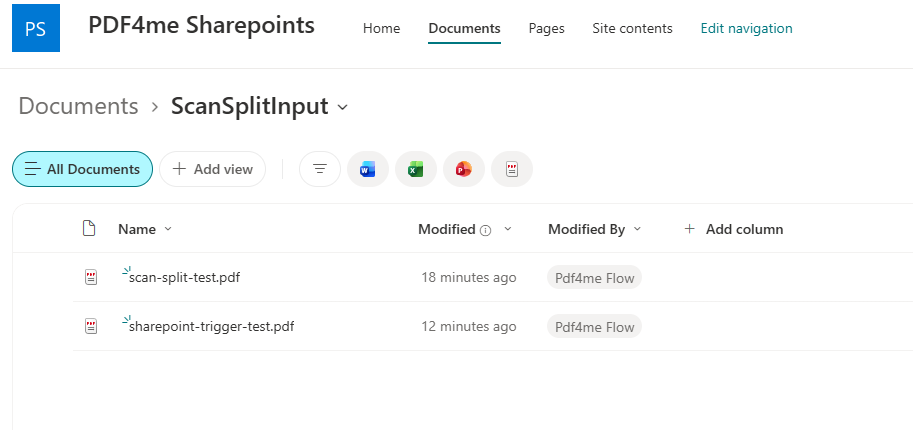
The watched SharePoint folder. Anything landing here starts a run.
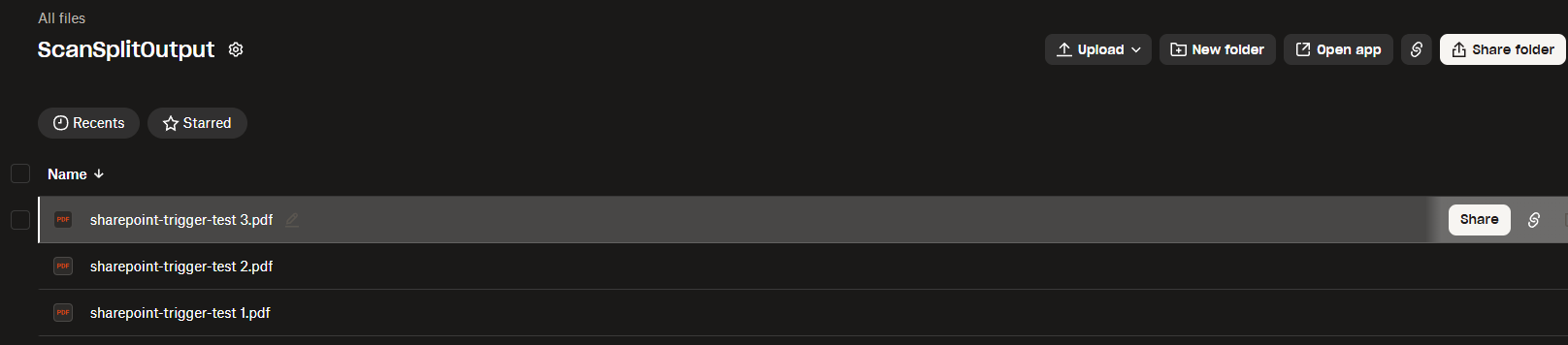
One three-page scan in, three separately numbered PDFs out.
What You Need
- Power Automate. Open Power Automate. A standard Microsoft 365 licence covers everything used here. This is a cloud flow, not Power Automate Desktop.
- PDF4me API key. Get your API key. Connect it the first time you add a PDF4me action.
- A SharePoint site and a Dropbox account. Create an input folder in a SharePoint document library and an output folder in Dropbox before you build the flow, so both pickers have somewhere to point.
- A test PDF with repeating text markers. scan-batch-sample.pdf. Three pages, each opening with its own Serial# line.
Grab the samples first. Download the input PDF and upload it to your SharePoint input folder once the flow is saved. The three expected output files are here too, so you can compare them against what your own run produces.
The Flow at a Glance
- When a file is created in a folder (SharePoint trigger) pointed at
/Shared Documents/ScanSplitInput. - PDF - Split PDF by Text (PDF4me) with the search text
Serial#:(.*)and Split Typebefore. - For each iterating
body/splitedDocuments. - Create file (Dropbox) writing into
/ScanSplitOutput.
Complete flow overview
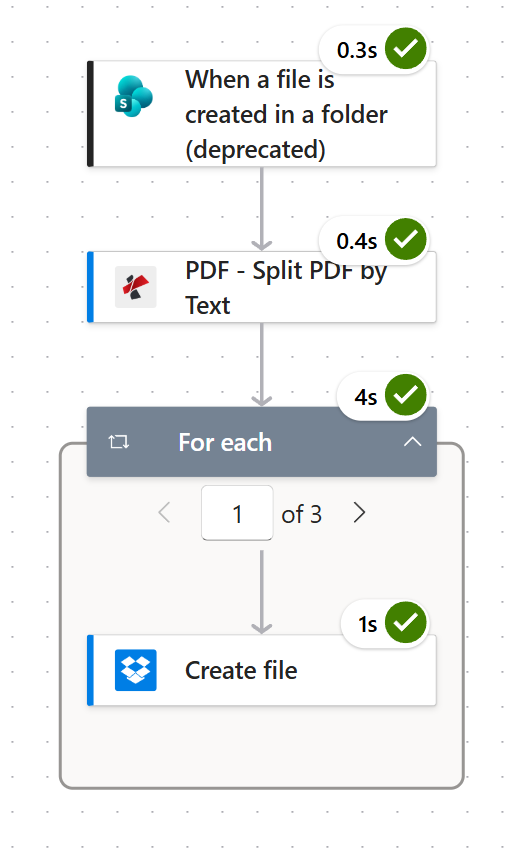
The whole flow is four actions. The For each counter reading "1 of 3" is the split doing its job.
Step 1: How do you watch a SharePoint folder for new scans?
Flow so far: nothing yet, this is the trigger.
The trigger fires whenever a file appears in one specific document library folder. Pick the folder narrowly. Pointing this at the root of a shared library means every unrelated upload starts a run.
- Create a new Automated cloud flow and search the trigger list for When a file is created in a folder.
- Configure:
- Site Address: your site, for example
PDF4me Sharepoints - https://ynoox1.sharepoint.com/sites/PDF4meSharepoints - Folder Id:
/Shared Documents/ScanSplitInput
- Site Address: your site, for example
- Open Advanced parameters and switch on Infer content type, then set it to
Yes.
SharePoint trigger configuration
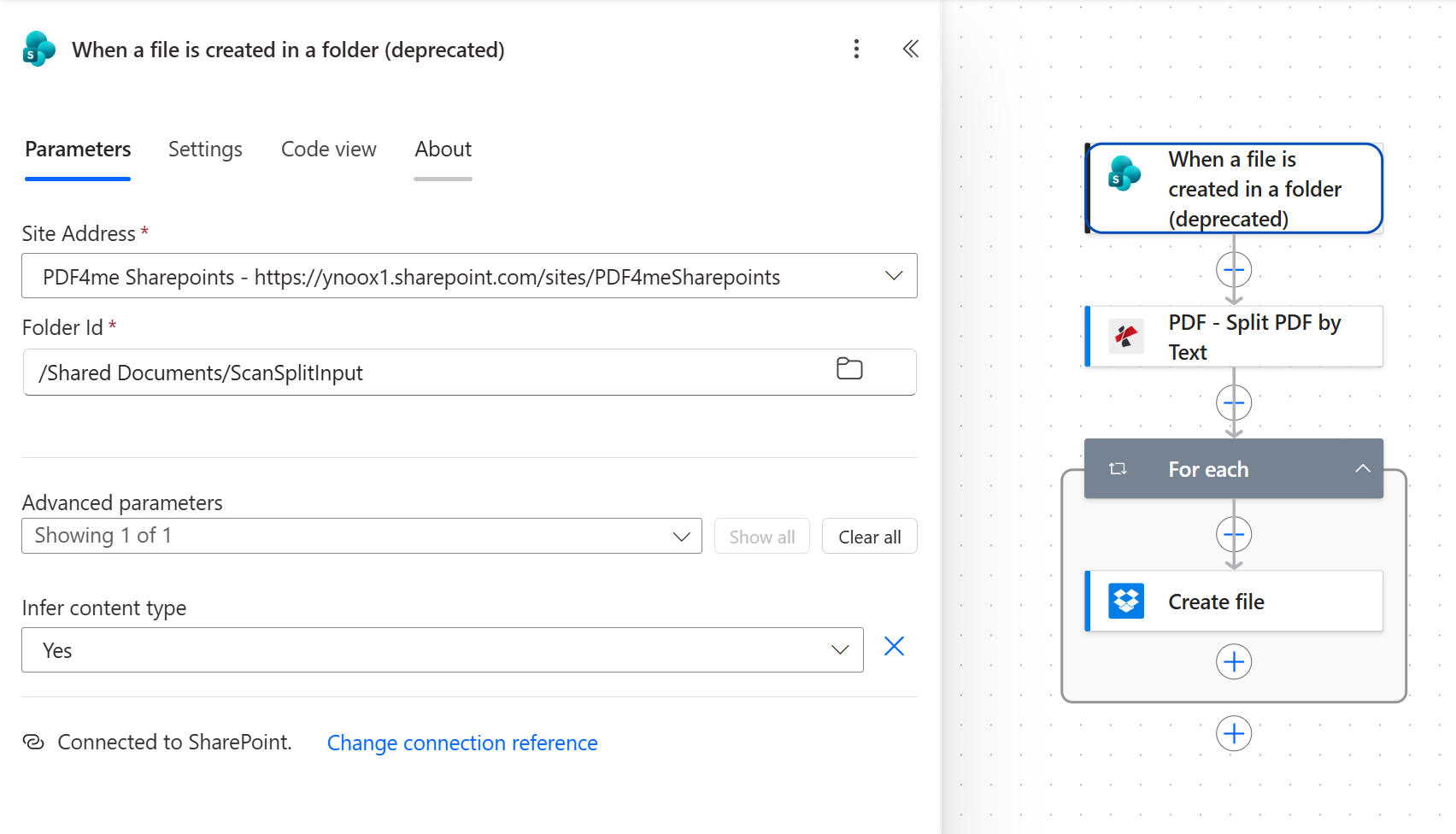
Infer content type set to Yes is what makes the trigger hand you real PDF bytes rather than a generic blob.
Tip. This trigger carries a "(deprecated)" label in the picker. It still runs, and it is the one shown here, but for a new production flow prefer When a file is created (properties only) followed by Get file content. The rest of the flow is identical, because both routes end with file bytes in hand. Microsoft lists every trigger and its status in the SharePoint connector reference.
Step 2: How does Split PDF by Text decide where to cut?
Flow so far: SharePoint trigger.
This is the action doing the real work. It reads the document's text layer, finds every page containing your search text, and cuts the document at those pages. Everything else is plumbing.
- Add a new step and search for PDF - Split PDF by Text.
- Configure:
- File Content:
File Contentfrom the trigger - File Name:
x-ms-file-name-encodedfrom the trigger - Text:
Serial#:(.*) - Split Type:
before - Split File Naming:
NameAsPerOrder
- File Content:
- Connect your PDF4me account when prompted for a connection.
Split PDF by Text parameters
| Parameter | Value used here | What it controls |
|---|---|---|
| File Content | File Content from trigger | The PDF bytes to split. Must be a real PDF with a searchable text layer. |
| File Name | x-ms-file-name-encoded | Source name used for processing identification and as the stem for the output names. |
| Text | Serial#:(.*) | The marker that starts a new record. Matching is case sensitive, so serial#: would find nothing. |
| Split Type | before | Cuts immediately before each matching page, so the marker page opens its own document. Use after to close the previous one instead. |
| Split File Naming | NameAsPerOrder | Numbers the outputs in the order they were cut, producing name 1.pdf, name 2.pdf, name 3.pdf. |
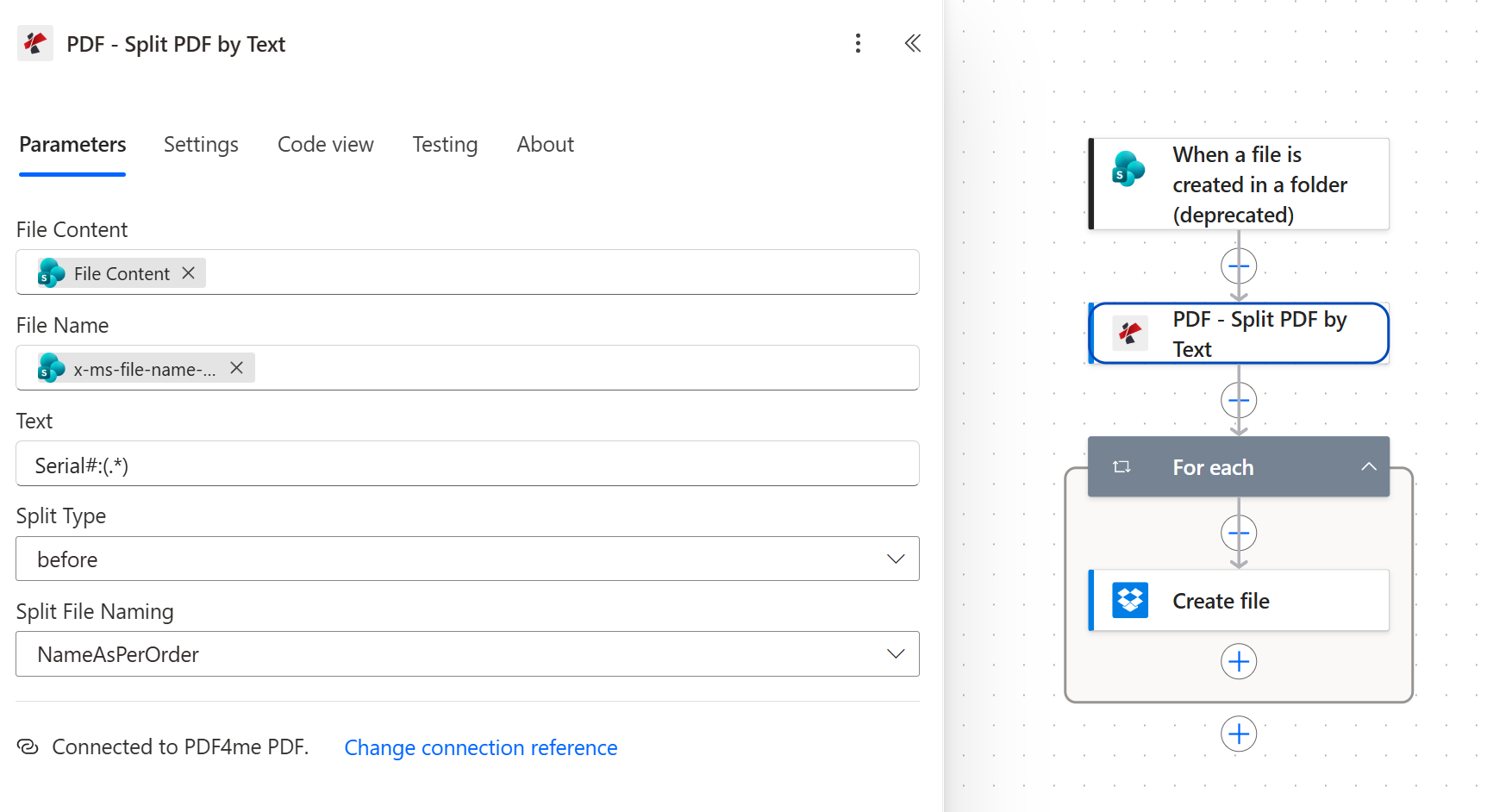
Split Type before is the difference between a marker opening its record and closing the one above it. Get this backwards and every file is off by one page.
Tip. Choose a marker that cannot appear anywhere else in the document. Serial#: is safe. A bare word like Invoice is not, because it will also match the phrase "Invoice total" halfway down a page and split there too.
Step 3: Why do you need a For each loop here?
Flow so far: SharePoint trigger plus Split PDF by Text.
The split action returns an array called splitedDocuments. Each entry holds one output file. Power Automate has no way to write a whole array to storage in a single action, so the array has to be walked one entry at a time.
- Add a Control action and choose For each.
- Configure:
- Select an output from previous steps:
body/splitedDocumentsfrom the Split PDF by Text action
- Select an output from previous steps:
- Leave the loop's concurrency at its default. These files are small, and the order is easier to read when the runs stay sequential. Microsoft documents the concurrency and nesting limits in the Apply to each reference.
For each configuration
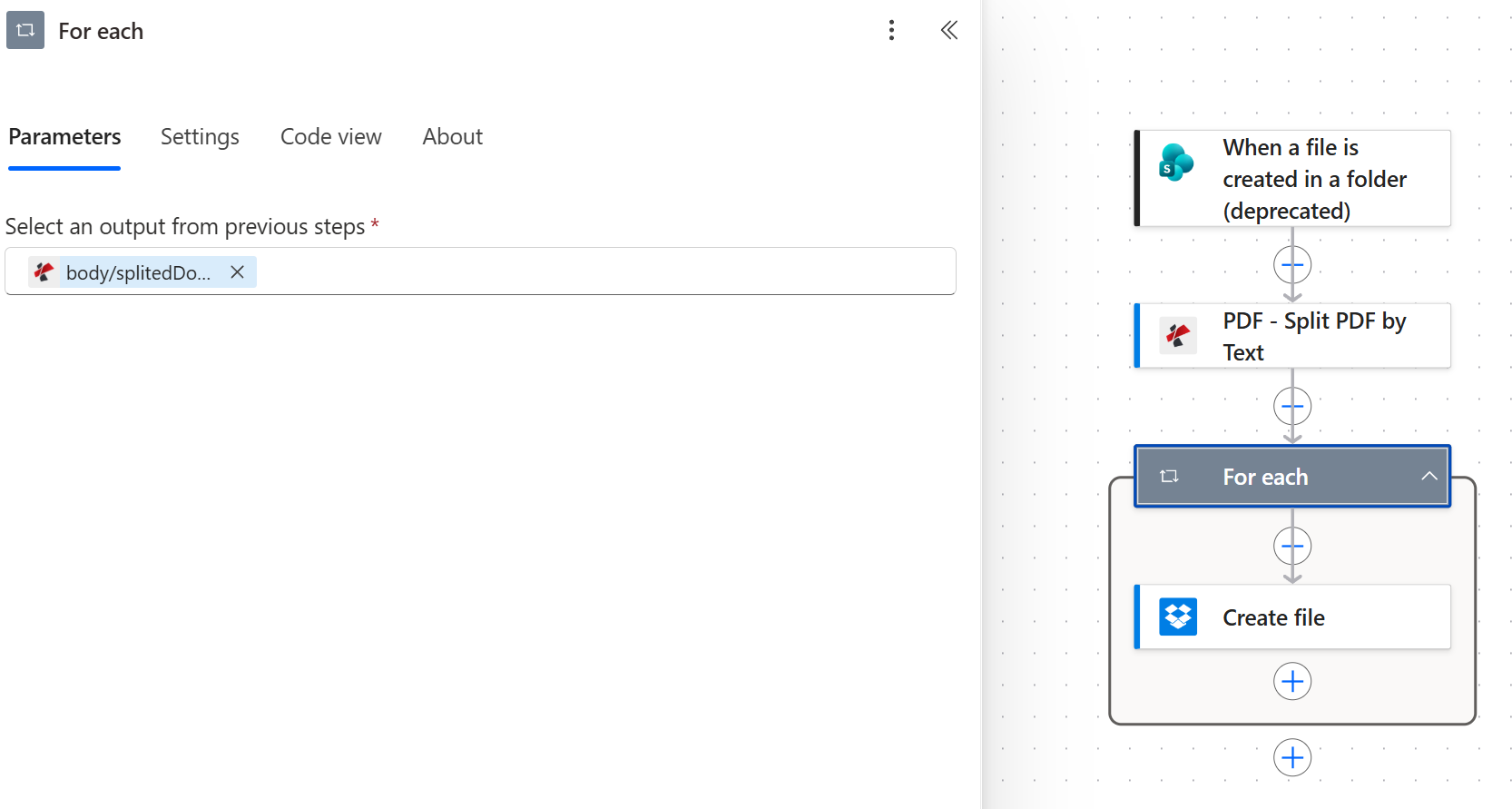
One token is the entire configuration. If Power Automate wrapped your Create file action in a loop automatically, it already did this for you.
This is the one line that decides whether the flow works. If you point the loop at anything other than body/splitedDocuments, the Create file action inside it will either run once with the wrong payload or not at all.
Step 4: How do you save each split file to Dropbox?
Flow so far: SharePoint trigger plus Split PDF by Text plus For each.
Inside the loop, each iteration exposes the current split file through two tokens: fileName and streamFile. Map them straight across.
- Inside the For each block, add a Dropbox action and choose Create file.
- Configure:
- Folder Path:
/ScanSplitOutput - File Name:
fileName - File Content:
streamFile
- Folder Path:
- Connect your Dropbox account when prompted.
Dropbox Create file configuration
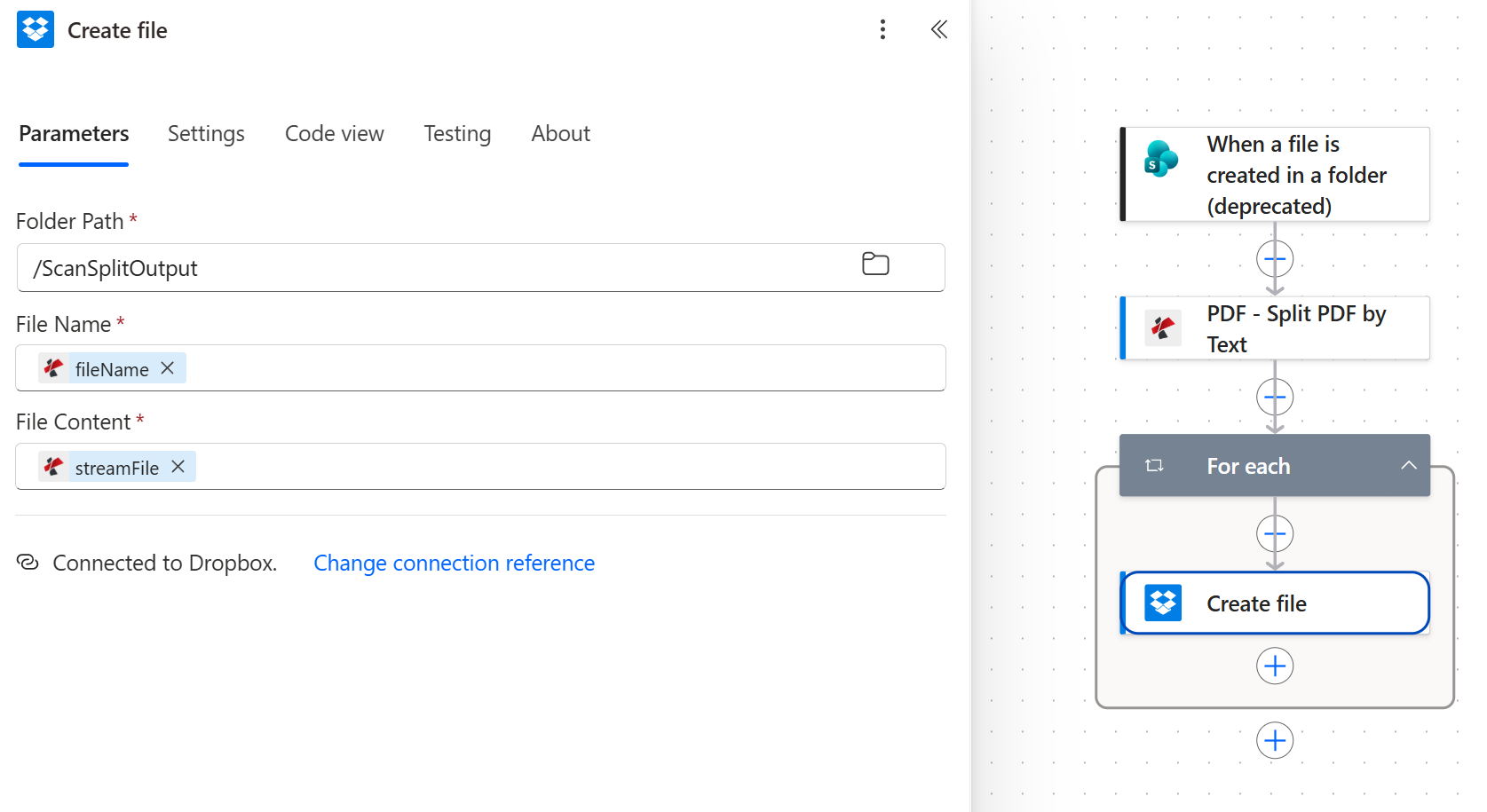
fileName and streamFile come from the current loop item, not from the trigger. Both tokens carry the PDF4me icon.
Tip. Keep the output folder different from the input folder. Writing split files back into the folder the trigger is watching creates a loop that re-triggers on its own output, which is an expensive way to discover the problem.
Run the Flow and Verify
- Save the flow at the top right.
- Upload
scan-batch-sample.pdfinto the SharePoint folder the trigger is watching. The trigger polls, so allow it a minute rather than expecting an instant run. - Open the flow's run history and confirm all four actions carry a green check. The For each block shows a counter, and it should read 1 of 3 for the sample file.
- Open
/ScanSplitOutputin Dropbox. You should see three PDFs numbered 1, 2 and 3, each containing exactly one Serial# record.
What did you actually build? A content-aware document separator. The same four actions work on any batch where each record announces itself with a consistent string, whether that is an invoice number, a patient ID, a case reference, or a chapter heading. The same PDF4me action exists in Make, Zapier and n8n, so the pattern moves platform to platform with only the trigger and storage steps changing.
Common Variations You Can Add Without Rebuilding
| Cloud flow vs the alternatives | Runs unattended | Splits on content | Needs a desktop machine |
|---|---|---|---|
| PDF4me in a Power Automate cloud flow | Yes | Yes, on any text marker | No |
| Manual online splitter | No, a human uploads each file | Sometimes, by page picker | No |
| Power Automate Desktop | Only while the machine is on | Depends on the actions installed | Yes |
Common questions
How to split PDF in Power Automate?
Add the PDF - Split PDF by Text action from PDF4me to a cloud flow, map the PDF bytes into File Content, and give it a Text value to search for. The action returns an array of separate PDFs in body/splitedDocuments. Wrap a storage action such as Dropbox Create file in a For each loop over that array and every piece gets saved.
There is no expression writing involved. The four actions shown in this post are the entire flow.
Can Power Automate split a PDF based on content?
Yes, that is exactly what this flow does. Power Automate has no native PDF splitting action, so the content awareness comes from the PDF4me connector. It reads the document's text layer and cuts wherever your search string appears, which means the split follows the records rather than a fixed page count.
The one requirement is a real text layer. A scan that has never been through OCR is just pictures of words as far as the search is concerned.
How do you split a PDF into multiple files in Power Automate?
The split itself is one action, but getting multiple files out of it takes two. Split PDF by Text produces the array, and a For each loop turns that array into one Create file call per document. Skipping the loop is the single most common reason people end up with one output file instead of several.
In the sample run here, a three-record scan produces three files named sharepoint-trigger-test 1.pdf through sharepoint-trigger-test 3.pdf, because Split File Naming was set to NameAsPerOrder.
Does split PDF work in Power Automate Desktop?
This flow is a cloud flow, and that is deliberate. It runs on Microsoft's infrastructure whenever a file lands in SharePoint, with no machine to keep powered on and no gateway to maintain. Power Automate Desktop can call the same PDF4me API, but you take on a scheduled machine and its uptime.
If your documents already live in SharePoint, OneDrive or Dropbox, the cloud flow is the simpler build.
Can you split a PDF by bookmark instead of text?
Not with this action. Split PDF by Text matches on the text layer only. If your source documents carry reliable bookmarks, the closest PDF4me equivalents are Split PDF by page number, or Split PDF by Barcode when separator sheets are in play.
In practice a text marker is more dependable than a bookmark on scanned material, because scanners do not create bookmarks but they do preserve whatever was printed on the page.
Troubleshooting
The Create file action is outside the For each loop, or the loop is pointed at the wrong token. Open the loop and confirm it reads body/splitedDocuments, and check that Create file sits inside the loop's boundary rather than below it.
No page matched the search text, so there was nothing to cut. Check the case first, because matching is case sensitive. Then open the PDF and try selecting the marker text with your cursor. If it will not highlight, the document has no text layer and needs OCR before this action can see anything.
Split Type is set to the wrong value. With before, the page holding the marker starts a new document. With after, it ends the previous one. Flip the setting and re-run.
The output folder is the same folder the trigger watches, so each split file starts another run. Point Create file at a separate folder, in this case the Dropbox /ScanSplitOutput path, and the cycle stops.
Next Steps
The same four-step pattern (watch a folder, split on a marker, loop the array, save each piece) handles any batch document that needs to become many.